
Rewinding a YouTube Live Stream: Enabling DVR and Its Limitations
What DVR Provides on YouTube Live
DVR is a feature that lets a viewer pause the current broadcast, rewind it, and resume watching from a chosen point. The stream itself doesn't stop: the creator keeps broadcasting, and other viewers can watch the stream in real time.
This feature comes in handy if a viewer joined late, missed an important phrase, or wants to rewatch a moment during a long stream. After rewinding, they'll be watching the stream behind the current point. To return to the latest available fragment, they can use the right edge of the timeline or the "Live" button, if it's displayed in the player.
DVR isn't responsible for the signal delay. Delay shows how far the stream lags behind the actual event, while DVR determines whether the video can be stopped and returned to material already shown. That's why adjusting the delay by itself doesn't enable or disable rewind.
Rewind works only within the buffer of the current stream. It doesn't open the channel's entire history and doesn't replace the stream recording. The archive after the stream ends is a separate object with its own availability and monetization settings.
Where to Enable Stream Rewind
The relevant parameter is located in YouTube Studio, in the settings for a specific live stream. In the interface, it may be called "Allow DVR," "Enable DVR," or Enable DVR. The exact location depends on the panel version, the language, and whether you're creating a new stream or editing a scheduled broadcast.
To open the setting before going live, sign in to YouTube Studio and click "Create" → "Go live." For a scheduled stream, open the stream management section and select the desired entry. Then go to editing the stream parameters.
In the control panel, find the section with stream settings. The DVR item may be located right in the main parameters or inside the "Advanced settings," "Stream settings," or "Show more" block. Turn on the toggle and save your changes if YouTube shows a separate save button.
Make sure you're editing the exact stream you plan to launch. The list may simultaneously contain a scheduled broadcast, the current stream, a completed recording, and a draft. Changing the parameters of one entry doesn't toggle DVR on another.
How to Set Up DVR Before Going Live
The best option is to enable rewind before launching the stream. In this case, the setting is already tied to the right stream, and you can test it without making changes while talking to viewers. This is especially important before a long stream, an event broadcast, or a stream that viewers will join late.
To test it, create a separate scheduled stream, set its access to "Unlisted" or another non-public mode, connect a video source, and go live. Open the viewing link in another browser or in incognito mode. If you use a second account, make sure it's allowed to view the stream at the selected access level.
Wait until the stream has been running for a few minutes. Click on the player, find the timeline, and drag the slider slightly to the left. If the video plays an earlier fragment, DVR is working. After that, return to the latest point on the timeline and end the test stream or remove it from the list if you no longer need it.
Right after launch, the available section may be too short for a convenient check. YouTube first needs to generate a video fragment that the player can play back with a delay. So the absence of a noticeable reserve in the first seconds doesn't mean the setting is off.
Can DVR Be Enabled During a Broadcast
In some streams, YouTube allows you to change the setting after going live. Open YouTube Studio, go to managing the current stream, and find the viewing settings or advanced settings. If the DVR toggle is available, turn it on and save your changes.
The change won't necessarily appear immediately in every open player. A page that's already loaded may have received the old parameters, and the viewer may not yet have a generated section to rewind. To check, use a freshly opened view of the current stream and wait for the timeline to appear.
If the toggle is missing, unavailable, or won't save, you shouldn't repeatedly change settings on a live stream. The cause may be the selected delay mode, the stream duration, the specifics of a particular stream type, or interface limitations. Lock in the parameters and check DVR after the stream ends, and enable it in advance for the next stream.
When the feature is enabled mid-stream, the viewer won't necessarily get all the material from the start of the broadcast. What becomes available is the fragment YouTube managed to generate in the buffer after the setting was applied. The amount of available video gradually increases as the stream continues.
How a Viewer Rewinds the Current Stream
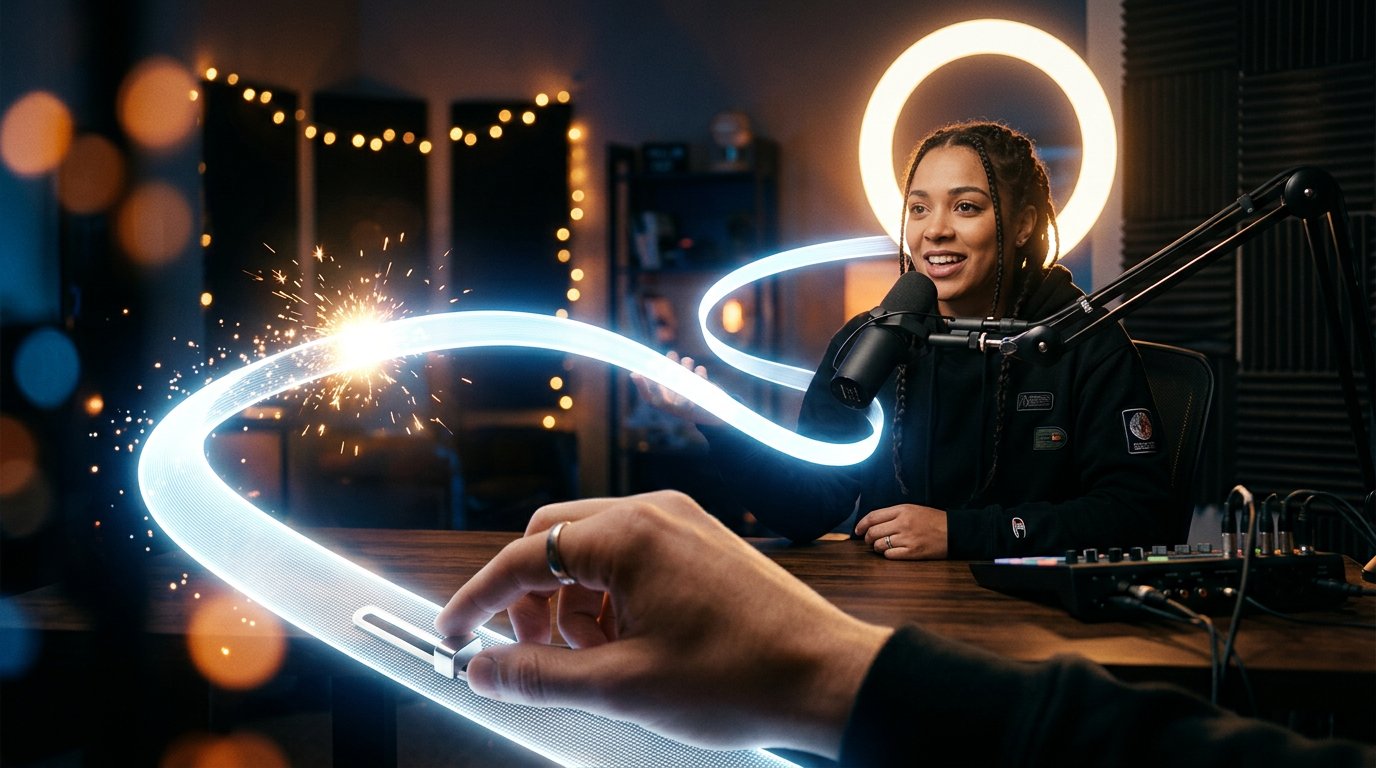
With DVR active, a viewer uses the player's standard timeline. To go back, they need to click on the timeline to the left of the current point or drag the slider to the desired spot. The pause button is used for a temporary stop. These actions only change the individual viewer's playback and don't affect the creator's stream.
On the timeline, you can usually distinguish the current viewing point from the latest available moment of the broadcast. If a viewer paused the video or rewound it, the host may already be discussing the next topic. This is normal DVR behavior: the viewer is watching the same stream but behind.
When they need to return to the live stream, they move the slider to the right edge of the timeline. In some player versions, there's a "Live" button or a similar command for this. If a viewer rewinds too far, the player won't let them go past the start of the available buffer.
DVR doesn't let you open any moment of the entire broadcast after it starts. Older fragments are available only within the active buffer window. To watch all the past material, you need the saved stream recording, if YouTube created it and it's available to viewers.
What Changes on Phones and Smart TVs
In the YouTube mobile app, DVR is usually controlled via the timeline at the bottom of the player. In normal mode, the controls may be hidden: the viewer needs to tap the video to show pause, the timeline, and other buttons. In full-screen mode, the layout of elements may differ from the browser on a computer.
On a phone, the available rewind area may be less noticeable due to the small size of the timeline. When tapping, a user sometimes moves the slider by a few seconds rather than to the desired fragment. This is a feature of touchscreen controls, not a separate DVR limit.
In the YouTube apps for Smart TVs, set-top boxes, and televisions, the set of controls depends on the device model and app version. The timeline may open with remote control buttons, and a separate return-to-live command may look different. Some apps show fewer controls than the browser version.
If there's no convenient rewind on a Smart TV, this doesn't always mean DVR is turned off for the stream itself. Check the same view on a computer or phone. When casting via Chromecast or another device, some controls may remain on the smartphone from which the stream was started.
DVR Limit: Buffer of About 12 Hours
The DVR window is not an endless archive. For YouTube Live, a limit of about 12 hours is usually cited. This is the maximum reference point for a long current stream, not a promise that any viewer at any moment will get the full twelve-hour buffer.
If a broadcast exceeds this limit, YouTube doesn't guarantee that DVR will keep working. Rewind may become unavailable or work incompletely. For such streams, there's also a risk that the recording won't be saved in full or won't be created at all. The exact behavior depends on the stream's state and video processing on YouTube's side.
During a marathon, you shouldn't rely on DVR as the only way to watch missed moments. If the format allows, split a very long stream into several separate broadcasts. Before publishing such a format, check not only rewind but also whether the recording appears after the stream ends.
DVR availability can also be affected by the delay mode. In ultra-low latency mode, rewind may be unavailable, since the player is designed for playback as close to real time as possible. If the timeline won't let you go back with the DVR parameter enabled, check the selected delay mode in the stream settings.
How DVR Relates to Advertising and Monetization
Enabling DVR by itself doesn't turn on monetization and doesn't turn off ads. Stream revenue depends on the channel's right to monetize, ad settings, the type of impression, and other YouTube conditions. Rewind is a viewing control feature, not an advertising parameter.
During a live stream, a viewer may see an ad on entry, during an ad break, or at another point YouTube selects for that specific view. The presence of DVR doesn't mean every viewer will get the same set of ad impressions. This can be affected by region, device, account, ad inventory availability, and channel settings.
If a viewer rewinds the stream, the player may play an already-shown fragment without repeating the same ad. In another case, YouTube may insert an ad impression according to its own rules. The mere fact of pausing or rewinding doesn't give the creator a separate setting to force an ad to show.
After the stream ends, the recording becomes a regular video on the channel. Ads in the replay are determined by monetization settings and the availability of impressions for the recording, not by whether DVR was enabled during the live stream. That's why enabled rewind doesn't guarantee ads in the archive and doesn't prohibit them from showing.
What to Check If Rewind Isn't Working
First, check the settings of the current stream specifically. If DVR is enabled for a scheduled stream but a different stream is running, the player won't receive that parameter. Also make sure you've opened the live stream page, not a recording, a short clip, or another channel publication.
Then assess whether the stream has been running long enough. In the first minutes, the available buffer may be minimal. If the player shows only the current point, wait until a fragment accumulates and check the timeline again.
If the feature isn't working for all viewers, check three conditions:
- the DVR toggle is enabled and saved in the current stream's settings;
- the stream hasn't approached or exceeded the limit of about 12 hours;
- the stream isn't set to a mode where DVR is limited or unavailable, including ultra-low latency.
After that, compare the view on a computer, in the mobile app, and on another supported device. If rewind is available in the browser but missing on a Smart TV or in a specific app, the cause may be the particular player. If the feature doesn't appear anywhere, save the link to the stream and the broadcast parameters to contact YouTube support.
Don't confuse the absence of a large buffer with a complete DVR failure. If the slider moves even a small section to the left, the feature is already working, but the available fragment is still limited by the stream duration or the time it takes to generate the video.
Conclusion: How to Enable Rewind Step by Step
- Open YouTube Studio and select the desired live stream.
- Go to the stream settings and find "Allow DVR," "Enable DVR," or Enable DVR.
- Activate the parameter and save your changes.
- Before an important stream, test the feature on a separate broadcast with link access.
- Open the view from another device and make sure the timeline moves backward.
- For long streams, keep in mind the buffer limit of about 12 hours and the selected delay mode.
- Check DVR separately on a computer, phone, and Smart TV: the interface and available buttons may differ.
Last Articles
What has changed in design and functionality We have updated the website to make working with it faster and more convenient. The main changes affect ..
Good afternoon, I've collected all the news during this time.: 1. The main news is that prices for twitch viewers have been greatly reduced, while Tw..
1. Use promo code "December2025" for a 15% discount for all our viewers2. We have reduced the base prices for our configurator and the most affordable..
Twitch services are working stably, so we are ready to cooperate with squads, resellers, service owners, bot owners, and many others.Individual te..
We have completely updated our Twitch viewer services, and they are now working stably. We only use high-quality IP addresses for the viewers.The ..
Hello everyone! Today, we are announcing a new feature—"Twitch Viewer Configurator". Now, you can customize any plan for your Twitch channel. Choo..
Greetings, I have compiled a guide for streamers, which will be very relevant at the moment. Now YouTube and twitch have disabled monetization from vi..
We have finally developed the APINow it will be more convenient for our partner sites to work with us.To update the maximum tariffs for YouTube, an up..
Due to the huge popularity of the partnership services and referral program, we have made a cooperation table. The essence is very simple: more live a..
Our Services for Streamers








Our Services for Content Creators






