
How to Enable Suggested Posts in a VKontakte Community
Where suggested posts work in VKontakte
You can accept suggested posts through the standard form on a VKontakte public page. A visitor submits material, and the editorial team decides whether to publish or reject it. Until it's approved, the post doesn't appear on the wall.
There may not be a separate toggle for suggested posts: the form requires the public page's wall to be enabled. In a group, the standard suggested posts queue isn't available. Instead, you can collect submissions in messages or consider converting the group to a public page.
How to enable accepting suggested posts
First, check the community type in the "Management" section. If it's a public page, go to the "Sections" section in the settings and find the "Wall" item. If the wall is disabled and the setting is available, enable it and save the changes. Item names may differ across interface versions.
After saving the settings, open the public page from a regular account without admin rights. A form or a suggest-a-news-item button should appear in the posts area. Enabling the wall affects publications in general, not just suggested posts.
Where a visitor should look for the suggest button
In a browser, the button is usually on the community's main page, next to the posts block. It may be called "Suggest a news item" or something else in the updated interface. Through the form, a visitor adds text and available attachments, then submits the material for review.
In the mobile app, open the public page and find the posts block or tab. The suggest button may be next to the feed; its location depends on the app version. If you can't find the form, check the page in a browser.
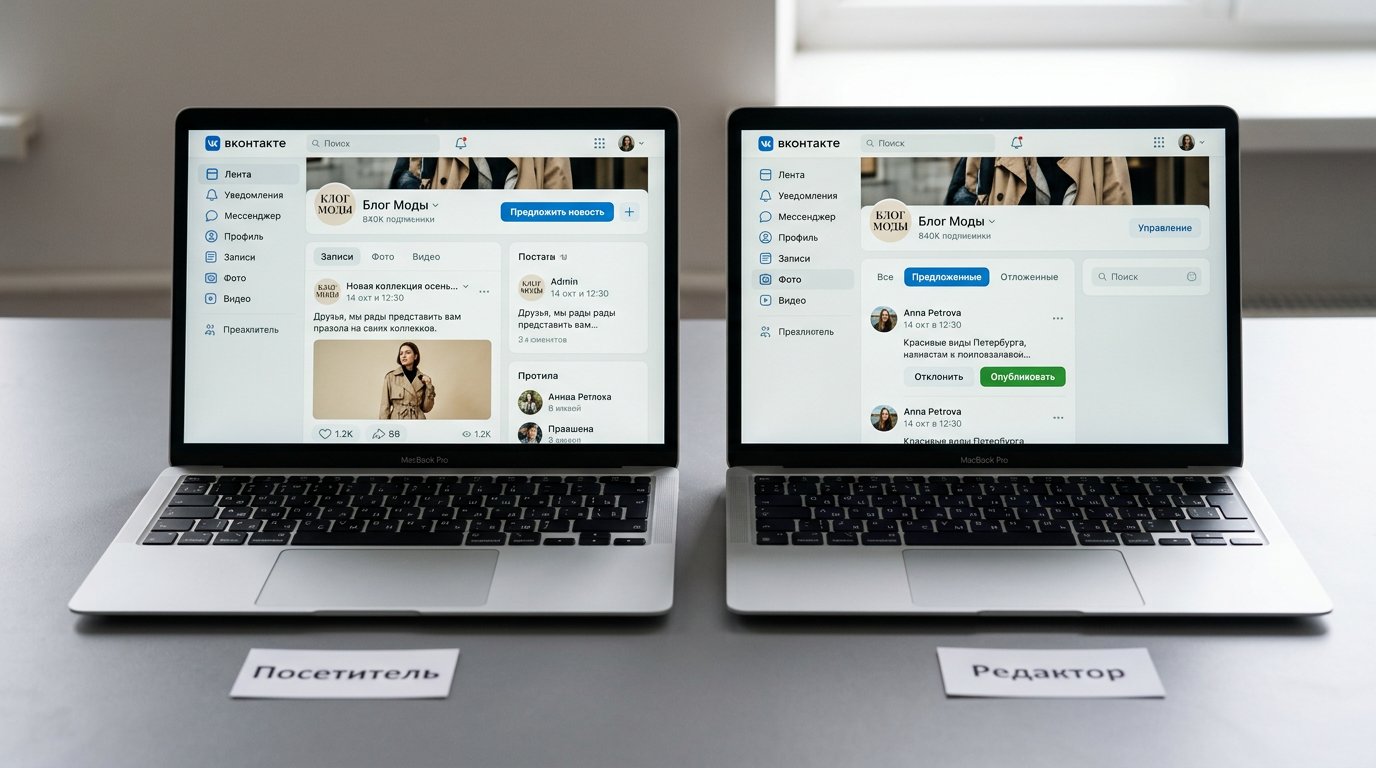
Why the editor doesn't see the visitor's button
The set of actions available on the page differs for an admin and a regular visitor. Instead of the suggest button, an administrator or editor may see a form for creating a post on behalf of the community and tabs for working with publications.
So the absence of the button under an admin account doesn't mean suggested posts are disabled. It's easier to check from an account without management rights. The editorial team finds received materials in the "Suggested" tab above the posts feed.
How to test submitting and receiving a post
A short test post from a regular account will do for checking. First, it's best to send text only, without links or attachments: if an error occurs, it will be easier to tell whether it's related to the form or to the content of the material.
Then open the community under an administrator or editor account and check the "Suggested" tab. If the queue is empty, the tab may not be displayed, so a test submission will help you find it. You don't have to publish the post: you can delete it after checking.
What to do if the form isn't working
If the button is missing even for a regular visitor, check the community type, whether the wall is enabled, and whether the settings were saved. If the problem occurs in the app, it helps to open the page in a browser: the location and availability of elements may differ.
If the form won't submit the post, try again with short text without attachments or links. If the simple test goes through, the cause may be in the content of the original submission. If the error repeats, contact VKontakte support with a link to the community and screenshots, without sharing your password or login codes.
If the submitted post doesn't appear in the queue
First, make sure the form confirmed the submission and that the material was suggested to the right community. Then refresh the queue page and check under an administrator account. If an administrator sees the test post but an editor doesn't, check the employee's role and the account they signed in with.
If the post doesn't appear for any admin, the time of the attempt, a description of the actions, and screenshots of the form and queue will be useful for contacting support. There's no need to publish test material for diagnostics.
Who sees and moderates suggested posts
The public page's queue is available to an administrator and an editor: they can view submissions and decide what to publish. After assigning a role, it's worth checking the employee's access with a test post. If an administrator sees the queue but the assigned editor doesn't, signing in again and checking the role in the managers list will help.
An editor gets rights not only for suggested posts but also for other community publications. An administrator has broader access, including settings. There's no need to assign an administrator just to handle the queue if the editor role is enough for the employee.
Can a moderator handle suggested posts
A moderator keeps order in the community, including working with comments and violations. This role doesn't replace an editor who prepares and publishes posts. To work with the queue independently, an employee needs access to publications.
If a moderator's rights can't be expanded, they can pass notes to the editor, and the decision on publishing stays with the editor or administrator. The downside of this division is an extra approval step and slower handling of materials.
How to publish a suggested post
In the "Suggested" tab, the editor opens the material and checks the text, attachments, links, and the author's signature. If the post is suitable, it can be published with the available action, and then you should check how it appears on the wall.
If scheduled publishing is available, the material can be set for the desired time. The downside of this approach is that the news, link, or event details may become outdated before it goes out. It's best to double-check important information before publishing, especially if the post was prepared in advance.
How to edit or reject a submission
If the interface allows editing material before publishing, the editor can fix typos and check attachments. Major cuts and changes in meaning are best agreed with the author, especially if the post goes out under their signature.
An unsuitable submission can be rejected or deleted with the available action. A field for the reason may not be available, and notifying the author of a rejection shouldn't be considered guaranteed: the options depend on the interface. If it's important to explain the refusal, it's better to tell the author separately when there's a way to contact them.
What to check before publishing
News and quotes should be verified against the original source, and links should be checked for content and relevance to the community's topic. Other people's personal data must not be published without grounds. The material must also comply with VKontakte's rules: deleting a disputed post doesn't undo the fact that subscribers may have already seen it.
For photos, videos, music, and text, it's worth asking for confirmation that the author created the material themselves or obtained permission from the rights holder. A link to the source alone doesn't replace permission to use it.
How to disable suggested posts
If there's no separate setting for accepting submissions in management, disabling the wall may also remove the ability to send posts. But this method affects the community's publications in general, so first check the consequences in the available settings. If suggested posts aren't needed temporarily, a gentler option is to announce a pause on submissions in a pinned post. Its downside is that the form itself may remain available and submissions will keep coming in.
How to accept materials in a group
If converting the group isn't planned, submissions can be collected through community messages. To do this, messages are enabled in management, and members are told where to send materials. After review, the editor prepares the post on behalf of the group themselves.
The downside of this method is that submissions get mixed with questions and other requests. Asking people to start the message with "For publication" will make them easier to find, but it won't create a separate queue: the correspondence will still have to be sorted manually.
How an open wall differs from suggested posts
An open group wall lets members post on their own. This format suits open communication if the team is ready to monitor the page's content. The wall setting is found in the community management sections.
The downside of an open wall is that it doesn't replace pre-moderation. Spam, suspicious links, or off-topic posts may become visible immediately, and the editorial team will have to check and delete them after they appear. To select materials before they go out, it's more convenient to accept them in messages.
What changes when converting a group to a page
A public page may suit a community that regularly needs the standard submissions queue. However, a public page can't be kept private the way a private group can. Before converting, it's important to check which materials and discussions will become available to visitors.
The way members are attracted may also change: the friend invitations familiar to groups may become unavailable. The team should check the conversion terms, the wall settings, and the required sections in advance. If the action is unavailable or its consequences are unclear, you can clarify them with support.
What to write to people submitting posts
In a pinned post, state which materials suit the community, where to send them, and what information to include. For example, a streamer's page can accept questions for the stream and clips with the author and source indicated. It's worth stating right away that submitting doesn't guarantee publication.
For a public page, the instructions should point to the suggest-a-news-item button and ask people to add the source, information about permission to use the material, and the desired signature. In a group, point to community messages instead of the button. If the editorial team doesn't give reasons for rejection, it's better to warn about that in advance too.
Last Articles
What has changed in design and functionality We have updated the website to make working with it faster and more convenient. The main changes affect ..
Good afternoon, I've collected all the news during this time.: 1. The main news is that prices for twitch viewers have been greatly reduced, while Tw..
1. Use promo code "December2025" for a 15% discount for all our viewers2. We have reduced the base prices for our configurator and the most affordable..
Twitch services are working stably, so we are ready to cooperate with squads, resellers, service owners, bot owners, and many others.Individual te..
We have completely updated our Twitch viewer services, and they are now working stably. We only use high-quality IP addresses for the viewers.The ..
Hello everyone! Today, we are announcing a new feature—"Twitch Viewer Configurator". Now, you can customize any plan for your Twitch channel. Choo..
Greetings, I have compiled a guide for streamers, which will be very relevant at the moment. Now YouTube and twitch have disabled monetization from vi..
We have finally developed the APINow it will be more convenient for our partner sites to work with us.To update the maximum tariffs for YouTube, an up..
Due to the huge popularity of the partnership services and referral program, we have made a cooperation table. The essence is very simple: more live a..
Our Services for Streamers








Our Services for Content Creators






