
Shield Mode on Twitch: How to Quickly Protect Chat from a Raid
What Shield Mode Does
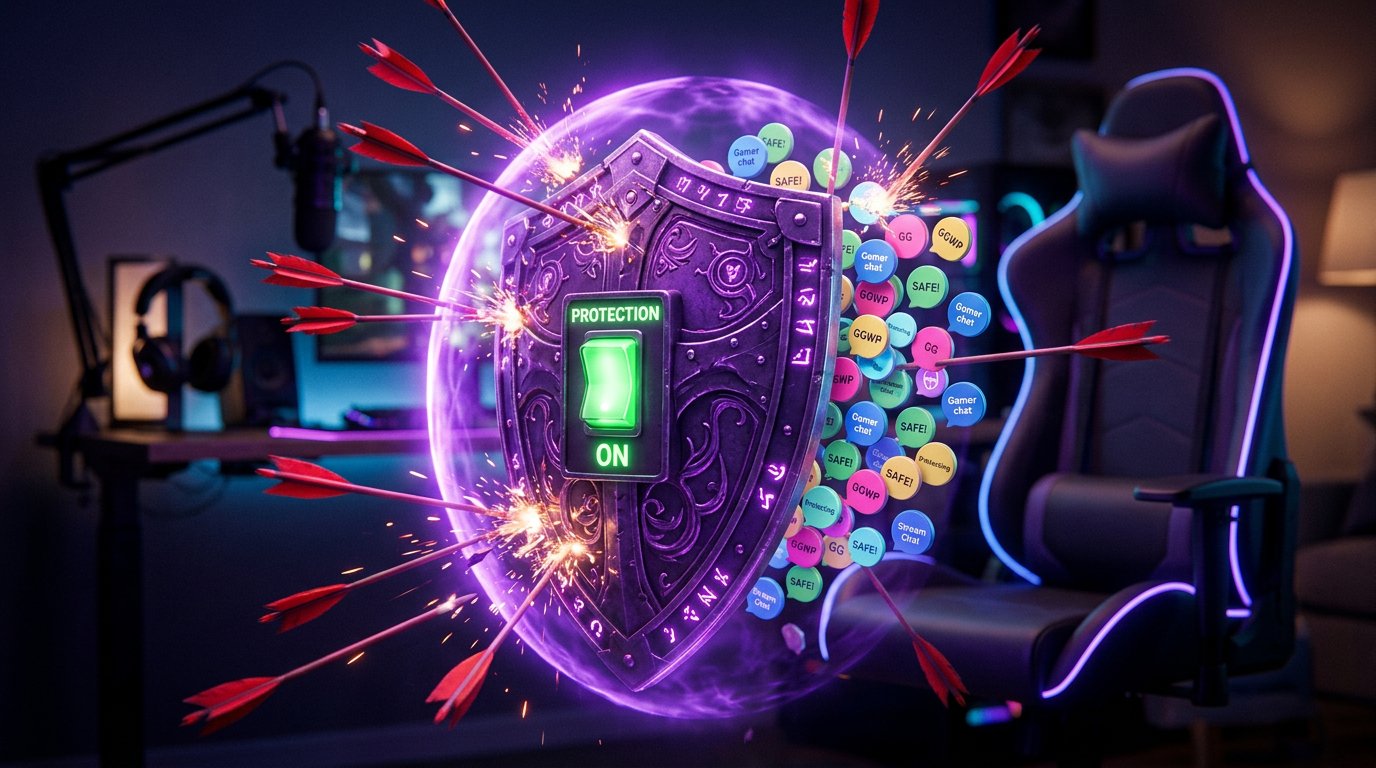
Shield Mode is a Twitch mode that activates pre-selected chat restrictions with a single action. It helps during a malicious raid—for example, when accounts sending spam, insults, or suspicious links arrive all at once.
The mode does not stop the raid itself and does not replace moderation. Its job is to limit messages while moderators deal with the offenders. Regular viewers may also temporarily lose the ability to write.
How to Enable Shield Mode with a Command
The channel owner or a moderator can type the /shield command in chat. To disable it, use /shieldoff. Commands are handy when chat is already open and there's no time to look for a button. They are not available to regular viewers.
When enabled, the Shield Mode settings selected for the channel are applied. If you haven't checked them yet, it's best to do so before going live: the command won't determine on its own which restrictions are needed against a specific attack.
Where to Find the Shield Mode Button
Open your channel's chat or Twitch's moderator mode—Mod View, marked by the sword icon below the chat. In the chat panel, find the Shield Mode shield icon and click it. In the panel that opens, turn the mode on with the toggle. The button is accessible to the channel owner and moderators.
In the creator dashboard, you can also add the button to Quick Actions in the Stream Manager section: click the plus in the quick actions block and find Shield Mode. The button is convenient when working with a mouse, but finding it during an attack takes longer than typing a command.
Where the Protection Settings Are Located
Click the shield icon in chat or Mod View and open the Shield Mode settings in the panel that appears. There you set the restrictions that should activate along with the mode. It's best to prepare them before streaming and then test them with a short activation of protection.
Once enabled, the shield icon and the mode panel show that protection is active; a notification about activation also appears in chat. If the Twitch interface has changed, the shield icon and the Shield Mode name remain your reference points.
What Restrictions Are Available in Shield Mode
Shield Mode settings offer chat modes, including subscribers-only, followers-only, and emote-only. You can also block messages from those writing in the channel chat for the first time and set words or phrases for actions against offenders.
These measures serve different purposes. Subscribers-only narrows the pool of participants but excludes non-subscribed regular viewers. Followers-only won't help if the attackers are already following the channel. Emote-only removes text spam but doesn't allow normal conversation with words.
Restricting New Participants and Links
Blocking first messages applies to those who haven't yet written in the channel chat. This is not the same as an account age restriction: an old account of a new viewer will also fall under the rule, while an offender who has written before will not.
Phone or email verification and hyperlink blocking are configured separately in the channel's moderation settings. Don't assume that Shield Mode will automatically block all links. Verification makes it harder for some viewers to join chat, and link blocking can interfere with useful messages.
Words, Phrases, and Mass Blocking
In Shield Mode, you can specify insulting words or phrases used in the attack and apply mass blocking to accounts associated with them. Before confirming, carefully check the wording: a common word or part of a harmless phrase may affect innocent viewers.
If necessary, delete individual messages and block specific accounts manually. This is more precise than a mass action, but with a large flow of violations it takes more time.
How to Tell a Malicious Raid Apart
The reason to react is not the audience growth itself, but a stream of identical insults, spam, suspicious links, or provocations from many accounts. During a normal raid, viewers may also write similar greetings, so it's important to look at the content of the messages.
If the attack develops quickly, you can enable protection right away and sort things out afterward. The cost of caution is temporary inconvenience for viewers who haven't broken the rules. Restrictions that are too lenient, on the other hand, will leave attackers able to keep spamming.
What to Do While Protection Is Enabled
Moderators can delete messages, issue timeouts, and block participants who continue to break the rules. For threats and other prohibited content, it's worth submitting reports through Twitch's tools.
Don't repeat insults on stream and don't show suspicious links on screen: this gives attackers extra attention. At the same time, after messages are deleted it's harder to restore context, so it's useful to discuss the order of reporting and deletion with moderators in advance.
How to Disable Shield Mode After a Raid
When the flow of violations stops, type /shieldoff or open the shield panel again and turn the mode off. Restrictions temporarily enabled through Shield Mode will no longer apply; chat settings will return to the state they were in before it was enabled.
Blocks on individual participants need to be checked separately: disabling the mode doesn't automatically lift them. You don't have to remove protection at the first pause—attackers may return—but keeping restrictions on for a long time without need is inconvenient for conversation.
How to Prepare Moderators
Before going live, agree on who enables protection, who handles violations, and who informs the streamer about what's happening. Test the button, commands, and selected restrictions together with your team. Moderation access should only be given to those the channel owner trusts: a moderator's mistake also affects viewers.
After an attack, review disputed blocks and settings for the next stream. If protection restricted regular participants too much or didn't stop the spam, change the selected measures before the next broadcast.
Last Articles
What has changed in design and functionality We have updated the website to make working with it faster and more convenient. The main changes affect ..
Good afternoon, I've collected all the news during this time.: 1. The main news is that prices for twitch viewers have been greatly reduced, while Tw..
1. Use promo code "December2025" for a 15% discount for all our viewers2. We have reduced the base prices for our configurator and the most affordable..
Twitch services are working stably, so we are ready to cooperate with squads, resellers, service owners, bot owners, and many others.Individual te..
We have completely updated our Twitch viewer services, and they are now working stably. We only use high-quality IP addresses for the viewers.The ..
Hello everyone! Today, we are announcing a new feature—"Twitch Viewer Configurator". Now, you can customize any plan for your Twitch channel. Choo..
Greetings, I have compiled a guide for streamers, which will be very relevant at the moment. Now YouTube and twitch have disabled monetization from vi..
We have finally developed the APINow it will be more convenient for our partner sites to work with us.To update the maximum tariffs for YouTube, an up..
Due to the huge popularity of the partnership services and referral program, we have made a cooperation table. The essence is very simple: more live a..
Our Services for Streamers








Our Services for Content Creators






