
How to Restrict a YouTube Live Moderator's Permissions During a Stream
What Exactly Can You Restrict for a YouTube Live Moderator
YouTube doesn't let you configure each moderator action separately. The platform won't let you keep a user's permission to delete messages but block them from issuing timeouts. Nor can you enable only chat cleanup and disable hiding violators from the channel.
A regular moderator gets the standard set of tools for working with live chat. Usually they can delete messages, temporarily restrict participants, and hide users from the channel. A managing moderator has broader powers related to organizing moderation and working with other moderators.
So a request to "temporarily trim permissions" can mean three different things: swapping a managing moderator for a regular one, fully removing the role for the duration of the stream, or asking a helper not to use certain tools. Technically, YouTube supports only the first two options—more precisely, changing the role or removing it.
If a user should watch the stream and write in chat but shouldn't manage messages, you need to remove them from the moderator list. After that they'll remain a regular viewer, unless they have other restrictions or separate channel access.
The Main YouTube Limitation: There Are No Separate Permissions Within a Role
YouTube doesn't provide a panel where you can set individual toggles for deleting messages, timeouts, hiding participants, and other actions. The role is assigned as a whole. Duration and scope of powers are different settings.
Assigning someone for a single stream, if that option is available in your version of the panel, limits how long the role lasts but doesn't make it weaker. A regular moderator on the current stream still keeps the standard set of tools. Likewise, a temporary managing moderator doesn't become a regular one just because they were assigned for one broadcast.
If a helper only needs to watch the chat, choose the regular role, not the managing one. This reduces the access level but doesn't remove the standard moderator actions. When you need to fully eliminate the ability to interfere with chat, the only reliable way is to remove the role.
It's important not to count on an assignment ending automatically if you add someone through the message menu during a stream. In different YouTube sections and interface versions, the assignment may display differently. After adding, check the overall moderator list and manually remove the role after the broadcast if you want to prevent it carrying over to future streams.
The Most Reliable Option During a Stream Is to Remove the Role
If a moderator should temporarily become a viewer, remove them from the moderator list. This doesn't block them from watching the stream or prevent them from writing messages, unless other restrictions apply to the user. They simply stop seeing and using chat management tools.
For a permanent moderator, YouTube doesn't provide a separate button to "not apply permissions only for this stream." If you leave a user in the permanent list, their role will continue to apply. To restrict them specifically for the duration of the current broadcast, remove the role before or during the stream, and after it ends, add the user back if needed.
- Determine whether the user is assigned as a regular or managing moderator.
- Open the current stream's chat and try to remove the role from the user's message menu.
- If there's no message or you can't see the needed command, go to the moderator list in YouTube Studio.
- Remove the user from the corresponding list.
- Refresh the chat and confirm that moderation tools no longer appear next to their name.
- After the stream, manually restore the role if the helper should work on future broadcasts again.
This method temporarily changes permissions at the channel level, so until restored, the user won't be able to moderate other streams either. On the plus side, they won't be able to use moderator functions on the current stream.
How to Remove Permissions via a Message in Live Chat
This method is convenient when the moderator has written a message during the stream. The action is performed from a specific message's menu, so you don't need to search for the user among all participants.
- Open live chat in the stream control panel or on the stream page.
- Find the message from the user whose permissions you need to revoke.
- Open the message menu with the three dots.
- Find the command related to removing or deleting the moderator.
- Confirm the action if YouTube shows an additional window.
- Refresh the chat and check that the user is no longer marked as a moderator.
The command name depends on the language and interface version. In one version it might be an option to remove permissions, in another it's removing the moderator. If there's no such command, check that you're signed in as the channel owner or an account with sufficient permissions.
Removing the role prevents new actions but doesn't undo operations already performed. A deleted message won't be restored, an issued timeout may continue to apply, and a user hidden from the channel won't reappear automatically.
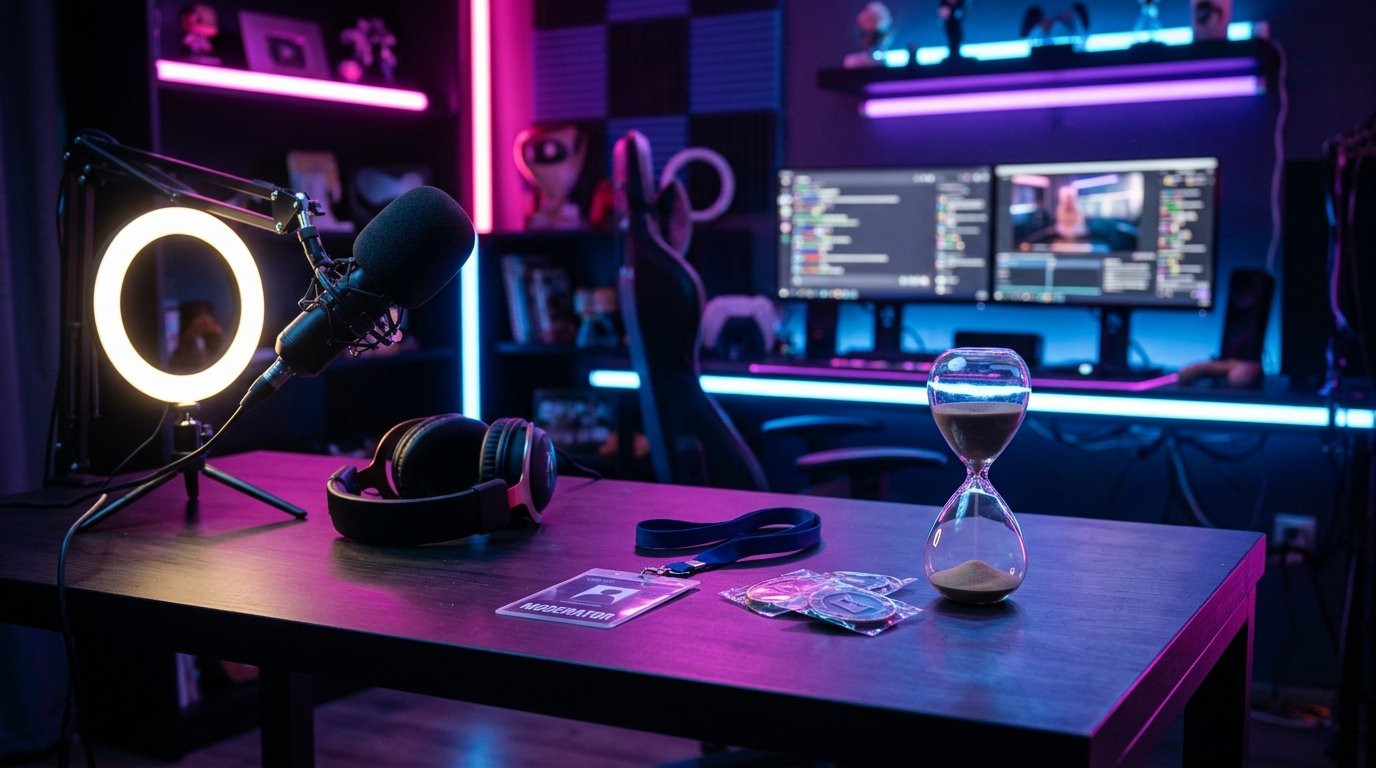
How to Remove a Moderator via YouTube Studio
If the user has no messages in chat, open the moderation settings in YouTube Studio. The path may vary slightly, but usually the moderator lists are found in the channel settings under "Community" or within the "Automated filters" block.
- Sign in to YouTube Studio with the owner or administrator account.
- Open "Settings."
- Go to the "Community" or "Automated filters" section.
- Find the lists of regular and managing moderators.
- Open the list that matches the user's role.
- Remove the user's channel from the list and save the change if YouTube prompts you to.
A permanent moderator can sometimes also be removed from their message menu during a stream, but checking through Studio is more reliable. The settings show where the access comes from: the regular moderator list or the managing list.
If the user was a managing moderator but still needs to provide standard help, remove them from the managing list and add them to the regular list. This lowers the role level but doesn't disable the standard functions of a regular moderator.
For a one-time restriction, restore the user to their previous list after the stream. If you don't, the role removal will remain in effect for future broadcasts as well.
Can You Temporarily Swap a Managing Moderator for a Regular One
Yes, if the goal isn't to fully prohibit moderation but to reduce the access level. Not every helper needs to be a managing moderator. For deleting messages, timeouts, and hiding violators, a regular role is usually sufficient.
First, note the user's current role so you don't mix it up when restoring. Then remove them from the managing moderator list and add them to the regular list. If YouTube doesn't allow the swap in one action, perform the operations sequentially and refresh the page.
This option isn't a fine-tuning of permissions. A regular moderator will still be able to perform standard chat actions. Only the functions that belong to the higher role and managing moderators will be unavailable to them.
If a regular moderator is already assigned in the permanent list, adding them for a specific stream won't reduce their permissions. You first need to remove the permanent assignment or leave the user without a role for the broadcast period. After the stream ends, you can restore the original setup.
What to Do If You Need to Prohibit Only Certain Actions
Technically, YouTube doesn't allow you to prohibit a moderator from only timeouts, hiding participants, or deleting messages. In this situation, the only option is an organizational measure: agree in advance which tools the helper won't use without approval.
For example, you can task them with deleting obvious spam but not applying timeouts to disputable participants. You can agree that hiding a user from the channel is done only by the owner. Such rules reduce the risk of errors but don't protect against accidental or intentional violations technically.
If you don't fully trust a helper, don't keep them as a moderator based only on a verbal agreement. Remove the role before the stream starts or ask them to work as a viewer: monitor messages and report issues to the channel owner through another method.
Slow mode, "subscribers only" mode, and other chat settings don't restrict a moderator's permissions. They help reduce the message flow but don't replace removing the role and don't prevent a moderator from using the commands available to them.
How to Verify That Permissions Are Actually Removed
After changing the role, don't rely only on the window open on the moderator's side. The interface may update with a delay, and an old chat tab sometimes continues to show outdated elements.
Ask the user to close and reopen the stream page. On your side, refresh the chat and the stream control panel. Check that the moderator menu no longer appears next to their messages and that their channel is absent from both the regular and managing moderator lists.
If the user continues to delete messages or restrict participants, check three sources of access:
- the role assigned in the current stream's chat;
- the permanent role in the community or automated filters settings;
- a separate channel management permission in YouTube Studio.
Hiding a user from the channel isn't the same as removing the role. A blocked or hidden participant may stop writing in chat, but this doesn't fix the moderation settings. After the stream stabilizes, still check the role lists.
Moderator and YouTube Studio Access Are Not the Same Thing
The chat moderator role shouldn't automatically grant access to uploading videos, analytics, channel settings, or managing streams. But a user could have obtained such permissions separately through a channel team invitation.
Open YouTube Studio, go to "Settings," and find the "Permissions" section. Review the list of users and their access levels. If the helper doesn't need to manage the channel, remove the extra permission or replace it with a more appropriate one.
Removing a chat moderator doesn't revoke access granted through "Permissions." So in a disputable situation, check not only the badge next to the user's name but also the list of invited team members.
Don't share your account password, backup codes, or stream key with a temporary helper. This data provides significantly more capabilities than a moderator role, and it shouldn't be used as a way to temporarily transfer access.
What Happens After the Role Is Removed
After a moderator is removed, new actions on their part should stop, but operations already performed remain. Deleted messages aren't restored automatically. If a comment was deleted by mistake, the author will usually need to write it again.
An issued timeout also isn't canceled just because the moderator lost their permissions. The restriction may continue to apply until the set period ends. If a timeout cancellation is available in the participant menu, use it separately.
Hiding a user from the channel is another separate action. If a moderator accidentally hid a viewer, find the hidden users list in the community settings and remove the relevant channel from there. The section name may differ depending on the language and Studio version.
After the stream ends, check not only the role but also the consequences of moderation: deleted messages, active timeouts, and the hidden users list. Removing permissions doesn't clear the action history.
How to Prepare the Restriction in Advance
Before the stream starts, determine what exactly the helper should do. If they only need to watch the chat, don't assign a managing moderator. If certain actions are undesirable, decide whether an agreement is sufficient or whether it's safer to fully remove the role.
Before the stream, check the moderator list in YouTube Studio and make sure the user is in the right category. If they need to be restricted for only one stream, note the current role in advance and prepare the action to restore it.
Right after the stream starts, verify permissions in practice. Ask the helper to confirm that they can see the chat but don't have extra access to channel settings. Don't ask them to specifically delete messages or issue restrictions just for a test if there's no need.
After the broadcast ends, remove the one-time assignment or restore the permanent role. Then check the "Permissions" section and moderator lists again. This check takes less time than fixing the consequences of mistaken moderation on the next stream.
Conclusions: What to Do Step by Step
- Determine whether you need to downgrade a managing moderator's role or fully remove moderation.
- Remember that YouTube doesn't allow disabling individual functions within a regular role.
- For a lower access level, swap the managing moderator for a regular one.
- To leave a user as a viewer, remove their role via the message menu or YouTube Studio settings.
- Check the permanent moderator lists: a temporary action in chat doesn't always cancel a permanent assignment.
- Separately check "Settings" → "Permissions" if the user has access to YouTube Studio.
- After the stream, restore the role if it's needed going forward, and check old timeouts, hidden users, and other consequences.
Last Articles
What has changed in design and functionality We have updated the website to make working with it faster and more convenient. The main changes affect ..
Good afternoon, I've collected all the news during this time.: 1. The main news is that prices for twitch viewers have been greatly reduced, while Tw..
1. Use promo code "December2025" for a 15% discount for all our viewers2. We have reduced the base prices for our configurator and the most affordable..
Twitch services are working stably, so we are ready to cooperate with squads, resellers, service owners, bot owners, and many others.Individual te..
We have completely updated our Twitch viewer services, and they are now working stably. We only use high-quality IP addresses for the viewers.The ..
Hello everyone! Today, we are announcing a new feature—"Twitch Viewer Configurator". Now, you can customize any plan for your Twitch channel. Choo..
Greetings, I have compiled a guide for streamers, which will be very relevant at the moment. Now YouTube and twitch have disabled monetization from vi..
We have finally developed the APINow it will be more convenient for our partner sites to work with us.To update the maximum tariffs for YouTube, an up..
Due to the huge popularity of the partnership services and referral program, we have made a cooperation table. The essence is very simple: more live a..
Our Services for Streamers








Our Services for Content Creators






