
How to Choose a Cover for a TikTok Video
Where to find the cover selection
The cover is chosen after editing, on the publishing screen. To get there, tap "Next" in the video editor. Next to or on the video thumbnail, you'll see the label "Select cover."
You can open the cover editor even before publishing: it shows a preview and a frame timeline. The button name and its location may vary depending on the app version.
How to choose a frame on the timeline
Below the large preview is a horizontal strip of video frames. The frame marker on it shows the selected moment. As you move the marker, the image above changes.
Once you find a suitable frame, save it with the "Save" button, then check the thumbnail on the publishing screen. If the moment isn't quite right, you can open the editor again. The downside of the timeline is that hitting a specific phase of fast motion can be difficult.
Which moment works best for a cover
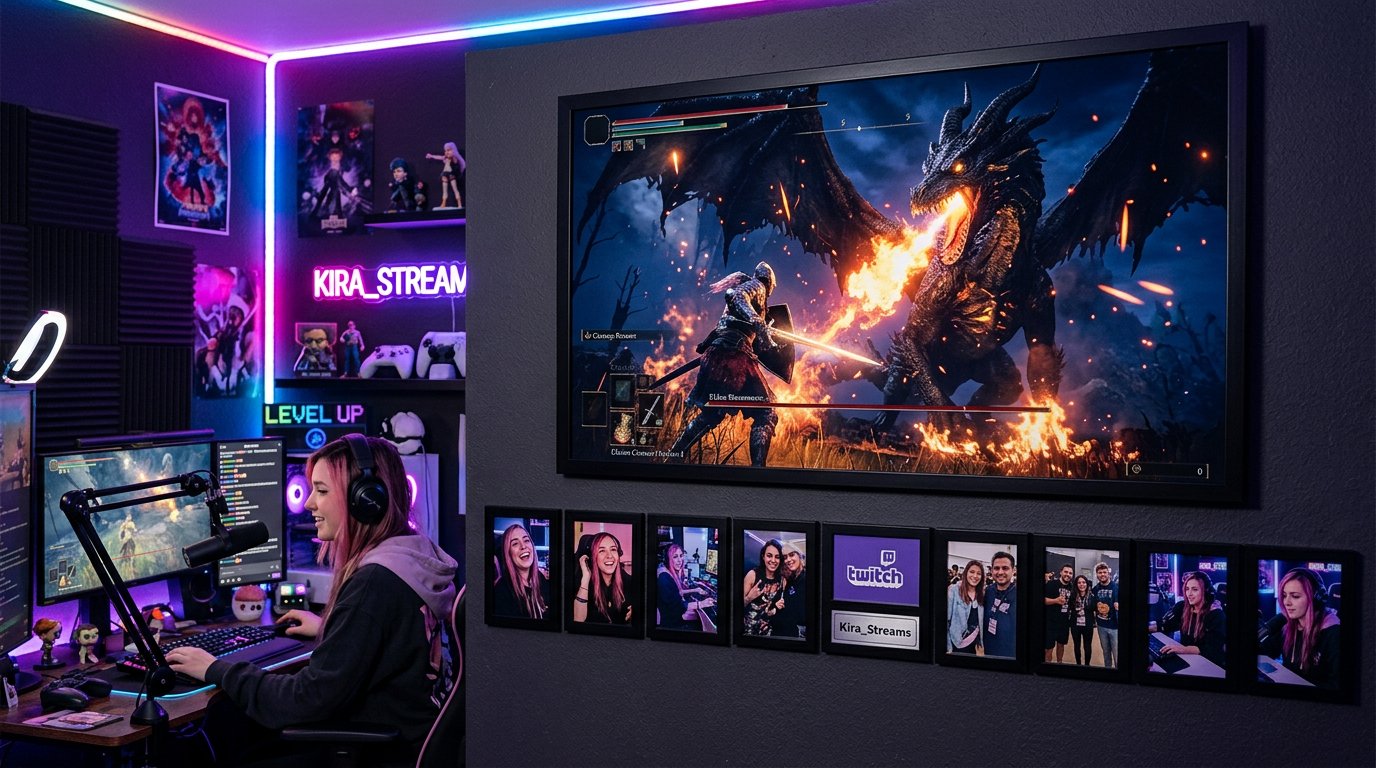
A good reference point is the main subject of the video: the creator's face, the result of the work, the item being reviewed, or a recognizable moment from the game. In a small profile tile, a large subject is easier to make out than a scene with lots of small details.
A striking frame doesn't always explain the content. A close-up of a face before a reaction can convey emotion but won't show the game or event. A gaming moment is clearer in terms of topic, though the streamer may be barely visible in it.
How to find a sharp frame
With fast camera movement, a head turn, or a scene change, the image may be blurry. On a small cover, a blurred face, object, or game detail is even harder to make out.
It's worth comparing neighboring frames around the moment you want. If the timeline won't let you land precisely on a good phase of motion, you can pick another moment from the same episode. The composition or facial expression may be less ideal, but you won't have to change the video itself.
How to add text to the cover
The cover editor may offer text styling options. A short caption clarifies the topic: it names the game, states the result of an experiment, or indicates the episode number. A long line is hard to read on a profile tile, and the caption takes up space needed for the image.
For text, it's best to choose a contrasting area of the background and avoid covering the face or an important detail of the game frame. On a busy scene, letters can get lost. It's more convenient to leave the details in the video description.
How to account for cropping in the profile
In different places on TikTok, the thumbnail of the same video may be displayed with different cropping. It's best to keep the face, object, and text closer to the center, leaving a margin from the edges. Elements near the top and bottom edges of a vertical frame may not fully appear in the thumbnail.
A central composition doesn't always show the scene in full. If both the streamer's face and the game interface at the edge matter, you'll have to choose the main detail or find another moment.
How to check the cover at a small size
After saving, take a look at the thumbnail on the publishing screen: the face, game title, or result of the work should be distinguishable without zooming in. Small subtitles and interface details may be useful in the video but work poorly on a cover.
For a series of videos, it's convenient to use a similar composition and text placement. The downside of identical styling is that neighboring episodes are harder to tell apart. A noticeable detail or a short caption for each video helps.
What to check before publishing
On the publishing screen, it's important to make sure the right frame was saved, the caption is readable, details aren't at the edges, and the image matches the content. Then you can check the description and publishing settings.
The cover doesn't change the first frame of the video: the beginning of the video should be evaluated separately. If publishing is postponed, you can save the video to drafts and check the selected cover once more before posting.
Can you change the cover after publishing
In some versions of TikTok, you can change the cover of a published video by editing the post. To do this, open the video in your profile, find the menu with three dots or another button, and check whether cover editing is available.
Whether the setting is available depends on the app version and the post. If it's not there, you can keep the current cover or publish the video again. The downside of republishing: views, comments, and other metrics from the old video won't transfer to the new one.
When to add a separate image through editing
The cover timeline offers frames from the video itself, not a separate file. A pre-made design can be inserted into the video during editing, then found on the timeline and saved as the cover. If you can't land on the image, the segment may be too short for precise selection.
The downside of this method is that the image becomes part of the video and will be visible during playback. Such editing is justified when the finished design is truly needed and its appearance doesn't interfere with the video. If a continuous opening or a natural transition between scenes matters more, it's better to choose a clear frame from the already-edited video.
Last Articles
What has changed in design and functionality We have updated the website to make working with it faster and more convenient. The main changes affect ..
Good afternoon, I've collected all the news during this time.: 1. The main news is that prices for twitch viewers have been greatly reduced, while Tw..
1. Use promo code "December2025" for a 15% discount for all our viewers2. We have reduced the base prices for our configurator and the most affordable..
Twitch services are working stably, so we are ready to cooperate with squads, resellers, service owners, bot owners, and many others.Individual te..
We have completely updated our Twitch viewer services, and they are now working stably. We only use high-quality IP addresses for the viewers.The ..
Hello everyone! Today, we are announcing a new feature—"Twitch Viewer Configurator". Now, you can customize any plan for your Twitch channel. Choo..
Greetings, I have compiled a guide for streamers, which will be very relevant at the moment. Now YouTube and twitch have disabled monetization from vi..
We have finally developed the APINow it will be more convenient for our partner sites to work with us.To update the maximum tariffs for YouTube, an up..
Due to the huge popularity of the partnership services and referral program, we have made a cooperation table. The essence is very simple: more live a..
Our Services for Streamers








Our Services for Content Creators






