
Choosing a Motherboard for a Streaming PC: Ports, Capture, and Stability
Start Choosing a Motherboard with Your Streaming Setup
It makes sense to pick a motherboard not by the number of features on the product page, but for your specific workstation. One build simultaneously plays games, encodes the broadcast on the GPU, records locally, and keeps a USB microphone connected. Another receives a signal from a console or a second PC via a capture card, uses a camera, audio interface, scene controller, and several drives.
Make a list of the devices that will be connected permanently: graphics card, drives, capture card, camera, microphone or interface, wired network, control devices, fans. For a streaming PC, a motherboard's value is determined by the occupied connectors and stable operation, not by the maximum number of features.
The Processor Determines the Socket and Power Requirements
First choose the processor, then a motherboard with the right socket and support for that specific model. Matching the socket doesn't guarantee it will boot: a new processor may require a fresh BIOS version. This matters for a DIY build, when the computer needs to start right away rather than after a trip to a service center.
If the broadcast is encoded by the graphics card, the processor may still be running the game, a browser with the control panel, bots, plugins, recording, and audio processing. The downside of a motherboard that's too basic for a powerful CPU is that under prolonged load you may see VRM overheating, clock speed drops, or unstable operation.
Check CPU Power Delivery Against Reviews of the Model
The CPU power delivery system and its cooling are especially important for long broadcasts. The load during a stream isn't like a short gaming session: the computer may run for hours without pauses, and the temperature inside the case gradually rises. Look at independent reviews of the motherboard with processors of a similar class and data on VRM temperatures.
The number of phases in the description doesn't by itself show the quality of the power delivery. A large decorative shroud and RGB lighting don't replace proper heatsinks either. The downside of an expensive motherboard with excessive power delivery is that the extra cost won't benefit an energy-efficient processor without overclocking.
Choose the Chipset Based on Your Streaming Setup's Devices
The chipset affects the number of available USB, M.2, SATA, and additional PCIe lanes. It doesn't improve the image quality of your broadcast or make your microphone sound better. For a single-PC stream with one graphics card, one or two SSDs, a USB camera, and a wired network, a mid-range motherboard is often enough.
A higher-tier chipset is justified in a different scenario: the streaming PC has a PCIe capture card, several fast drives for games and recordings, an external audio interface, a camera, and you need spare ports. The downside of such a motherboard is that some of its capabilities may go unused, and budget will be diverted from the components you actually need.
Count Your USB Devices Before Buying a Motherboard
USB is one of the key parameters specifically for a streamer. The rear panel may simultaneously connect a camera, capture card, USB microphone or audio interface, keyboard, mouse, controllers, a drive, and a scene control device. Front case ports are convenient for temporarily plugging in a flash drive or disk, but it's better not to plan on them alone for permanent devices.
Count not only the total number of USB ports but also the number of fast ports of the type you need, including Type-C if necessary. The downside of a motherboard with a formally large number of USB ports is that some connectors may be slower or share internal controllers, which limits convenience with several demanding devices.
USB Power Matters for the Camera and Audio Interface
A camera, capture card, external SSD, and audio interface may draw power from USB. When several such devices are connected in one section, instability can show up as image dropouts, audio reconnections, or a device disappearing mid-stream. This doesn't always mean the peripheral itself is faulty.
Study the motherboard manual: it shows the internal USB headers and port distribution. If there are many devices, it's useful to spread the camera, capture card, and audio interface across different port groups rather than using random adjacent connectors. The downside of an unpowered USB hub is that it may not handle several power-hungry devices.
Internal USB Headers Are Needed for the Front Panel
A case may have front USB Type-A, Type-C, or both. For them to work, the motherboard must have the corresponding internal headers. This is useful if you regularly connect an external SSD with broadcast recordings, a camera for setup, or a drive for transferring materials to the front panel.
An adapter usually solves the problem of mismatched connectors. Its downside is that it occupies an internal header, complicates cable management, and may not deliver the same speed the case port is rated for. It's not worth paying extra for a front Type-C on the motherboard if the case doesn't have such a port and you don't need it for work.
A PCIe Capture Card Suits a Permanent Setup
An internal PCIe capture card is convenient for a dual-PC stream, a console, or a permanent HDMI source. It doesn't take up an external USB port and doesn't add an extra cable to your workspace. It needs a free slot of the right physical size and enough distance from a bulky graphics card.
On a compact motherboard, the graphics card often covers the adjacent slot, even if it's listed in the specs. Also, some slots may share lanes with M.2 or run in a limited mode when drives are populated. The downside of a PCIe capture card is that choosing the motherboard and case becomes more demanding, and moving the device to another computer is harder.
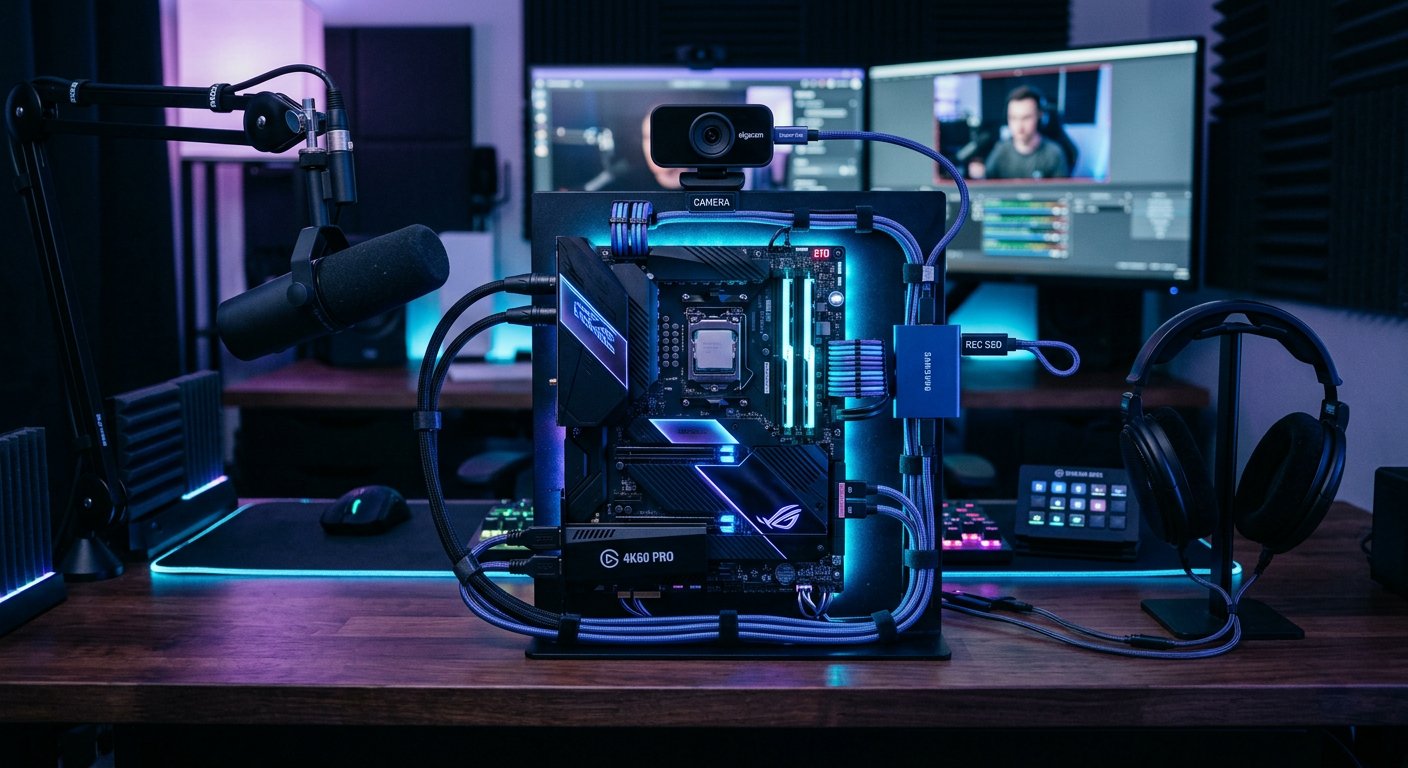
A USB Capture Card Is Easier to Connect but Takes a Port
An external capture card is suitable when you need to quickly set up a rig, occasionally capture a console, or use the device on different computers. It doesn't need a free PCIe slot, so a motherboard with one graphics card and no expansion headroom will do. It's important to allocate a suitable USB port for the card and not share it with other demanding devices unless necessary.
The downside of the USB option is that it takes up an external port and depends on cable quality and USB connection organization. If a camera, interface, external drive, and capture card are used simultaneously, a cheap motherboard with few suitable ports will quickly become a bottleneck. In that scenario, an internal card or a motherboard with a more thoughtful USB layout may be more convenient.
The Main PCIe Slot Is for the Graphics Card
For a gaming stream, the graphics card usually occupies the primary full-size PCIe slot. It's not worth paying extra for the newest interface standard if the graphics card and capture card don't get any practical benefit from it. It's far more important to check the expansion layout in the manual rather than relying only on the number of slots in the photo.
Some motherboards change slot operating modes, disable certain SATA ports, or limit available lanes when an additional card or SSD is installed. This is a standard feature of the layout. The downside of careless selection is that after assembly you may have no working slot left for the capture card, or you'll have to give up a planned drive.
Choose Memory for Simultaneous Streaming Tasks
For a streamer, what matters isn't the record memory frequency in the motherboard specs but the predictable operation of the kit during gaming, OBS, browser, chat, plugins, and local recording. If editing, heavy projects, a virtual camera, or work with multiple sources are added to a regular stream, the need for memory capacity grows.
Four slots are convenient when you plan to expand without replacing already-purchased modules. Two slots suit a ready-made configuration where memory capacity is chosen upfront. The downside of a two-slot motherboard is that when upgrading, you'll often have to sell the old kit and buy a new one rather than simply adding modules.
Don't Overspend on Extreme Memory Modes
A high rated memory frequency doesn't guarantee that any kit will run at it without manual tuning. The result is affected by the processor, BIOS version, the number of installed modules, and the specific memory chips. For streaming, the absence of errors and crashes matters more than a small difference in synthetic benchmarks.
Check the list of tested memory kits on the manufacturer's page and reviews of the motherboard's operation with your chosen module series. Memory outside the list may also work fine. The downside of an overly fast kit is the extra cost and the risk of spending time hunting for stable settings instead of preparing content.
Wired Network Matters More Than Wi-Fi for Regular Streams
The motherboard should have a wired network port if you can connect the computer to the router or network equipment via cable. Choose the port speed for your local network: a faster controller won't fix problems with your ISP, the route to the platform, the router, or a congested channel.
Wi-Fi is useful where a cable can't be run, and Bluetooth is convenient for some peripherals. The downside of a wireless connection is that it's more sensitive to interference, distance, and network load from neighboring devices. For regular streams, it's better to keep Wi-Fi as a backup rather than the main channel when possible.
Plan Drives with Local Recording in Mind
One M.2 is enough for a simple build where the system, games, and materials fit on a single SSD. If you often record streams locally, keep source footage for videos, or edit after a broadcast, it's more convenient to plan a separate drive in advance. This reduces confusion between system files, games, and the archive.
Check which M.2 drives work simultaneously with the SATA ports you need and the additional PCIe slot. An SSD heatsink is useful for long recordings but shouldn't be the main criterion. The downside of a motherboard with a single M.2 is less freedom when expanding, although a SATA drive remains a viable option.
Form Factor Affects Ports and Expansion
A compact motherboard suits a tidy streaming space with one graphics card, a USB capture card, and a small number of drives. A full-size format is more convenient if you need a PCIe capture card, several SSDs, more fan connectors, and spare USB. Before buying, check the motherboard size against case support.
The downside of a compact format is fewer slots and internal headers, and a large graphics card may cover the only additional PCIe connector. The downside of a full-size motherboard is that it's more expensive and won't fit in a small case. Choosing the largest format without devices for it makes no sense.
BIOS and Diagnostics Help You Recover Faster After a Failure
Check support for your chosen processor and the ability to update the BIOS without an installed CPU if the platform requires a fresh firmware. For a streaming PC, this reduces the risk of delaying the first build due to incompatibility. Simple diagnostic indicators are also useful, helping you understand at what stage the system fails to start.
An expensive code display and buttons on the motherboard itself aren't necessary for a computer that will sit under the desk after assembly. The downside of a motherboard without a standalone BIOS update feature is that with old firmware, you may need another compatible processor or service center help. RGB lighting and decorative shrouds don't affect stream stability.
Check the Motherboard Against Your Device List Before Ordering
- Verify the socket, processor support, and required BIOS version.
- Check CPU power delivery against independent reviews with a similar processor.
- Count your permanent USB devices: camera, capture card, audio interface, controllers, and drives.
- Make sure there are suitable USB ports and internal case headers for demanding devices.
- Decide whether your capture card will be USB or PCIe, and check for a free slot after installing the graphics card.
- Open the manual and study the M.2, SATA, and PCIe limitations when devices are connected simultaneously.
- Check the wired network port and the ability to connect the computer via cable.
- Rule out features that won't be used: extra slots, wireless modules, RGB lighting, and extreme overclocking modes.
Last Articles
What has changed in design and functionality We have updated the website to make working with it faster and more convenient. The main changes affect ..
Good afternoon, I've collected all the news during this time.: 1. The main news is that prices for twitch viewers have been greatly reduced, while Tw..
1. Use promo code "December2025" for a 15% discount for all our viewers2. We have reduced the base prices for our configurator and the most affordable..
Twitch services are working stably, so we are ready to cooperate with squads, resellers, service owners, bot owners, and many others.Individual te..
We have completely updated our Twitch viewer services, and they are now working stably. We only use high-quality IP addresses for the viewers.The ..
Hello everyone! Today, we are announcing a new feature—"Twitch Viewer Configurator". Now, you can customize any plan for your Twitch channel. Choo..
Greetings, I have compiled a guide for streamers, which will be very relevant at the moment. Now YouTube and twitch have disabled monetization from vi..
We have finally developed the APINow it will be more convenient for our partner sites to work with us.To update the maximum tariffs for YouTube, an up..
Due to the huge popularity of the partnership services and referral program, we have made a cooperation table. The essence is very simple: more live a..
Our Services for Streamers








Our Services for Content Creators






