
Choosing a PCIe Capture Card for a Two-PC Setup
First, determine the gaming PC's signal
The capture card must accept the mode the gaming PC is running: resolution, refresh rate, HDR, VRR, and color format. If the monitor runs at a high refresh rate, seeing "4K support" on a product page isn't enough. You need to check separately what signal the card accepts on input, what it passes through to the monitor, and in what mode it delivers the image to OBS.
Don't confuse the input signal, capture, and passthrough output. A card may accept a high mode from the graphics card, output it to the monitor via passthrough, and simultaneously send 1080p60 to the second PC. But with another model, the high mode will only be available on the output, while capture will be limited. All three modes must be verified separately against the specifications of the specific card revision.
Choose the mode for streaming and recording
For 1080p60 streaming, you don't always need 4K capture. What matters more is stable operation of the source in OBS, correct audio transmission, and no issues when launching a game, changing resolution, or waking the monitor from sleep. A capture card won't fix an overloaded CPU, unsuitable encoder settings, or a slow drive on the second PC.
Recording the source in high resolution is useful for editing, clips, and archiving, but it significantly raises the demands on the disk and video processing. The downside of a card with resolution headroom is paying extra for modes you won't use. At the same time, a model that's too basic may limit a future monitor, console, or HDR upgrade.
Capture latency and passthrough
A card has two different types of latency. The first is captured-signal latency: the time from a frame appearing on the gaming PC to it appearing in OBS on the second computer. It affects synchronization of the camera, microphone, alerts, and other sources. You shouldn't play off the OBS preview: even a small image delay is noticeable in competitive games.
The second is passthrough latency, that is, the path from the card's HDMI input to the monitor. For a gaming display, it's more critical: if the passthrough output adds noticeable processing, controls will feel delayed. On quality cards, passthrough is usually designed for gaming, but that doesn't excuse you from checking it in the required mode. The downside of routing through the card is that the monitor depends on its compatibility and behavior when switching signals.
How to check latency before purchase and after installation
Manufacturers don't always state capture and passthrough latency in a clear form. It's more useful to look for independent tests of the exact model and its current revision, conducted at matching resolution, refresh rate, and HDR mode. Reviews without a description of the test setup are less useful: latency may differ with a different source, driver, or monitor settings.
After installation, capture latency is checked by recording a visual and audio event: for example, a flash on screen and a click that land simultaneously in different OBS sources. Then the tracks are compared frame by frame. Passthrough is easier to evaluate by comparing against a direct connection of the monitor to the graphics card. The downside of such a test is that without special measuring equipment, it shows a problem but doesn't always let you precisely separate the card's latency from the display's latency.
Cards for 1080p60 streaming
For a typical two-PC setup with Full HD streaming, cards in the class of the Elgato HD60 Pro and AVerMedia Live Gamer HD 2 GC570 are suitable. They're considered primarily for 1080p60 capture, not as a universal solution for modern 4K displays. Before buying, open the manual for the chosen card and verify the available input, capture, and passthrough modes and support for your OS version.
For competitive gaming, the 1080p60 capture itself isn't the only thing that matters. If the main monitor runs at a high refresh rate, you need to find out whether the card passes through the required refresh rate without disabling HDR or VRR. If such a mode isn't listed, it's better to connect the monitor to a separate output on the graphics card. The downside of cards in this class is limitations on 4K, HDR, and modern passthrough modes.
Cards for 4K, HDR, and high refresh rates
For 4K60, HDR, or a console, devices in the class of the Elgato 4K60 Pro MK.2 and AVerMedia Live Gamer 4K GC573 are usually considered. These models belong to a more demanding class, but the name and stated maximum don't replace reading the video mode table. It must separately list signal input, passthrough output, and the format available to the capture application.
4K support on the HDMI input doesn't mean OBS will receive the HDR image in the required form or that the monitor will retain VRR and its usual refresh rate. You also need to consider the second PC's capabilities: high-resolution recording puts a load on encoding and the drive. The downside of higher-end cards is their high price and stricter requirements for a free slot, cooling, and the rest of the configuration.
Budget PCIe cards and boards with a USB bridge
Inexpensive PCIe cards are often sold under different brands with identical photos and vague claims about 4K. Such a label may refer only to signal input or passthrough, while actual capture is limited to a lower resolution or frame rate. Specifications can also differ between revisions of the same board.
Some PCIe devices are built around a USB solution, including boards based on the MS2130 and similar controllers. In this case, the PCIe connector itself doesn't make the device a full-fledged high-speed capture card. Such an option can be considered for inexpensive 1080p60 if there are clear tests of this exact revision. The downside is unpredictable drivers, latency, HDR support, and behavior when switching video modes.
Check the PCIe connector and the required number of lanes
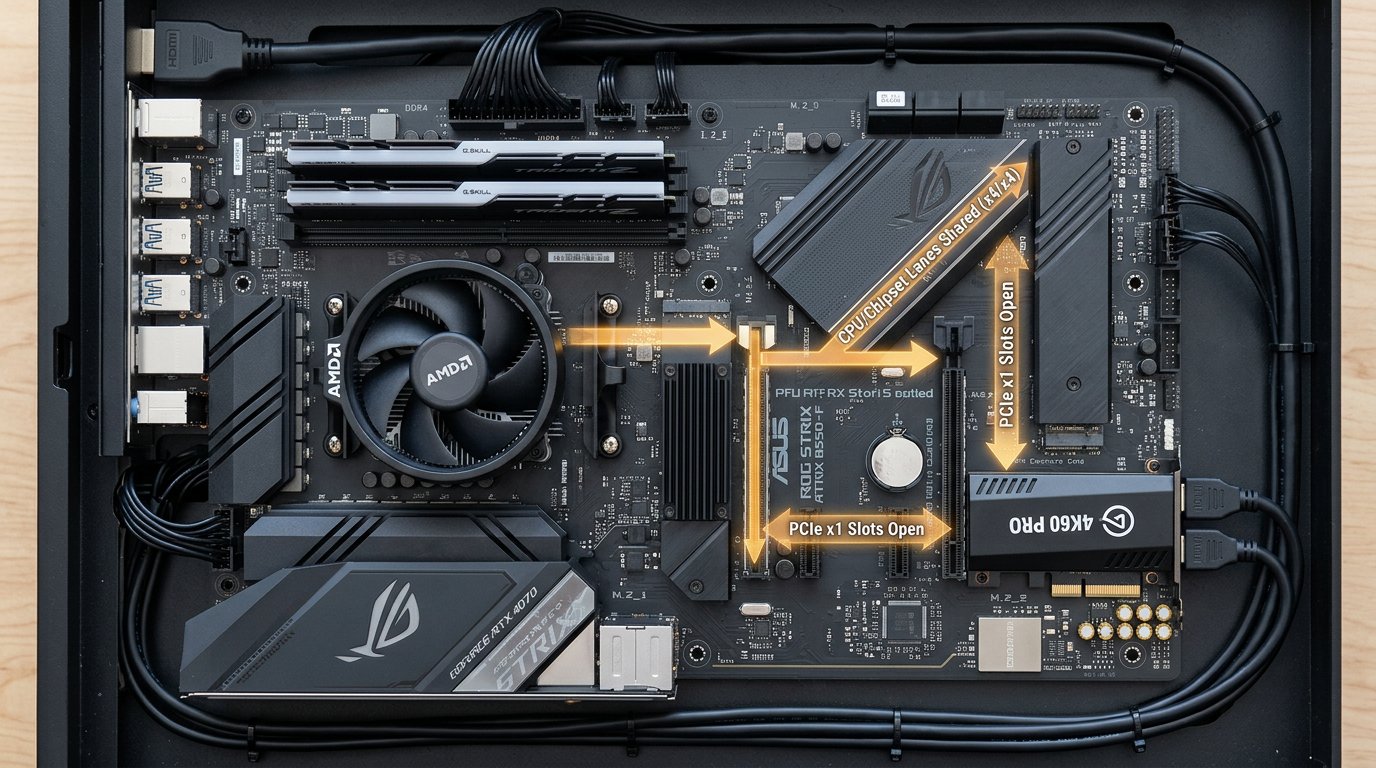
First, look at the interface specified by the card manufacturer: PCIe x1, x4, or another option. A card with a physical x1 connector is usually installed in an x1, x4, x8, or x16 slot. A card with an x4 connector physically won't fit into a closed x1 slot. If the slot is long but electrically connected with fewer lanes, it's only suitable when that number of lanes is sufficient per the card's own requirements.
You can't assume that any free long slot works as a full x16. On many boards, the main top slot is connected to the CPU, while the lower slots go through the chipset and may have fewer lanes. For most cards that require PCIe x1 by specification, extra lanes won't improve image quality or latency. The downside of installing in a lower slot is that it may share resources with other devices and sit right next to the graphics card.
Account for lane sharing with M.2 and other ports
The motherboard may disable some SATA ports, limit the second PCIe slot, or change its mode after an NVMe drive is installed in a particular M.2 slot. Sometimes two long PCIe positions share lanes with each other, and when a second card is installed, both switch to a different mode. This isn't necessarily a problem if the capture card's stated bandwidth is preserved.
You need to check this in the motherboard manual: find the PCIe slot diagram, the lane-sharing table, and the M.2 notes. Separately, look at which connectors are connected to the CPU and which to the chipset. If the manual states that a slot or port is disabled when an M.2 is occupied, plan the installation in advance. The downside of boards with a limited number of lanes is that upgrading drives and expansion cards may require rearranging the whole setup.
Check the case, cooling, and proximity to the graphics card
Check the card's height, the number of slots it occupies, and the location of the HDMI connectors. Even a compatible PCIe slot may be blocked by a thick graphics card, a heatsink, or cables. In a compact case, the capture card sometimes sits right next to a hot graphics card, which worsens its cooling during long streams and recordings.
Leave room for proper HDMI cable routing and don't bend it sharply at the rear panel. If the card is installed in the lower part of the case, make sure it doesn't press against the power supply shroud or fans. The downside of a cramped build is that a formally working configuration may produce extra heat, be difficult to service, and become unstable under prolonged load.
Connect the monitor without extra latency
The simple setup looks like this: the gaming PC's graphics card connects to the capture card's HDMI input, and the monitor connects to its HDMI output. This is convenient when passthrough supports the monitor's actual mode: resolution, refresh rate, HDR, VRR, and the required color format. The second PC receives the image through the PCIe card and uses it in OBS.
If passthrough limits the monitor, connect the display to a separate output on the gaming PC's graphics card and route another output to the capture card. An HDMI splitter is also possible, but it must work correctly with the required video mode and EDID. The downside of a splitter is issues with HDR, VRR, waking from sleep, and signal negotiation between the monitor and the capture card.
Check HDR, VRR, color, and protected content
HDR is checked separately for input, passthrough, and capture in OBS. A card may pass HDR through to the monitor but deliver an SDR signal to the second PC, or require a separate mode in the proprietary app. If the color space or range doesn't match, the image may look washed out, overly contrasty, or have incorrect hues.
VRR may also fail to pass through the card, even if it accepts a high refresh rate. For a gamer, this means either connecting the monitor separately or giving up variable refresh rate. Protected HDMI content may not be shown by the card at all — this is a limitation of signal protection, not a sign of a malfunction. The downside of complex modes is that their compatibility depends on the graphics card, display, cable, and capture card all at once.
Set up audio and synchronization in OBS
Over HDMI from the gaming PC, the game, system sounds, and voice chat selected on that output device are usually transmitted. In OBS, the card may appear as a video source and a separate audio device. Use a test recording to check that the audio actually arrives together with the image, isn't duplicated, and doesn't go out with the wrong volume.
A microphone connected to the second PC often arrives earlier than the video from the capture card. Its latency in OBS is adjusted based on the recording result. Synchronization is evaluated from the recorded file, not from the preview window. The downside of separate audio routing is more sources, delays, and points where echo or double capture can occur.
Selection checklist for different scenarios
- 1080p60 streaming: choose a card with confirmed operation in OBS, the required HDMI input, and stable drivers. Check whether passthrough will limit the main monitor's refresh rate.
- Competitive games: the priority is a passthrough mode without noticeable latency or a separate connection of the monitor to the graphics card. Don't rely on the OBS preview.
- 4K HDR recording: separately verify 4K HDR input, capture in the required format, the second PC's capabilities, and the drive's speed.
- Monitor with VRR and a high refresh rate: look for support for these parameters specifically on the passthrough output. If it's not there, use the gaming PC's second video output.
- Installing in a PC: match the card's interface to a free slot, check the PCIe lane-sharing table with M.2, and make sure the card won't block the graphics card's cooling.
Last Articles
What has changed in design and functionality We have updated the website to make working with it faster and more convenient. The main changes affect ..
Good afternoon, I've collected all the news during this time.: 1. The main news is that prices for twitch viewers have been greatly reduced, while Tw..
1. Use promo code "December2025" for a 15% discount for all our viewers2. We have reduced the base prices for our configurator and the most affordable..
Twitch services are working stably, so we are ready to cooperate with squads, resellers, service owners, bot owners, and many others.Individual te..
We have completely updated our Twitch viewer services, and they are now working stably. We only use high-quality IP addresses for the viewers.The ..
Hello everyone! Today, we are announcing a new feature—"Twitch Viewer Configurator". Now, you can customize any plan for your Twitch channel. Choo..
Greetings, I have compiled a guide for streamers, which will be very relevant at the moment. Now YouTube and twitch have disabled monetization from vi..
We have finally developed the APINow it will be more convenient for our partner sites to work with us.To update the maximum tariffs for YouTube, an up..
Due to the huge popularity of the partnership services and referral program, we have made a cooperation table. The essence is very simple: more live a..
Our Services for Streamers








Our Services for Content Creators






