
Twitch and YouTube chat on iPad next to your broadcast
Which setup to choose for chat on iPad
You can keep chat next to your broadcast in Split View, under a floating video, or on an external display. The choice depends on the iPad's role during the stream. If the tablet is only needed for reading messages, the platform's app or the channel page is enough. For replying as the channel, deleting messages, and other moderator actions, it's more convenient to open the creator dashboard in a browser in advance.
You don't have to run the broadcast on the iPad along with chat. When the game, OBS, or console runs on the main device, it's better to leave the tablet for messages and management. The chat will be larger, and the iPad will heat up less and drain more slowly.
Split View for video, chat, and creator tools
Split View is suitable when you need to see both the picture and viewer reactions at the same time. In one part of the screen, keep Twitch, YouTube, or the broadcast page in Safari; in the other, a browser with chat, the creator studio, or the moderation panel. Availability of the mode depends on the iPad model, iPadOS version, and whether the specific app supports multitasking.
- Open the broadcast in the app or Safari.
- Tap the multitasking button at the top of the window.
- Choose to place the second app next to the current one.
- Open Safari or the needed app in the second part of the screen.
- Go to chat, the creator studio, or the moderation panel.
- Move the divider to give more space to the video or the messages.
If you specifically need the browser for both the broadcast and chat, open two Safari windows: keep the player in one, and Twitch, YouTube Studio, or a separate messages page in the other. Then place these windows in Split View. This isn't a separate multitasking mode but a variation of the same scheme, useful when the platform's app doesn't provide the creator tools you need.
A new Safari window is created through the browser's window management menu or by dragging a link into a new multitasking area, if this method is available in your iPadOS version. You don't need to create a separate window for every tab: for most streams, a pair of "video and chat" or a single studio window without the video player is enough.
The downside of Split View is straightforward: both parts of the screen become narrower. On a small iPad, game details are hard to distinguish, and long chat messages take up several lines. If two Safari windows are running at once, the browser may reload the inactive page when memory is low. After a reload, some messages that arrived at that moment may remain unread.
Twitch chat in Safari and the Twitch app
For Twitch, you can open the channel page in Safari and use the built-in chat next to the video player. This method works for reading messages and regular replies. Before streaming, log in to the account you'll use to write and moderate: owner, editor, and moderator permissions depend on the account.
If the built-in chat isn't enough, keep the channel page or creator tools in one window, and open the video or stream notes in the second. When Safari shows a simplified mobile version and hides the needed elements, request the desktop version of the site through the page settings.
Don't run video with sound in two windows. A second copy of the broadcast creates an echo, uses up traffic, and drains the tablet faster. It's better to mute the player next to chat or not open the video on the iPad at all.
Separate YouTube chat via YouTube Studio
For your own YouTube broadcast, it's more convenient to manage messages through YouTube Studio in Safari. On iPad, you may need the desktop version of the site: some creator tools are hidden in the mobile interface. In the studio, open the management of the current or scheduled broadcast and find the chat panel.
If the panel offers to open chat separately, move it into a second Safari window and place it next to the video via Split View. When there's no such option, keep the broadcast management page in one part of the screen and the stream view in the other. For moderation this is a workable option, but the chat itself will take up less space because of the other studio elements.
A separate chat won't appear if messages are disabled in the broadcast settings or unavailable under the broadcast's conditions. Check this before going live, not after viewers arrive.
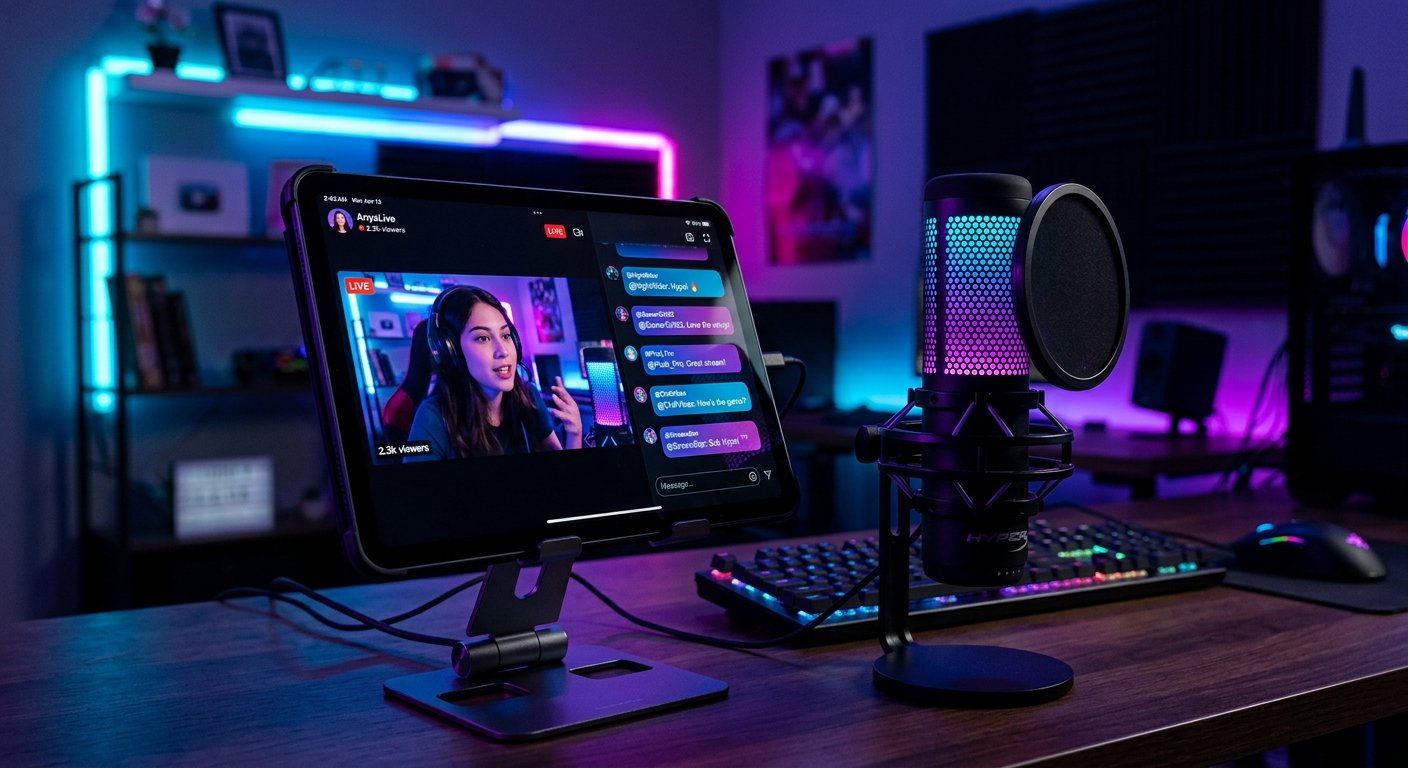
Watching YouTube in the app and chat in the browser
You can leave the YouTube app for monitoring the picture and use Safari for YouTube Studio and chat. This option separates viewing and moderation: the familiar player stays in the app, while broadcast settings and message actions are in the browser. It's especially convenient if you need the studio interface in Safari all the time.
The downside is that the broadcast may load twice: in the app and on the studio page. This increases the load on the network and battery. If you don't need the picture on the iPad, don't open the broadcast in the app: leave the tablet for chat and management only.
Picture-in-Picture mode over chat
In Picture-in-Picture mode, the video shrinks into a floating window while chat stays on almost the entire screen. This is convenient when quickly reading messages matters more and the broadcast image is only needed for general monitoring. The player can be moved to a free corner and resized.
The mode only works with support from the platform, app, or browser and the iPadOS version. Its downside is that the video window inevitably covers part of the chat. During a fast flow of messages, viewer names, moderation buttons, and the input field may end up underneath it.
iPad as a dedicated screen for moderation
For an active chat, it's more practical to use the iPad only for messages and management. The main broadcast stays on the computer, console, or monitor, while YouTube Studio, Twitch, or the channel page is open on the tablet. The screen doesn't have to be split between video and chat, so messages are easier to read and moderator actions are faster to access.
Before going live, check that the correct account is open and has the necessary permissions. Send a test message and make sure that deleting messages, blocking users, and other actions you may need work. Setting up moderator access during a broadcast is inconvenient: logging in or confirming permissions distracts from chat.
The downside of this scenario is that the video delay on the main device and the messages on the iPad may differ. Viewers sometimes react to an event before it appears on the streamer's screen. This is especially noticeable with different delay settings and when viewing through different apps.
External monitor for chat from iPad
If the iPad supports an external display, you can move chat to the monitor and leave the broadcast, notes, or creator panel on the tablet. Connection depends on the iPad model and the monitor's capabilities: use a compatible cable, adapter, or wireless output.
Check whether the connection creates a separate workspace or only mirrors the iPad screen. A separate desktop is more useful: you can expand a wide chat in Safari on the monitor and leave the video or YouTube Studio on the tablet. With mirrored output, the usable area doesn't actually increase.
The downside of an external display is that it requires additional equipment and power. The adapter may not fit, wireless output sometimes adds delay, and the iPad's single port has to be shared between charging and the monitor.
What to check before going live
- Log in to the correct Twitch or YouTube account in advance.
- Test message sending and moderator actions on a test broadcast.
- Mute the second copy of the broadcast.
- Connect the iPad to power if the stream will be long.
- Close heavy apps so Safari reloads pages less often.
- Check the Wi-Fi where you'll be streaming from.
- Open chat, the studio, and the needed windows before going live.
- Don't enable full-screen video if it hides chat or multitasking elements.
Last Articles
What has changed in design and functionality We have updated the website to make working with it faster and more convenient. The main changes affect ..
Good afternoon, I've collected all the news during this time.: 1. The main news is that prices for twitch viewers have been greatly reduced, while Tw..
1. Use promo code "December2025" for a 15% discount for all our viewers2. We have reduced the base prices for our configurator and the most affordable..
Twitch services are working stably, so we are ready to cooperate with squads, resellers, service owners, bot owners, and many others.Individual te..
We have completely updated our Twitch viewer services, and they are now working stably. We only use high-quality IP addresses for the viewers.The ..
Hello everyone! Today, we are announcing a new feature—"Twitch Viewer Configurator". Now, you can customize any plan for your Twitch channel. Choo..
Greetings, I have compiled a guide for streamers, which will be very relevant at the moment. Now YouTube and twitch have disabled monetization from vi..
We have finally developed the APINow it will be more convenient for our partner sites to work with us.To update the maximum tariffs for YouTube, an up..
Due to the huge popularity of the partnership services and referral program, we have made a cooperation table. The essence is very simple: more live a..
Our Services for Streamers








Our Services for Content Creators






