
Displaying Damage and Healing from Details! on a WoW Stream
How Details! Gets into Your Broadcast
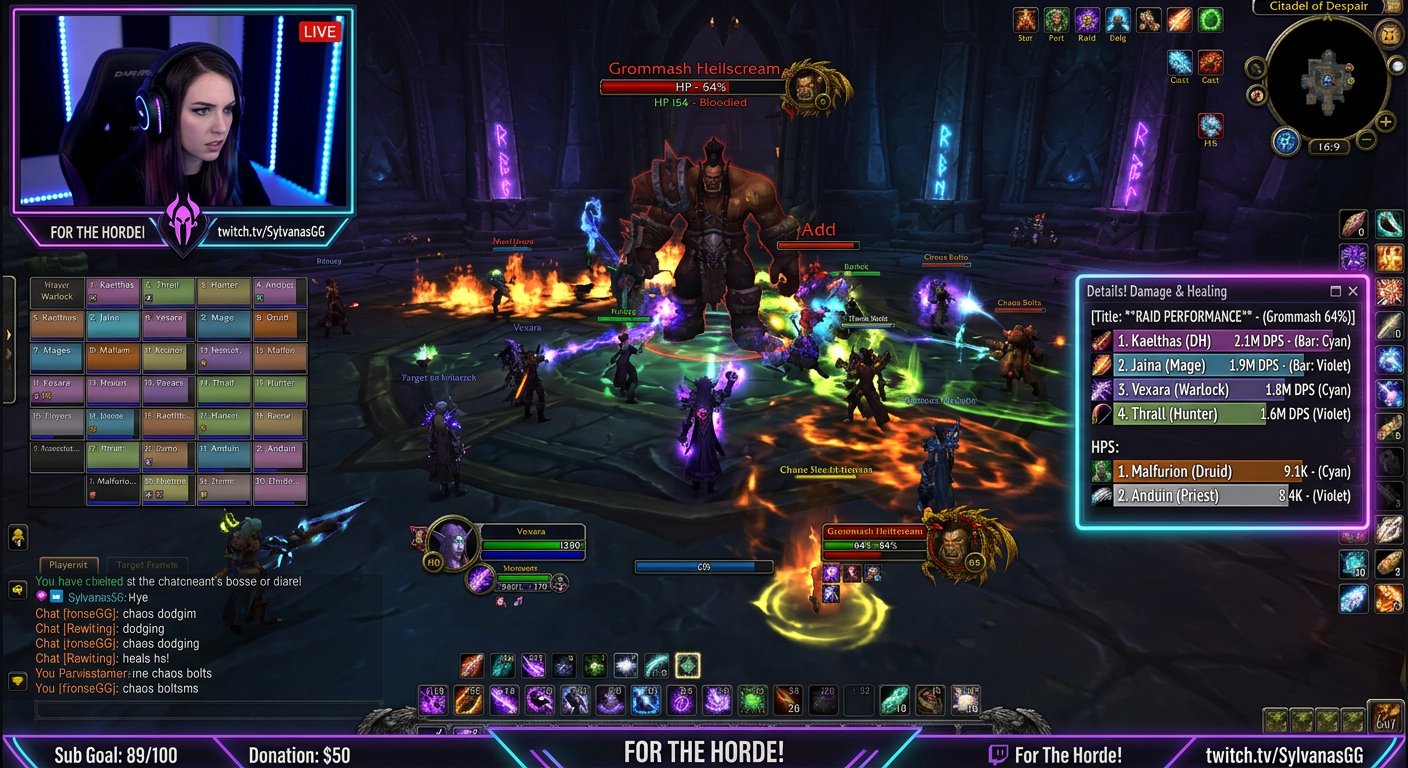
Details! runs inside the World of Warcraft interface. The Details! Streamer plugin doesn't create a separate system window either: it displays the table within the game interface. That's why for streaming you usually use game capture in OBS rather than "Window Capture" with a search for a separate Details! window.
First set up the table in the addon itself, then check it in the OBS preview. If the numbers aren't changing in the game interface, the capture source won't fix that.
What to Check Before Setup
Details! must be enabled for the character and collecting data in combat. Open the addon's regular window, enter combat with a training dummy or enemies, and make sure the rows, totals, and the selected segment are updating.
Check which metric you need on the main scene: damage done, healing, absorbs, DPS, HPS, interrupts, or deaths. On stream, it's better to keep one clear table rather than shrinking several windows to an unreadable size.
Where to Enable Details! Streamer
Open the Details! settings via the gear button on its window. In the plugins section, find Details! Streamer and enable the module. Section names may differ due to localization and the addon version, but you need to look among Details! plugins, not in the appearance settings of the regular table.
Once enabled, open the streamer table and place it in a free area of the WoW interface. It will be captured along with the game. If the plugin isn't in the list, check the character selection screen: the main addon and its additional modules must not be disabled.
Configuring Data in the Streamer Table
In Details! Streamer, select the display mode and segment you need. For a boss, the current fight usually works well; for a dungeon run, the overall dungeon segment. The previous fight and pinned segments are useful when reviewing an attempt, but on an active scene they can look like frozen stats.
- Damage for the current fight works well for boss pulls and individual packs.
- Healing and absorbs are better shown in a separate table.
- Overall dungeon damage helps track the run's progress but doesn't explain a specific attempt.
- DPS and HPS require a clear segment name, especially in short fights.
- Interrupts, deaths, and dispels are more convenient to display on a review scene.
The downside of the overall segment is that it smooths out contribution to an individual fight. The downside of the current fight is that the table resets or changes sharply between pulls.
Size, Rows, and Readability
Set the font size, number of visible rows, and bar and column widths before adding the game to the scene. Consider not your monitor resolution but the final stream resolution: text that's clearly visible on your gaming screen may become tiny on air.
Leave room for long names, values, and icons. If the table gets squeezed in width, viewers lose names or numbers, not just decorative elements. The downside of a large table is obvious: it covers the fight, raid frames, and important mechanics.
Adding Details! to OBS
Add World of Warcraft to OBS via a game capture source. Details! Streamer will already be in frame along with the interface. If the game is captured via screen or window capture, the table will also be visible, but these methods depend more on window placement and may accidentally show notifications or other programs.
- Launch WoW and open the Details! streamer table.
- In OBS, add or select the game capture source.
- Make sure the game source is above the scene background.
- Open the preview and confirm the table isn't covered by other elements.
- Do a short test recording during combat.
The downside of game capture is that the table's position is tied to the WoW interface. When you change resolution, UI scale, or addon profile, you'll need to check it again.
How to Make the Table Background Transparent
First use the Details! Streamer settings: disable the background, border, title, or extra decorative elements if the plugin allows it. This option gives the cleanest result because OBS doesn't cut colors out of text, icons, and bars.
If a transparent background isn't available in the settings, you can prepare a solid-color background and remove it with the "Color Key" filter in OBS. But the filter applies to the entire game capture, not to a single interface element, if Details! is inside the game frame. That's why using a color key for the built-in table is risky: parts of the game in the same color may disappear along with the background.
For Details! inside WoW, it's safer to set transparency in the addon itself. The downside of this solution is that the styling may become less contrasty in bright locations and during intense combat.
Cropping the Interface and a Separate Scene
If your stream only needs a fragment of the game interface with Details!, you can duplicate the game capture source onto a separate scene and crop it with the "Crop/Pad" filter. This option works for a log review screen, a pause between attempts, or a separate block in your stream layout.
The downside of this method is that the cropped source will include not only Details! but everything else next to it in the game interface. With tooltips, notifications, or changes in element placement, the frame may look messy.
How to Position the Table in the Game Interface
Don't place damage or healing next to raid frames, mechanic indicators, resource bars, and chat. On the main scene, the table is most often placed in the bottom corner, where it doesn't obstruct the view and stays readable. Check the position in combat, not in a quiet zone: in a raid, the interface fills up with additional notifications.
It's better to prepare separate profiles or scenes for damage and healing. Switching one table during combat is faster, but viewers may not understand why the metric suddenly changed. Two simultaneously visible tables take up a lot of space and clutter the frame.
Why Details! Isn't Updating on Stream
First compare the picture in OBS with the table in WoW. If the data isn't changing in the game, check the selected segment, enter combat, and make sure Details! isn't stopped by profile settings. If the table updates in the game but OBS shows an old frame, the problem is with the capture source.
- Restart the game capture in OBS after launching WoW.
- Check a test recording, not just a static preview.
- Don't minimize the game or change the display mode before going live without checking again.
- After updating the addon, make sure Details! Streamer is enabled.
- After changing resolution, check the table's position and scale.
Resetting Stats and Switching Segments
Automatic reset helps you start a new pull with a clean table, but the finished result disappears quickly. Manual reset lets you discuss the fight after a wipe or boss kill, but it's easy to forget before the next attempt.
If the previous segment stays on the main scene, viewers may mistake the old numbers for the current fight. A label in the table header, for example indicating "Current Fight" or "Dungeon," reduces this confusion. Don't overload the header with details: it should be readable alongside the numbers.
Last Articles
What has changed in design and functionality We have updated the website to make working with it faster and more convenient. The main changes affect ..
Good afternoon, I've collected all the news during this time.: 1. The main news is that prices for twitch viewers have been greatly reduced, while Tw..
1. Use promo code "December2025" for a 15% discount for all our viewers2. We have reduced the base prices for our configurator and the most affordable..
Twitch services are working stably, so we are ready to cooperate with squads, resellers, service owners, bot owners, and many others.Individual te..
We have completely updated our Twitch viewer services, and they are now working stably. We only use high-quality IP addresses for the viewers.The ..
Hello everyone! Today, we are announcing a new feature—"Twitch Viewer Configurator". Now, you can customize any plan for your Twitch channel. Choo..
Greetings, I have compiled a guide for streamers, which will be very relevant at the moment. Now YouTube and twitch have disabled monetization from vi..
We have finally developed the APINow it will be more convenient for our partner sites to work with us.To update the maximum tariffs for YouTube, an up..
Due to the huge popularity of the partnership services and referral program, we have made a cooperation table. The essence is very simple: more live a..
Our Services for Streamers








Our Services for Content Creators






