
How to Close Your Profile on VK
Why a streamer should close their personal VK profile
A streamer's personal page is often tied to their public activity: it may contain their real name, photos, friends list, city, workplace, and old posts. Viewers don't always need this information, and it can be used for unwanted messages, finding relatives, or attempts to link the public persona to one's personal life.
A closed profile restricts page viewing to users who aren't on your friends list. This is convenient if you stream through a separate community and keep your personal page for acquaintances. Viewers will still be able to go to the open community, see announcements posted there, and use the stream link.
Closing your profile doesn't make you invisible. Outsiders can usually still see your name, avatar, page link, mutual friends, and some basic information. The page may also still be found through search if you don't separately restrict search methods.
What exactly changes after closing
A user who isn't on your friends list won't get regular access to the content of your personal page. The restriction applies to posts, photos, and other profile sections, but doesn't automatically extend to materials published in open communities.
- followers don't become friends and don't get full access to the profile;
- mutual friends may be displayed separately from the full contact list;
- public posts in communities, comments, and open clips remain accessible according to their own settings;
- links to the page and previously published mentions may still be found through search;
- closing your profile doesn't delete old photos, posts, friends, or followers.
That's why it's important for a streamer to separate their personal page from their promotion channel. You can close your profile while keeping the community open for new viewers.
How to close your VK profile from a computer
In the VK web version, the setting you need is in the privacy section. The toggle itself may be labeled "Profile type" or "Private profile" — go with whichever option lets you choose open or closed access.
- Open the VK website and log into the account you need.
- Click on the avatar in the top right corner of the page.
- Select "Settings."
- In the side menu, open the "Privacy" section.
- Find the block with the profile type or visibility.
- Select "Closed" or turn on the "Private profile" toggle.
- If the interface shows a save button, click it.
In most versions, the change applies immediately. If the page was already open in another tab, refresh it. Don't confuse this setting with "Who can see my posts": that one restricts posts but doesn't enable the overall private profile mode.
How to close your profile in the VK app
In the app, you first need to open your own profile, then go to settings. The location of the profile button depends on the app version: it may be on the bottom panel or accessible through the menu section.
- Launch the VK app and go to your profile screen.
- Tap the gear icon in the top right corner.
- Open the "Privacy" section.
- Scroll down to the block with the profile type or its visibility.
- Select "Private profile" or the "Closed" value.
- Confirm the change if the app asks you to.
If there's no gear icon on the profile page, open the account menu and select "Settings." Then follow the same path: "Privacy" and the profile type setting. An app update may change the location of the buttons, but the privacy section usually remains the entry point.
What to do if there's no option for a private profile
Setting names may differ across app versions and for different types of pages. First, check that you've opened the settings of your personal profile and not a community. A group doesn't have a "private personal profile" mode: it uses different options — public, closed, or private group.
Check the "Privacy" section in both the app and the web version. Within the settings, you can use the parameter search if it's available and type in "private profile" or "profile type." If there's no suitable option in either version, set the restrictions manually.
- for your friends list, choose the most restrictive available option, usually "Only me";
- for saved photos, set "Only me" or "Friends";
- for new posts, choose the "Friends" audience;
- for old posts, use the access restriction setting if it's available;
- for stories, set the audience to "Friends" or "Close friends";
- for messages and friend requests, limit who can send them.
Manual settings don't always fully replace a private profile, so after making changes, check the page from an account that isn't on your friends list.
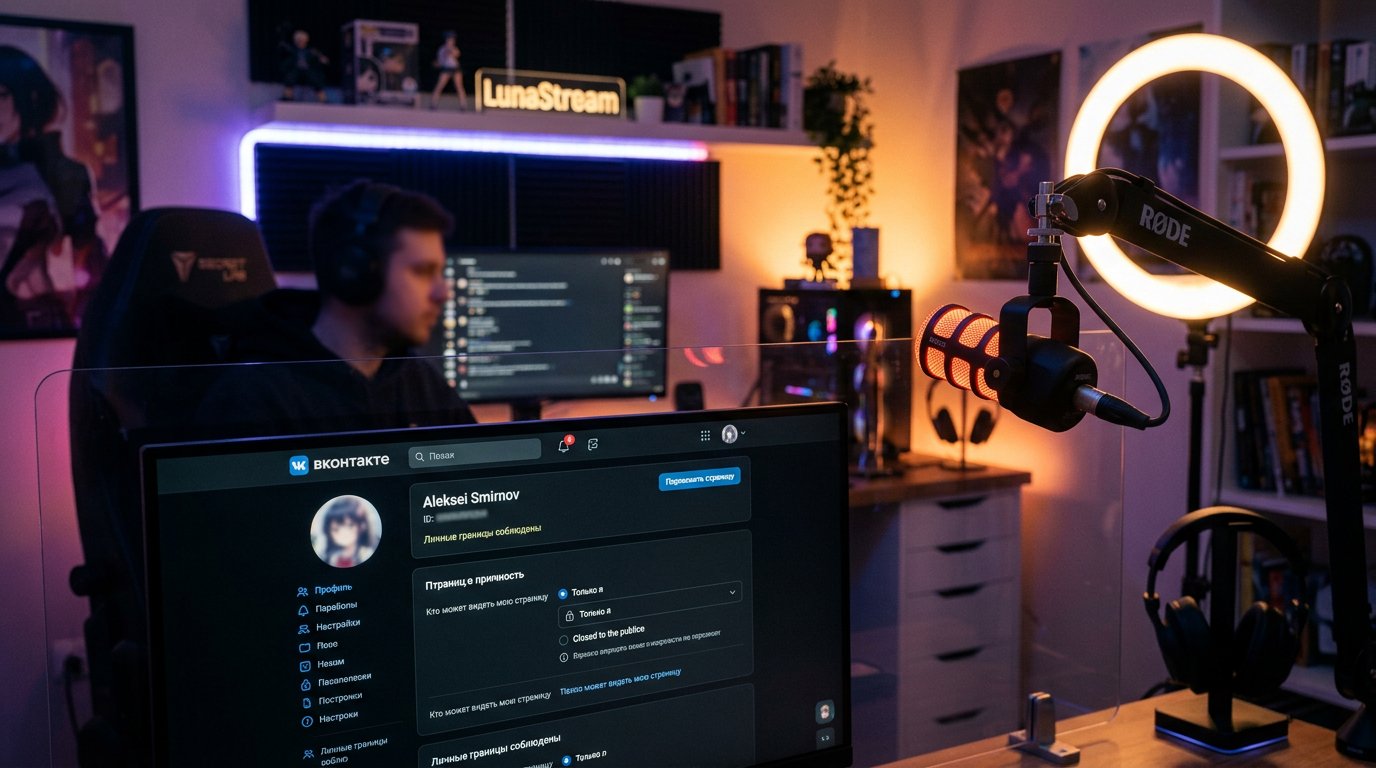
How to separately hide photos and albums
A private profile restricts viewing of your personal page, but individual albums and posts may have their own audience. For saved photos, open "Settings" → "Privacy" and find the "Who can see my saved photos" parameter. Select "Only me" or "Friends."
Regular albums are configured separately:
- Open the "Photos" section on your profile page.
- Go to the album you need.
- Tap the album menu or the edit icon.
- Open the visibility setting.
- Choose access for friends or block viewing.
- Save the changes if VK shows such a button.
A photo published in a wall post may be governed by the settings of the post itself, not the album. If a shot from your workspace, setup, or a personal event was attached to a post, check that post's audience separately.
How to hide friends, followers, and personal connections
A private profile doesn't always hide every element of your social graph. In the privacy settings, find "Who can see my friends list" and select "Only me." This will restrict the full contact list, but mutual friends may still be visible to other users.
It's also useful for a streamer to check the followers and following lists if your VK version has separate parameters for them. Set the most restrictive available option. This reduces the amount of information viewers can use to find acquaintances, relatives, or pages connected to you.
Pay attention to tags in photos and posts. In the privacy section, restrict who can tag you, and if needed, enable tag pre-approval. Existing tags will have to be checked in the posts themselves.
Which settings a streamer should check after closing
A private profile only solves the issue of access to your personal page. To protect against spam and unwanted contacts, check the following parameters separately:
- who can send you private messages;
- who can add you as a friend;
- who can invite you to communities and events;
- who can tag you in photos;
- who can see your stories;
- who can find the page by phone number or email address;
- who can see posts published earlier.
Old stream announcements on your personal page also need to be checked. A post may have its own audience, and a repost to an open community will continue to be shown to community followers regardless of your personal profile mode.
How to keep your channel open for viewers
Don't close your community page along with your personal profile if it's how new viewers find you. Check where your main announcements are posted: on your personal page, in the group, in clips, or in the streams section. Closing your personal profile won't restrict access to the open community, but posts from your personal account may stop being visible to users who aren't on your friends list.
A convenient setup for a streamer is to keep the personal profile closed and place the link to streams, schedule, and chat rules in the open community. In the profile description, you can leave just a link to your public platform without adding personal contacts or addresses there.
If viewers need to reach you about work matters, use a separate contact channel or community messages. Don't expand access to your private messages just to communicate with your audience.
How to check that your profile is actually closed
You need to check the result not from your own page or a friend's account. Open the profile from an account that isn't on your friends list. A test page or the account of someone you trust will work.
- Copy the link to your profile.
- Open it under a non-friend account.
- Check that a limited profile is displayed instead of the full page content.
- Open the photos, friends list, and old posts.
- Check a new story from the same account, if one is published.
- Separately go to the open community and make sure its materials are visible according to the community settings.
Checking in a private browser window is only useful for assessing what an unregistered visitor sees. It doesn't replace checking from a non-friend account: a logged-in user may get a different set of accessible elements.
How to open your profile again
To return to open mode, in the web version open your avatar → "Settings" → "Privacy" and change the profile type to "Open." In the app, go to your profile, tap the gear icon, open "Privacy," and select the open option.
After that, check your individual restrictions. Settings for albums, stories, friends, messages, and old posts may remain as they were and won't open automatically along with the profile.
Last Articles
What has changed in design and functionality We have updated the website to make working with it faster and more convenient. The main changes affect ..
Good afternoon, I've collected all the news during this time.: 1. The main news is that prices for twitch viewers have been greatly reduced, while Tw..
1. Use promo code "December2025" for a 15% discount for all our viewers2. We have reduced the base prices for our configurator and the most affordable..
Twitch services are working stably, so we are ready to cooperate with squads, resellers, service owners, bot owners, and many others.Individual te..
We have completely updated our Twitch viewer services, and they are now working stably. We only use high-quality IP addresses for the viewers.The ..
Hello everyone! Today, we are announcing a new feature—"Twitch Viewer Configurator". Now, you can customize any plan for your Twitch channel. Choo..
Greetings, I have compiled a guide for streamers, which will be very relevant at the moment. Now YouTube and twitch have disabled monetization from vi..
We have finally developed the APINow it will be more convenient for our partner sites to work with us.To update the maximum tariffs for YouTube, an up..
Due to the huge popularity of the partnership services and referral program, we have made a cooperation table. The essence is very simple: more live a..
Our Services for Streamers








Our Services for Content Creators






