
Protecting a MAX Channel from Spam: Permissions, Filters, and Actions During an Attack
What Exactly Needs Protection in MAX
MAX is a Russian messenger and digital platform with personal chats, groups, and public channels. A MAX channel is used to publish posts on behalf of the owner or administrators, and discussion under posts may take place in comments or a connected chat. That's why spam isn't limited to the channel feed: promotional messages appear in comments, group discussions, personal messages to administrators, and sometimes as a result of an account with publishing rights being compromised.
Start by checking the channel itself. In the mobile app, open the channel, tap its name or avatar at the top of the screen, and go to the "Channel Management" section. In the web or desktop version, first select the channel in the chat list, then open its card, the three-dot menu, or the channel management item. Depending on the MAX version, the relevant settings may be called "Channel Settings," "Permissions," "Member Rights," or "Moderation."
Check posts, comments, member invitations, the administrator list, and connected services separately. If subscribers shouldn't be able to publish posts, leave publishing to administrators only. If discussion isn't needed, disable comments and the linked chat in the "Comments" or "Discussion" section. It's better to close unused features than to leave them open in case you might need them someday.
Check Member and Administrator Permissions
In the "Channel Management" section, open "Members" or "Administrators." First, remove former employees and users who no longer need access. Then open each remaining administrator's card and compare their permissions with their actual responsibilities. Someone who only replies to comments doesn't need rights to publish posts, change settings, and manage other administrators.
If MAX allows granting permissions individually, keep the minimum set: publishing for the content editor, comment moderation for the moderator, and changing settings and appointing administrators only for the owner and one trusted employee. Don't grant full access just for one function. The fewer accounts that can change channel settings, the easier it is to find the source of the problem when ads appear in the feed.
Check whether unknown bots or external apps are connected to the channel. This item may be located in "Channel Management" under "Bots," "Integrations," or "Connections." Revoke access from anything you don't recognize or no longer use. A bot with publishing rights can post ads even after a regular spammer has been blocked.
Assign a Dedicated Moderator Without Extra Permissions
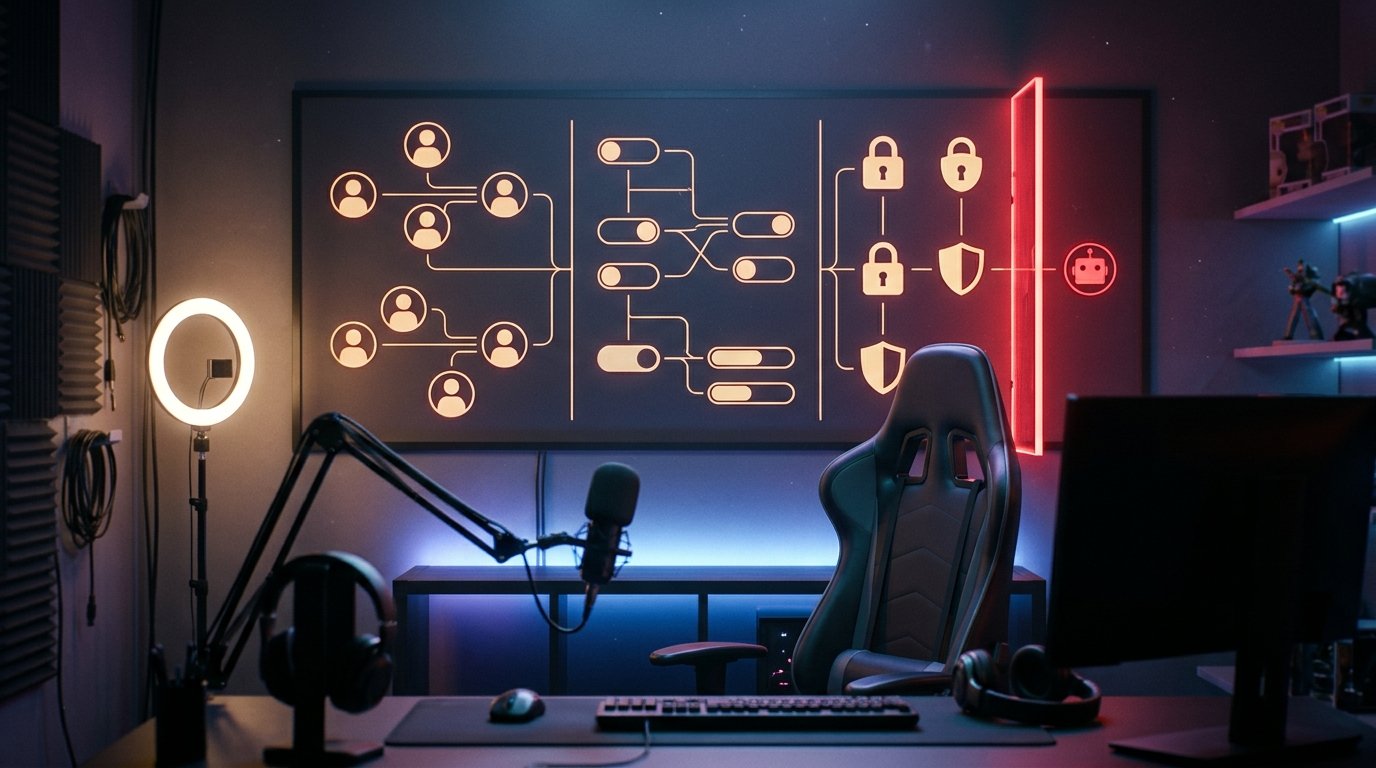
In some MAX versions, a moderator may be a separate role, while in others access is configured with a set of toggles. Open "Channel Management" → "Administrators" or "Member Rights," tap "Add," and select the user. If the card has a "Moderator" role, assign it. If there's no role, check whether you can enable only viewing discussions, deleting messages, restricting members, and complaints, while leaving publishing posts, changing settings, and managing administrators turned off.
After saving, ask the moderator to open the channel from their account and check the available actions. They should see tools for deleting promotional messages and blocking violators, but shouldn't be able to change the invite link, add a new administrator, or disable protection. If MAX doesn't separate these permissions, don't add an employee as an administrator just for moderation: it's safer to keep the discussion under the owner's control.
For a connected chat, permissions are sometimes configured separately. Open the chat itself, go to its details, then to "Members," "Administrators," or "Permissions." The names of the items depend on the MAX build and device, so focus on the meaning of the settings: message moderation should be available, while managing the channel and its administrators should be closed off.
Secure the Owner's and Team's Accounts
Account security settings aren't opened inside the channel but through the MAX profile. Tap your photo or avatar, go to "Settings," then open "Security," "Privacy," or a similarly named section. Find the "Active Sessions," "Devices," or "Connected Devices" item. End all sessions you don't recognize, then check the channel's administrator list again.
If two-factor protection, an additional password, or an app lock code is available in the security section, enable this feature. The name and set of protection methods depend on the MAX version and device. SMS codes, login notifications, and backup data must not be shared with employees, "support," or the authors of promotional messages.
Check the personal message settings of the owner and administrators. In the profile, open "Settings" → "Privacy" → "Messages" and limit new contacts if MAX offers the option to choose who can message you directly. This doesn't close the channel comments, but it reduces the flow of ads in personal chats. For work communication, you can use a separate account or assign an employee with limited permissions.
Don't enter login credentials on pages opened from messages. A message asking you to "confirm the channel," "remove a block," or "get a verification badge" doesn't give the sender the right to request a login code. If you've already shared a code, immediately end unknown sessions, change any available passwords, and check the permissions of all administrators.
Limit Comments and Invitations
Open "Channel" → name or avatar → "Channel Management" → "Comments" or "Discussion." If comments are connected through a separate chat, check the settings of that specific chat: member permissions may be located separately from the channel settings. Disabling comments in the channel doesn't always close an existing discussion group.
In the discussion settings, find the items about who can send messages, add members, and invite new users. If MAX offers options like "All members," "Administrators only," or "Only after approval," choose the most restrictive option that doesn't interfere with the channel's operation. During an attack, you can temporarily leave messages to administrators only, and after cleanup, restore the normal mode.
Check the invite link via "Channel Management" → "Invite Link," "Channel Link," or "Invite Links." If the link has been published on forums, in directories, or old promotional materials, create a new one or use the "Revoke," "Refresh," or "Reset link" command if available. The old link should stop opening the channel.
You don't have to close the open link forever. But if the channel is already under attack, first revoke the widely distributed link, limit comments, and only after verification restore access for new subscribers.
Set Up a Promotional Message Filter
If MAX has automatic moderation, you should usually look for it under "Channel Management" → "Moderation," "Filters," or "Automatic Rules." In the mobile version, this section may be inside the channel menu, while in the web or desktop version it may be in the right-hand channel details panel or the three-dot menu. The exact set of items depends on the app version, channel type, and available permissions.
If MAX allows creating keyword rules, start with the "Send for review" mode rather than unconditional deletion. For a streaming channel, an example rule might look like this: if a message contains "buy subscribers," "cheap subscribers," "guaranteed income," "earn without investment," "DM me," "casino," or "betting," send it to the moderator queue. After checking several triggers, you can enable automatic deletion or sender restriction if such actions are provided.
The stop-word list needs to be tailored to the channel's topic. For example, the word "investments" shouldn't be blocked in a finance community without additional conditions: the filter will start deleting regular comments. Add not only individual words but also characteristic combinations. If a rule only works with exact matches, add variants separately: "earn," "earn without investment," "income," "buy subscribers." Check whether the filter accounts for case, word endings, and spaces.
If a link filter is available, enable a URL ban for regular members or send such messages for review. As example patterns, you can use `http://`, `https://`, `www.`, `://`, as well as common URL shorteners: `bit.ly/`, `cutt.ly/`, `clck.ru/`. If spam comes from specific platforms, add the corresponding patterns, such as `t.me/`, `vk.me/`, or `wa.me/`. Don't block all links without exception if the channel publishes useful materials, products, or signup forms.
If MAX supports regular expressions, a simple pattern `https?://` and a separate check `www\.` will work for regular URLs. If only exact words are available, add address parts manually. After each change, send a test message with neutral text, a stop word, and a link. Make sure the rule triggers on ads but doesn't delete regular administrator posts and useful comments.
Not all MAX versions have their own stop-word dictionary or link filter. If the menu doesn't have "Filters," "Automatic Rules," or "Moderation" sections, don't try to replace this function with mass blocking of regular users. Use comment restrictions, moderator permissions, and manual message review.
What to Do After Spam Appears
With a large flow of ads, first stop new posts. Open "Channel Management" → "Comments" or the settings of the linked chat and temporarily prohibit messages for members. If spam appears in the channel feed, check the administrators and disable publishing rights for everyone except the owner until the cause is found.
Before deleting, save a screenshot, the message link, the sender's name, and the approximate publication time. If the message menu has a "Report" or "Report spam" item, use it. It's better to submit the complaint before deletion if MAX attaches the message itself to it. Specify the exact reason, such as mass advertising, a suspicious link, or a post from a compromised account.
Then delete the promotional messages. If multi-select is available, you can remove several similar posts in one operation, but first make sure there are no regular comments among them. Deleting alone isn't enough: the sender needs to be restricted, removed from the chat, or blocked via their card and the message menu. If the "Block," "Prohibit messages," or "Ban" command is available, choose it. Simply removing a member may allow them to return via the link.
For repeated violations, use blocking rather than just manually deleting individual posts. Pay attention to identical text, domain, shortened link, sender name, and publication time. If several accounts post the same ad, check whether you can restrict them all in the member list or through moderation tools.
Don't reply to spammers and don't forward their ads to the general chat. A reply bumps the promotional message in the discussion, and forwarding increases its reach. You also shouldn't open links from such posts to "check" them: it's enough to save the address from the message card or take a screenshot.
In your support request, include the channel ID or link, describe exactly where the spam appeared, and state what measures have already been taken. If ads are being published on behalf of the channel, separately mention a possible administrator compromise, an unknown session, or a suspicious connection.
Check the Channel After Cleanup
After deleting the ads, check the active sessions, administrator list, connected bots, and invite link again. Make sure each employee has only the necessary permissions. If spam appeared in the feed, check the action history if such a feature is available, and temporarily leave publishing rights only with the owner.
Test the filters on regular messages. A stop word related to the channel's topic shouldn't delete useful comments, and a link ban shouldn't interfere with publishing permitted materials. If automatic moderation makes frequent mistakes, switch the rule from deletion to review or narrow the condition.
Only after these actions should you enable comments and open access for new members. In the first days after an attack, review the moderation queue and new messages more often than usual. This will help you understand which words, links, and accounts bypass the filter and adjust the rules without unnecessary blocks.
Step-by-Step Actions
- Open the MAX channel → name or avatar → "Channel Management" and check posts, comments, members, administrators, and invite links.
- Remove unnecessary administrators, revoke access from unknown bots, and leave each employee only the necessary permissions.
- If MAX supports a separate role, assign a moderator with access to comments, deletion, and blocking, but without rights to publish and change settings.
- In the MAX profile, open "Settings" → "Security" and end unknown active sessions.
- In "Comments" or the linked chat, restrict message sending, and if the feature is available, set up stop words and link checking.
- During an attack, temporarily close the discussion, save evidence, file a complaint, delete the ads, and block the violators.
- After cleanup, check permissions and filters, then gradually restore comments and access for new members.
Last Articles
What has changed in design and functionality We have updated the website to make working with it faster and more convenient. The main changes affect ..
Good afternoon, I've collected all the news during this time.: 1. The main news is that prices for twitch viewers have been greatly reduced, while Tw..
1. Use promo code "December2025" for a 15% discount for all our viewers2. We have reduced the base prices for our configurator and the most affordable..
Twitch services are working stably, so we are ready to cooperate with squads, resellers, service owners, bot owners, and many others.Individual te..
We have completely updated our Twitch viewer services, and they are now working stably. We only use high-quality IP addresses for the viewers.The ..
Hello everyone! Today, we are announcing a new feature—"Twitch Viewer Configurator". Now, you can customize any plan for your Twitch channel. Choo..
Greetings, I have compiled a guide for streamers, which will be very relevant at the moment. Now YouTube and twitch have disabled monetization from vi..
We have finally developed the APINow it will be more convenient for our partner sites to work with us.To update the maximum tariffs for YouTube, an up..
Due to the huge popularity of the partnership services and referral program, we have made a cooperation table. The essence is very simple: more live a..
Our Services for Streamers








Our Services for Content Creators






