
Stream Sniping Protection in CS2: Delay, Radar Mask, and OBS Scenes
What Data Stream Snipers Use in CS2
A stream sniper doesn't need access to your account or a stream without delay. To find a match, the moment the queue starts, the mode, the map, the region, the party lineup, the accept window, and the loading screen are all useful. During the game, the radar, economy, weapons, grenades, voice plans, and chat messages all have value.
Sometimes a viewer tries to get into the same queue as you. Sometimes they're already in the match and cross-check the team's actions against the stream. You can't eliminate the risk entirely: you might be recognized by your nickname, play style, or schedule. The goal of protection is to remove the data that helps an opponent act before the current round ends.
What Delay Is Considered Acceptable for CS2
For most ranked streams, a reasonable starting point is 30–60 seconds. This is often enough for fast calls, pushes, and movements to become irrelevant by the time they're shown. With an active audience, repeated suspicions, or detailed commentary during a round, it's better to test the 60–90 second range.
A delay of 2–3 minutes already noticeably changes the format of the stream: reactions to chat arrive too late, and viewers discuss a moment that ended long ago. Such a pause may be justified for high-risk matches, but for a regular stream it's usually considered long.
The exact value depends on the pace of matches, the size of the audience, viewers' habit of following the queue, and how thoroughly you talk through your decisions. The downside of even a short delay is direct: the dialogue with chat becomes less lively.
Why a Delay Alone Isn't Enough
A delay shifts the picture and sound, but it doesn't make all the information shown useless. If a team holds a position for a long time, slowly prepares a push, or plays a retake, the information from the radar can remain relevant. The buy, the number of grenades, and weapons also help an opponent understand the team's state.
In addition, a delay doesn't solve the queue problem if you show the search starting. Nor does it hide Steam, invites, private messages, the friends list, or your desktop if you accidentally Alt+Tab. Reliable protection consists of a delay, a hidden queue, interface masks, and chat rules.
Basic Protection Scheme Without a Long Pause
For ranked play, it's enough to remove the most dangerous sources of leakage and set a moderate delay. On Twitch, YouTube, and VK Play, the actual lag may differ from the value in OBS: the platform additionally processes the stream, and the viewer's device buffers the video.
- Set a 30–60 second delay in OBS and check the actual lag from the viewer's side.
- Use a separate scene for the queue, match accept, and map loading.
- Always cover the radar on the protected game scene.
- Disable Steam, messenger, and system notifications.
- Don't allow hints about the current match in chat.
The downside of the scheme is that the viewer won't see part of the interface, and replies to messages will come with a pause. Without this compromise, the protection doesn't work.
How to Set Up a Delay in OBS Studio
It's more convenient to set the delay before sending the signal to the platform. In OBS's advanced stream settings, enable stream delay and enter a value to test. Start with 30 seconds, run a short private or technical stream, then compare what's happening in the game with what's on your phone or another browser.
If 30 seconds doesn't interfere with communication but you have suspicious coincidences in matches, raise the value to 60 seconds. The 60–90 second range is better suited for a stream with a noticeable audience and frequent attempts to get into your game. Don't increase the delay to several minutes right away: that makes it harder to tell whether you actually need it.
The option to preserve the delay during a brief connection drop should be tested separately. The buffer may preserve the lag after a failure, but on an unstable network it can extend the pause or complicate stream recovery. The downside of a delay in OBS is that it affects the entire stream, including conversations between matches.
How to Check the Delay on Twitch, YouTube, and VK Play
Don't rely on the OBS preview: it doesn't show the signal path through the platform to the viewer. Open the stream in a browser or on your phone, preferably not from the same window where you're managing the stream. Say a short phrase or perform a noticeable action in the game and compare the moment on the stream.
On Twitch, YouTube, and VK Play, the delay can vary due to the viewing mode, video processing, and the viewer's connection quality. So test the exact platform and settings you plan to use for streaming CS2. The downside of testing is that you'll need a second device or help from a moderator or acquaintance.
Why Match Search Must Be Hidden Completely
The queue screen often reveals more than a live match. A viewer can see the exact time the search starts, the selected mode, the accept window, the lobby lineup, and the start of loading. This data is sometimes enough to start searching at the same time as you and increase the chance of landing in the same match.
Don't warn the stream in advance that you'll press search after an ad, a break, or the end of the previous match. Don't name the map, region, or party lineup before the game starts. A delay doesn't replace hiding the queue: with a 30–60 second pause, a viewer will still get a reference point for starting their own search.
The downside of completely hiding the queue is that the audience doesn't see what's happening in the client. You'll have to fill this pause with conversation, a review of the previous match, music, or a neutral scene.
How to Build a Queue Scene in OBS
Create a scene that has no capture of CS2, Steam, the friends list, a browser with private messages, or widgets tied to the game client. You can leave the webcam, chat, branding, music, or text about preparing for the next match on it.
Switch to this scene before starting the search, not after pressing the button. Stay on it during match accept and map loading. It's better to return to the protected game scene during warmup or at the start of the match, when the moment of entering the queue can no longer be used for synchronization.
The downside of a separate scene is that it needs to be checked after every change to overlays, alerts, and sources. One accidentally added window capture can expose the client.
How to Cover the Minimap and Set Up a Radar Mask
The radar is one of the most dangerous interface elements. It shows allies, their movement direction, occupied positions, possible rotations, and sometimes the logic of the round. Cover it at all times on all scenes with a live competitive match, not just after a suspicious round.
In OBS, add a color source or a prepared opaque image on top of the game capture. Place it above the game capture in the sources list. If the overlay is below, it won't cover the CS2 interface. A round mask is convenient for a round radar; a rectangle works for quick setup.
Open CS2 at your working resolution and with the same HUD scale you use on stream. Move the mask precisely onto the radar, check the edges of the map, markers, and labels. Test it in warmup, a regular match, and the pause menu: the interface may look different.
The downside of a round mask is that after changing the resolution, aspect ratio, or HUD scale, it needs to be set up again. A rectangular overlay is simpler but covers more of the useful picture.
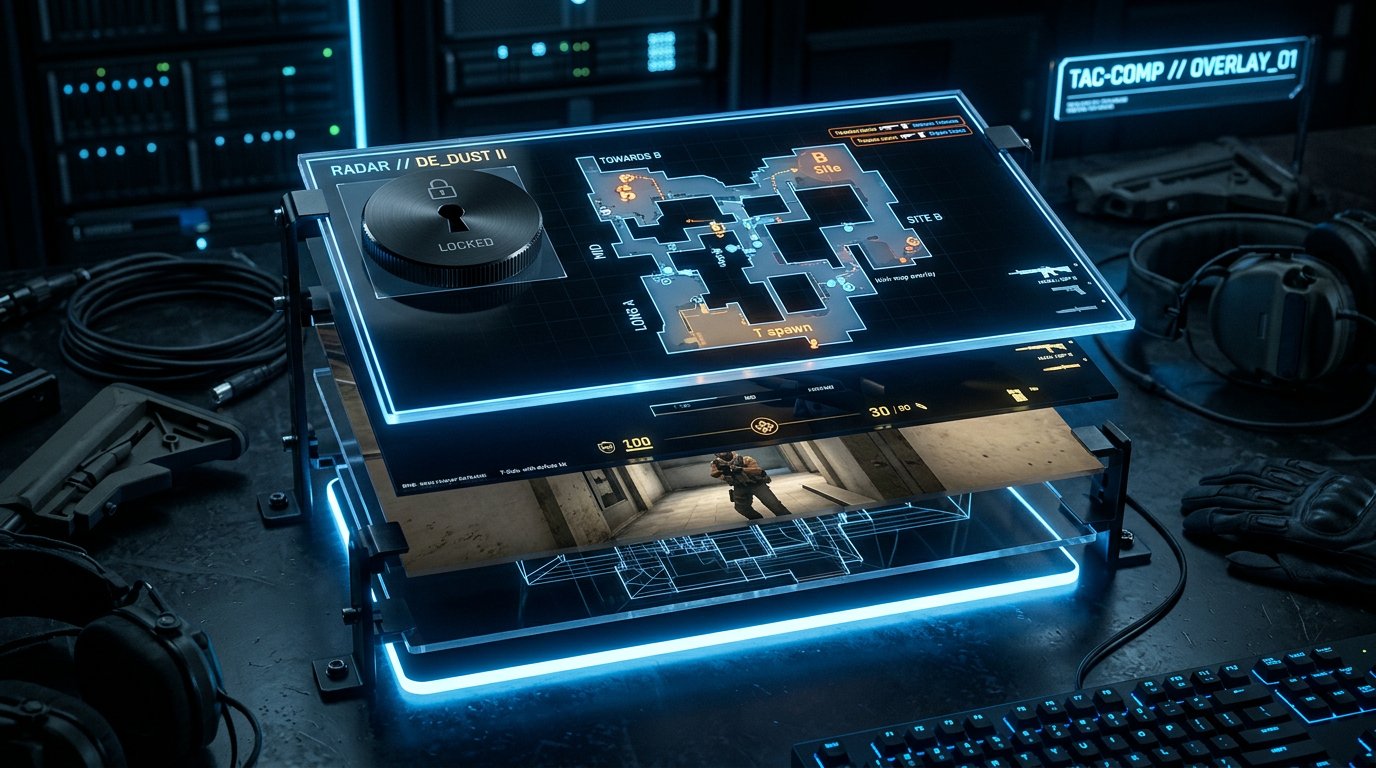
How to Lock the Mask on Game Scenes
If you have a scene with a webcam, a version for clips, a layout for demo reviews, and a regular game composition, the protection should be wherever a live match is shown. It's more practical to make one basic protected game scene and use it as a source in other layouts.
The radar mask, economy overlay, and other elements can be combined into a group of sources and locked against accidental movement. This reduces the risk of shifting the mask while setting up the stream. The downside of this approach is that when creating a new scene, the protection still needs to be added or copied.
Should You Hide the Economy and Weapons
A covered radar doesn't cancel leaks through money, weapons, grenades, and the scoreboard. From this data, an opponent can guess an eco round, a force buy, or preparation for a full push. If the opponent's suspicious decisions repeat, add a small mask over the sensitive part of the HUD.
You shouldn't hide the entire interface all the time: it becomes harder for viewers to follow the match, and the stream loses some of its entertainment value. The downside of an economy mask is that it worsens the readability of the stream and doesn't replace either the delay or the hidden queue.
Why Voice Chat Gives Away Positions
Information leaks not only through the image. Phrases about an occupied site, the number of opponents, a boost, a grenade lineup, and the timing of a push can be useful before the action is even completed. Detailed teammate calls are especially risky if their voice ends up on the stream along with your microphone.
Don't repeat the team's route and plans to viewers before they're executed. If you play in a regular group, agree in advance not to discuss tactics for the stream in real time. Even with a 30–60 second delay, this remains a good habit: a slow round can make old information useful.
The downside of limiting voice commentary is that the stream becomes less clear for viewers who watch it for the communication and decision breakdowns.
How to Protect Notifications and Your Desktop
Disable Steam pop-up notifications, invites, private messages, system banners, and messenger alerts. Separately check what a viewer will see when you Alt+Tab: open tabs, chats, email, the friends list, and stats windows often reveal extra data.
For a gaming stream, it's safer to use game capture rather than full-screen capture. That way, an accidentally opened browser or desktop won't end up on screen. The downside of game capture is that some programs and windows won't be visible to viewers when you want to show them on purpose.
How to Set Up Chat Against Hints
Viewers may watch opponents' streams, report positions, relay the buy, or post information you couldn't have seen yourself. Such messages affect a competitive match, even if the author thinks they're helping. It's better to pin the no-hints rule in the channel description and pass it on to moderators.
- Delete messages with positions, movements, and the number of opponents.
- Don't relay the content of deleted hints to the streamer until the round ends.
- Ban links to streams of players in the current match.
- Restrict chat for users who repeat the violation.
- Save disputed messages for review after the game.
The downside of strict moderation is that some of the audience may consider the rules excessive. A short, clear warning reduces conflicts better than silently deleting messages.
What to Do If You Suspect Stream Sniping
Don't accuse a specific player during a match without evidence. Coincidences happen in CS2, especially on popular maps and in a close rank range. Note the suspicious rounds, and after the game check the stream recording, chat messages, and the moment the queue started.
Strengthen protection one item at a time: first increase the delay from 30 to 60 seconds, then to 90 seconds if needed; keep the radar mask permanent; stop showing the loading; hide the economy; tighten the chat rules. Step-by-step setup helps you find the specific leak channel.
The downside of this approach is that it will take several streams, and the problem won't disappear instantly. But you won't have to switch the entire channel to a delay of several minutes unnecessarily.
Pre-Stream Protection Checklist
- Check the actual delay on Twitch, YouTube, or VK Play from a viewer's device.
- Make sure the voice and image don't desync after switching between scenes.
- Switch to the queue scene and make sure it has no CS2, Steam, friends list, or private messages.
- Launch the game and check that the mask fully covers the radar.
- Check the mask's position at the current resolution, aspect ratio, and HUD scale.
- Make sure the mask is above the game capture in the OBS sources list.
- Test the hotkeys for the queue, protected game, and pause.
- Disable notifications, invites, and pop-ups over the game.
- Check that when you Alt+Tab, the stream doesn't show your desktop and chats.
- Pin the no-hints rule and warn the moderators.
Last Articles
What has changed in design and functionality We have updated the website to make working with it faster and more convenient. The main changes affect ..
Good afternoon, I've collected all the news during this time.: 1. The main news is that prices for twitch viewers have been greatly reduced, while Tw..
1. Use promo code "December2025" for a 15% discount for all our viewers2. We have reduced the base prices for our configurator and the most affordable..
Twitch services are working stably, so we are ready to cooperate with squads, resellers, service owners, bot owners, and many others.Individual te..
We have completely updated our Twitch viewer services, and they are now working stably. We only use high-quality IP addresses for the viewers.The ..
Hello everyone! Today, we are announcing a new feature—"Twitch Viewer Configurator". Now, you can customize any plan for your Twitch channel. Choo..
Greetings, I have compiled a guide for streamers, which will be very relevant at the moment. Now YouTube and twitch have disabled monetization from vi..
We have finally developed the APINow it will be more convenient for our partner sites to work with us.To update the maximum tariffs for YouTube, an up..
Due to the huge popularity of the partnership services and referral program, we have made a cooperation table. The essence is very simple: more live a..
Our Services for Streamers








Our Services for Content Creators






