
How to revoke Kick access on someone else's device
If the other device is still nearby
If you're still near the device, open Kick and log out of the account through the profile menu. Then open the service page again: instead of your profile, you should see a prompt to sign in. If you signed in both in the browser and in the app, check each of them separately.
Closing a tab is not the same as logging out: the next time you open Kick, you may still be signed in. Even after logging out, the device may still retain the password, email access, or files containing the stream key.
Does Kick have active session management
It has not been confirmed whether Kick has a list of active sessions or a log-out-of-all-devices button. There is no reliable path to such a setting, so don't count on it as your main way to log out remotely.
When the other device is no longer accessible, change your Kick password and contact support through the service's help section. Ask how to revoke the remaining session. Changing your password alone does not confirm that an open sign-in on someone else's device has been ended.
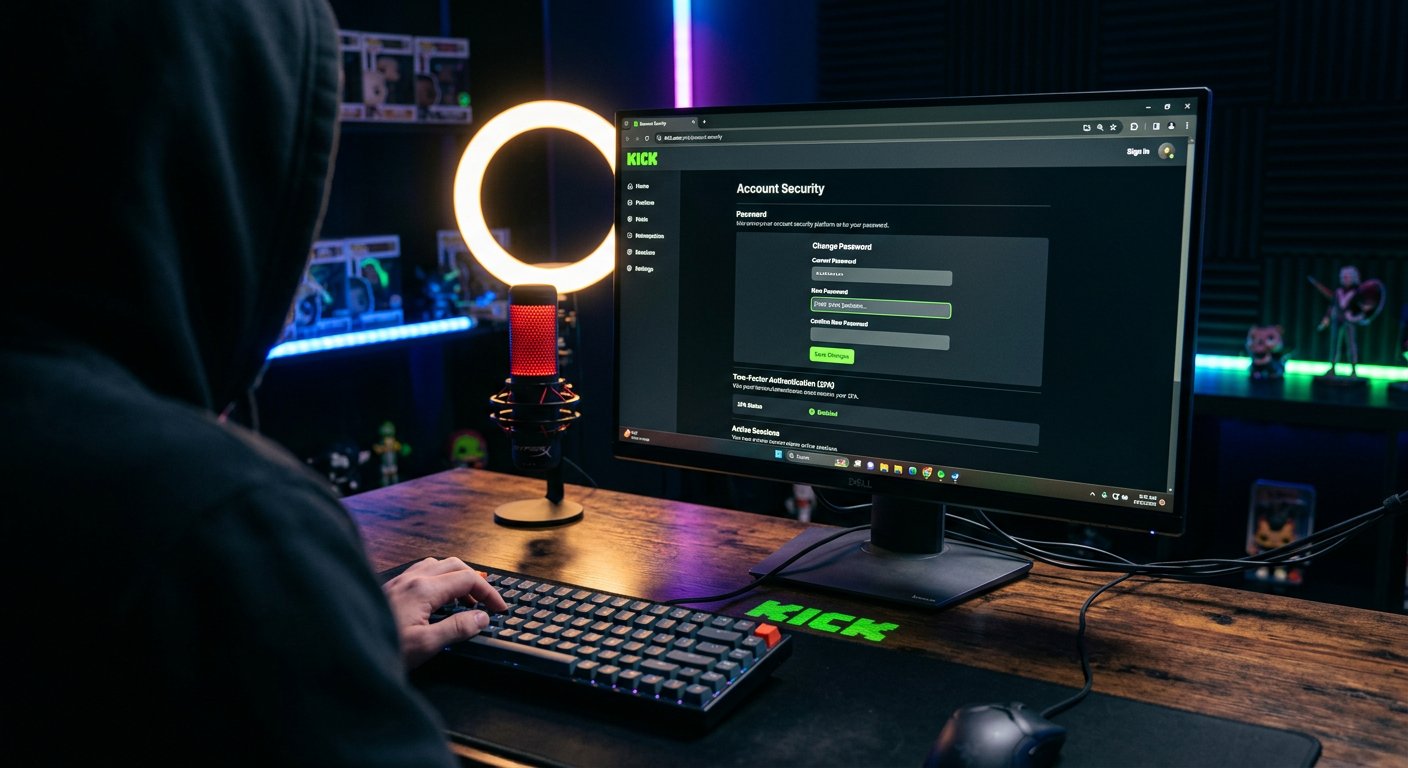
How to change your Kick password
Open your Kick account settings on your own device and change your password. The new password should be unique: don't use a combination from your email or another service. If you don't know the current password, use account recovery through the sign-in page.
After changing it, don't use the old password for a new sign-in. However, a session that's already open may continue to work. Check for a message from Kick when you change your password, and don't consider the other session closed without confirmation from the service.
What to do about a saved password
While the device is accessible, check the browser's saved passwords and delete the entry for Kick if one appeared. Separately check the password for your email and any third-party account you used to sign in. Don't delete other people's entries or all browser data: that will affect the device's owner.
When you can't check the device, treat any passwords entered on it as compromised and change them. Logging out of the account doesn't erase a saved copy of the password, and deleting it remotely may not be possible.
How to protect your linked email
Your email is tied to recovering access to Kick, so an email session left open on someone else's device is also a risk. End it in your email account settings, check your recovery methods, and change the password if it may have become known to someone else.
Check the email address in your Kick settings and notifications about account changes. An unknown recovery address or emails about actions you didn't take are a reason to secure your email right away and contact Kick support.
If you signed in through a third-party account
Check the security of the service you used to sign in: end unfamiliar sessions and change the password if it may have been saved on someone else's device. If necessary, also check the email linked to that service.
Logging out of a third-party account does not necessarily end your Kick session: after authorization, the platform may maintain its own sign-in. Securing the third-party service matters, but it doesn't replace contacting Kick about the session left open.
Will two-factor protection help
Check your Kick security settings and enable two-factor protection if it isn't already on. Keep backup codes in a safe place, separate from the other device. That way an additional code will be required at sign-in when the service requests it.
The downside of this step is that it doesn't guarantee ending a session that's already open. So two-factor protection complements changing your password and checking access, but doesn't replace them.
Should you clear cookies
After logging out of Kick, you can delete the site data in the browser settings on the other device. This is an extra local cleanup that's useful if you're unsure the logout went through correctly. Don't delete data for all sites without the owner's consent: their sign-ins and settings will disappear along with it.
Clearing only affects a specific browser. It doesn't delete passwords saved separately, doesn't clear the Kick app, and doesn't confirm that the session was revoked on the service's side.
When to reset your stream key
If the streamer panel was opened on the other device or the stream key was visible, assume the key may have been copied. Reset it in your channel settings and enter the new key in your streaming software.
After resetting, you'll need to update the settings on each of your own devices that you stream from. Resetting the key protects access to your stream, but it doesn't sign the other person out of your Kick account.
How to check connected apps
Check your Kick connection settings, especially if channel tools were connected on the other device. Revoke permissions for unfamiliar and no-longer-needed apps. If necessary, you'll have to reconnect the tools you trust.
App permission and browser sign-in are different types of access. Revoking permission isn't the same as logging out of Kick, and logging out of the account doesn't always cancel previously granted permissions.
What to tell Kick support
Contact support through Kick's help section if the other device is inaccessible and you need to end the session left open on it. State that the sign-in was made on someone else's device and list the steps you've already taken. Ask them to confirm the available way to revoke the session.
Also report any settings changes, messages, or streams that weren't yours, if they appeared. Support may need information to verify account ownership, but you shouldn't send your password, stream key, or backup codes.
How to sign in on someone else's device next time
A private browser window works for temporary sign-ins: after you close all private windows, local session data is usually deleted. The mode doesn't protect against malware that records input, and it doesn't guarantee the server-side session is revoked.
Don't let the browser save your password. When you're done, log out of Kick and any linked accounts, close the private window, and check whether any files or settings with the stream key were left on the device.
Last Articles
What has changed in design and functionality We have updated the website to make working with it faster and more convenient. The main changes affect ..
Good afternoon, I've collected all the news during this time.: 1. The main news is that prices for twitch viewers have been greatly reduced, while Tw..
1. Use promo code "December2025" for a 15% discount for all our viewers2. We have reduced the base prices for our configurator and the most affordable..
Twitch services are working stably, so we are ready to cooperate with squads, resellers, service owners, bot owners, and many others.Individual te..
We have completely updated our Twitch viewer services, and they are now working stably. We only use high-quality IP addresses for the viewers.The ..
Hello everyone! Today, we are announcing a new feature—"Twitch Viewer Configurator". Now, you can customize any plan for your Twitch channel. Choo..
Greetings, I have compiled a guide for streamers, which will be very relevant at the moment. Now YouTube and twitch have disabled monetization from vi..
We have finally developed the APINow it will be more convenient for our partner sites to work with us.To update the maximum tariffs for YouTube, an up..
Due to the huge popularity of the partnership services and referral program, we have made a cooperation table. The essence is very simple: more live a..
Our Services for Streamers








Our Services for Content Creators






