
Can a Streamer Speak Several Languages at Once with AI
What AI live stream dubbing is
AI dubbing translates a streamer's speech during a broadcast and creates an additional audio version in another language for the viewer. The system receives sound from the microphone, recognizes what was said, translates the phrase, and voices the result with a synthetic voice. In some solutions, they try to make the voice resemble the creator's own voice.
The streamer does not physically start speaking several languages. A software processing chain appears between the microphone and the viewer. It can work almost in real time, but it does not transmit the utterance instantly: the system needs to wait for a fragment of speech, recognize it, find a translation, and synthesize a new phrase.
So the answer to the question in the title is this: technically, one person can broadcast to several language audiences, but it will not be simultaneous live speech in different languages. Viewers will hear versions of the same utterance with a delay, and quality will depend on the microphone, speech pace, the chosen service, and the output method.
Dubbing differs from subtitles in how it is perceived. The viewer does not need to constantly shift their gaze from the game or the host to text. This is convenient in gaming streams, educational broadcasts, and talk formats. But the voice version depends more heavily on latency, pronunciation errors, natural intonation, and correct audio routing.
How speech becomes a translated audio track
First, the service receives a clean signal from the streamer's microphone. The recognition model turns sound into text, and streaming systems can use intermediate results even before a phrase is finished. Then the text is passed to a machine translator. It selects the variant in the desired language based on the available context, after which the synthesizer forms a new audio phrase.
The finished sound goes to the chosen output channel: the service's player, a separate audio stream, a virtual audio device, or streaming software. At this stage, you can adjust volume, turn the track on and off, send different languages to different scenes, or deliver them to viewers through the provided interface.
The system can process speech in small fragments or wait for a semantic block to finish. The smaller the fragment, the lower the potential wait, but the higher the risk of cutoffs, incorrect translation, and unnatural pauses. With longer blocks, the translation gets more context, but the viewer waits longer for the thought to finish.
The result is affected by speech pace, pauses, microphone quality, and the number of speakers. Fast utterances, laughter, shouting, music, game sound, and conversation among several participants make recognition harder. If a ready-made translated track gets into the microphone, it can be reprocessed and cause echo or looping.
What dubbing latency depends on
Latency consists of several parts: speech recognition, machine translation, voice synthesis, audio transmission, and the service's internal buffering. If the system waits for a phrase to finish, that waiting time is added to processing as well. With several languages, operations can run in parallel, but the load on the service and the computer still increases.
You cannot evaluate latency based only on a browser demo. In a real broadcast, OBS audio capture, encoding, sending the stream to the platform, and waiting at the viewer's player are added to it. For two viewers, the same translation may appear with a difference due to connection, device, and the selected viewing mode.
Measure processing latency and full latency to the viewer separately. For the first test, record the source microphone and the dubbing output on different tracks. Say a short marker word and at the same time make a clap or click. On the source recording, find that moment, and on the translated one, find the start of the processed phrase. Repeat the check with a short sentence, a long utterance, and a fast reply, because one measurement does not show how the whole system behaves.
For a full check, open the broadcast on another device through a regular viewer connection. You can add a large counter or another noticeable visual marker to the scene, record its appearance in OBS, and compare it with the moment it became visible to the remote viewer. Such a test shows how much platform latency changes the impression of dubbing.
How platform latency changes the broadcast format
Even with low AI latency, the streaming platform adds its own buffering. Low-latency mode usually reduces the wait but does not eliminate it entirely. More cautious modes can be more stable on a problematic connection, but the translation will arrive later relative to the picture and the original speech.
On Twitch and YouTube, the result depends on the selected broadcast settings, network conditions, channel settings, and the behavior of the specific player. Therefore, you cannot assume in advance that a fixed number of seconds is universal for all broadcasts. Test Twitch and YouTube specifically as a viewer, not just by local sound in OBS.
If the translation lags during a calm lesson or review, it may be acceptable: the viewer first sees the action and then hears the explanation. In a competitive game, latency is more noticeable through the host's reaction and on-screen events. In a fast conversation with chat, the translated speech may already refer to a topic that has since changed.
If the lag is noticeable, it is worth reducing the size of the processed fragments, speaking in short sentences, and not overloading the broadcast with simultaneous languages. If that does not help, subtitles or a separate translated recording may be more convenient than constant voice dubbing.
Which solutions suit a streamer
There is no ready-made tool that is equally convenient for Twitch, YouTube, and any other broadcasting method. Before choosing, check not only the list of languages and translation quality but also how the result is delivered. It is important to know whether the service outputs sound through a browser, a separate audio stream, a virtual device, or an API, and whether dubbing can be quickly disabled if something goes wrong.
Ready-made platforms for events
Wordly and Interprefy AI are aimed at translating conferences, online events, and presentations. This approach is convenient if viewers can receive the language version through the service's own interface. The streamer does not have to assemble recognition, translation, and synthesis independently, but must check in advance the microphone connection, streaming mode, available languages, and the ability to route the finished sound into OBS.
For a gaming stream, it is important to test separately short utterances, interruptions, character names, and conversational slang. An event with a prepared presentation and a fast stream with reactions are different tasks. Audio storage terms, feature sets, and output options depend on the current parameters of the specific product.
Cloud components for a custom setup
Microsoft Azure Speech Translation can be combined with speech synthesis and an intermediate application. A similar chain can be built from Google Cloud Speech-to-Text, Cloud Translation, and Text-to-Speech, or from Amazon Transcribe, Translate, and Polly. Such solutions give more control over vocabulary, the processing queue, and the voice, but require technical setup.
In a custom setup, you need to organize audio transmission, processing of partial results, retries on failure, and return of the synthesized track to the broadcast. For a beginner, this is more of a small software project than a ready-made button. If you need a quick proof of concept, it is better to start with a ready-made platform or build a test for only one language.
OBS Studio and virtual routing
OBS Studio works as a control center for scenes and audio sources, but the program itself does not translate speech. Virtual audio devices may be needed to pass sound between the service and OBS. On Windows, solutions like VB-CABLE are used for this, and on macOS, virtual devices like BlackHole. Their compatibility with a specific service must be checked separately.
How to set up multiple language tracks
The first option is one broadcast with multiple audio tracks that the viewer switches between in the player. This is the cleanest setup: the picture and events remain shared, and the language is selected separately. However, this capability must be supported by the specific platform, broadcast format, account, and integration method. Internal track separation in OBS alone does not create a language switcher for the viewer.
The second option is a separate broadcast for each language. Each stream can have its own title, description, chat, and moderation. The setup is clear to viewers but requires multiple streams, additional resources, and synchronization control. If the source broadcast is interrupted, this quickly affects all language versions.
The third option is a main broadcast in the source language and a separate language channel or external player with translation. This approach works when the platform does not support multiple audio tracks in the required format. The viewer needs a clear link and an explanation of where to turn on the translation.
The fourth option is translated recordings, clips, or separate broadcasts after the stream ends. There is no live communication in another language here, but you can check quality, fix errors, and find out whether such a version interests the audience without risking the entire live broadcast.
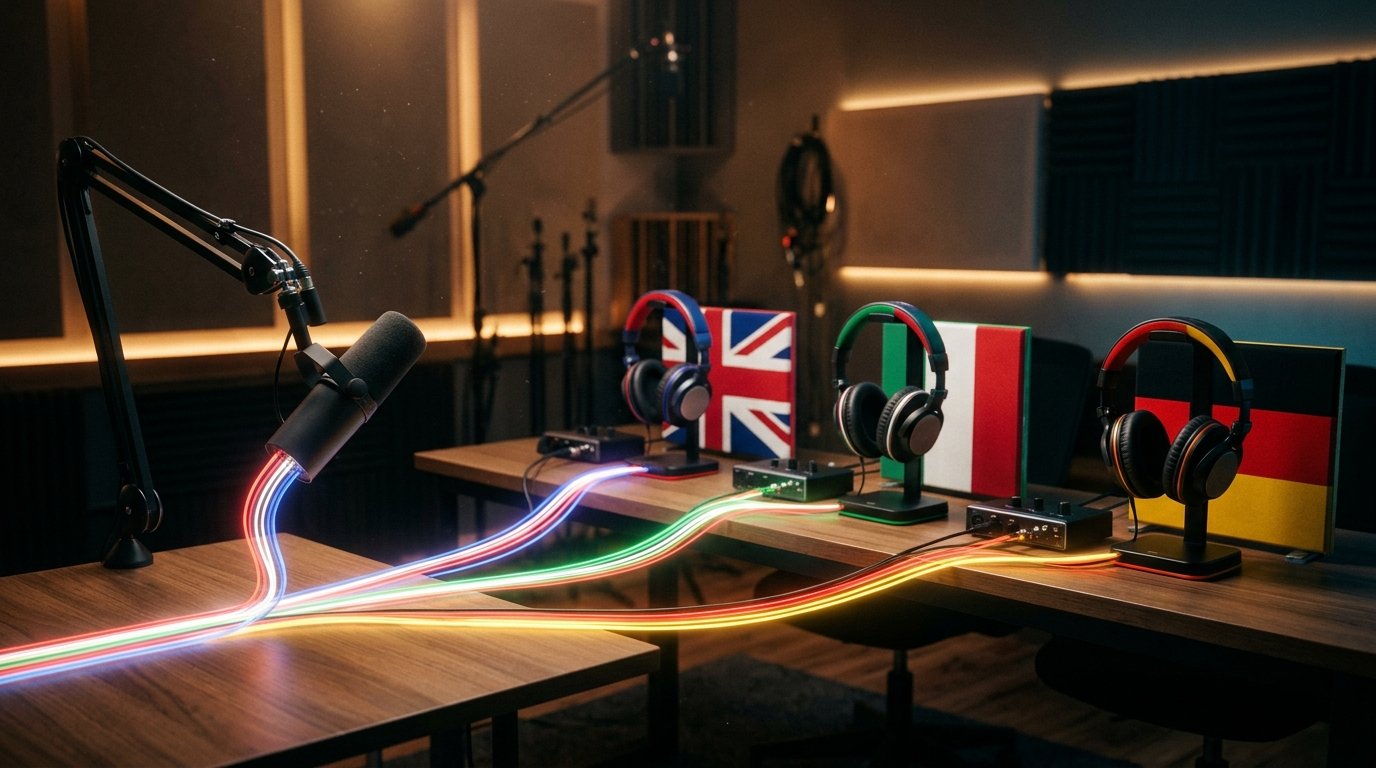
Do not mix the original and translated voice in one channel if the viewer cannot adjust them separately. Otherwise, the viewer will first hear the source phrase and after some time hear the translation over it. If the platform accepts only one mix, it is safer to use a separate broadcast or an external language channel.
How to set up output and monitoring in OBS
First, separate the source inputs. The input for translation should receive the streamer's microphone, but not the finished dubbing, music, and game sound. If the service accepts only a general mix, build a separate audio output for it. Otherwise, the system may recognize character lines, songs, notifications, and its own voiceover.
When the service outputs translation through a virtual audio device, add it to OBS as a separate Audio Input Capture source. Give it a clear name, for example "Dubbing EN," and do not combine it with the original microphone unless necessary. For each language, it is better to use a separate source or a separate scene so you can quickly see which signal is on.
The translated track should be monitored through headphones, not through speakers next to the microphone. Closed-back headphones or neat in-ear models reduce the risk of the synthetic voice getting back into the microphone. If the translation plays from speakers, the microphone may pick it up along with your speech and create echo, re-translation, or looping.
In OBS advanced properties, do not enable constant monitoring of the translated track to the main output unless necessary. If monitoring is needed for checking, route it to headphones and enable it only temporarily during a test. Make sure a separate output is selected, not the microphone input. After checking, listen to the recording: locally, echo may be unnoticeable, but in the finished broadcast it will become obvious.
For control, prepare hotkeys or buttons to disable dubbing. The streamer must quickly return to the original microphone if the service starts repeating sound, translating the game instead of speech, or playing a phrase several times. It is useful to have a separate scene without the translated track and a pre-checked backup microphone signal.
If OBS allows distributing sources across output tracks, you can leave the original microphone and game on one track and the translated voice on another. But before publishing, you need to find out which tracks the chosen platform actually accepts. Sometimes only the final mix is available to the viewer, and then sending multiple tracks in OBS does not solve the task.
Will AI preserve the streamer's voice and emotions
A similar timbre helps the viewer accept the foreign version faster but does not guarantee a complete match. A voice model can convey pitch, tone, and general manner of speech. It is much harder to reproduce sudden laughter, fright, sarcasm, whispering, or a sharp switch from calm speech to shouting.
Translation changes the length and rhythm of a phrase. A short utterance in one language may become longer in another, and a literal translation of a joke may lose its meaning. The synthesizer has to re-establish pauses and intonation, but an automatic system does not always understand where the streamer is joking, quoting a character, or addressing chat.
In a calm educational stream, neutral synthetic voiceover may be perceived as normal. In a comedy show, an emotional game, or a conversation with guests, the differences will be more noticeable. For such formats, it is useful to compare full dubbing with subtitles and choose the option that better preserves the meaning and pace of communication.
Translation errors and speech quality
Automatic translation works worse with slang, memes, nicknames, and phrases whose meaning depends on the situation. A game or item name may be perceived as an ordinary word. A character's name is sometimes replaced by a similar-sounding variant, and a short utterance without context gets the wrong meaning.
Before launch, prepare a channel dictionary: the game name, participant names, nicknames, segment names, recurring phrases, and terms. If the service has a custom dictionary or exclusion list, enter this data in advance. This will not eliminate all errors but will help reduce the number of recurring incorrect variants.
Check not only the text translation but also pronunciation. A native speaker of the chosen language may notice incorrect stress, unnatural word order, or an expression that sounds rude in the local context. One automatic check is not enough, especially if the broadcast is built on humor and communication with chat.
With several participants, the problem of separating voices is added. If co-hosts speak at the same time, the system may merge utterances or misidentify the speaker. For interviews, it is better to use separate microphones and channels if the chosen solution supports such a setup.
Chat, moderation, and notifying viewers
Translating the streamer's speech does not automatically translate viewer messages. Chat may remain in the source language, be processed by a separate tool, or arrive with its own delay. Before launch, explain to the audience how to ask questions and in which language the host will be able to answer.
If the streamer reads only one language segment of chat, the rest of the viewers will quickly feel left out. Moderators who understand the needed languages, prepared greetings, and a short message about automatic dubbing latency will help. Important messages are better checked before reacting, since machine translation of chat can also distort meaning.
Viewers should be told directly that the broadcast uses automatic translation or synthetic voiceover. The notice can be placed in the description, a pinned message, or stated at the start of the stream. This is especially important if the foreign voice resembles the streamer's voice and can be mistaken for real speech.
If recordings of speech are used to create a voice model, check the terms of data storage and processing. You must not create a copy of the voice of a co-host, guest, voice actor, or another person without permission. For joint broadcasts, agree on voice use in advance.
How to test dubbing before the first broadcast
Start with one additional language and a private broadcast. Test a calm explanation, a fast gaming reaction, a joke, a game name, a character name, laughter, and a reply to a chat message. Separately note omissions, changes in meaning, errors in names, and how well the voice matches the picture.
Record the source track and the virtual audio device output separately. Use a short marker word together with a clap or click to measure latency by the sound waveform. Then listen to the same material through a remote Twitch or YouTube viewer. This way you separate AI latency from platform buffering.
Ask a native speaker of the language to evaluate several phrases. Their comments should concern translation accuracy, naturalness of expressions, stress, names, jokes, and rude wording. After that, fix the dictionary and settings, and then repeat the test with the same examples.
Test the emergency scenario: disable the service, turn off the virtual device, and make sure the viewer still hears the original microphone. Record the test through headphones and a phone speaker, since overlap, hissing, and overly loud synthetic voice are perceived differently on different devices.
Conclusions: how to launch multilingual dubbing
- Determine whether your format needs voice translation or whether subtitles are enough.
- Choose one additional language and a service with streaming processing, not just dubbing of finished files.
- Separate the microphone, game, music, and translation in OBS by connecting dubbing through a separate audio output.
- Use headphones and do not point translation speakers into the microphone to avoid echo and looping.
- Measure latency locally and separately test the broadcast through a Twitch or YouTube viewer connection.
- Ask a native speaker to check the translation, set up the dictionary, and prepare a button to disable dubbing.
- After the private test, choose multiple audio tracks, separate broadcasts, an external language channel, or translated recordings.
Last Articles
What has changed in design and functionality We have updated the website to make working with it faster and more convenient. The main changes affect ..
Good afternoon, I've collected all the news during this time.: 1. The main news is that prices for twitch viewers have been greatly reduced, while Tw..
1. Use promo code "December2025" for a 15% discount for all our viewers2. We have reduced the base prices for our configurator and the most affordable..
Twitch services are working stably, so we are ready to cooperate with squads, resellers, service owners, bot owners, and many others.Individual te..
We have completely updated our Twitch viewer services, and they are now working stably. We only use high-quality IP addresses for the viewers.The ..
Hello everyone! Today, we are announcing a new feature—"Twitch Viewer Configurator". Now, you can customize any plan for your Twitch channel. Choo..
Greetings, I have compiled a guide for streamers, which will be very relevant at the moment. Now YouTube and twitch have disabled monetization from vi..
We have finally developed the APINow it will be more convenient for our partner sites to work with us.To update the maximum tariffs for YouTube, an up..
Due to the huge popularity of the partnership services and referral program, we have made a cooperation table. The essence is very simple: more live a..
Our Services for Streamers








Our Services for Content Creators






