
Do You Need a Separate Storage Drive for Recording Streams in OBS?
When a separate drive for OBS is truly needed
A separate storage drive for recording is not a mandatory requirement for a stable stream. If the system, game, and OBS run without stutters and the recording saves without corrupted fragments, there is no need to change your setup just for the sake of having a separate drive.
It makes sense when a single physical drive simultaneously handles the system, game, browser, downloads, program caches, and the broadcast recording. At that point the drive gets a mixed workload: the game and Windows constantly read small files, while OBS tries to sequentially write a large video file. The problem isn't OBS, but the competition of tasks for the drive's speed and response time.
Most often a separate drive is needed when recording a high-quality local archive, using multiple video sources, capturing replays, and simultaneously working with demanding games or editing programs.
What loads the drive during a stream
During a regular broadcast, OBS encodes the video and sends the stream to the network. The local drive is barely involved if recording is off. Once recording starts, constant file writing is added to the network load: video, audio tracks, and container metadata.
At the same time, the game may be loading textures, maps, sounds, and shaders. The browser with chat, bots, alerts, and control panels also reads cache and creates temporary files. If an update download, cloud sync, or render is running on the same drive, the likelihood of delays increases.
The weak point is often not the maximum speed from the drive's specs, but handling many operations at once. This is especially noticeable on a hard drive: it can handle sequential writing fine, but parallel reading of game data and writing the archive are harder for it.
How to tell that recording is bottlenecked by the drive
Not every frame drop is related to storage. An overloaded graphics card usually causes rendering issues, a weak processor or the chosen encoder causes encoding delays, and an unstable connection causes losses when sending the broadcast. Replacing the drive in such cases won't fix the cause.
Recording problems are indicated by recording stopping with an error, warnings about being unable to save the file, corrupted sections of the video, and stutters specifically in the local archive while the broadcast is fine. It helps to compare this with disk usage in system monitoring: if the drive is constantly busy during the failure and operation delays increase, the drive hypothesis becomes likely.
It's best to test the setup under real load: launch your usual game, browser sources, alerts, and recording with the same settings used during the broadcast. A short test on an empty scene won't show how the system behaves while loading locations or with an active chat.
Why partitions of one drive don't solve the problem
A folder with recordings on another partition looks like a separate drive only in the file explorer. If both partitions are on the same physical SSD or HDD, the controller and memory of the drive remain shared. The game, system, and OBS still access the same device.
Separation can be useful for organization: it's easier to control free space, avoid mixing archives with system files, and find recordings faster. But performance barely changes because of it. To offload, you need a second physical drive connected separately.
The same rule applies to multiple logical volumes on a single external drive. They don't turn the device into two independent sources of speed. The downside of such a setup is that it creates a false sense of protection from load, even though there's no real separation of operations.
When you can write to the system or game SSD
A single quality SSD often handles the game, system, OBS, and recording if it has enough free space and no heavy tasks are running in the background. For a streamer with one PC, this is a normal starting option: no need to buy an additional device or rearrange file locations.
There's only one downside — the margin of stability is lower. Any sudden game loading, update installation, file copying, or drive filling up can affect the recording. The higher your requirements for local archive quality, the more noticeable this risk.
Don't fill the drive almost completely. The drive needs free space for normal internal operation, and OBS should have headroom for a long session and possible file size growth. If free space runs out during the broadcast, recording will stop regardless of the computer's power.
Which drive to choose for recording
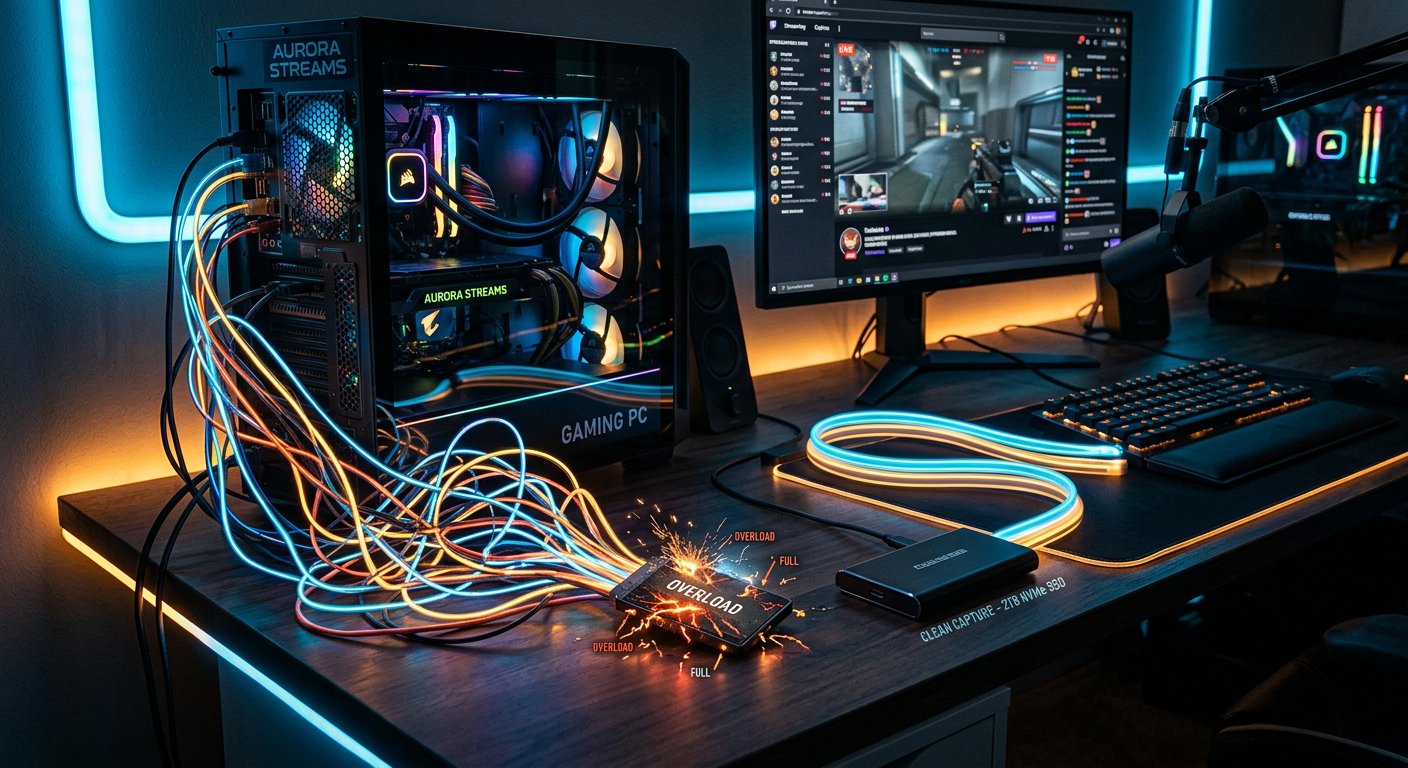
For a dedicated drive for OBS, an SSD is usually the choice. It handles simultaneous file operations better and responds faster to system requests. An NVMe model provides extra headroom, but isn't strictly necessary: for many recording scenarios, a separate SATA SSD is enough.
A hard drive can be used for archiving finished videos or simple recording when no other active tasks are placed on it. Its advantage is the convenience of storing large amounts of data. The downside is sensitivity to parallel load and slower response, so writing the game and recording to it simultaneously is risky.
An external SSD also works if the connection is stable, the cable isn't loose, and the port doesn't share bandwidth with other demanding devices. The downside of the external option is that an accidental cable disconnection, power issues, or an unstable USB hub can interrupt the recording.
Why a network drive and cloud aren't suitable for direct recording
Recording an OBS file directly to a network folder or a synced cloud storage is not advisable. Even with good network speed, there are delays, brief interruptions, router limitations, and background sync processes. For a broadcast, this is an extra point of failure.
It's more reliable to save the recording to a local drive and then transfer it to a NAS, cloud, or archival HDD after the broadcast. This approach doesn't make the archive instantly available on another device, but it doesn't tie recording stability to the network.
Network storage can be used as a backup, but not as the primary recording path during an important stream. This is especially relevant if the network is simultaneously occupied by the broadcast itself, games, or other users.
OBS settings that affect drive performance
The chosen container doesn't increase drive speed, but it affects the safety of the material. Recording to MKV is usually safer in case of an emergency OBS shutdown, power outage, or system freeze: the file is more likely to remain usable for further processing. If needed, it can be converted to another container after recording.
Direct recording to MP4 is convenient for quickly opening the file, but in case of an emergency interruption there's a risk of getting a video that's hard to recover. The downside of MKV is that some programs and services require prior file conversion.
Recording quality, the chosen codec, resolution, frame rate, and quality control mode determine the amount of data OBS needs to write. The heavier the file, the higher the demands on the drive and free space. Multiple audio tracks add load, but usually aren't the main factor compared to video.
Workable setups for a streamer's computer
- One SSD for system, game, and recording. Suitable for moderate load and free space on the drive. Downside — no isolation of recording from game and system processes.
- One drive for system and games, a second SSD only for OBS recordings. A practical option for regular streams. Downside — you'll need a separate drive and control over archive filling.
- A separate system SSD, a separate drive with games, and a separate SSD for recording. This setup reduces task overlap. Downside — it's more expensive and won't fix issues with the encoder, graphics card, or internet.
- A local SSD for recording and an HDD or network storage for transferring finished archives. Suitable for long-term storage. Downside — after each broadcast you'll have to transfer files manually or set up automation.
What to check before buying a second drive
- Check whether recording errors and corruption appear specifically in local OBS files.
- Check drive usage during gaming, recording, downloads, and browser source operation.
- Make sure the current drive has enough free space for a full session.
- Disable cloud sync, torrents, file copying, and updates during the test.
- Record to another physical drive and compare the result with the same scene and game.
If failures disappear after moving the recording folder to a second drive and other parameters haven't changed, a dedicated drive is justified. If problems persist, look for the cause in encoding settings, scene rendering, component temperatures, or the connection to the platform.
Last Articles
What has changed in design and functionality We have updated the website to make working with it faster and more convenient. The main changes affect ..
Good afternoon, I've collected all the news during this time.: 1. The main news is that prices for twitch viewers have been greatly reduced, while Tw..
1. Use promo code "December2025" for a 15% discount for all our viewers2. We have reduced the base prices for our configurator and the most affordable..
Twitch services are working stably, so we are ready to cooperate with squads, resellers, service owners, bot owners, and many others.Individual te..
We have completely updated our Twitch viewer services, and they are now working stably. We only use high-quality IP addresses for the viewers.The ..
Hello everyone! Today, we are announcing a new feature—"Twitch Viewer Configurator". Now, you can customize any plan for your Twitch channel. Choo..
Greetings, I have compiled a guide for streamers, which will be very relevant at the moment. Now YouTube and twitch have disabled monetization from vi..
We have finally developed the APINow it will be more convenient for our partner sites to work with us.To update the maximum tariffs for YouTube, an up..
Due to the huge popularity of the partnership services and referral program, we have made a cooperation table. The essence is very simple: more live a..
Our Services for Streamers








Our Services for Content Creators






