
When a Streamer Needs a USB Hub with External Power
What Problems a USB Hub Solves in a Stream
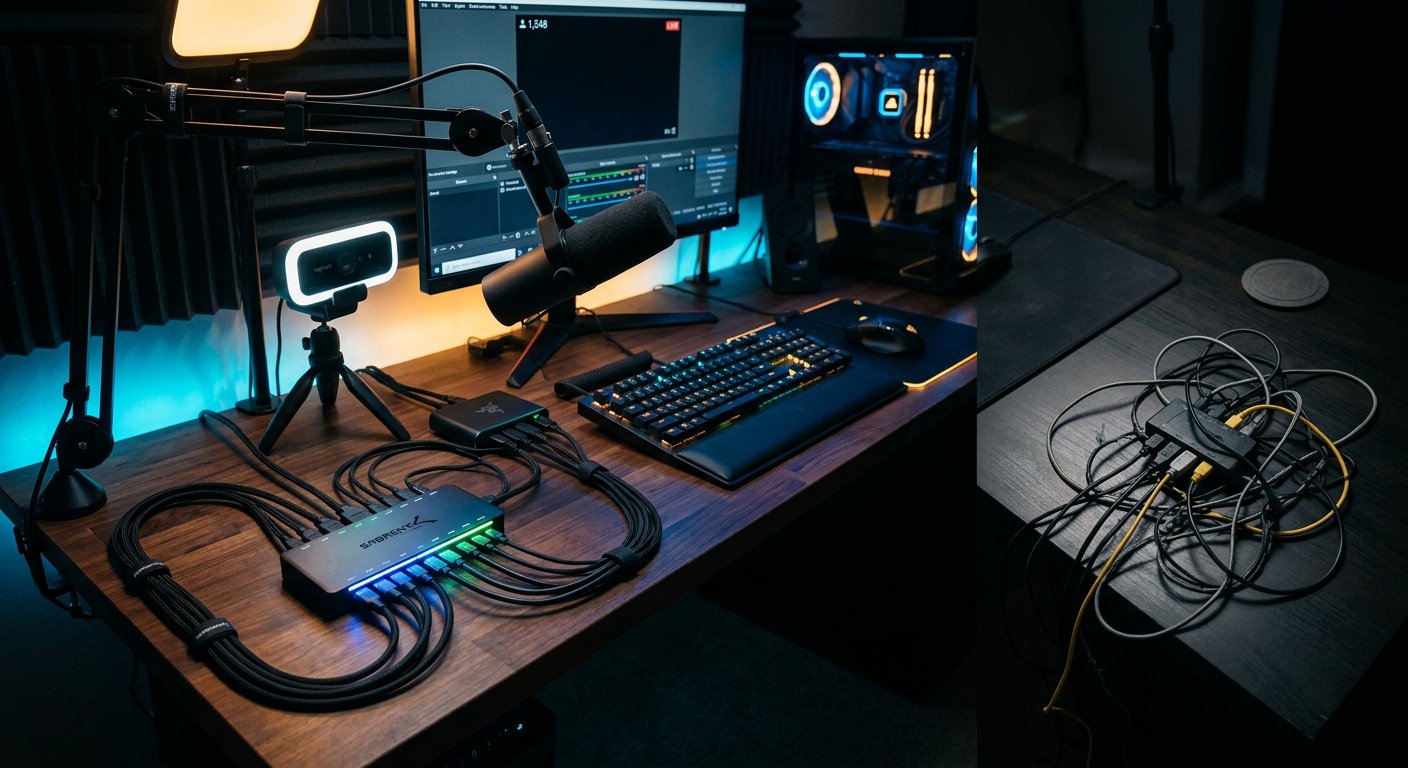
A computer's USB ports often have a camera, microphone, capture card, wireless receivers, MIDI controller, lighting, external drive, and charging cables connected to them. When there aren't enough ports, a hub seems like a simple solution. But in a streaming setup, connectors aren't the only thing that matters: devices simultaneously use USB power and bandwidth.
A hub with an external power supply gets energy not only from the computer. It can serve devices that need constant power more reliably. A camera, audio interface, capture card, or drive shouldn't always be plugged into a single passive splitter. External power does not increase data transfer speed: it only solves the problem of available power.
How an Active Hub Differs from a Passive One
A passive hub is powered from a single USB port on the computer and divides its capabilities among the connected devices. By the basic USB 2.0 standard, a port can deliver up to 0.5 A at 5 V, that is, up to 2.5 W. For USB 3.0 and USB 3.2 Gen 1 the benchmark is higher — up to 0.9 A, or 4.5 W. The actual available power depends on the controller, the laptop, and the hub's own circuitry.
This is enough for a mouse, keyboard, headset dongle, or MIDI controller. The shortcoming of a passive model shows up when several active devices are added to it. For example, a camera may turn on but start restarting when the resolution changes, and a drive may disappear during recording.
Which Devices Benefit from Separate Power
An external power supply is worth considering if several devices with noticeable consumption are connected through one hub. This is especially relevant when the setup is turned on before every stream and must run reliably for several hours without reconnecting.
- A webcam with high resolution, autofocus, or active image processing.
- A capture card that draws power via USB.
- A USB microphone, audio interface, or compact mixer without a separate adapter.
- An external SSD or hard drive used for recording the stream and media.
- Several wireless receivers, controllers, charging cables, and devices with lighting.
The downside of an active hub is an extra adapter in the power strip, more cables on the desk, and one more point of failure. A weak or low-quality power supply can cause the same disconnections the hub was bought to prevent.
How Much Power Supply Capacity Is Enough
You should look not only at the number of ports but also at the adapter's total power. It can be calculated: voltage multiplied by current. For example, a 5 V, 4 A unit can deliver up to 20 W. If the hub's adapter is rated at 12 V, that doesn't mean each USB port outputs 12 V: the hub converts the voltage internally, and the port specifications must be checked separately.
For a four-port hub where you plan to connect peripherals, receivers, a microphone, and occasionally a drive, a reasonable benchmark is a power supply of 20 W or more. For a model with seven or more ports where several active devices run simultaneously, it's better to look at an adapter of 30 W or more. This is not a guarantee of compatibility: the limit of each individual port also matters.
A normal minimum for a regular USB-A 3.x port can be considered up to 0.9 A at 5 V. If a hub claims only 0.5 A per port, it's suitable primarily for simple peripherals. Charging ports may deliver 1.5 A, 2 A, or more, but a charging port isn't always intended for data transfer. For a camera, microphone, or capture card, you need a port with data.
Why Power Headroom Matters More Than the Number of Ports
You shouldn't just add up the average consumption of devices. A camera may briefly draw more at startup, during autofocus, or when lighting turns on, a drive during spin-up and recording, and an audio device during initialization. If the power supply runs at its limit, instability often appears not immediately but after a reboot, a scene switch, or connecting one more device.
Base your choice on the stated maximum consumption of the equipment you connect and leave headroom. If the calculation shows the setup needs about 15 W, a 15 W adapter is a weak choice. A few watts of headroom reduces the risk of voltage drops, but it doesn't fix a bad cable, a faulty connector, or a driver conflict.
USB Power and Bandwidth Are Different Constraints
Even a powerful hub won't solve the problem if the camera, capture card, and drive share a single data channel. A USB hub connects to the computer with one cable, so all its ports usually use the shared bandwidth of that connection. High USB 3.x speed is useful for drives and video devices, but it doesn't turn one computer port into several independent controllers.
A camera and capture card create a constant data stream. An external SSD adds load during recording or copying files. Therefore, the main video sources, the capture card, and the drive for the local archive are best connected directly to different computer ports where possible. The downside of this scheme is that there may not be enough free ports, and the cables will have to run to the desktop tower or laptop.
How to Tell a Lack of Power from Bus Overload
When power is insufficient, a device often disconnects completely and appears again. You may hear the system sound of reconnection, see a dark indicator on the camera, receiver, or drive. The camera may disappear from the device list, the capture card may restart, and the USB microphone may vanish from the audio devices. In OBS, the source often becomes unavailable, shows a black frame, or requires reactivation.
When the USB bus is overloaded, devices usually stay connected. The camera may start stuttering, freeze a frame, or reduce its refresh rate, and the capture card may show motion gaps. In OBS this isn't always reflected as a separate, clear error: dropped frame statistics can also be related to encoding and rendering. So you should focus on the behavior of the specific source, not just the overall frame counter.
The test is simple: temporarily disconnect the drive or the second camera without changing the rest of the setup. If the image immediately becomes smooth, bus contention is likely. If the problem disappears after moving devices to a hub with its own power or after disconnecting the charger and lighting, a lack of power is more likely. Such a test doesn't rule out a cable problem, but it helps narrow down the cause.
How to Distribute Equipment Across Ports
First, connect directly to the computer the devices that the picture and recording depend on: the main camera, the capture card, the drive for the local archive. Then test the stream in the usual configuration: with the broadcasting program running, scenes, sound, recording, and sources enabled.
It's convenient to move the USB microphone, audio interface, receivers, MIDI devices, keyboard, mouse, and controllers to an active hub. But audio can also be sensitive to a particular controller. If clicks, interruptions, or a change in latency appear after moving it, try returning the interface or microphone to a direct port. The stability of a specific combination matters more than a universal scheme.
Which USB Version to Choose for a Hub
USB 2.0 is enough for a keyboard, mouse, MIDI, and wireless receivers. Such a hub can be convenient specifically for peripherals: they won't share a high-speed channel with a camera or SSD. The downside of USB 2.0 is that it's not suitable for a demanding capture card, a fast drive, and some cameras with high data streams.
For an external SSD, camera, or capture card, you need a hub with USB 3.x and a corresponding cable for connecting to the computer. The labels USB 3.0, USB 3.1, and USB 3.2 from manufacturers can denote different generations, so it's more useful to check the stated data transfer speed. The benchmark for tasks with drives is 5 Gbps and higher. But even such a hub doesn't cancel the rule: critical video devices are best not gathered on one channel.
What Else to Look at Before Buying
Check whether the adapter power, total output current, and per-port limit are listed separately. A statement about external power without these specifications says little about the hub's capabilities. Overload and short-circuit protection is useful, but it doesn't compensate for insufficient power.
Port switches help restart a frozen device without unplugging the cable. Their downside is an extra mechanical element that can be accidentally bumped during a stream. Indicators let you notice power, but bright LEDs can be distracting on camera. Also pay attention to the length of the cable to the computer: a cable that's too long or weak can degrade connection stability.
When to Get an Active Hub and When It's Not Needed
- Get a hub with external power if you simultaneously connect several active USB devices, a drive, a camera, audio equipment, or often encounter power-related disconnections.
- Choose a model with an adapter of 20 W or more for a compact setup and 30 W or more for a large set of devices, checking the total power and the current on each port.
- Leave the camera, capture card, and recording drive in the computer's direct ports if they transfer a large data stream.
- Don't buy an active hub just for a mouse, keyboard, and one receiver: a quality passive hub is usually enough.
- Don't use one hub as the single connection point for the entire setup: a failure of the adapter, cable, or the hub itself can disconnect several devices at once.
Last Articles
What has changed in design and functionality We have updated the website to make working with it faster and more convenient. The main changes affect ..
Good afternoon, I've collected all the news during this time.: 1. The main news is that prices for twitch viewers have been greatly reduced, while Tw..
1. Use promo code "December2025" for a 15% discount for all our viewers2. We have reduced the base prices for our configurator and the most affordable..
Twitch services are working stably, so we are ready to cooperate with squads, resellers, service owners, bot owners, and many others.Individual te..
We have completely updated our Twitch viewer services, and they are now working stably. We only use high-quality IP addresses for the viewers.The ..
Hello everyone! Today, we are announcing a new feature—"Twitch Viewer Configurator". Now, you can customize any plan for your Twitch channel. Choo..
Greetings, I have compiled a guide for streamers, which will be very relevant at the moment. Now YouTube and twitch have disabled monetization from vi..
We have finally developed the APINow it will be more convenient for our partner sites to work with us.To update the maximum tariffs for YouTube, an up..
Due to the huge popularity of the partnership services and referral program, we have made a cooperation table. The essence is very simple: more live a..
Our Services for Streamers








Our Services for Content Creators






