
StreamElements Alerts Not Visible Over the Game in OBS: Causes and Settings
How OBS Displays StreamElements Alerts
StreamElements alerts are output in OBS through a browser source. The game, camera, frames, and widgets are in the same scene, and OBS layers them together. If the browser source is disabled, sits below the game capture, or was added to the wrong scene, the viewer won't see the notification even if the widget is working.
First, check the alert in the StreamElements editor and with the test button. If the test is visible in the OBS preview window, the problem is usually not the account or the donation, but the source order or a specific scene.
Check the Link and Source Type
The overlay needs the link that StreamElements provides for a browser source. The dashboard page address, a profile link, or the URL of an individual widget won't work if the entire overlay is supposed to run in OBS. Copy the link again and paste it into the properties of the existing browser source.
- Make sure the "Browser" type is selected in OBS, not a browser window capture.
- Check that the source isn't disabled via the eye icon.
- Match the source dimensions to the overlay resolution.
- Don't create multiple identical sources unnecessarily: it's easy to get confused with them.
A browser window capture can show the overlay, but it's an inconvenient option: the window must stay open, it can't be covered, and notifications may disappear when it's minimized.
Place the Browser Source Above the Game
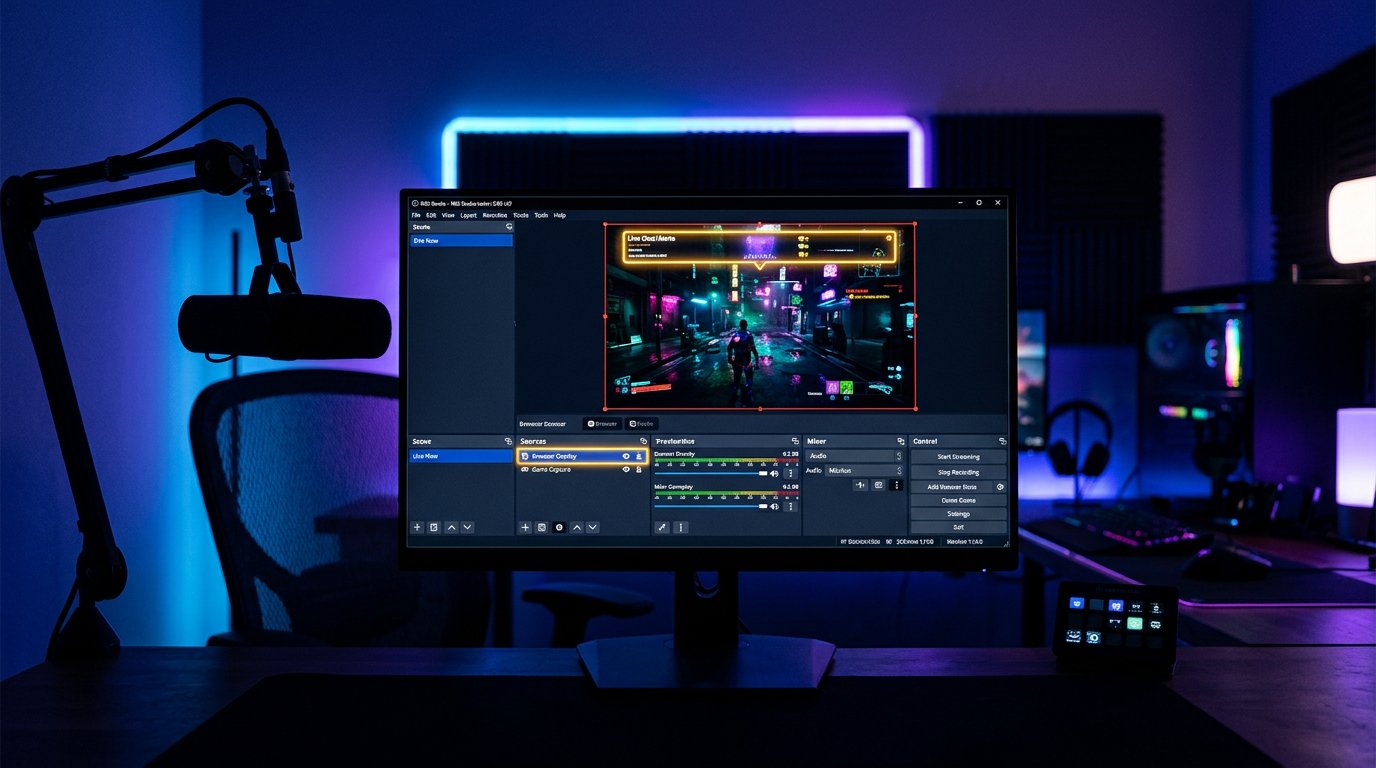
In the "Sources" list, items positioned higher cover items below. The game capture should almost always be below the StreamElements browser source. Drag the overlay to the top of the list or use the layer move commands.
If the alert appears only on the dark preview background but disappears once the game starts, the game capture is covering the browser source. The overlay must be above the game capture in the same scene. Sometimes the source ends up behind a full-screen camera, background, or media file — their order also needs to be checked.
Check the Scene and Nested Scenes
A common mistake is adding StreamElements to the "Starting Soon" scene while playing in the "Game" scene. In OBS, each scene has its own source list. The overlay needs to be added to each working scene separately, or moved into a separate scene and added as a scene source.
A separate scene with alerts makes updating easier: you change the link in one place instead of in every game scene. The downside of this approach is that you can accidentally hide the nested scene or place it below other sources. After adding it, switch through all scenes and run a test alert in each one.
Rule Out Browser Source Cache Issues
OBS caches the overlay page. After changing the link, editing a widget, or connecting a new account, the browser source sometimes keeps showing the old version. Open its properties, refresh the page, or create a new source with the current link.
Don't use a local file instead of the overlay URL: StreamElements loads widgets from the network. Also check your internet access. With an unstable connection, the alert may load with a delay or fail to receive the event. This isn't fixed by rearranging layers in OBS.
Check Browser Blocks and Extensions
If the test doesn't appear even in the StreamElements editor, the cause may be an ad blocker, privacy protection, or a browser extension. Such tools sometimes block the scripts, images, and sounds used in widgets. Open the editor in a clean browser profile or temporarily disable blocking for the service page.
The downside of temporarily disabling the blocker is that the browser will start loading more external elements. Don't disable protection for all sites: it's enough to check the StreamElements page and then set up an exception if that's what's interfering with the alerts.
Keep the Game Capture Mode in Mind
Full-screen game mode by itself shouldn't hide the browser source: OBS overlays it in the final scene, not inside the game window. The problem arises when you're looking at the game monitor rather than the OBS preview. Viewers may see the alert in the stream even though it doesn't show on the game screen.
To check, open the preview window or record a test clip. If the alert is in the recording, the setup is correct. You can try to display the overlay directly over the game using third-party programs, but this solution has a downside: it may conflict with the game, anti-cheat, or capture.
Check Filters, Transparency, and Visibility Area
The browser source may be active but remain invisible due to transparency, cropping, or a filter. Check whether the opacity has been reduced in the source settings, whether the overlay has been moved outside the canvas, and whether a filter that hides the image has been applied to it.
Select the source in the OBS preview: the frame will show its actual position and size. If there's no frame, another element is selected or the source hasn't been added to the current scene. After each change, run a test from StreamElements rather than waiting for a real event on the stream.
Last Articles
What has changed in design and functionality We have updated the website to make working with it faster and more convenient. The main changes affect ..
Good afternoon, I've collected all the news during this time.: 1. The main news is that prices for twitch viewers have been greatly reduced, while Tw..
1. Use promo code "December2025" for a 15% discount for all our viewers2. We have reduced the base prices for our configurator and the most affordable..
Twitch services are working stably, so we are ready to cooperate with squads, resellers, service owners, bot owners, and many others.Individual te..
We have completely updated our Twitch viewer services, and they are now working stably. We only use high-quality IP addresses for the viewers.The ..
Hello everyone! Today, we are announcing a new feature—"Twitch Viewer Configurator". Now, you can customize any plan for your Twitch channel. Choo..
Greetings, I have compiled a guide for streamers, which will be very relevant at the moment. Now YouTube and twitch have disabled monetization from vi..
We have finally developed the APINow it will be more convenient for our partner sites to work with us.To update the maximum tariffs for YouTube, an up..
Due to the huge popularity of the partnership services and referral program, we have made a cooperation table. The essence is very simple: more live a..
Our Services for Streamers








Our Services for Content Creators






