
Why OBS Browser Source Won't Update the Overlay and How to Clear the Cache
Why Browser Source Shows an Old Version of the Overlay
Browser Source runs on OBS's built-in browser. It loads the overlay page itself, along with styles, scripts, images, fonts, animations, and widget data, from the URL. If the browser engine has saved some of these files, the scene may still show the previous design even though the changes are already visible in the overlay editor.
The problem shows up in different ways: the logo or background doesn't change, a new block is missing, alerts use the old styling, text doesn't update, or a widget shows a previous version of an image. The URL in the source properties may still look correct. Simply switching between scenes doesn't always refresh the data either.
First, Separate the OBS Cache from an Error in the Link or Publishing
An old overlay isn't always caused by the local Browser Source cache. The previous file may be served by the overlay service itself, a content delivery network, a proxy, or the server hosting the image. Sometimes changes are saved in the editor as a draft, but the live version at the link was never published.
First, make sure the new version is actually available at the live URL. Otherwise, clearing the cache, deleting the source, and restarting OBS won't help: the program will simply load the same old page it receives from the service again.
Check the Overlay URL in a Private Browser Window
Copy the address from the properties of the problematic Browser Source and open it in a private window of a regular browser. This test helps rule out data from a long-used browser profile: history, some cookies, and locally saved page resources.
If the private window shows the old version, the problem isn't in OBS. Check saving, publishing, and the live link in the overlay editor. If the private window shows the new design but Browser Source shows the old one, move on to clearing the built-in browser's data.
Compare the Live Link and the Active Scene Collection
A single channel often has several similar addresses: a test overlay, a link for the main stream, a variant for vertical format, separate chat and alert widgets, and copies of old projects. You might edit one overlay while OBS keeps outputting another.
Open the Browser Source properties and compare the URL with the address in the editor. Check the widget ID, token, and parameters after the question mark. Look at which scene collection is active: the source may have been changed in one collection while you're streaming from another.
How the Refresh cache of current page Button Works
Select the Browser Source you need in the sources list and open its properties. At the bottom of the window there's usually a Refresh cache of current page button. The name may differ in the Russian localization, but the purpose stays the same: clear the current page's cache and reload it.
Click the button, apply the changes, and check the result in the preview. This command applies to a specific page, not to the whole program's settings. The source size, custom CSS, layer order, scenes, and stream settings should be preserved.
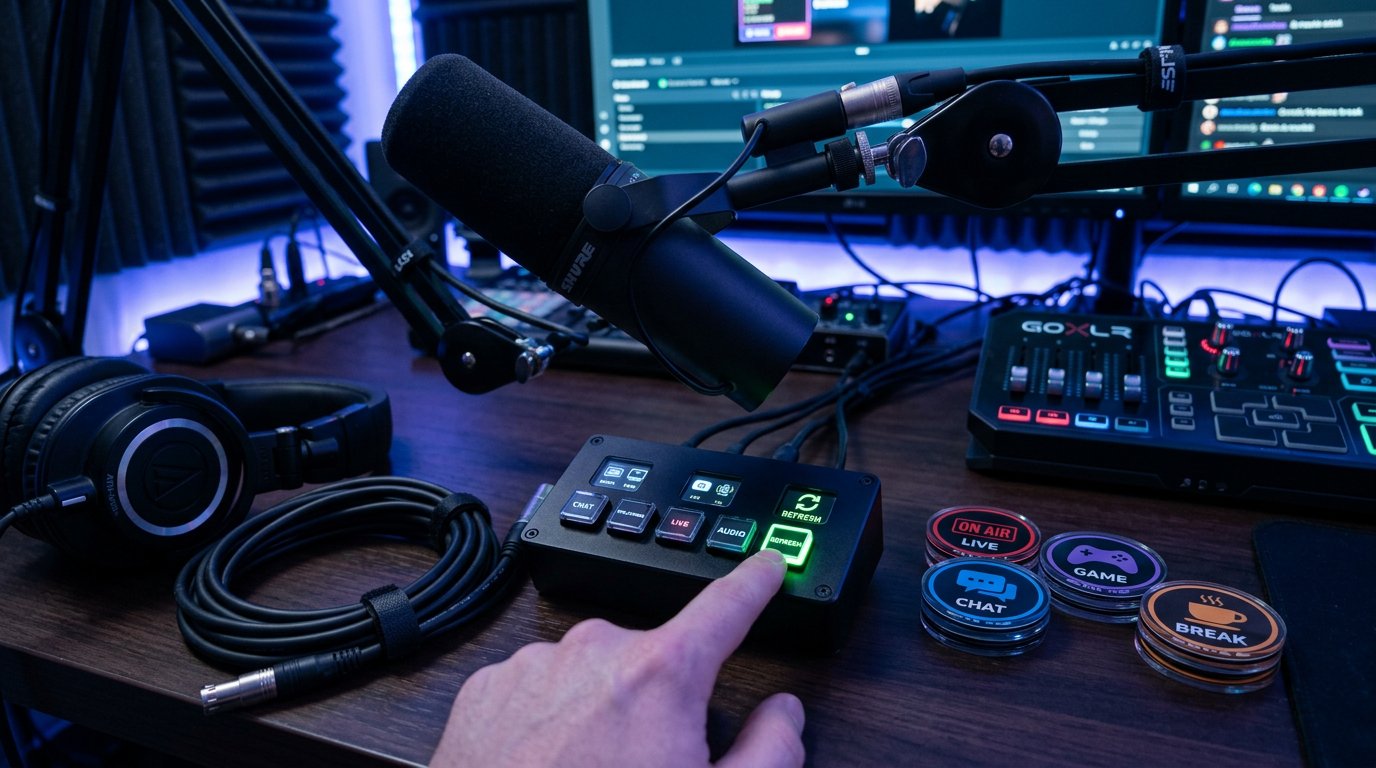
The drawback of this method is its limited scope. Refresh cache helps when old data is stored by the current Browser Source. The button won't fix an incorrect URL, an unpublished overlay, a server-side cache, or an old file that the service keeps serving at the same address.
What to Check After Refresh cache Without Repeating Unnecessary Steps
After refreshing the cache, you don't need to immediately delete the source or reset OBS. Close the properties window and look at the overlay in the preview. If the scene has several identical widgets, temporarily hide the updated source. This way you can tell whether the element you're trying to fix is the one disappearing.
If the old element stays in place after hiding, it's being output by another object: a duplicate Browser Source, a nested scene, a media source, or a browser window capture. The drawback of this check is that it changes the scene's appearance. Do it before going live or on a test copy of the scene.
Restarting the Browser on Scene Activation
The Browser Source properties may include an option to restart the browser when the scene is activated. It forces the built-in page to reopen when the scene becomes active. This setting is useful for widgets that need to reconnect to chat, events, counters, or an external service after a long idle period.
Enable the option only for testing, switch to another scene, and come back. If the overlay updates, the cause may have been a stuck page session rather than a persistent cache. After the test, decide whether you need this setting in the live scene.
The drawback of automatic reloading is straightforward: every time you switch to the scene, the overlay may briefly disappear, show an empty area, reconnect to the service, or restart the animation. For permanent design elements, this isn't always suitable.
Fully Restart OBS if the Page Didn't Update
A full restart of OBS creates a new session of the built-in browser. Close the program and make sure it has actually quit rather than staying running in the background. Then open OBS again and check the Browser Source in the preview.
This step makes sense after Refresh cache, not instead of checking the link. The drawback of restarting is that it doesn't clear the problem on the service side and doesn't change the URL's content. Also, when OBS opens, some widgets may not connect to external data right away.
Add a Version Parameter to the Overlay URL
If the new version opens in a private window but Browser Source stubbornly shows the old one, you can force the built-in browser to treat the link as a new address. To do this, add an extra version parameter to the end of the URL. For example, to a link without parameters, add a question mark and a label like v=2.
If parameters already exist, use an & before the new label. Don't change the token, access key, widget ID, or other existing parts of the address. Save the original link in a separate file so you can quickly remove the test change.
The drawback of this method: some services don't accept extra parameters. The page may fail to load, lose authorization, or redirect to another address. Check the modified link in the preview and don't edit it during a live stream.
If a Single Logo, Background, or Animation Won't Update
Sometimes the page itself becomes fresh, but one resource stays old: a logo, frame, background image, emoji, or animation. Such files have their own URLs and a separate cache. A typical cause is uploading a new file under the same name as the previous one.
It's more reliable to upload the media as a new file and specify the new path in the overlay editor. You can change the file name in the link if it's editable. Then the browser and server will request a different resource instead of trying to use the saved copy.
The drawback of this approach is that duplicates of media appear in the project. Old files will have to be periodically deleted or labeled, otherwise it will later be hard to tell which background or logo variant is used in the live scene.
Check Custom CSS and Duplicate Sources
Custom CSS in the Browser Source properties can hide a new element, crop the widget area, keep an old background, or shift a block outside the frame. Visually this looks like a cache problem, even though the page may have already updated correctly.
Copy the CSS to a text file and temporarily disable it to check. If the overlay becomes current, check the rules related to sizing, positioning, display, visibility, overflow, and background images. Don't delete the CSS without a copy.
The drawback of this test is that the widget may lose its styling and shift in the frame. It's also worth checking nested scenes and sources with similar names: an old Browser Source may sit inside another scene and cover the updated one.
Create a Temporary Browser Source to Test
If Refresh cache and restarting didn't help, add a temporary Browser Source to the same scene. Paste the verified URL into it, set the required size, and temporarily hide the old source. The new instance starts a separate browser session and helps separate the problem of a specific source from OBS's shared data.
Compare the sources under identical conditions: URL, area size, custom CSS, audio, position, and visibility. If the new source shows the current overlay, transfer the settings to it only after checking in the preview or a test recording.
The drawback of replacing is that settings aren't always transferred automatically. You'll have to manually compare the CSS, sizes, audio settings, and layer order. Don't delete the old source until the new one shows a stable result.
Where OBS Stores the Browser Source Cache on Windows
For a standard OBS installation on Windows, the built-in browser data is usually located in the profile folder: %APPDATA%\obs-studio\plugin_config\obs-browser. The fastest way to open it is through File Explorer: paste this path into the address bar and press Enter.
Inside obs-browser there may be Cache, Code Cache, and GPUCache folders. This is data the built-in browser uses to speed up loading pages, code, and graphic resources. The set of directories may differ depending on the OBS version and browser components.
Where to Find Browser Source Data on macOS and Linux
On macOS, the OBS directory is usually located at ~/Library/Application Support/obs-studio/plugin_config/obs-browser. On Linux, ~/.config/obs-studio/plugin_config/obs-browser is often used. With a portable OBS installation or a non-standard profile location, the path may be different.
Don't rely on the folder name alone: before deleting, make sure it contains the obs-browser directory, not a folder with scenes, profiles, or general OBS settings. Scenes and profiles are stored in other parts of the obs-studio directory, so clearing them isn't necessary to update an overlay.
How to Manually Clear the Cache Without Resetting Scenes and Settings
Close OBS completely. Then open the obs-browser folder and copy it to a backup location. After that, delete only the Cache, Code Cache, and GPUCache directories, if they exist. The next time OBS starts, the built-in browser will recreate these folders and reload the page resources.
Don't delete the entire obs-studio folder and don't wipe obs-browser entirely without a backup. Besides the cache, it may contain cookies, local storage, and authorization data for individual widgets. Broader clearing may require logging in again or reconnecting a service.
The drawback of the manual method is that it affects all Browser Sources, not just one overlay. After starting, individual widgets may take longer to load, re-download fonts and media, and services with authorization may request access verification again.
What Not to Delete to Update an Overlay
Don't delete the scene collection, the OBS profile, the stream settings file, or the folder with recordings. This data isn't a regular Browser Source cache. Deleting it provides no benefit for updating a page and risks losing your working configuration.
You shouldn't reinstall OBS right away either. This method may accidentally clear browser data, but it doesn't solve an incorrect link, an old file on the service side, or unpublished changes. The drawback of reinstalling is the unnecessary restoration of plugins, settings, and sources without a guaranteed result.
Step-by-Step Procedure for Updating Browser Source
- Copy the Browser Source URL and custom CSS into a separate text file.
- Open the URL in a private window and make sure the new overlay version is available there.
- If the browser shows the old version, check the publishing of changes, the live link, and the media files in the editor.
- Compare the URL in the source properties with the live overlay address and check the active scene collection.
- Click Refresh cache of current page, apply the changes, and look at the preview.
- Check whether the old element is being output by a duplicate Browser Source, a nested scene, or another source.
- Fully restart OBS and check the scene again.
- Temporarily disable custom CSS if not the whole widget updated or a new block disappeared.
- For a single old image, upload the file under a new name or change its path in the editor.
- If necessary, add a version parameter to the URL while keeping the original link.
- Create a temporary Browser Source if you need to test the old instance separately.
- If the new version appears in a private window but not in OBS, close the program and delete Cache, Code Cache, and GPUCache in the obs-browser folder.
Last Articles
What has changed in design and functionality We have updated the website to make working with it faster and more convenient. The main changes affect ..
Good afternoon, I've collected all the news during this time.: 1. The main news is that prices for twitch viewers have been greatly reduced, while Tw..
1. Use promo code "December2025" for a 15% discount for all our viewers2. We have reduced the base prices for our configurator and the most affordable..
Twitch services are working stably, so we are ready to cooperate with squads, resellers, service owners, bot owners, and many others.Individual te..
We have completely updated our Twitch viewer services, and they are now working stably. We only use high-quality IP addresses for the viewers.The ..
Hello everyone! Today, we are announcing a new feature—"Twitch Viewer Configurator". Now, you can customize any plan for your Twitch channel. Choo..
Greetings, I have compiled a guide for streamers, which will be very relevant at the moment. Now YouTube and twitch have disabled monetization from vi..
We have finally developed the APINow it will be more convenient for our partner sites to work with us.To update the maximum tariffs for YouTube, an up..
Due to the huge popularity of the partnership services and referral program, we have made a cooperation table. The essence is very simple: more live a..
Our Services for Streamers








Our Services for Content Creators






