
Why YouTube Studio and the Channel Page Show Different Subscriber Counts
Why the counters show different numbers
The channel page and YouTube Studio both show the audience of the same channel, but the public number may be abbreviated, and data in different sections may not update at the same time. So a discrepancy doesn't necessarily mean lost subscribers or an error.
If you notice a difference, first check whether you're comparing two total counters. The growth figure for a period isn't suitable for this: it reflects the change in audience, not its size.
Where to see the current subscriber count
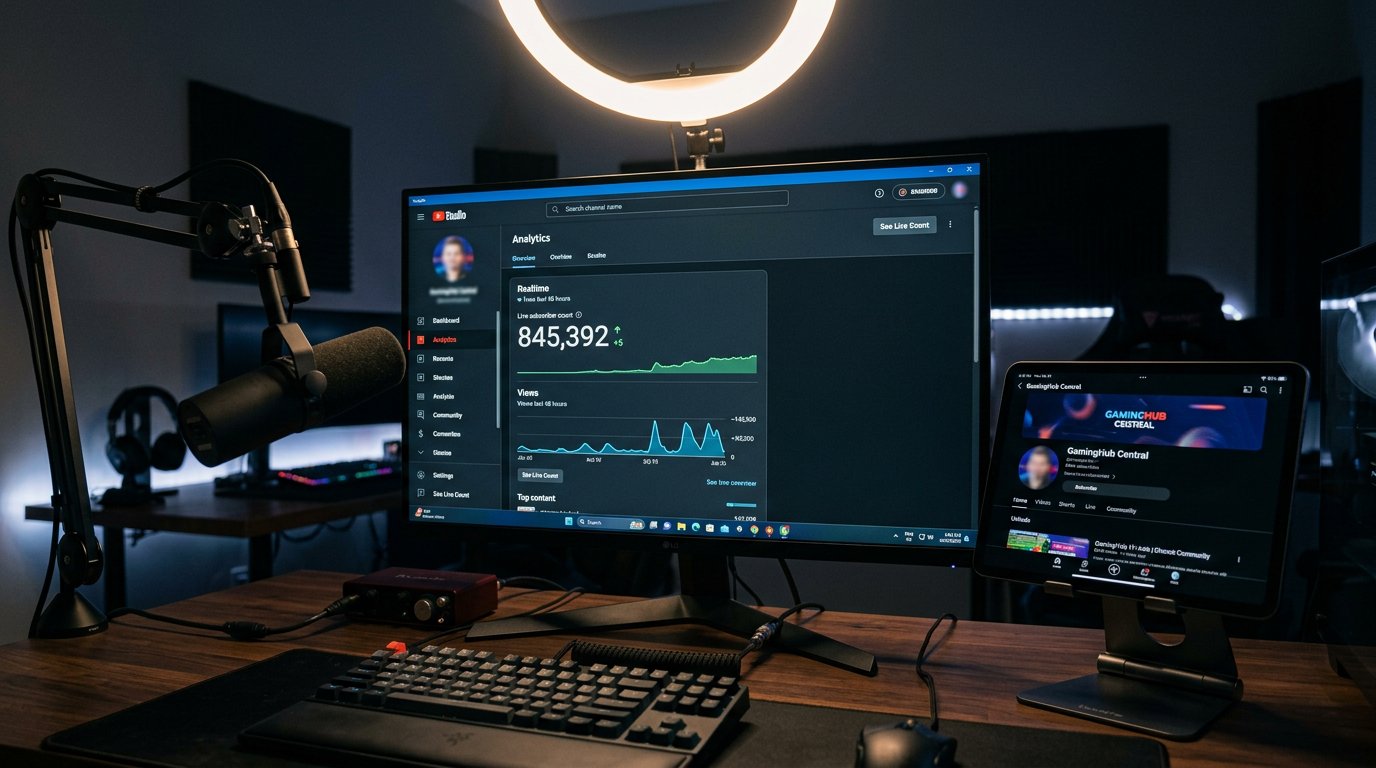
The main reference point for a channel owner is the current counter in YouTube Studio. In the "Analytics" → "Overview" section, the subscriber count is usually available in the "Realtime" block. The location and names of elements may vary depending on the interface version.
The Studio counter is more detailed than the public one, but it shouldn't be treated as a fixed final number either: data may update or be adjusted after the platform reviews it.
How the number on the channel page is abbreviated
On the channel page, YouTube shows an abbreviated number once the audience reaches a certain size. For example, with 1234 subscribers, the public value may appear as 1.23K. These are different representations of the same figure, not two separate audiences.
As the channel grows, the public number changes in larger steps. It's handy for quickly estimating audience size, but you can't see every subscribe or unsubscribe or recover the exact number from it.
Why the public number doesn't change
As long as the subscriber count stays within the same abbreviated value, the channel page may keep showing the previous number. Say the Studio counter rises from 1231 to 1238: the public value of 1.23K may stay the same.
That difference alone doesn't indicate a problem. But if the full number has crossed the boundary of the displayed range and the public counter remains unchanged, an update delay is possible.
Why data doesn't update at the same time
The public page, the Studio counter, and analytics reports may receive or display changes with different delays. After a stream, subscriptions may already appear in one section while another still shows the previous value.
You can't determine the length of such a delay in advance: there's no single guaranteed interval for all cases. A single screenshot doesn't show whether the difference is due to data processing or another cause.
How to tell a delay from subscriber loss
You need to compare the same counter over time, not just two sections against each other. If the total Studio counter stays roughly at the same level and the public page later catches up to it accounting for abbreviation, that looks like a display delay.
But if a repeat check shows a sustained decline in the total number in Studio, then the counted audience has changed. A single counter can't establish the cause: possible explanations include unsubscribes and accounts being excluded by the platform.
When to recheck
For a repeat comparison, you can return to the counters after a few hours, or check them the next day if needed. These are convenient observation intervals, not a promise that the data will necessarily match within that time.
It's useful to record both values and the time of each check. If the public number is abbreviated, you should compare not the digits character by character, but whether the full Studio value corresponds to the abbreviation shown.
How unsubscribes affect the total counter
A new subscription doesn't always increase the total number by one: another viewer may unsubscribe during the same interval. A subscription notification confirms an individual action but doesn't show all the other changes in the audience.
If the total counter barely grew after a stream, it's worth checking gained and lost subscribers for the relevant period. You can't determine their number from a single abbreviated figure on the channel page.
Where to see growth for a period
In the Studio "Analytics" section, the "Subscribers" metric for the selected dates reflects the change in subscriber count over that period. In advanced mode, you can separately examine gained and lost subscribers if the relevant metrics are available in the report.
Net growth accounts for both subscriptions and unsubscribes. For example, 100 new subscriptions and 30 unsubscribes give a change of 70. The drawback of the total figure is that it hides audience movement within the period.
How to check a decline after a stream
To analyze changes, select a period in analytics that covers the stream and the time after it, then compare gained and lost subscriptions. If there are many unsubscribes and the total counter dropped, normal churn may explain part of the loss.
A fresh report doesn't always show the final picture: data may be refined. Also, analytics doesn't necessarily reveal the reason for each account exclusion, so a mismatch with the movement of the total counter doesn't prove an error.
When botting and account purges come into play
YouTube reviews accounts and activity on the platform. Subscribers may stop being counted if accounts are deleted, blocked, or flagged as spam. Because of this, the counter can drop without a noticeable series of normal unsubscribes.
After a suspiciously sharp influx of subscribers followed by a decline, a purge of inauthentic activity is possible. But such a pattern alone doesn't prove botting: the reason for the growth and the drop-off may be different. It's worth correlating the dates with traffic sources, publications, and channel promotion.
What to do if you suspect botting
If the spike coincided with a promotion campaign, it's worth checking where the audience came from and what actions the campaign involved. A service promising a guaranteed number of subscribers doesn't allow a reliable judgment about the quality of the accounts attracted; artificial activity may violate YouTube's rules.
If you suspect inauthentic traffic, it's reasonable to stop such a campaign and save its terms and statistics. This doesn't guarantee the return of excluded subscriptions, but it helps to understand the source of the spike.
Why the subscriber list is shorter than the counter
The list of recent subscribers in Studio isn't the same as the full audience list. Not all accounts are visible in it: a user can hide their subscriptions. Also, the list is meant for viewing recent subscriptions, not the channel's entire history.
A hidden subscription doesn't by itself mean an unsubscribe: its absence from the list doesn't prove a loss. The list helps you learn about individual visible subscribers but doesn't let you establish the full composition of the audience.
Realtime data and the daily report
The realtime block helps you monitor the current audience, while the daily report shows data for the selected period boundaries. The comparison may give different results if the day in the report and the time span the author is used to don't coincide.
When analyzing daily statistics, it's worth checking the report's dates and time zone. Fresh data is convenient after a stream, but its drawback is that it may be refined after processing.
How to compare metrics without error
First, make sure the same channel whose public page is open is selected in Studio. This is especially important when managing multiple channels under one account. Then you can record the current Studio counter and the public value along with the time of the check.
If the full number corresponds to the public abbreviation, the difference is explained by how it's displayed. If it doesn't, the check should be repeated later, without substituting the total counter with growth for a period.
What to check in the browser
If the difference is unexplained, you can refresh both pages and look at the values again. It's also worth opening the public page in another browser or without extensions: cached data and extensions sometimes affect display.
This method helps rule out a specific browser issue but doesn't speed up subscription processing on YouTube's side. For comparison, it's best to use the same sections each time and record the observation time.
How to record the number for a report
If the team needs the channel size on a specific date, it's convenient to record the Studio counter at the same time each day and save a screenshot. Alongside it, note the date, time, time zone, and source of the metric.
That way reports will be comparable by a single rule. The drawback of a snapshot is that YouTube may adjust the data later. For a report on a completed period, analytics for the selected dates will be useful separately.
Why third-party services show a different number
Statistics sites and extensions may show a previously saved value, receive data with a delay, or use the abbreviated public counter. Their charts are convenient for tracking a trend but don't replace your own channel analytics.
For a report on your own channel, it's better to record Studio data. There's no need to give a third-party service your password or login codes just to check a counter; any requested access should be evaluated separately.
When to contact YouTube support
If a noticeable difference persists after repeat checks and isn't explained by number abbreviation or by comparing different metrics, it's worth consulting YouTube Help and checking the support contact methods available to the channel. They depend on the account's capabilities.
For a request, it helps to have a link to the channel, screenshots of the page and Studio, the names of the metrics, and the dates and times of the checks. In the description, note how both counters changed and which verification methods have already been used. A password and login codes aren't needed for this.
Last Articles
What has changed in design and functionality We have updated the website to make working with it faster and more convenient. The main changes affect ..
Good afternoon, I've collected all the news during this time.: 1. The main news is that prices for twitch viewers have been greatly reduced, while Tw..
1. Use promo code "December2025" for a 15% discount for all our viewers2. We have reduced the base prices for our configurator and the most affordable..
Twitch services are working stably, so we are ready to cooperate with squads, resellers, service owners, bot owners, and many others.Individual te..
We have completely updated our Twitch viewer services, and they are now working stably. We only use high-quality IP addresses for the viewers.The ..
Hello everyone! Today, we are announcing a new feature—"Twitch Viewer Configurator". Now, you can customize any plan for your Twitch channel. Choo..
Greetings, I have compiled a guide for streamers, which will be very relevant at the moment. Now YouTube and twitch have disabled monetization from vi..
We have finally developed the APINow it will be more convenient for our partner sites to work with us.To update the maximum tariffs for YouTube, an up..
Due to the huge popularity of the partnership services and referral program, we have made a cooperation table. The essence is very simple: more live a..
Our Services for Streamers








Our Services for Content Creators






