
Why the game launches on integrated graphics instead of NVIDIA when streaming
Why the game may pick integrated graphics
The problem most often appears on laptops with hybrid graphics. The integrated core in the CPU handles power saving, the desktop, and often the image output to the screen. The discrete NVIDIA kicks in for games, rendering, and other heavy tasks.
The game may start on integrated graphics even though NVIDIA is installed, visible in the system, and working in other applications. The cause can be Windows settings, the power profile, the game's own settings, the hybrid graphics mode, or an incorrectly selected executable.
Streaming by itself doesn't move the game to the integrated adapter. But OBS adds load, uses capture and encoding, and sometimes runs on a different GPU. Because of this, the problem becomes more noticeable specifically during a broadcast.
First, tell poor performance apart from the wrong GPU
Low FPS doesn't prove the game is running on integrated graphics. NVIDIA may be loaded by rendering, hardware encoding, OBS browser sources, local recording, or filters. Performance also drops with overheating, power limits, and high CPU load.
Check the actual load during gameplay, not just the adapter name in a single window. Open Windows Task Manager, launch the problematic scene, and compare the activity of both GPUs.
- Check which GPU is listed for the game process.
- Check the NVIDIA load under the 3D engine.
- Separately assess video encoding, copying, and decoding.
- Launch OBS and compare the readings before and after the stream starts.
High NVIDIA load under 3D means the game is rendering on the discrete card. Even if the integrated graphics is simultaneously busy outputting the image, this is a standard setup for many laptops.
Game rendering and image output can go through different GPUs
On a hybrid laptop, the built-in screen is often physically connected to the CPU graphics. NVIDIA draws the game frames, then passes the finished image to the integrated core for output to the display. Both adapters may be active in the system at the same time.
This setup sometimes creates the impression that the game is running on Intel or AMD Radeon Graphics: the integrated GPU shows load from composition, frame copying, or output. But 3D rendering stays on NVIDIA.
The downside of the hybrid setup is the extra frame transfer operations between adapters. In demanding games and during screen capture, this can add load, latency, or frame instability. You don't need to switch the game if NVIDIA is already loaded specifically under 3D.
How to assign NVIDIA for gameplay in Windows
In Windows, you can set a preferred GPU for a specific application. Choose not the desktop shortcut or the launcher, but the game's main file with the .exe extension. That process is the one responsible for rendering.
- Open the Windows graphics system settings.
- Add the application manually if it's not in the list.
- Specify the path to the game's executable file.
- Open the settings for the added application.
- Select the high performance mode with the discrete NVIDIA.
- Fully close the game and launcher, then start them again.
Some games have several executable files: launcher, anti-cheat, main client, separate versions for different graphics APIs. Setting only the launcher usually doesn't affect game rendering. The downside of manual assignment is that after an update the path or file name may change, and the setting will need to be checked again.
The game profile in the NVIDIA Control Panel
For the game, you can create a separate profile in the NVIDIA Control Panel and specify the high-performance NVIDIA processor. This is useful if the game launches in a non-standard way, doesn't pick up the global settings, or uses a separate process for 3D rendering.
The setting in the NVIDIA panel doesn't always override the Windows choice. If the system settings for the same .exe specify the power-saving adapter, the game may keep picking the integrated core. So first check the assignment in Windows, then the NVIDIA profile.
Don't force the discrete card for all applications without need. The downside of global mode is that NVIDIA will activate more often in the browser, launchers, and messengers, which increases heat, fan noise, and battery drain.
Configure the GPU for OBS separately from the game
OBS and the game don't have to run on the same adapter. On a laptop, the game can render on NVIDIA while OBS runs on integrated graphics. Sometimes this is a normal configuration, especially when the built-in screen is connected to the iGPU.
However, when capturing the screen or a window, frames may be copied between GPUs. This can cause frame drops in OBS, preview lag, and increased load on one of the adapters. If problems start specifically after launching OBS, assign the needed GPU for the program through the Windows graphics settings.
- For game capture, you can first assign NVIDIA to OBS, just like the game itself.
- For screen capture on a hybrid laptop, OBS on the integrated graphics that the display is connected to is sometimes more stable.
- After changing the GPU, fully close OBS and start it again.
- Compare not only the preview image but also the frame drops in the OBS stats.
Assigning OBS to NVIDIA has a downside: the discrete card stays active the whole time the program is open, even without a game. The option with OBS on integrated graphics may require extra frame copying during game capture.
How to choose the right capture in OBS
The Game Capture source accesses a specific game's render and usually depends less on the image output path. For streaming a game, this is the preferred option if it works stably. Window capture and screen capture grab the image in a different way and more often run into hybrid graphics quirks.
- If Game Capture shows a black screen, check which GPU OBS was launched from and the game's display mode.
- If the game runs in borderless window, test window capture or another capture method.
- If screen capture loads the integrated graphics, this doesn't mean the game is rendering on it.
- If protection or anti-cheat is in use, the game may restrict capture regardless of the video card settings.
The downside of screen capture is that notifications, private messages, and other windows can end up in the broadcast. The downside of game capture is that it sometimes conflicts with overlays, protection, or specific rendering APIs.
Should you use NVENC with hybrid graphics
NVENC is a hardware encoder on the NVIDIA video card. It works separately from 3D rendering, so the game and the stream can use the discrete card at the same time: the game draws frames, and OBS encodes the stream via NVENC.
Choosing NVENC doesn't make the game automatically switch to NVIDIA. It's possible for OBS to encode the stream via NVIDIA while the game mistakenly renders on integrated graphics. The reverse configuration is also possible: the game runs on NVIDIA while OBS uses software encoding by the CPU.
With a normally working hybrid system, NVENC usually remains the logical choice for streaming with NVIDIA, especially if the CPU is already busy with the game. But you need to leave headroom in the video card's performance: simultaneously high uncapped FPS, a heavy scene, recording, and encoding can overload the GPU.
The downside of NVENC is that the encoder uses NVIDIA resources and doesn't fix problems with capture or an incorrectly assigned GPU. If the video card is already maxed out, limit the FPS in the game, simplify OBS scenes, or lower the settings. This will reduce the load but may worsen smoothness or image quality.
How to check NVIDIA load during encoding
During a stream, Task Manager may show several engines active on NVIDIA at the same time: 3D, Video Encode, Copy, and Video Decode. For the game, the 3D reading matters most; for NVENC, it's video encoding.
If 3D is loaded on NVIDIA and Video Encode is active after the stream starts, the game and the hardware encoder are using the discrete card as intended. Integrated graphics load from copying or composition in this situation is not an error.
If NVIDIA shows only Video Encode while the 3D load stays on the integrated adapter, you need to go back to the game settings in Windows and the NVIDIA panel. If 3D is running on NVIDIA but the stream stutters, the cause is more likely encoder, CPU, network, or OBS scene overload.
Power mode can limit NVIDIA
On battery, a laptop can limit clocks, power draw, and the availability of the discrete graphics. Manufacturers also add quiet profiles, power-saving modes, and automatic NVIDIA shutdown. Externally this can look like running on the integrated card: FPS drops while GPU load stays low.
To check, connect the original power adapter, select the high-performance Windows mode, and look at the profile in the laptop manufacturer's utility. Then re-check the game and OBS load.
The downside of high-performance mode is straightforward: the laptop will heat up more, be louder, and drain faster when running without power. For regular streams on battery, this mode is rarely suitable.
What the MUX switch does
Some gaming laptops have a MUX switch. It changes the image path to the built-in screen. In hybrid mode, the screen is connected through the integrated graphics, while in discrete mode the image is output directly from NVIDIA.
MUX mode isn't required for streaming. Even without it, NVIDIA can simultaneously render the game and encode the stream via NVENC. The switch is useful when you need to remove frame transfer through the iGPU, reduce confusion during diagnostics, or check problems with capture and performance.
You can check for a MUX in the laptop manufacturer's utility, the BIOS settings, or the graphics control interface. Mode names vary: hybrid graphics, discrete graphics, GPU mode, dGPU only, or similar options. After switching, a reboot is often required.
The downside of NVIDIA-only mode is higher idle power consumption, less battery life, and more noticeable heat. Some models don't have a MUX, so you can't enable a direct connection of the screen to NVIDIA in software.
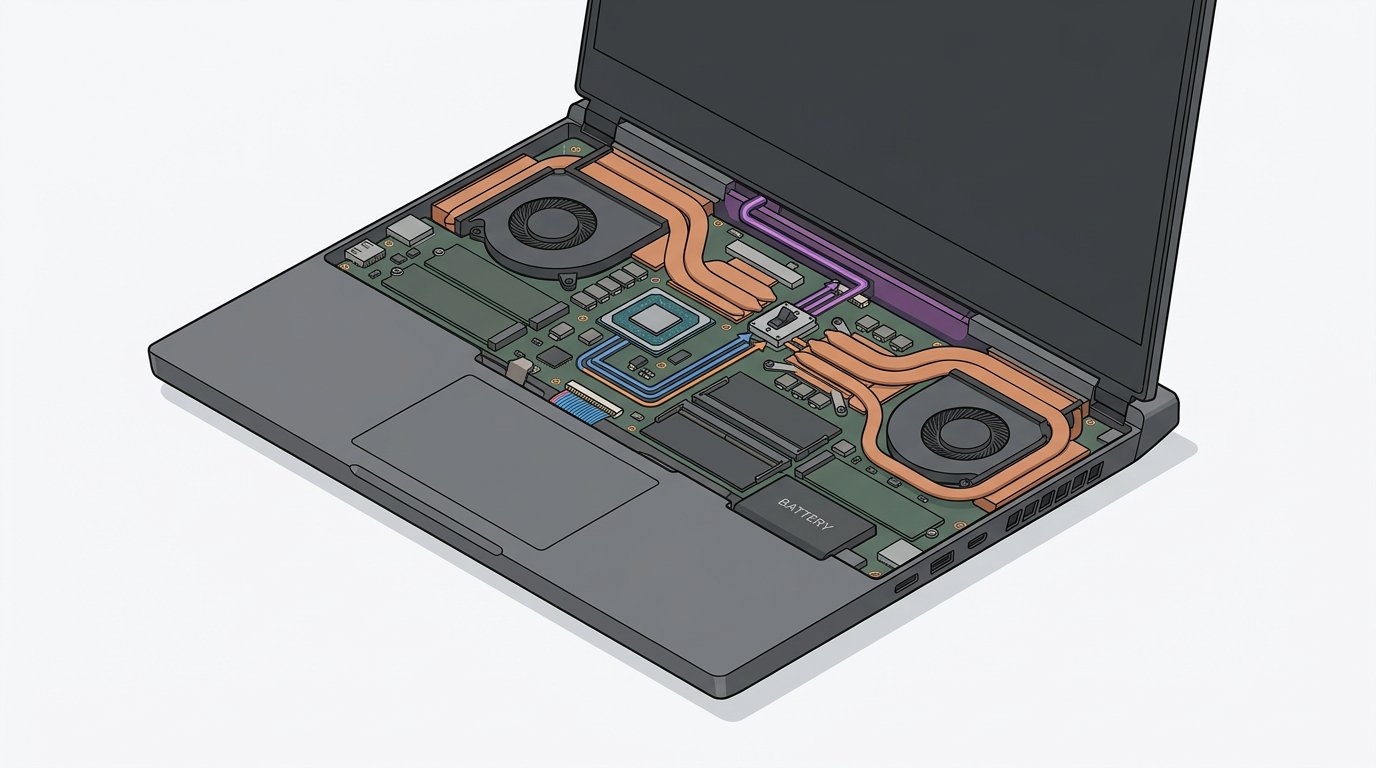
How to switch the MUX and check the result
Before changing the mode, close the game, OBS, and other hardware-accelerated applications. Enable discrete graphics mode in the available utility or BIOS, confirm the reboot, and after logging into Windows check whether NVIDIA is detected as the primary adapter for the built-in display.
Then launch the game without OBS and check the GPU load. After that, open OBS, enable capture and streaming or a test recording, select NVENC, and again assess 3D and Video Encode on NVIDIA.
Don't switch the MUX just for the GPU name in Task Manager. If the game is already loading NVIDIA under 3D and the stream is stable, there may be no practical benefit. The downside of constantly using dGPU mode is especially noticeable outside of games: the laptop uses more energy even for ordinary tasks.
On a desktop PC, check the monitor connection
On a desktop computer, the monitor should be connected to the discrete NVIDIA video outputs, not to the motherboard ports. NVIDIA connectors are usually located lower, in the area of the case's expansion slots.
If the cable is connected to the motherboard, the image is handled by the CPU's integrated graphics. This complicates diagnostics, creates an extra path for frames, and sometimes prevents applications from correctly selecting the adapter. After reconnecting, check the resolution, refresh rate, and multi-monitor settings.
The downside of this solution arises when the connectors are incompatible. A different cable or adapter may be needed, and a poor adapter can limit the available refresh rate or cause signal loss.
When drivers, overlays, and game settings are to blame
Check whether NVIDIA is visible in Device Manager and whether the adapter has any errors. If the card is disabled by a power-saving mode or isn't detected by the system, OBS and game settings won't help. First you need to restore the GPU's availability itself.
If the problem appeared after an update, check the NVIDIA driver and the integrated graphics driver. On laptops, the device manufacturer's driver sometimes handles the hybrid setup better. The downside of such a driver is that updates may come out less often than for the universal version.
Also temporarily disable overlays from the launcher, voice programs, screen recording, FPS counters, and overclocking utilities. They can interfere with rendering, capture, or game launch. The downside of such a check is that the usual notifications and extra features won't work during the test.
Check the adapter selection and API inside the game
Some games let you choose the GPU in their own settings. The item may be called video adapter, render device, graphics device, or GPU. If NVIDIA is available, select it and fully restart the game.
Pay attention to the screen mode and the API in use: DirectX, Vulkan, fullscreen mode, borderless mode, or window. After changing the API, the game sometimes creates a different executable process or changes capture behavior. For each variant you use, check the Windows graphics settings.
The downside of changing the API and screen mode is that mods, overlays, plugins, or certain capture methods in OBS may stop working. Change one parameter at a time so you understand the cause of the result.
What to do if the game still launches on integrated graphics
- Make sure NVIDIA is detected in Device Manager and isn't disabled by a power-saving mode.
- Connect the laptop to power and enable the high-performance profile.
- Find the game's main .exe, not just the launcher.
- Assign the high-performance NVIDIA to that .exe in the Windows graphics settings.
- Create or check a separate game profile in the NVIDIA panel.
- Fully close the game, launcher, and background processes before relaunching.
- Launch the game without OBS and check the NVIDIA load under 3D.
- Assign the GPU for OBS if a black screen, frame drops, or extra copying appear after launching it.
- Select NVENC in OBS and check that Video Encode is active on NVIDIA.
- Check the MUX and test discrete mode if it's available.
- Disable third-party overlays and recording programs during diagnostics.
- If NVIDIA doesn't get 3D load after all the steps, check the drivers, BIOS settings, and laptop support.
Focus on the 3D and Video Encode load, not on integrated graphics activity by itself. On a hybrid laptop, both adapters can work simultaneously without an error.
Last Articles
What has changed in design and functionality We have updated the website to make working with it faster and more convenient. The main changes affect ..
Good afternoon, I've collected all the news during this time.: 1. The main news is that prices for twitch viewers have been greatly reduced, while Tw..
1. Use promo code "December2025" for a 15% discount for all our viewers2. We have reduced the base prices for our configurator and the most affordable..
Twitch services are working stably, so we are ready to cooperate with squads, resellers, service owners, bot owners, and many others.Individual te..
We have completely updated our Twitch viewer services, and they are now working stably. We only use high-quality IP addresses for the viewers.The ..
Hello everyone! Today, we are announcing a new feature—"Twitch Viewer Configurator". Now, you can customize any plan for your Twitch channel. Choo..
Greetings, I have compiled a guide for streamers, which will be very relevant at the moment. Now YouTube and twitch have disabled monetization from vi..
We have finally developed the APINow it will be more convenient for our partner sites to work with us.To update the maximum tariffs for YouTube, an up..
Due to the huge popularity of the partnership services and referral program, we have made a cooperation table. The essence is very simple: more live a..
Our Services for Streamers








Our Services for Content Creators






