
Why some viewers aren't counted in Kick statistics
Why some viewers don't make it into the total on Kick
A discrepancy between the viewer count during a stream and the total in Kick statistics usually doesn't mean the platform simply "removed" an audience. More often, data collected at different moments and by different rules is being compared.
The counter next to the player shows the current state of the stream. Historical analytics is generated after view events are processed: player loading, video playback, reconnections and session completion. If a viewer opened the page but the video didn't start or was interrupted quickly, that session may not produce a complete record for the report.
The total is affected by four groups of causes: processing delay, differences between metrics, incomplete playback and suspicious traffic checks. So the phrase "it didn't count 20 viewers" proves nothing by itself. First you need to establish which metrics are being compared and over what period.
The main mistake is treating every jump in the live count as the number of unique viewers. One user can reconnect several times, and dozens of users can watch a stream without chatting, subscribing or taking any other action. In the report, these events will be reflected differently.
Where to find statistics in the Kick interface
To check, open Kick and log in to the Creator Dashboard. The path usually looks like this: click on the profile avatar, select the creator panel, then open Analytics. The menu item names may be displayed in English, and the set of cards depends on the interface version and whether the section is available for the channel.
During a stream, check the current live count on the channel page next to the video player. If the active stream card is open in the creator panel, it can also be used as a real-time data source. Record the time and the value, not just the maximum figure after the stream.
In Analytics, look for metrics related to a specific stream or the selected range:
- Average viewers — the average value over the stream;
- Peak viewers — the maximum recorded value;
- Unique viewers — the number of distinct viewers over the selected period, if such a card is available;
- Views — an opens or views metric that can't automatically be treated as a number of people;
- Followers gained — new subscribers, not all viewers;
- Watch time — total viewing time, not the current live count.
Before comparing, check whether a single stream is selected rather than the whole channel for a day or a week. Also check the dates and time zone. Within analytics, it's better to use the same range rather than comparing a figure from the channel page with overall statistics across several streams.
Which metrics can be compared and which can't
The current live count can only be compared with another measurement of the current live count taken at roughly the same moment. Peak viewers is compared with the highest observed value during the same stream. Average viewers is compared with an average value, not with a peak and not with the number of people who visited the page at least once.
Unique viewers and Views are not interchangeable either. One viewer can open the page several times, refresh it or return after a break. So views can be higher than unique viewers. This doesn't necessarily indicate view botting or an error.
Chat provides yet another group of data. A user can watch a stream silently, read chat without sending messages, or write once and close the video. The number of chat participants, messages and reactions can't be used as an exact equivalent of the live counter.
Imagine a hypothetical situation: on the channel page you saw 100 viewers at 8:00 PM, but in Analytics you got an average value of 72. This is not a discrepancy between two identical metrics. The first figure refers to a single minute, the second to the entire stream. For a correct check, you need measurements of the live count at different moments and the average value from the report.
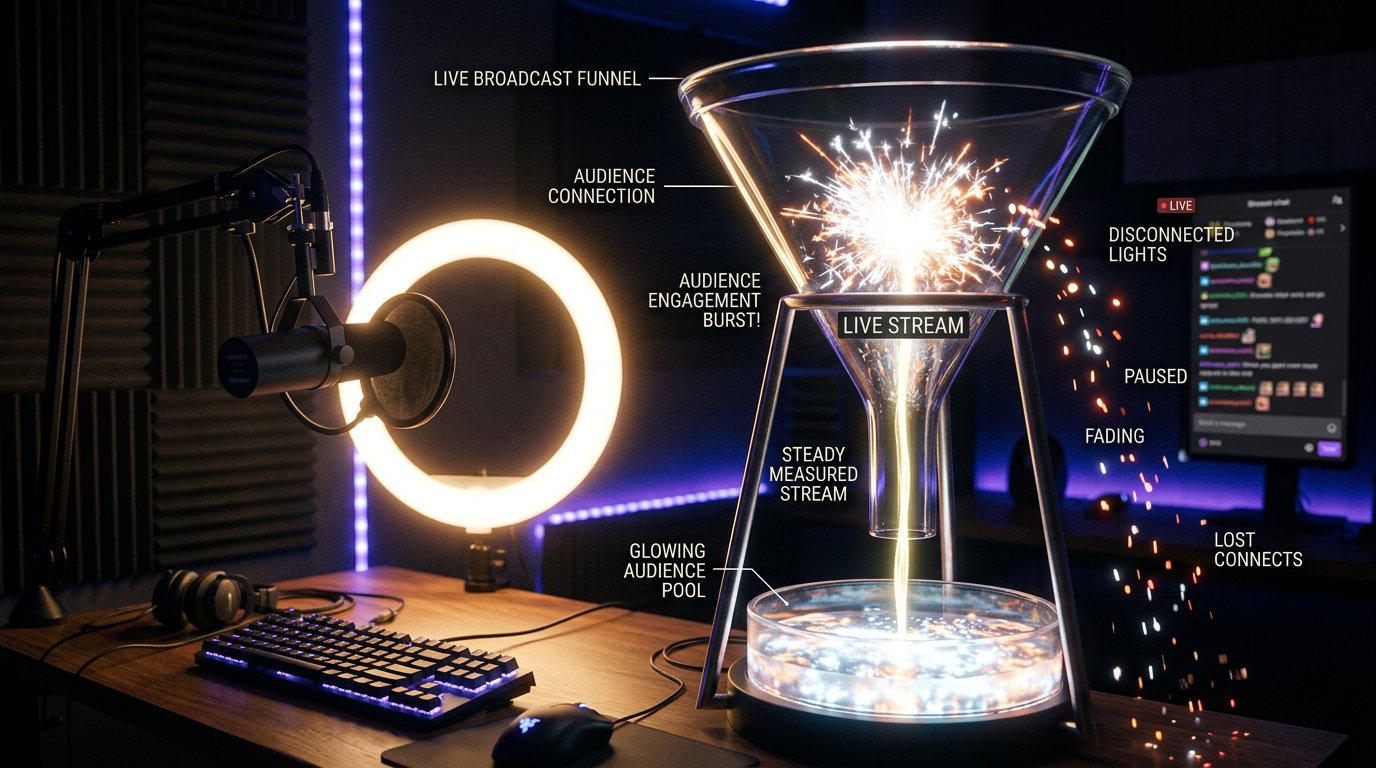
Why an open tab doesn't always count as a view
Kick receives data not only about page loading but also about how the video player operates. A user may open a stream and not start playback due to autoplay being blocked. They may minimize the tab, pause the video, leave the page open after walking away, or lose their internet connection. In each case the page is technically open, but there may be no continuous viewing.
These situations often occur on phones. A mobile network switches between towers, the device restricts browser activity in the background, and the screen locks. Meanwhile, the viewer may believe they're still watching the stream, even though the player is temporarily not transmitting stable playback data.
Problems can also happen on a computer. Privacy extensions, ad blockers, blocking of third-party scripts, an overloaded browser memory and video decoding errors can leave the page accessible but disrupt the transmission of view events. You need to check not only the channel but also the conditions in which viewers open the stream.
Also consider external embeds. If the stream is opened through an embedded player on another site or inside a third-party app, the session behavior may differ from viewing directly on kick.com. This is one of the reasons data from different sources looks inconsistent.
Processing delay: when figures can still change
The real-time counter and historical analytics don't update synchronously. The live count changes as viewers connect and leave, while the report has to collect events for the period, verify them and attribute them to the correct stream. So right after a stream ends, the final figure may still be incomplete or change later.
The effect is especially noticeable during a sharp audience spike, a mass click on a link, a series of reconnections or a connection failure. At such moments the live counter may briefly differ from the value that will later appear in the stream card.
Don't refresh Analytics endlessly and don't draw conclusions from the first version of the report. First wait until the metrics stop changing, then save a screenshot and the time of the check. If you're comparing several streams, check them after the same interval following their end.
Check the time zone too. A stream that started late in the evening and ended after midnight may not display in the range you selected. An error in dates sometimes looks like losing part of the viewers, even though only a fragment of the stream made it into the report.
How traffic verification works and what you can check yourself
Kick, like other streaming platforms, separates normal views from requests that don't resemble a full session. Automated requests, repeated opens, short recurring connections and other anomalous sequences may come under suspicion. The exact verification algorithm isn't published, so you can't determine from a single figure which specific session didn't make it into the total.
This doesn't mean every viewer with an ad blocker or an unstable network is considered a violator. More often it's about insufficient or contradictory data: the page opened but the video didn't play; the connection dropped several times; the same source sent many identical requests in a short time.
Check the nature of the discrepancy yourself:
- compare several streams, not a single case;
- see whether the problem coincides with sharp peaks, reconnections or quality drops;
- match the current live count against Average viewers and Peak viewers without mixing them with Views;
- check whether the viewing method changed: the Kick page, an embedded player or a mobile device;
- don't try to "confirm" viewers by constantly refreshing the page or running the stream on multiple devices.
Artificial traffic doesn't fix statistics. On the contrary, it adds recurring and atypical events that can make the final data even less clear.
What discrepancy should prompt a check
Kick doesn't publish a universal percentage after which statistics are automatically considered erroneous. For a working estimate, you can use a guideline: a difference of up to 10–15% between comparable metrics is often explained by rounding, the measurement moment and data processing. This isn't an official platform threshold but a practical boundary for an initial check.
If identical metrics diverge by about 20% or more, and the situation repeats across several streams, it's worth looking into in more detail. Especially if the difference persists after processing is complete and isn't related to the time zone or the selected range.
First make sure the comparison is actually correct. For example, a current live count of 80 viewers and Peak viewers of 100 can't be considered a problem: these are different moments, and the peak could have occurred before the measurement. But if you regularly record around 100 viewers throughout a stream and the average value in the report is noticeably lower, you need to check the stream duration, reconnections and player operation.
For evaluation, use a simple formula only for identical metrics: the absolute difference between two values divided by the average of those values and multiplied by 100. Don't apply it to the current live count and Unique viewers: mathematically you'll get a percentage, but there will be no meaningful comparison.
A single spike doesn't give grounds to accuse Kick of losing viewers. A recurring gap above the conventional 20% is a reason to collect data and contact support, especially if real viewers confirm stable viewing.
What to check if the difference is large
Start with the report, not with promotion settings. Open the Analytics section in the Creator Dashboard, select the desired stream or the narrowest possible period, and record the names of the cards. Then note next to each figure its source: the channel page, the creator panel, OBS or a viewer's message.
- Verify the dates, stream start and end times, the time zone and the selected range.
- Make sure you're comparing Current viewers with Current viewers, average with average, and Peak viewers with the peak value.
- Check the stream history in OBS: connection drops, reconnections, dropped frames and sharp bitrate changes.
- See whether there were playback issues at the moment of the discrepancy: freezing, a black screen, audio stopping or the player restarting.
- Ask several real viewers whether the video started and whether it stopped in the background. Their answers help separate a player issue from a comparison error.
- Save screenshots of the current live count, Analytics and technical events with timestamps.
There's no need to collect viewers' personal data or ask them to send logins. For an initial check, the time, device, fact of playback and a description of the failure are enough. If the problem repeats, send support the channel link, the stream link, the date, time, screenshots and a brief description of which metrics didn't match.
A short verification checklist
- Open Creator Dashboard → Analytics and select a specific stream or the same time range.
- Record what's being compared: the current live count, Average viewers, Peak viewers, Unique viewers or Views.
- Don't compare a single moment of a stream with the total figure for the entire stream.
- Wait until historical data stops updating and repeat the check.
- If the difference is above 20% and repeats, check reconnections, the player, OBS, dates and the time zone.
- If the problem persists, collect screenshots and contact Kick support without trying to inflate the counter.
This way you'll separate a normal difference between metrics from a genuinely suspicious discrepancy and be able to describe the problem specifically.
Last Articles
What has changed in design and functionality We have updated the website to make working with it faster and more convenient. The main changes affect ..
Good afternoon, I've collected all the news during this time.: 1. The main news is that prices for twitch viewers have been greatly reduced, while Tw..
1. Use promo code "December2025" for a 15% discount for all our viewers2. We have reduced the base prices for our configurator and the most affordable..
Twitch services are working stably, so we are ready to cooperate with squads, resellers, service owners, bot owners, and many others.Individual te..
We have completely updated our Twitch viewer services, and they are now working stably. We only use high-quality IP addresses for the viewers.The ..
Hello everyone! Today, we are announcing a new feature—"Twitch Viewer Configurator". Now, you can customize any plan for your Twitch channel. Choo..
Greetings, I have compiled a guide for streamers, which will be very relevant at the moment. Now YouTube and twitch have disabled monetization from vi..
We have finally developed the APINow it will be more convenient for our partner sites to work with us.To update the maximum tariffs for YouTube, an up..
Due to the huge popularity of the partnership services and referral program, we have made a cooperation table. The essence is very simple: more live a..
Our Services for Streamers








Our Services for Content Creators






