
Why your voice becomes too loud after the compressor in OBS
Why compressed voice seems louder
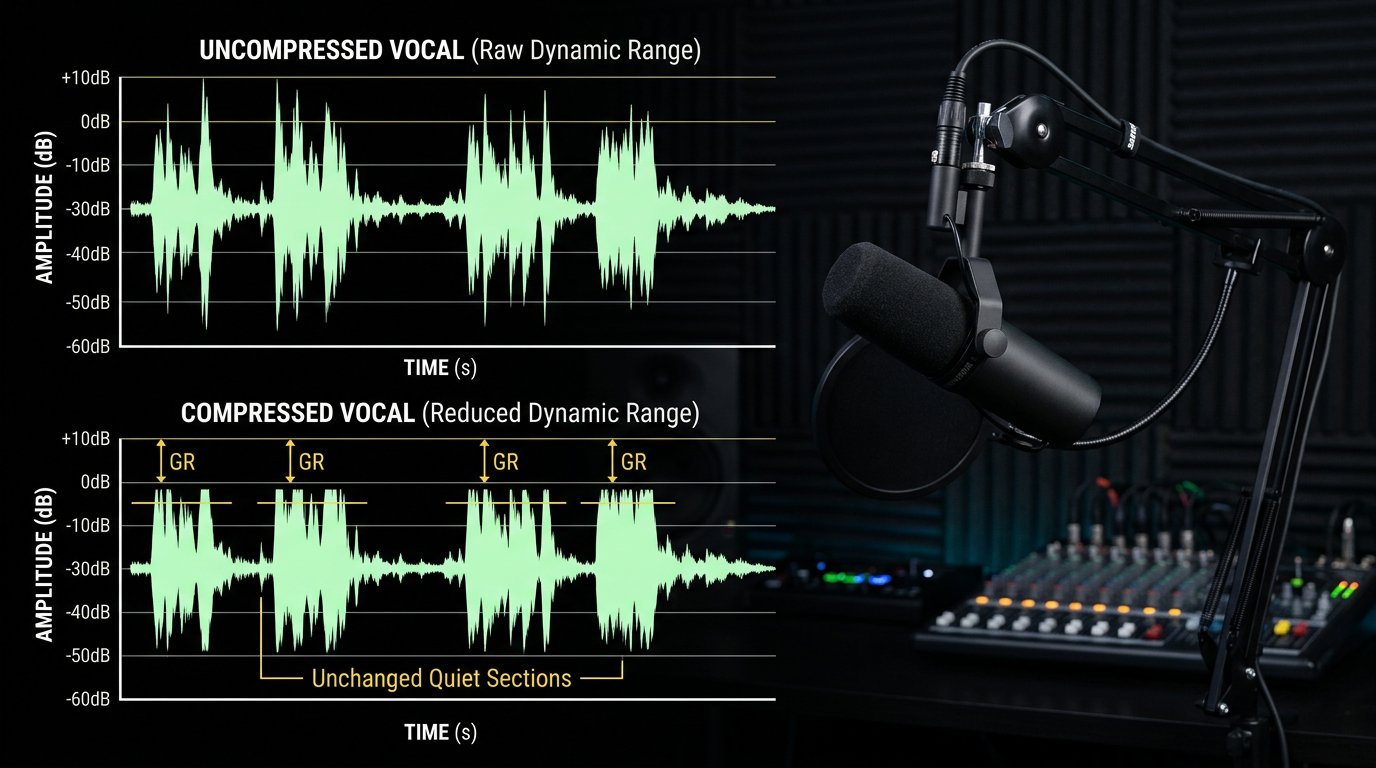
A compressor reduces the difference between loud and quiet parts: the signal above the threshold is attenuated, while the signal below it is not boosted directly. If you then add output gain, ordinary speech, breathing, and room noise become more noticeable.
Heavy compression can make the voice seem constantly close and intrusive, even when its peaks don't overload the mix. But a similar effect also occurs with too much gain at another stage of the audio chain.
How to tell compression from excess gain
With excessive compression, quiet and loud words sound too similar in level. The voice loses its variations, breathing comes forward, and the background may change noticeably between phrases. If you still hear this after leveling the recording's loudness, the cause is probably the processing.
With excess gain, the voice usually keeps the natural difference between quiet and loud speech, but the whole signal ends up too loud relative to the game. If the input is already clipping, you'll hear rasp and crackle on loud words. Both problems can be present at the same time.
Comparing with and without the compressor
Make two recordings: one with the compressor on and one with it off. Say the same phrases in a normal and a quiet voice, add a loud line and a pause. Leave the distance to the microphone and the other filters unchanged.
Level the loudness of normal speech in the recordings you're comparing: for example, temporarily change the microphone volume in the OBS mixer. Don't rely on peaks alone: after compression they may be lower even though average speech sounds louder. Check the original balance with the game separately.
Checking the level before the filters
If the microphone already crackles without the compressor, first reduce the gain on the microphone, audio interface, or input settings. Clipping that occurs at the input won't be fixed by the compressor or by lowering the volume in the mixer.
An input level that's too low is also inconvenient: when you boost it later, the noise of the chain may become more audible. After changing the input level, the compressor threshold needs to be checked again, since the signal will now cross it differently.
Compressor output gain
The output gain in the OBS compressor raises the entire processed signal, not just the words. If the compression is light and the gain is set to +6 dB, the voice and the remaining background may simply become too loud.
To check, temporarily set the output gain to 0 dB. If the intrusiveness disappears, check the balance with the game and add gain only as needed. The downside of zero gain: after compression the voice may end up too quiet in the mix.
A low threshold compresses almost all speech
The threshold sets the level above which the compressor starts compressing the signal. The lower the threshold, the more often speech exceeds it. For example, at −30 dB the filter may affect almost the entire phrase, while at −18 dB it affects only the louder parts. It all depends on the input level.
If the voice sounds flat, raise the threshold gradually and compare recordings at a similar speech loudness. A threshold that's too high has the opposite downside: most of the speech stays uncompressed, and loud lines stand out noticeably.
A high ratio amplifies the effect
The ratio sets the degree of compression above the threshold. At 3:1, exceeding the threshold by 3 dB becomes roughly 1 dB at the compressor output before additional gain. At 10:1, the signal above the threshold is suppressed more strongly.
To check, try 3:1 or 4:1 instead of a high value and re-select the threshold. At a similar loudness of normal speech, the voice may regain its natural variations. The downside of a lower ratio: sudden shouts will be controlled less.
Attack and the start of words
Attack determines how quickly the compressor reacts to a signal above the threshold. A very fast attack can suppress the start of syllables and consonants. Then the voice sounds less lively, and trying to compensate for the lost clarity with gain makes it even more intrusive.
For comparison, record the same phrases with an attack of 10 and 20 ms. A slower attack preserves the start of words better but lets more sharp peaks through. If they overload the mix, you'll have to reduce the attack time or limit the peaks separately.
Release and noticeable pumping
Release sets how quickly the compression eases after the signal level drops. With too fast a release, the level may change noticeably between syllables: the voice and background noise seem to pulse.
Try 100–150 ms and compare the recording with the previous one. A longer release can smooth out the jumps, but it has a downside: after a loud word, the following phrases may stay muted. The right time depends on the pace of speech and the other settings.
Gain and filters in the chain
A gain filter before the compressor makes the signal exceed the threshold more often. Gain after the compressor raises the already processed voice along with the residual noise. When looking for the cause, disable the filters one at a time while keeping the other settings.
Noise suppression before the compressor reduces some background sounds but can add artifacts. A noise gate removes the signal during pauses, but with a rough setting it cuts off the ends of words. Both filters mask some of the noise but don't fix excessive compression.
Automatic gain outside OBS
If the level changes on its own even with the compressor off, check the microphone settings in the operating system, the device software, and other programs the audio passes through. Automatic adjustment can raise quiet speech before it even reaches OBS.
Several processors in a row make diagnosis harder: one changes the level that another is calibrated for. Disabling automatic adjustment simplifies the check, but without it you'll have to control loudness variations by your position relative to the microphone and by the OBS settings.
Limiter and balance with the game
A limiter after the compressor helps contain individual peaks but doesn't fix a constantly loud or overly compressed voice. For an initial check, you can set its threshold to −3 dB. If the signal keeps hitting the limiter, the voice may sound squashed or distorted.
If, when compared at the same speech loudness, the processing sounds natural but the voice still sticks out in the recording with the game, lower its level in the OBS mixer. Raising the game and other sources instead is risky: the overall output may overload.
Last Articles
What has changed in design and functionality We have updated the website to make working with it faster and more convenient. The main changes affect ..
Good afternoon, I've collected all the news during this time.: 1. The main news is that prices for twitch viewers have been greatly reduced, while Tw..
1. Use promo code "December2025" for a 15% discount for all our viewers2. We have reduced the base prices for our configurator and the most affordable..
Twitch services are working stably, so we are ready to cooperate with squads, resellers, service owners, bot owners, and many others.Individual te..
We have completely updated our Twitch viewer services, and they are now working stably. We only use high-quality IP addresses for the viewers.The ..
Hello everyone! Today, we are announcing a new feature—"Twitch Viewer Configurator". Now, you can customize any plan for your Twitch channel. Choo..
Greetings, I have compiled a guide for streamers, which will be very relevant at the moment. Now YouTube and twitch have disabled monetization from vi..
We have finally developed the APINow it will be more convenient for our partner sites to work with us.To update the maximum tariffs for YouTube, an up..
Due to the huge popularity of the partnership services and referral program, we have made a cooperation table. The essence is very simple: more live a..
Our Services for Streamers








Our Services for Content Creators






