
Why microphone audio gradually falls behind video in OBS
How to tell drift from constant delay
If the voice doesn't match the lip movement right after starting OBS, and the difference doesn't change until the end of the broadcast, that's constant delay. It can be caused by a Bluetooth headset, processing filters, a virtual mixer, driver buffers, a camera, or a capture card.
When audio and video match at the start of the stream, but after an hour or several hours the voice starts to lag, that's sync drift. Audio and video in such a chain run on different internal clocks. A small difference in their speed gradually accumulates. Constant delay can be compensated in OBS, but drift requires finding the source of the discrepancy.
How to check desync using a local recording
Check the problem primarily using a local OBS recording, not the broadcast or VOD. The browser, platform delay, transcoding, and an unstable network can create desync only during viewing, even though the source recording is in sync.
Start a recording with the same sources, scenes, filters, and processing programs used on the stream. At the beginning of the test and before it ends, add a sync marker: clap your hands on camera, strike an object in front of the camera, or align a short sound with a visual flash.
Open the file in a video editor and compare the audio waveform peak with the frame of the clap or strike. It's important to measure the offset at the beginning and at the end of the recording, not just estimate it by eye.
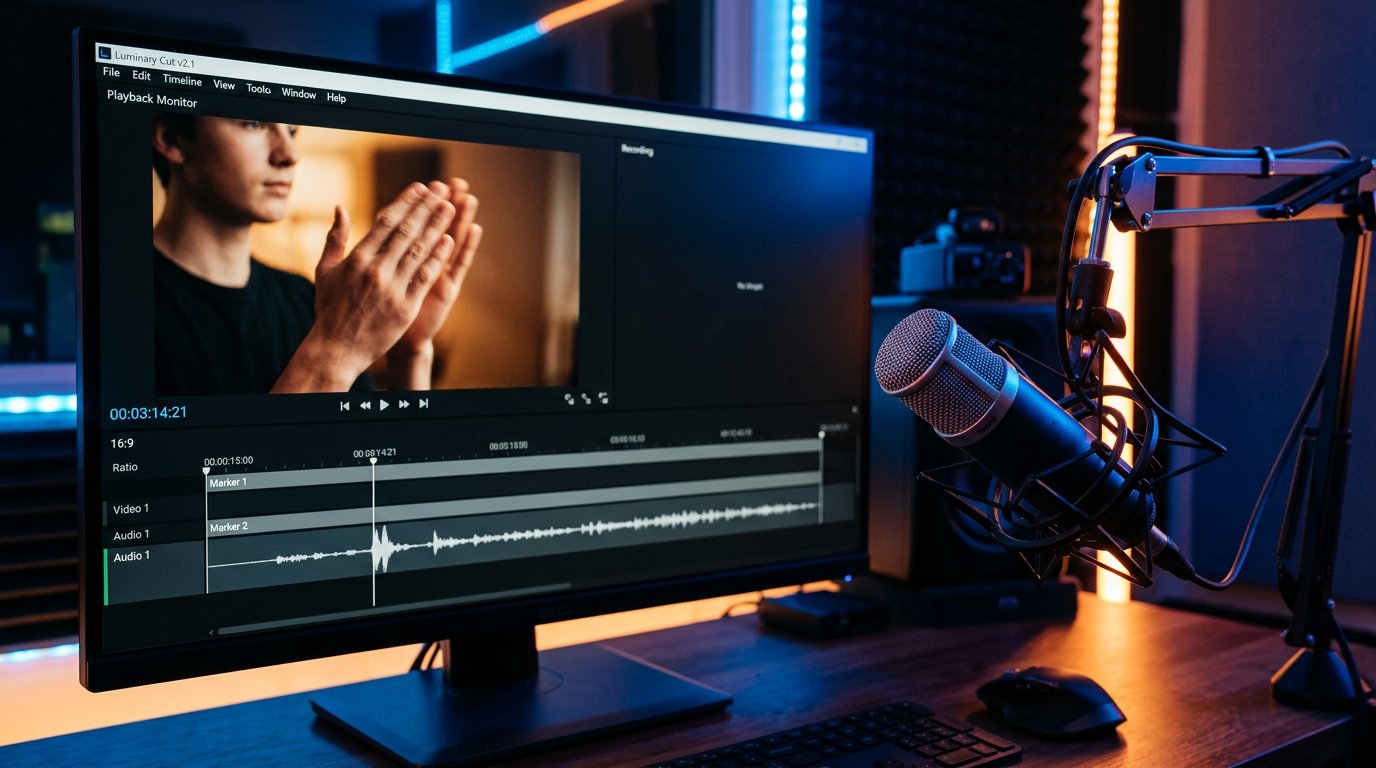
It's best to run the test for at least an hour. In a short recording, devices may drift so slightly that the problem isn't noticeable, but over a long broadcast it will accumulate.
How to calculate the rate of offset accumulation
First determine the delay at the beginning of the recording, then at the end. For example, if at the start the audio lags by one amount, and at the end by noticeably more, you need to subtract the first value from the second. That gives you the increase in desync over the test duration.
To get a rough drift rate per hour, divide the increase by the recording duration in minutes and multiply the result by sixty. Compare several tests in the same scene: a steady, repeating increase usually points to a difference in device clocks.
- An offset that stays the same is constant delay.
- An offset that grows from recording to recording is a sign of drift.
- Sharp jumps in desync are more often linked to a device reconnecting, packet loss, a buffer change, or a driver failure.
- If the problem appears only in the broadcast but not in the local file, you need to check the path to the platform and VOD playback.
How to check the sample rate in OBS and the system
Streaming usually uses 48 kHz. The sample rate must match in OBS, the system, the audio interface, the USB microphone, the virtual mixer, and voice processing programs. Different values don't always cause drift: OBS can resample the audio. But extra resampling complicates the chain and increases the risk of problems with certain drivers and virtual devices.
In OBS, open the audio settings and check the project sample rate. Then open the system properties of the recording device. In Windows, this is usually the sound section with microphone properties and the advanced default format settings. In macOS, you can view the input sample rate in the system audio device setup utility.
If you use an audio interface with its own control panel, check the sample rate there too. On some devices the system value is displayed, but the actual mode is set in the driver panel. In the virtual mixer and any program with VST processing, also find the sample rate or project rate setting.
After changing the sample rate, close OBS, routing programs, and voice processors. Then reconnect the USB device or restart the computer. The downside of this method: a unified sample rate eliminates resampling errors but doesn't fix inaccurate internal clocks in the microphone, camera, or capture card.
Why independent clocks cause drift
A USB microphone, audio interface, webcam, camera via capture card, and HDMI source may each have their own clock generators. They determine the actual rate at which the device transmits audio samples or video frames. Even properly working devices can run slightly faster or slower than each other.
The more independent devices involved in capture, the higher the likelihood of offset accumulation. A unified sample rate doesn't turn them into a single clock domain: two devices can be set to 48 kHz but actually output a stream at slightly different speeds.
A practical option for a single audio domain is to connect the microphone, game audio, and other analog sources into one audio interface or mixer, and send that device's combined output to OBS. All audio channels then run from a single generator.
Another option is to feed the microphone into the camera or capture device so that audio and video arrive in OBS as a single stream. The downside of this connection: it's harder to adjust the microphone level, monitoring, and voice processing separately, and the camera's preamp quality may be worse.
How to fix drift with resampling and a shared route
If you can't avoid separate devices, a virtual mixer or audio router with a clock drift compensation feature can help. This feature selects one stream as the master, tracks the timestamp discrepancy, and smoothly changes the resampling rate of the second stream. As a result, the audio doesn't drift relative to the chosen reference device.
The main audio interface or the device through which all sound passes is usually chosen as the reference. The microphone and other channels are routed to a single virtual output, and that output is added in OBS, rather than the original microphone and the virtual copy in parallel.
Capturing the same microphone simultaneously directly and through a virtual route can create doubled audio and new desync. After changing the route, disable the extra sources in OBS and make a long local recording with sync markers.
The downside of software resampling is possible artifacts with a poor driver, extra load, and dependence on the stability of the routing program. If the virtual mixer itself periodically restarts the audio engine, the problem may become jumpy instead of smooth.
USB ports, power, and drivers
A USB connection rarely causes steady drift at a constant rate, but it can lead to packet drops, buffer changes, device re-enumeration, and jumpy desync. The risk is higher when the microphone, camera, capture card, and external drive are connected to the same passive hub.
- Connect the microphone or audio interface directly to a computer port.
- Don't connect the camera, capture card, and audio device to the same passive USB hub.
- Try a different cable and a different port, preferably on a different USB controller.
- Disable USB power saving if the system periodically disconnects or re-detects the device.
- Install the latest audio interface and capture card driver from the manufacturer's website.
If the desync grows steadily and repeats almost identically in every long test, replacing cables and ports is unlikely to eliminate it completely. In that case, it's more important to bring the sources into a shared audio domain or enable drift compensation in the route you use.
Filters, virtual mixers, and voice processing
Noise suppression, a compressor, an equalizer, VST plugins, and virtual audio cables more often create constant delay. Under high load, the processing program may overflow the buffer, change its internal latency, or drop audio packets. Externally this sometimes looks like drift.
Create a control scene with a clean microphone: no virtual mixer, plugins, voice effects, or third-party processing. Make a long recording, then add elements back one at a time. First add the virtual route, then the plugins, and only after that the additional processing programs.
The downside of testing is that you'll have to give up your usual sound during the test. But this way you can separate a problem with the physical device from a failure of a filter, driver, or routing program.
How to check the camera and capture card
It's not only the microphone that can drift. A camera via a capture card, a smartphone used as a camera, a wireless transmitter, or a webcam can change buffering, drop frames, or repeat them when the signal is unstable. The microphone audio may be steady, but visually it will seem that the audio is the one lagging.
Compare several long tests: with the main camera, with a simple webcam, and with screen capture only. If the problem disappears without a specific camera or capture card, check the signal mode, frame rate, cable, and driver of that device.
If the capture card receives audio over HDMI, compare it with the video. When the HDMI audio stays in sync with the picture, but a separate USB microphone gradually drifts, the cause is usually in the microphone or its audio route. Replacing the capture card without such a test may not help.
How to compensate for constant delay in OBS
For a constant offset, open the advanced audio properties in OBS. Find the required microphone source and set a value in the sync offset field. OBS will add a constant delay in milliseconds to this source to align it with the video or other audio.
If the microphone arrives before the image, you can delay it with this parameter. If the microphone is already lagging behind the video, you can't fix the situation with an audio delay alone: you'll need to delay the video through a suitable source filter or eliminate the delay in the camera route. The downside of delaying video is that the preview and reaction to what's happening will be less immediate.
Set the value based on a short test recording with a clap, then verify it on a long recording. Compensation only works when the offset is constant. With drift, it will only align audio and video at a chosen moment in the stream, after which the discrepancy will start accumulating again.
Check order from simple to complex
- Make a local recording with sync markers at the beginning and at the end.
- Compare the offset at the beginning and at the end to separate drift from constant delay.
- Check the sample rate in OBS, the system, the audio interface panel, and processing programs.
- Make a control recording with a clean microphone, without a virtual mixer, plugins, or filters.
- Connect the microphone or interface directly, check the cable, port, and USB power-saving settings.
- Repeat the test with a different camera or without the capture card.
- For a constant offset, set the source synchronization in the OBS advanced audio properties.
- For confirmed drift, bring the sources into a shared audio domain or use a route with clock drift compensation and resampling.
Last Articles
What has changed in design and functionality We have updated the website to make working with it faster and more convenient. The main changes affect ..
Good afternoon, I've collected all the news during this time.: 1. The main news is that prices for twitch viewers have been greatly reduced, while Tw..
1. Use promo code "December2025" for a 15% discount for all our viewers2. We have reduced the base prices for our configurator and the most affordable..
Twitch services are working stably, so we are ready to cooperate with squads, resellers, service owners, bot owners, and many others.Individual te..
We have completely updated our Twitch viewer services, and they are now working stably. We only use high-quality IP addresses for the viewers.The ..
Hello everyone! Today, we are announcing a new feature—"Twitch Viewer Configurator". Now, you can customize any plan for your Twitch channel. Choo..
Greetings, I have compiled a guide for streamers, which will be very relevant at the moment. Now YouTube and twitch have disabled monetization from vi..
We have finally developed the APINow it will be more convenient for our partner sites to work with us.To update the maximum tariffs for YouTube, an up..
Due to the huge popularity of the partnership services and referral program, we have made a cooperation table. The essence is very simple: more live a..
Our Services for Streamers








Our Services for Content Creators






