
Why Twitch isn't sending the code to your email and what to check
Why the Twitch code email isn't arriving
Twitch may send a code to your email to confirm your address, sign in to your account, or perform an action related to profile security. In all cases, the email should arrive at the address linked to the relevant account. If you've opened a different account or entered the wrong email, the code will be sent somewhere else.
The cause may not be related to Twitch alone. Sometimes the email service delays the message, a filter blocks it, or it ends up in a different folder. It's also possible that the send request didn't go through due to a page glitch, a browser extension, or an unstable connection.
First, determine exactly which message you're waiting for. A login code, a new address confirmation, and a security notification may be sent through different scenarios. If the screen says the code will arrive by phone or in a two-factor authentication app, there's no need to look for an email.
Also keep in mind the sending queue delay. After you make the request, the message may not appear right away: it goes through processing on Twitch's side and on the email service's side. Pressing the button again a few seconds later doesn't speed up delivery and sometimes creates several codes, of which only the last one remains valid.
Check your email address
Open your Twitch account settings, if you still have access to your profile, and compare the linked address with the mailbox you're checking. Pay attention to every letter, period, hyphen, and the domain after the "@" symbol. A single mistake in the address will send the email to a different recipient or to a non-existent mailbox.
Check that you've signed in to the right account. If you have several channels, it's easy to request a code for one profile and then open the email linked to another. Also check the address separately if you recently changed it in settings: the email may have been sent to the old or new mailbox depending on the action being performed.
If you use forwarding, an email alias, or an address with extra characters, open the original mailbox. Forwarding may delay the message or fail to pass it through due to filter settings. To check, sign in to the web version of your email, not just the mobile app.
Make sure your mailbox isn't full. When there's not enough space, new messages may not be accepted. Delete unnecessary emails if the service shows a storage warning, then refresh your inbox again.
Look for the email in other folders
The inbox isn't the only folder where a message from Twitch can end up. Check spam, junk mail, the archive, the trash, and sections like "Promotions" or "Updates" if your service has them. Use search for the name Twitch and the words "code," "confirmation," and "security."
Check your sorting rules and blocked address list. An automatic filter may have deleted the email, moved it to a separate folder, or sent it to the archive. If you find a genuine message in spam, mark it as safe. Don't open links or enter a code if the email looks suspicious or leads to a third-party site.
Open your email through a browser and refresh the message list manually. The mobile app sometimes doesn't show all emails right away, especially if sync is disabled or running with a delay. It's also helpful to search without a sender filter: too narrow a query may hide the message you need.
If regular emails to this address aren't arriving either, send a test message from another mailbox. This will help you understand whether the problem is with your email in general. If the test email is delivered but the Twitch message isn't, move on to checking filters, the request, and your account settings.
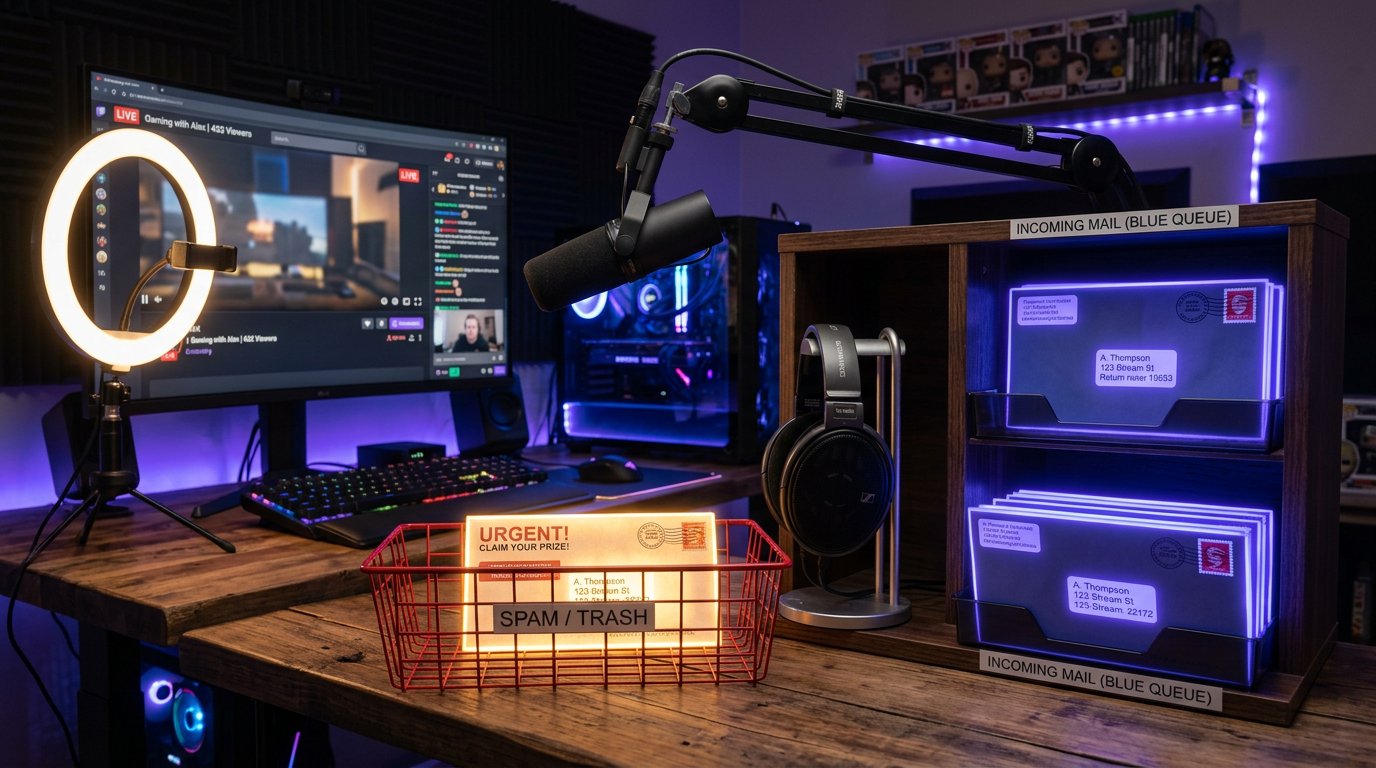
Don't request the code many times in a row
After you press the resend button, the message doesn't always appear instantly. It may be waiting in the sending queue on Twitch's side or delayed by your email provider. If you make new requests right away, you'll receive several emails with different codes or get a temporary limit on further attempts.
Make one request and check your email, including the spam folder. If the email hasn't appeared, wait a while and only then resend it. Don't press the button several times in a row: it doesn't speed up processing and makes it harder to figure out which code is currently valid.
If you receive several messages, use the code from the last email unless the page explicitly states a different order. An earlier code may stop working after a new one is created. Enter the combination manually or copy it carefully without spaces at the beginning or end.
If the code isn't accepted, first request a new one and wait for the very last message. Don't enter a code on pages that opened from a suspicious link. Twitch doesn't ask you to share the code with others, so don't send it in chat, private messages, or to a supposed support service.
Check your browser and the request on Twitch's side
Sometimes the problem occurs before the email is even sent: the resend button doesn't work, the page freezes, or an extension blocks the request. Refresh the page, sign out of your account, and sign in again. If that doesn't help, open Twitch in another browser or in a private window.
Temporarily disable extensions that modify pages, block scripts, filter ads, or restrict network requests. Then reopen the official Twitch website and repeat the action. If everything works in a private window, enable extensions one by one to find the one that's interfering.
Clear the cache and site data for Twitch in your browser settings. Saved files may be corrupted after a page update or a change to the login form. After clearing, close the tab, restart the browser, and sign in to your account again. You don't need to delete all your email data: it's enough to start with Twitch site data.
If the page continues to behave incorrectly, you can check the browser console. Open the developer tools, go to the tab with error messages, and repeat the code request. Errors loading scripts or network requests will point to a page problem. Don't publish the console contents publicly: it sometimes contains service session data.
Try a different network: for example, switch from home Wi-Fi to mobile internet or vice versa. Restart your router if the connection is unstable. Don't use dubious proxies and VPNs to bypass restrictions: they can alter the connection, trigger additional checks, and interfere with proper authorization.
Clarify the confirmation method
Not every login code is sent by email. Twitch may request confirmation through another method that was set up on the account. Look at the text on the login page: it usually states where the code should arrive or which app to open.
If the code is expected in a two-factor authentication app, no email will appear in your inbox. Such an app generates one-time codes directly on your phone, often without even receiving an SMS or email. Open the app you connected to your account and check the current code.
The code from an authenticator app usually changes at short intervals. Enter the one displayed at the moment of signing in, and make sure your phone has the correct date, time, and time zone. If the time is significantly off, the one-time code may not be accepted.
If confirmation is tied to a phone number, check the signal, short message blocking, and that the number is correct. Don't try to replace one method with another if the login screen doesn't offer it. If you've lost access to the configured verification method, proceed to recovery through the official Twitch help section.
If you no longer have access to your email
First, try to recover the mailbox itself through your email service's official form. Twitch won't be able to deliver the code to an address you don't have access to. After recovering your email, check the folders, filters, free space, and the address linked to your account again.
If you can't recover the mailbox, prepare the information for contacting Twitch support. Include the channel name, the address that was linked to the account, the approximate time the problem started, and the actions you've already taken. Don't send your password, active codes, or full backup data.
If you notice an unknown change to your address, password, or other settings, act as if your account may have been compromised. First, secure your mailbox, then change your Twitch password where possible, and end suspicious sessions. Don't delete emails about settings changes: they may be needed when your request is reviewed.
When nothing has helped
Check whether there's an outage on Twitch's side. Open the official service status page and look for reports of problems with login, email delivery, or account operations. During an outage, just wait for the service to recover and don't create dozens of new requests: after it resumes, they may arrive with a delay.
If the services are running, the address is correct, the filters have been checked, the browser and network have been changed, and the email still isn't arriving, contact official Twitch support. Use the help form on the Twitch website, not contacts from random posts or private messages. Describe the problem consistently: what you did, which confirmation method is shown on the screen, where the code should arrive, and which checks you've already performed.
To confirm account ownership, support may request additional information. Provide it only through the official contact channel and verify the page address. Your password, one-time code, and backup codes must not be shared even with someone claiming to be a support agent.
If you previously created and saved two-factor authentication backup codes, find them in a safe place and use them one at a time in the form that offers this recovery method. Each backup code is usually intended for single use. Don't look for them in open conversations and don't post screenshots with these combinations.
If you don't have backup codes and also no access to your authenticator app or email, you won't be able to replace the verification method on your own. In this case, the only safe path is recovery through official support with owner data verification.
What to do step by step
- Look at which confirmation method is shown on the screen: email, phone, or a two-factor authentication app.
- Check the linked address and make sure you've opened the mailbox for the right Twitch account.
- Open the web version of your email and check the inbox, spam, archive, trash, filters, blocked senders, and free space.
- Make one code request, wait due to a possible sending queue delay, and don't press the button repeatedly many times.
- Clear the Twitch cache, try a private window or another browser, temporarily disable extensions, and switch networks.
- If an authenticator app is used, take the code from it rather than waiting for an email.
- Check the official Twitch status page and, if the problem persists, submit a request to support.
- If you have pre-saved backup codes, use them only on the official recovery page.
Last Articles
What has changed in design and functionality We have updated the website to make working with it faster and more convenient. The main changes affect ..
Good afternoon, I've collected all the news during this time.: 1. The main news is that prices for twitch viewers have been greatly reduced, while Tw..
1. Use promo code "December2025" for a 15% discount for all our viewers2. We have reduced the base prices for our configurator and the most affordable..
Twitch services are working stably, so we are ready to cooperate with squads, resellers, service owners, bot owners, and many others.Individual te..
We have completely updated our Twitch viewer services, and they are now working stably. We only use high-quality IP addresses for the viewers.The ..
Hello everyone! Today, we are announcing a new feature—"Twitch Viewer Configurator". Now, you can customize any plan for your Twitch channel. Choo..
Greetings, I have compiled a guide for streamers, which will be very relevant at the moment. Now YouTube and twitch have disabled monetization from vi..
We have finally developed the APINow it will be more convenient for our partner sites to work with us.To update the maximum tariffs for YouTube, an up..
Due to the huge popularity of the partnership services and referral program, we have made a cooperation table. The essence is very simple: more live a..
Our Services for Streamers








Our Services for Content Creators






