
Why viewers can't see new Twitch emotes
First, check the emote status in the Twitch dashboard
An uploaded file doesn't become available in chat the moment it's submitted. Twitch has to process the image, apply it to the selected slot, and, if required, complete a review. While an emote is marked as pending review, processing, or inactive, viewers may only see the text code in a message.
Open the emote management section and check the status of each size and each variant separately. A creator sometimes sees the uploaded emote card in the dashboard and assumes it's published, even though the slot isn't yet activated for chat.
The downside of this check is that the dashboard status doesn't always update instantly. After approval, the interface may refresh with a delay, so it's worth reloading the page and checking the emote in a regular chat.
How long processing and review of a new emote takes
Automatic file processing usually takes from a few minutes to a few hours. Review may be completed the same day, but sometimes it drags on longer — especially under high load, changes to the moderation system, or a re-review of the image.
If the status hasn't changed for several hours, that's not necessarily a failure yet. If the emote has been stuck in review for more than a day, don't upload copies of the same file one after another. Duplicates don't speed up the queue and can complicate the review: several similar cards with different statuses will appear in the dashboard.
Note down the emote name, upload time, status, and a screenshot of the card. This data will come in handy if the problem doesn't go away and you need to contact support.
When the problem is related to channel settings
An active emote may be unavailable to a specific viewer because of slot assignment. Some emotes are intended for subscribers, specific subscription tiers, or users with special permissions in the channel. Checking from the streamer's account doesn't show the real picture: the owner and moderator have broader access than a regular guest.
Check which category the emote belongs to and who it's assigned to. If it's visible to a subscriber but doesn't show for a viewer without a subscription, that's not a chat error but an expected access restriction.
- Compare the emote assignment with the subscription slot or another role.
- Check whether it's tied to a specific subscription tier.
- Confirm whether the subscription is active for the viewer reporting the problem.
- Compare the result for a guest, a subscriber, and a moderator.
The downside of checking by roles is that it requires accounts with different access or help from viewers. A single test from the channel owner's account is useless here.
How to tell a Twitch glitch from an access restriction
A sign of a channel setting is that the emote is consistently visible to one group of users and unavailable to another. For example, a subscriber sends it as an image, while a guest sees only the code or can't find the emote in the panel. In that case, you need to change the slot assignment, not clear the cache for the entire audience.
A sign of a problem on Twitch's side is that an active emote doesn't work for the owner, subscribers, or guests in different browsers and apps. This also includes the situation where the processing status hasn't changed for more than a day or the emote disappeared from the dashboard after successful activation.
The downside of this distinction is that a single client glitch is easily mistaken for a platform error. You need checks in at least two different environments: for example, in a browser without extensions and in the mobile app.
Browser cache and the app may show an old chat
The emote may already be working on Twitch's side but fail to load for some viewers. The cause may be a long-open tab, saved site data, an image loading failure, or an outdated app version. Then the text code remains in the message, even though another user in the same chat sees the image.
First, refresh the chat page, then fully close and reopen the stream. In the browser, check the channel in a private window without extensions. In the app, restart it and make sure the current version is installed.
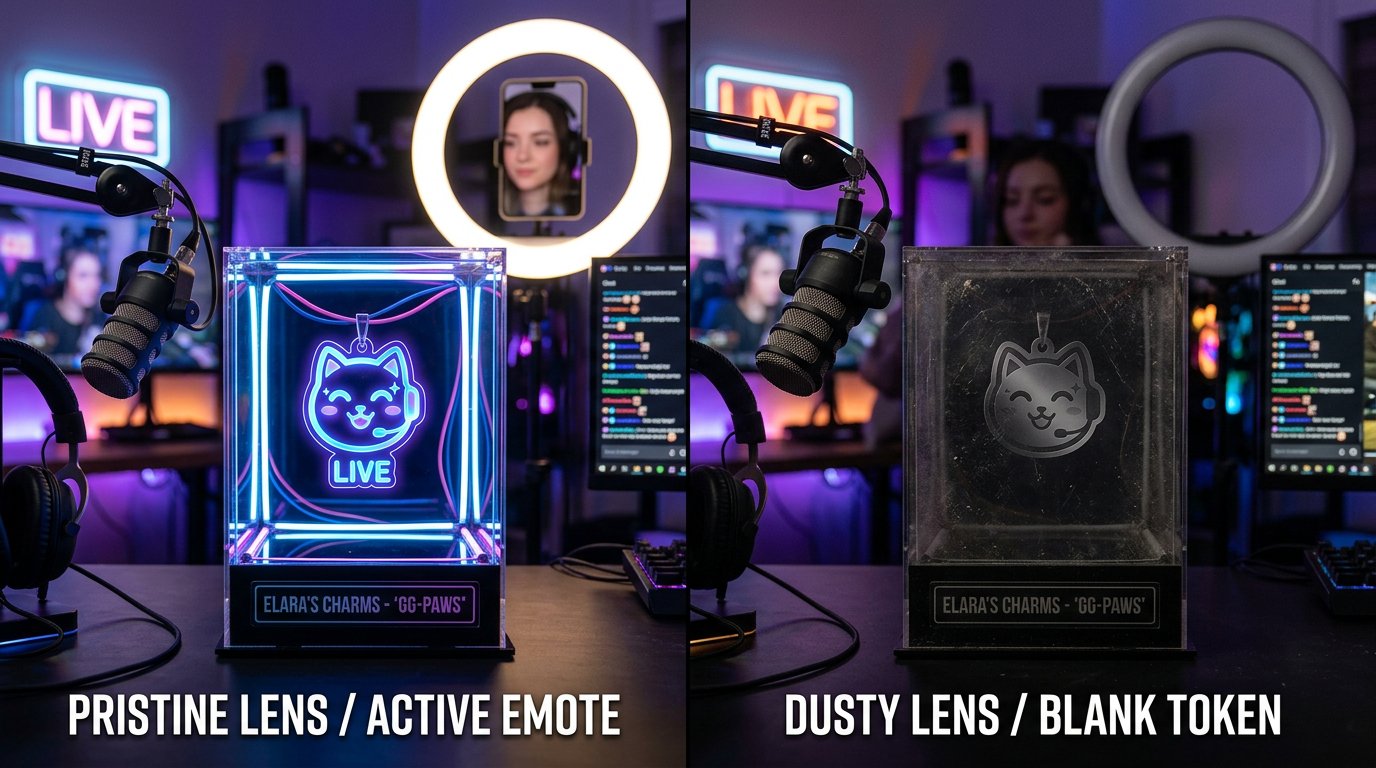
If the emote didn't appear even in a private window, don't jump straight to fully clearing browser data. Check it in another browser, on another device, and from another account. If the text code remains for all users, the cause is most likely not the cache of a specific viewer.
The downside of fully clearing cache and cookies is that the viewer may be logged out of sites and lose local settings and saved data. This step only makes sense after a quick check in a private window and another browser.
Extensions and third-party emotes don't display for everyone
Native Twitch emotes and emotes from third-party extensions work differently. A third-party set may only display for viewers who have the extension installed and enabled. In the mobile app, on a TV, or in a browser without add-ons, such a code often remains plain text.
Check whether the emote was added to Twitch itself or connected through an external service. For important chat styling, it's better to rely on native emotes: they don't depend on the viewer's add-ons.
- Open the channel in a browser without extensions.
- Check whether the emote displays in the official Twitch interface.
- Ask the viewer whether they use chat extensions.
- Don't replace rules, commands, and important messages with third-party emote codes.
The downside of third-party sets is obvious: they don't provide the same display for the entire audience, even if everything works for some regular viewers.
Browser extensions can break Twitch emote loading
Even a native emote is sometimes not visible because of add-ons that modify chat, filter page elements, or block requests to media. The problem often appears after an extension update or a change to its filters. Meanwhile, everything may work on another channel, which makes finding the cause harder.
Disable extensions related to Twitch, chat, ad blocking, and scripts, then refresh the page. If the emote appears, enable the add-ons one by one. This way you can find the conflicting extension instead of leaving the viewer without all their usual features.
The downside of this method is that the check takes time and temporarily changes the usual interface. Don't ask all viewers to disable extensions if the problem only reproduces for one person.
Moderation and chat modes affect the message, not the emote
Sometimes the emote is fine, but a specific message with it is deleted or not shown to part of the audience. The cause may be chat modes, word filters, moderator actions, or a connected bot. Pay especially close attention to filters if the emote code resembles a stop word, a command, or part of a prohibited pattern.
Look at the moderation log and the automatic filtering rules. If a message is sent and immediately disappears, test the moderation tool's actions rather than the emote itself. The emote may work fine in another message or for another user.
The downside of this check is that a third-party bot doesn't always explain a deletion in detail. Its rules and logs will have to be reviewed separately from Twitch settings.
Where to turn if an emote is stuck in review
If the status hasn't changed for more than a day, the emote is active but doesn't display for anyone, or the card disappeared after upload, contact support through the Twitch support section and the contact form. Choose the topic related to the channel, subscriptions, or emotes, and describe the problem without vague wording.
Attach to your request screenshots of the dashboard with the stuck status, the exact emote code, the upload time, a link to the channel, and the results of checks in different clients. State whether subscribers, guests, and the channel owner can see it. Don't delete the stuck emote before you get a response if you want to keep the data for review.
The downside of contacting support is that a response doesn't come instantly, and manual processing may not be sped up. But a detailed request reduces the chance of getting generic advice to clear the cache without analyzing the emote status.
Check order so you don't mix up the causes
- Check the emote status and its slot assignment in the channel dashboard.
- Wait for processing if only a few hours have passed since upload.
- If the status hasn't changed for more than a day, save screenshots and prepare a request to support.
- Check the display for a guest, a subscriber, and a moderator.
- Open the chat in a private window and in another browser without extensions.
- Compare the result on a computer and in the mobile app.
- Make sure the emote is native and doesn't depend on a third-party extension.
- Check the moderation log if a message with the code disappears from chat.
Last Articles
What has changed in design and functionality We have updated the website to make working with it faster and more convenient. The main changes affect ..
Good afternoon, I've collected all the news during this time.: 1. The main news is that prices for twitch viewers have been greatly reduced, while Tw..
1. Use promo code "December2025" for a 15% discount for all our viewers2. We have reduced the base prices for our configurator and the most affordable..
Twitch services are working stably, so we are ready to cooperate with squads, resellers, service owners, bot owners, and many others.Individual te..
We have completely updated our Twitch viewer services, and they are now working stably. We only use high-quality IP addresses for the viewers.The ..
Hello everyone! Today, we are announcing a new feature—"Twitch Viewer Configurator". Now, you can customize any plan for your Twitch channel. Choo..
Greetings, I have compiled a guide for streamers, which will be very relevant at the moment. Now YouTube and twitch have disabled monetization from vi..
We have finally developed the APINow it will be more convenient for our partner sites to work with us.To update the maximum tariffs for YouTube, an up..
Due to the huge popularity of the partnership services and referral program, we have made a cooperation table. The essence is very simple: more live a..
Our Services for Streamers








Our Services for Content Creators






