
OBS Doesn't Detect the Capture Card: Causes and Signal Setup
Check whether the card is recognized by the system
OBS won't add a capture card until the operating system detects it. Open Device Manager and check the sections for cameras, imaging devices, audio and video devices, and USB devices. The card isn't always listed under its model name: it may appear as USB Video, USB Camera, HDMI Video, or a video capture device.
If the card isn't in the list, it's too early to look for the problem in OBS scenes and settings. Disconnect the device, restart the computer, and connect it again. If the card appears and immediately disappears, the cause is usually power, the USB cable, the port, or the device itself.
Connect the card directly to a USB port
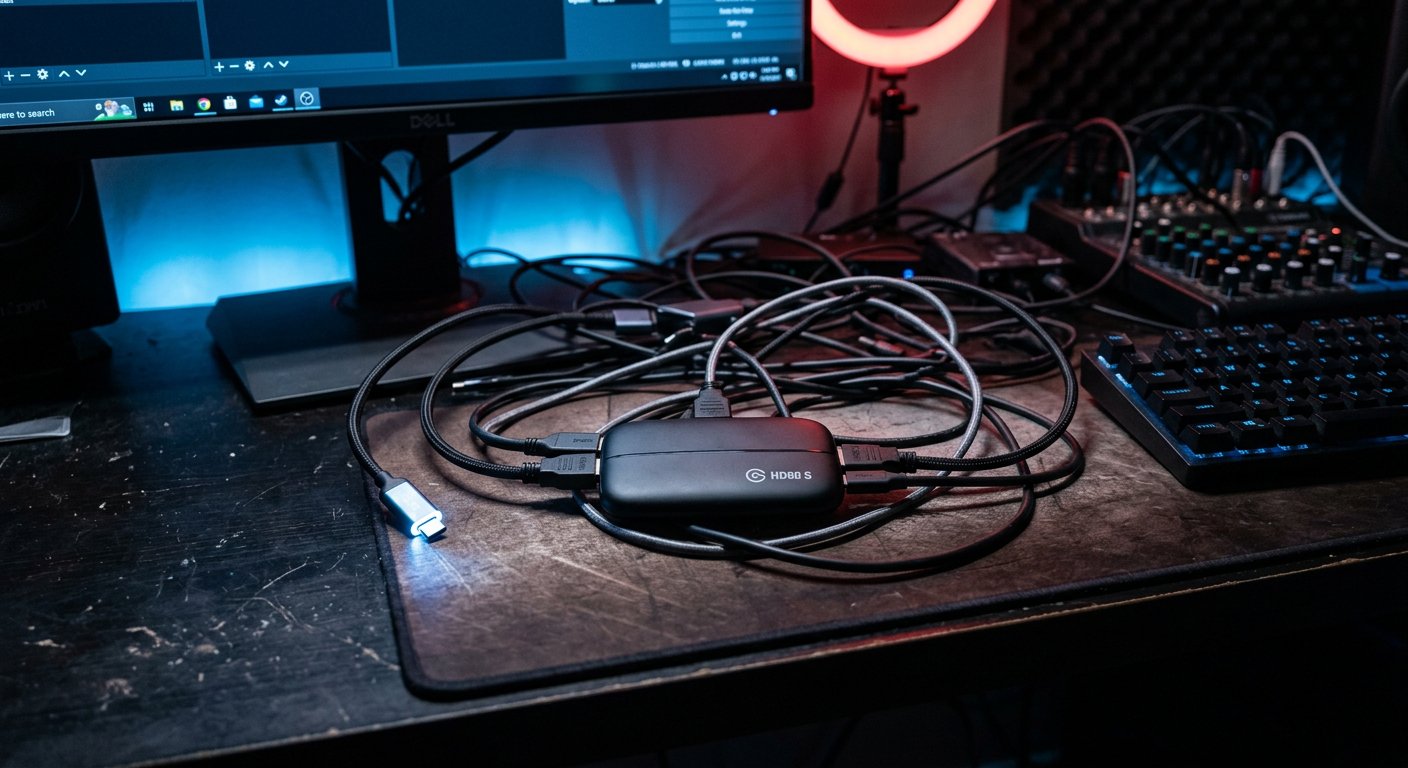
A lit indicator doesn't mean the card is transmitting video and data to the computer. The cable may be damaged or designed for charging only. To check, use a known-good data cable and connect the card directly to a different USB port.
- On a desktop PC, use a port on the rear panel of the case.
- On a laptop, try another port without an adapter or docking station.
- During the test, disconnect external drives, webcams, microphones, and other USB devices.
- Check for a separate power supply for the card if its design includes one.
- Connect the card to another computer if possible.
A USB hub is convenient in a finished setup, but devices connected to it share power and bandwidth. It's not suitable for diagnostics. Testing on another PC doesn't rule out a conflict with a specific USB controller, but it helps determine whether the card itself is working.
Check the state of the capture card driver
Many USB cards work as standard UVC devices and use the system driver. Other models require a manufacturer's driver. If there's a warning icon next to the card in Device Manager, it's recognized as an unknown device, or it disconnects on its own, check the driver for your model and operating system version.
In the device properties, check its status: the system should report that it's working properly. After installing or updating the driver, close OBS completely and open it again. The program may not refresh the list of video devices while it's running.
If the card is recognized without errors but isn't in OBS, don't waste time reinstalling the program. The cause should be sought in device access, source settings, or a conflict with another program.
Add the card via the video capture source
In OBS, the card is added via the "Video Capture Device" source. Create a new source, open the device list, and select the card manually. It may be labeled with a generic name like USB Video, USB Camera, or HDMI Video rather than the manufacturer's name.
If the source already exists in the scene, open its properties and make sure the correct card is selected, not a webcam, virtual camera, or an old disconnected device. If the names are similar, temporarily disconnect the extra cameras and cards, then refresh the list.
A new source helps rule out a failure in the old one's saved settings. The downside is that resolution, frame rate, audio, color range, and filters will have to be set again. Before deleting the old source, save its parameters if it's used in active scenes.
Close programs that are using the video stream
A single capture card can often be used by only one program. It may be occupied by another running instance of OBS, a manufacturer's utility, a calling app, a browser, a messenger, or an app with camera preview enabled.
Close such programs completely, including windows in the system tray. Then check Task Manager and end any remaining processes for video calling, recording, virtual camera, and card management apps. Separately close browser tabs with streaming studios, video calls, and camera access.
The downside of this method is that you'll have to temporarily interrupt a call, recording, or work in a service. But it quickly rules out an access conflict. After that, restart OBS and create the capture source again.
Set the resolution, frame rate, and format in the source properties
The card may be visible in the OBS list but show a black screen or a "No Signal" message. A common cause is that the incoming HDMI signal isn't supported by the card, or the settings in OBS don't match the source signal. Compare the resolution and frame rate on the console, camera, or second PC with the card's capabilities.
Open the properties of the "Video Capture Device." First select automatic resolution and frame rate, and leave the video format at the default value. This is the simplest option, but the automatic detection sometimes misreads a non-standard signal.
If there's no image, enable custom settings. Set the resolution and frame rate that the source is currently outputting, then check the available video formats one by one. Start with a basic mode supported by both the source and the card. Manual configuration gives you control, but an incorrect frame rate, resolution, or format will again lead to a black screen, a frozen frame, or "no signal."
Check the HDMI cable between the source and the card. A cable may work with a monitor but lose signal at a high frame rate or resolution. For the test, replace it and remove HDMI adapters, receivers, and other intermediate devices.
Rule out HDCP when capturing from a console
HDCP is copy protection for the digital HDMI signal. When protection is active, the card is usually recognized in OBS as a device but shows a black screen instead of an image. This is a common cause of problems when connecting a console, media player, or apps with protected video.
To check, open the settings of the source device and find the HDCP option. If the source allows disabling protection for game capture, turn it off, then restart the console or other device, the card, and OBS. If the interface or game appears after that, HDCP was the cause.
Disabling HDCP doesn't give access to protected content: apps with movies, broadcasts, and other protected video may restrict image output. Don't use cards, adapters, or other devices to bypass protection. If HDCP can't be disabled, capturing a protected signal to a regular card won't work.
Check access permissions in the system
The system may block OBS from accessing the camera and capture devices even if the card is working and appears in Device Manager. Open the operating system's privacy settings and make sure OBS is allowed to access the camera.
After changing permissions, restart OBS. If multiple versions of the program are installed or a portable build is used, check access for the specific app you launch for streaming. The downside of this check is that it won't help with a faulty cable, unsupported signal, or HDCP, but it will rule out a system block.
Capture card checklist for OBS
- Connect the card directly to a different USB port.
- Replace the USB cable with a data cable.
- Check the card in Device Manager and make sure there's no error next to it.
- Install or update the driver if the device is recognized with a warning or as unknown.
- Close OBS and launch it again after the card appears in the system.
- Close the browser, messengers, calling apps, card utilities, and a second OBS.
- Add a new "Video Capture Device" source and select the card manually.
- Leave the automatic settings, then if needed manually set the resolution, frame rate, and input signal format.
- Replace the HDMI cable and temporarily remove adapters and intermediate devices.
- If there's a black screen from a console, check HDCP and disable it in the source settings if that option is available.
Don't disconnect the card during recording unless necessary. OBS may lose the device, and after reconnecting it you'll have to select it again in the source properties.
Last Articles
What has changed in design and functionality We have updated the website to make working with it faster and more convenient. The main changes affect ..
Good afternoon, I've collected all the news during this time.: 1. The main news is that prices for twitch viewers have been greatly reduced, while Tw..
1. Use promo code "December2025" for a 15% discount for all our viewers2. We have reduced the base prices for our configurator and the most affordable..
Twitch services are working stably, so we are ready to cooperate with squads, resellers, service owners, bot owners, and many others.Individual te..
We have completely updated our Twitch viewer services, and they are now working stably. We only use high-quality IP addresses for the viewers.The ..
Hello everyone! Today, we are announcing a new feature—"Twitch Viewer Configurator". Now, you can customize any plan for your Twitch channel. Choo..
Greetings, I have compiled a guide for streamers, which will be very relevant at the moment. Now YouTube and twitch have disabled monetization from vi..
We have finally developed the APINow it will be more convenient for our partner sites to work with us.To update the maximum tariffs for YouTube, an up..
Due to the huge popularity of the partnership services and referral program, we have made a cooperation table. The essence is very simple: more live a..
Our Services for Streamers








Our Services for Content Creators






