
Browser audio in OBS not working
Why the game is audible but the browser isn't
OBS doesn't go by what you hear in your headphones. The program gets audio from the selected source: the system output device, an individual application, or a Browser Source. That's why the game can make it into the stream just fine while the browser stays out of it.
A common cause is different output routes in Windows. The game sends audio to the headphones selected in OBS, while the browser sends it to a monitor, built-in speakers, or another Bluetooth device. The user may not notice this, especially if Windows changed the output device after a headset was connected.
There's another quirk: a regular browser tab doesn't automatically become an OBS source. Window capture transmits the image but isn't required to transmit its audio. For audio, you'll need system capture, a separate application source, or a Browser Source.
First, find where the audio is lost
Play a short audio clip in the browser and watch the OBS mixer. Pay attention to the "Desktop Audio," "Audio Output Capture," "Application Audio Capture," or Browser Source meters. The meter should move exactly while the audio is playing.
If the meter doesn't react, OBS isn't receiving an audio signal. In that case, check the output device and Windows settings, not the stream settings. If the meter moves, the source has already made it into OBS. Then the cause is usually in the volume fader, the audio track assignment, the monitoring settings, or the output settings.
Also check whether the mute button next to the source is pressed and whether the fader is set all the way to the left. Make sure you're looking at the right mixer channel: with multiple sources, identical names or duplicates can confuse your diagnosis.
Check the device in OBS settings
Open "Settings" → "Audio" and find the global audio devices. In the "Desktop Audio" field, you can select specific headphones or speakers instead of "Default." This is especially important if multiple devices are connected to the system.
If the game is audible in OBS but the browser doesn't show up on the meter, the selected device may be correct only for the game. For example, the game uses the headphones while the browser is routed to the monitor. Selecting one device in Windows and OBS doesn't always change applications that are already running, so restart the browser after changing the route.
Leave only the system audio source you actually use. Capturing simultaneously through "Desktop Audio" and "Audio Output Capture" won't add the browser if it's routed to a different device. But if the routes match, you may get doubled audio and echo.
Don't confuse "Desktop Audio" with the microphone. The microphone setting only handles voice from the connected device and doesn't affect browser tab audio.
Check audio routing in Windows
Open "Settings" → "System" → "Sound" → "Volume mixer." Find the running browser and check three things: the app volume, that it isn't muted, and the selected output device. The browser can have its own separate route even if the main Windows device is set correctly.
If the browser is routed to the monitor while OBS captures the headphones, assign the same headphones to it. If you use "Default," check which device Windows currently considers the main one. This value sometimes changes when you switch headsets or connect a monitor.
Check whether the tab itself is muted. The site's audio may be turned off in the browser, and the media player may have its own volume control. To test, play audio on another page or in another browser window.
After changing the output device, close and reopen the browser. Some applications keep using the old audio route until restarted. If the problem only appears when a Bluetooth headset is connected, compare the result with regular headphones: the system may create separate output profiles for music and calls.
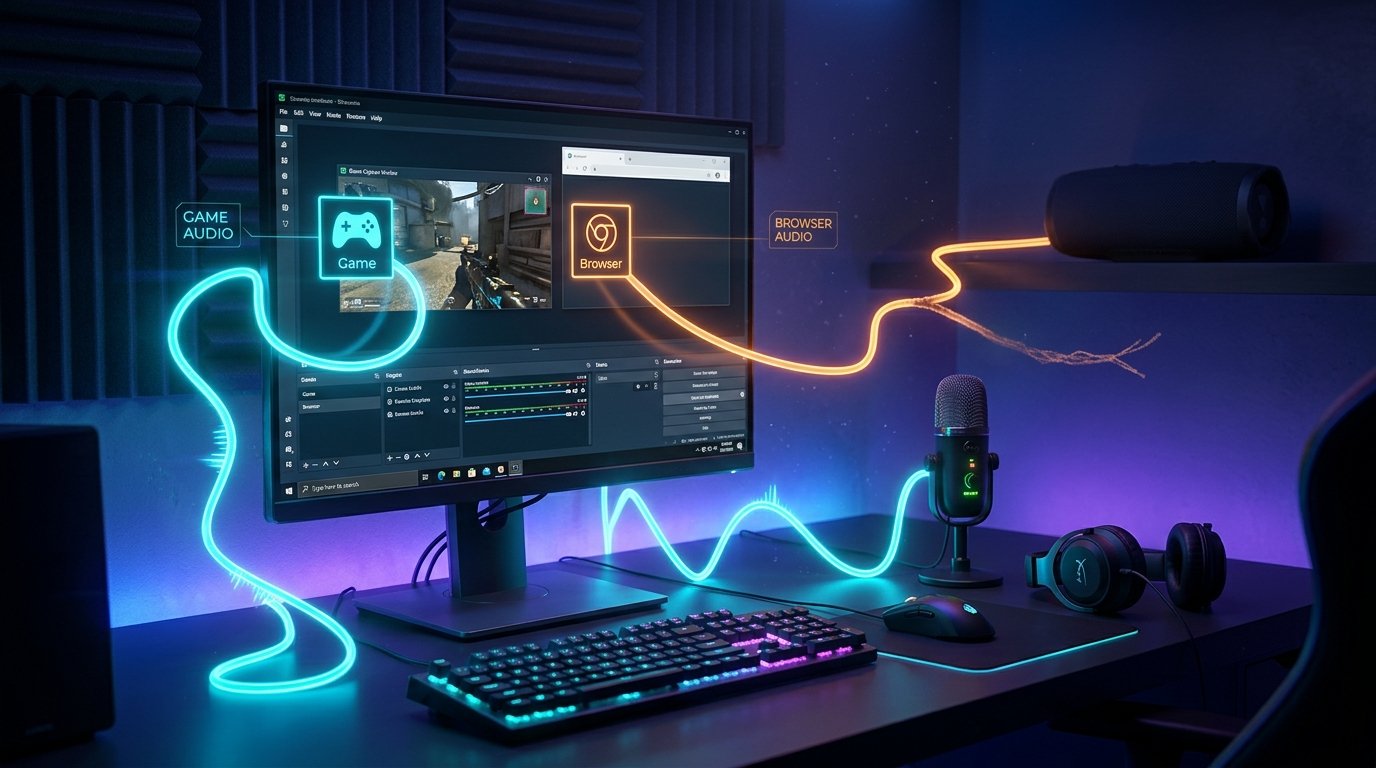
Use Application Audio Capture
If you need to send a regular tab's audio separately from other system sounds, add the "Application Audio Capture" source in OBS, if this source is available in your version of the program. In its properties, select the browser or a specific window. This option is more convenient when you don't want to send notifications, system sounds, and audio from other programs to the stream.
Browsers have multiple processes, so it's important to select the process or window where the desired tab is actually playing. If there are several similar options in the list, play the audio and check the source meter one by one. When capturing a specific window, close extra browser windows so you don't mix up the process.
The application capture source handles audio. A regular "Window Capture" can show the browser on the scene, but that doesn't mean the tab's audio will also be sent to OBS. For image and audio, you sometimes need two independent sources.
Don't capture the same browser simultaneously through system audio and a separate application source unless necessary. In that case, the audio may double with a slight delay. Leave one capture method or disable the system source if the separate channel is already working.
If you're using a Browser Source
A Browser Source is a built-in browser page inside OBS, not a regular tab in Chrome, Edge, or another browser. If the site is opened as a Browser Source, open its properties and check the "Control audio via OBS" setting. When enabled, the page's audio appears in the OBS mixer as part of the source and is adjusted separately.
If the setting is off, the Browser Source audio may go to the system output device. Then it will depend on the "Desktop Audio" setting and the selected Windows device. This can create the impression that OBS doesn't hear the page, when in fact the audio is being sent along a different route.
Select the Browser Source in the sources list and check its volume. Make sure the source isn't disabled and the fader isn't pulled down to the minimum. If necessary, refresh the page through the source properties and start playback again.
A regular browser tab and a Browser Source are different environments. A site opened in Chrome doesn't control the Browser Source in OBS, and the Browser Source audio isn't required to appear in a regular browser window. For each environment, choose its own capture method.
The meter moves, but there's no audio on the stream
If the source meter moves, first check the audio tracks. Open "Advanced Audio Properties" and make sure the desired source is assigned to the track used for the broadcast. In the OBS output settings, check which track is selected for the stream.
Check the monitoring mode separately. The "Monitor Only (mute output)" option lets you hear the audio locally but removes it from the output signal. If the audio should go to both the stream and the headphones at the same time, use "Monitor and Output." If you don't need local monitoring, "Monitor Off" will do.
Temporarily disable the source filters, especially noise suppression, compressor, and expander. Incorrect filter settings can greatly reduce the volume or completely remove quiet browser audio. After checking, you can restore the filters and configure them again.
If the problem only appears in the recording while the stream has audio, check the recording track and the output settings. The track settings for the broadcast and the local file may differ.
What to check for rare problems
Sometimes audio disappears after a device change, a driver update, or launching a program that intercepts audio output. Restart OBS and the browser, reselect the device in the settings, and check whether the route has changed in the Windows volume mixer.
Make sure the sample rate in OBS and Windows doesn't conflict. In OBS it's set in the audio settings, and the device parameters can be viewed in the Windows output properties. Usually the problem is solved by choosing the same value, such as 44.1 or 48 kHz, for both devices.
On macOS, system audio and browser audio may require a separate capture source and permissions in the privacy settings. If OBS isn't receiving system audio, check the program's access to screen and audio recording, as well as whether a system capture source is available in your version of OBS.
What to do, step by step
- Play audio in the browser and see whether the meter of the desired source in OBS moves.
- If there's no meter, check the browser's output device in the Windows volume mixer and compare it with the device selected in OBS.
- For a regular tab, add "Application Audio Capture," and for a page inside OBS, check the Browser Source and its audio control.
- Check the volume, that the source isn't muted, the fader, and the absence of duplicate capture methods.
- If the meter moves, check the stream audio track and the "Monitor Only (mute output)" monitoring mode.
- After the changes, restart the browser and OBS, then make a short test recording or start a test stream.
Last Articles
What has changed in design and functionality We have updated the website to make working with it faster and more convenient. The main changes affect ..
Good afternoon, I've collected all the news during this time.: 1. The main news is that prices for twitch viewers have been greatly reduced, while Tw..
1. Use promo code "December2025" for a 15% discount for all our viewers2. We have reduced the base prices for our configurator and the most affordable..
Twitch services are working stably, so we are ready to cooperate with squads, resellers, service owners, bot owners, and many others.Individual te..
We have completely updated our Twitch viewer services, and they are now working stably. We only use high-quality IP addresses for the viewers.The ..
Hello everyone! Today, we are announcing a new feature—"Twitch Viewer Configurator". Now, you can customize any plan for your Twitch channel. Choo..
Greetings, I have compiled a guide for streamers, which will be very relevant at the moment. Now YouTube and twitch have disabled monetization from vi..
We have finally developed the APINow it will be more convenient for our partner sites to work with us.To update the maximum tariffs for YouTube, an up..
Due to the huge popularity of the partnership services and referral program, we have made a cooperation table. The essence is very simple: more live a..
Our Services for Streamers








Our Services for Content Creators






