
Why the TikTok Live replay isn't showing on your profile
Why the TikTok Live replay isn't showing on your profile
After a livestream ends, the recording doesn't always appear among your regular posts. TikTok Live and profile videos are different formats. The livestream replay may be stored separately in the LIVE tools section and not added to your profile grid automatically.
So a missing recording on your account page doesn't always mean the livestream was deleted. First check the section with LIVE recordings, and only then look at settings, video processing, and account status.
If you want to show the livestream to your followers, you usually need to publish the replay separately as a video or create short clips from it. The fact that a broadcast ended doesn't turn it into a regular post.
Where to find the recording of a finished livestream
Open your profile and go to the account menu. Depending on the app version, the section you need may be called TikTok Studio, LIVE Center, or "LIVE recordings." Names and item locations may differ across devices and regions.
- Open TikTok and go to your profile.
- Tap the menu button and find TikTok Studio or the LIVE tools section.
- Open the list of recordings, replays, or livestream videos.
- Check whether the livestream you're looking for appears there.
If the recording is in this section but not on your profile, the livestream is most likely fine. For public viewing, choose the available action to publish, save, or edit. If TikTok only offers to download the recording, you can save it to your device and then upload it as a regular video with the privacy settings you want.
The replay is still being processed
Right after a LIVE ends, TikTok may not show the recording. The service needs time to process the video, review it, and prepare the available editing tools. This is especially noticeable after a long broadcast, an unstable connection, or an unexpected end to the livestream.
Close the app, wait, and check the recordings section again. Don't try to republish many times in a row: if the video is still processing, additional actions won't make the recording appear faster.
If the livestream ended due to a failure, first check whether it actually started. Sometimes your account keeps information about an attempt to start a broadcast, but a full recording isn't created. This can happen with problems with the internet, the app, the camera, or the device itself.
The recording may not have been saved due to settings
Check your save settings and the available LIVE tools before your next broadcast. The TikTok interface may have separate settings for replays, downloading the recording, and publishing clips. If the feature is turned off or unavailable for your account, the livestream won't necessarily appear as a finished video on your profile.
Also pay attention to visibility settings. The recording may be saved but only available to the account owner or a limited group of viewers. In that case, it won't be visible to profile visitors until you change the privacy settings when publishing.
If you went live with a guest or used additional LIVE features, check the exact account that started the broadcast. The recording doesn't always end up on the invited participant's profile or on the account that joined the livestream.
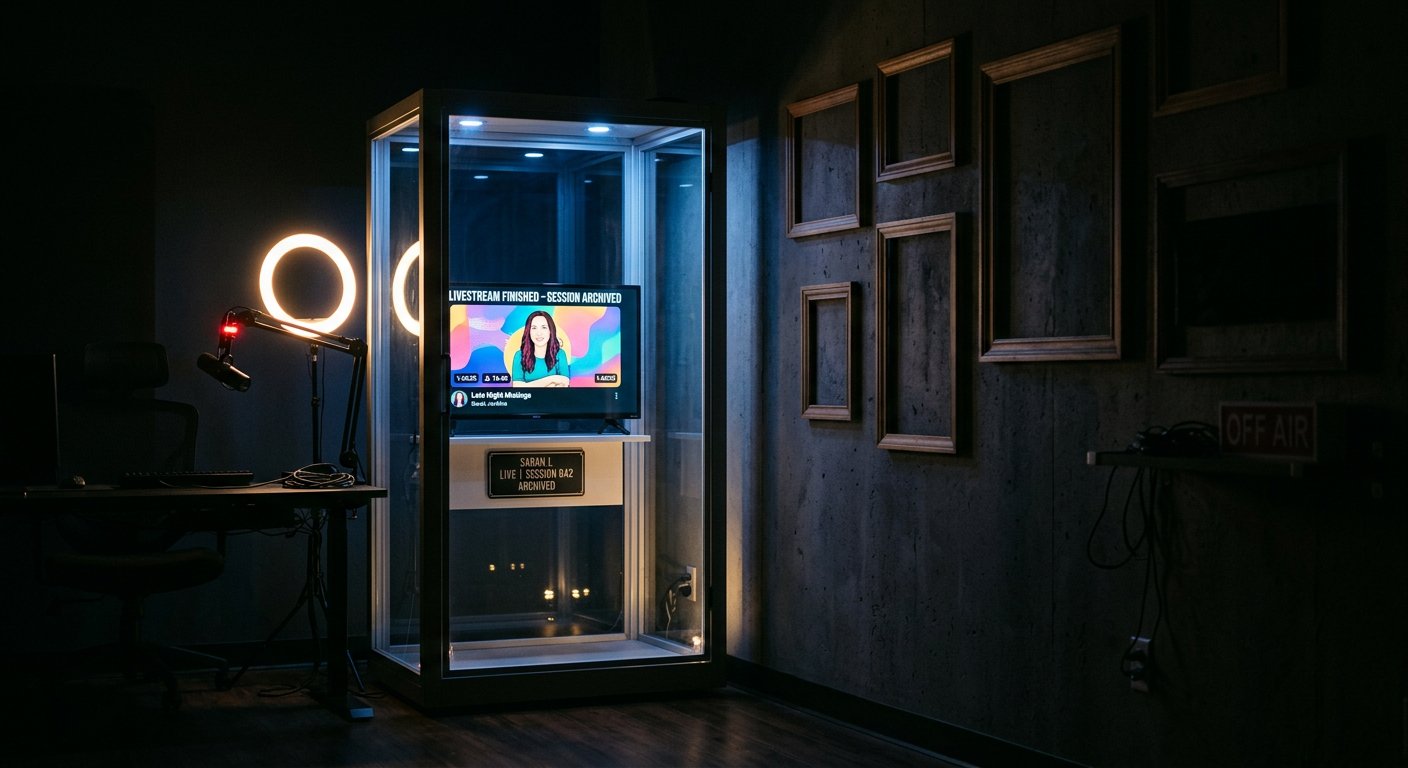
The replay was removed, restricted, or has already expired
TikTok may remove the recording if the livestream is found to violate the platform's rules. Access to the broadcast itself may disappear, and the account sometimes receives a separate notification or restriction. Check your inbox messages, account status, and violation notifications.
A report or an automatic content review could also be the cause. While the review isn't finished, the replay may be unavailable. Don't immediately assume it's a technical error: first review the notifications inside the app.
LIVE replays have a limited storage period. TikTok's help materials for this feature state a period of up to 30 days. After this period ends, the recording may disappear from the replays section, so it's better to download important livestreams in advance or save them in another permitted way.
What to check if there's no recording at all
- Make sure you're signed in to the same account that started the livestream.
- Check the LIVE recordings section, not just your profile's post grid.
- Update TikTok through the official app store.
- Restart the app and check that your internet connection is stable.
- Clear the cache in TikTok settings if that option is available.
- Look at notifications about violations, restrictions, and account reviews.
- Check whether the recording's storage period has expired.
If the app is updated, there are no notifications, the storage period hasn't ended, and there's still no recording in the LIVE section, contact TikTok support through "Report a problem." In your message, include the date of the livestream, your account name, your device, and describe exactly where you looked for the replay. Screenshots of the interface will help clarify the situation.
How not to lose the recording of your next livestream
Before an important broadcast, check your replay settings and free up space on your device if you plan to download the video. After the livestream ends, don't close the app right away: make sure the recording has appeared in the LIVE section and opens for viewing.
If you need the recording for promotion, you don't have to publish the entire livestream. Pick the meaningful moments, cut out long pauses, and create several short videos. That way the replay will be more useful for your profile than a long unedited broadcast.
At the same time, keep the original until you publish the clips. If an individual clip gets deleted or fails processing, you'll still have the source recording, provided TikTok managed to save it.
What to do, step by step
- Open your profile, the menu, and the TikTok Studio or LIVE tools section.
- Check the replay recordings, not just your regular posts.
- Wait for processing to finish and restart the app.
- Check your visibility settings, notifications, and account status.
- Make sure the recording's storage period hasn't expired.
- If the replay isn't in any section, send a request to TikTok support.
Last Articles
What has changed in design and functionality We have updated the website to make working with it faster and more convenient. The main changes affect ..
Good afternoon, I've collected all the news during this time.: 1. The main news is that prices for twitch viewers have been greatly reduced, while Tw..
1. Use promo code "December2025" for a 15% discount for all our viewers2. We have reduced the base prices for our configurator and the most affordable..
Twitch services are working stably, so we are ready to cooperate with squads, resellers, service owners, bot owners, and many others.Individual te..
We have completely updated our Twitch viewer services, and they are now working stably. We only use high-quality IP addresses for the viewers.The ..
Hello everyone! Today, we are announcing a new feature—"Twitch Viewer Configurator". Now, you can customize any plan for your Twitch channel. Choo..
Greetings, I have compiled a guide for streamers, which will be very relevant at the moment. Now YouTube and twitch have disabled monetization from vi..
We have finally developed the APINow it will be more convenient for our partner sites to work with us.To update the maximum tariffs for YouTube, an up..
Due to the huge popularity of the partnership services and referral program, we have made a cooperation table. The essence is very simple: more live a..
Our Services for Streamers








Our Services for Content Creators






