
Why Kick shows your old stream preview
Why the new preview doesn't appear right away
After you replace an image on Kick, the old picture may keep showing for a while on your channel page, in the stream directory, or on the stream itself. That doesn't always mean the upload went wrong. The new file is saved in your settings first, and then it has to appear across different parts of the interface. Those parts can use separate copies of the image and their own cache.
It's important to pinpoint where exactly the old preview is left. If your channel page already shows the new picture but the directory still shows the previous one, the problem is most likely with how the stream list refreshes. If the old image shows up everywhere, the cause may be an unfinished upload, the wrong settings section, an unsuitable file, or a temporary service error.
Don't confuse the stream preview with the channel cover, avatar, and banner that appear when you're offline. These are different design elements. Replacing one image doesn't automatically change the others.
Check the result beyond the open tab with your channel. A page that's already loaded may keep showing the old copy, and the stream card in the directory sometimes updates separately. So first rule out local cache, then check that the file was saved, and only after that look for an error on Kick's side.
Browser cache and old copies of the image
The most common cause is browser cache. It stores images so pages open faster. If the new preview is uploaded to the same address, the browser may show the saved copy even though a different file is already on the server. The same can happen in the mobile app, an open stream tab, and some parts of the directory.
First, fully refresh your channel page. If a normal refresh doesn't help, open the channel in a private window or another browser. Then check it from another device and over another network. When a private window shows the new picture but your main browser shows the old one, there's no need to look for an error in your account. Most likely, your local data is outdated.
On a computer, you can clear Kick's site data, but clearing your entire browser cache usually isn't necessary. Closing the channel tabs, deleting data for that specific site, or using a private window is enough. In the app, fully closing and relaunching it helps. Reinstalling the app is only needed in rare cases where it keeps showing the old version across several pages.
Check the channel page, the stream card in the directory, and the stream itself. If the new picture shows up in at least one place, the upload probably went through and the different interface elements just haven't synced yet. Don't upload the same file over and over until you know exactly where the old version is being kept.
The upload may not have finished
Sometimes the interface shows that a file is selected, but that doesn't yet mean it's saved. After choosing an image, wait for the upload to finish and for a success message. Don't close the tab or move on to another setting while the processing indicator is still showing next to the file.
An error can occur because of an unsuitable format, a large file size, a corrupted image, or an unstable connection. If the save button doesn't work, refresh the settings page and check whether your chosen picture is still there after reopening the section. If the file is gone, the previous attempt didn't finish.
Don't keep clicking "save" over and over during a failure. Wait, reopen the settings, and upload a prepared copy with a different name. For example, use stream-02.jpg instead of stream.jpg. A new name doesn't fix a Kick error by itself, but it helps you tell a new attempt apart from an already cached file.
Just because an image opens on your computer doesn't prove the service will process it correctly. Re-save it in a standard editor, remove extra layers, and export it as JPEG or PNG. Don't change several parameters at once: first test the upload with a simple file, then prepare the final version with text and graphics if needed.
File requirements and where to upload the preview
Stream previews typically use JPEG or JPG and PNG. As a guideline, the image should have a 16:9 aspect ratio and a resolution of 1280×720 pixels. In Kick's upload form, this type of image may have a maximum size of 4 MB. Before submitting, check the hint next to the field: if your interface shows different limits, those take priority.
You can find the requirements in the creator panel: open Creator Dashboard, go to your current stream's settings, and select the option to edit stream details, usually labeled Stream Info or Edit Stream Info. The preview section has a file selection field. Below it or next to the upload button, you may see the allowed format, maximum size, and resolution limits.
If there's no helpful hint, prepare a file in JPEG or PNG, make it horizontal with a 16:9 ratio, and don't exceed the size limit shown in the form. Don't rely on an old guide from a third-party video: item names and requirements can change. You need to check the Kick section where you're currently changing the image.
Even with the right parameters, a preview can look bad. Small text gets lost in the directory card, and important details near the edges can get cropped in different display variants. Place the game or stream name closer to the center, leave margins around the edges, and check the picture at a reduced size. This doesn't affect whether it updates, but it helps you tell whether you've mixed up the old and new versions.
Make sure you're replacing the right image
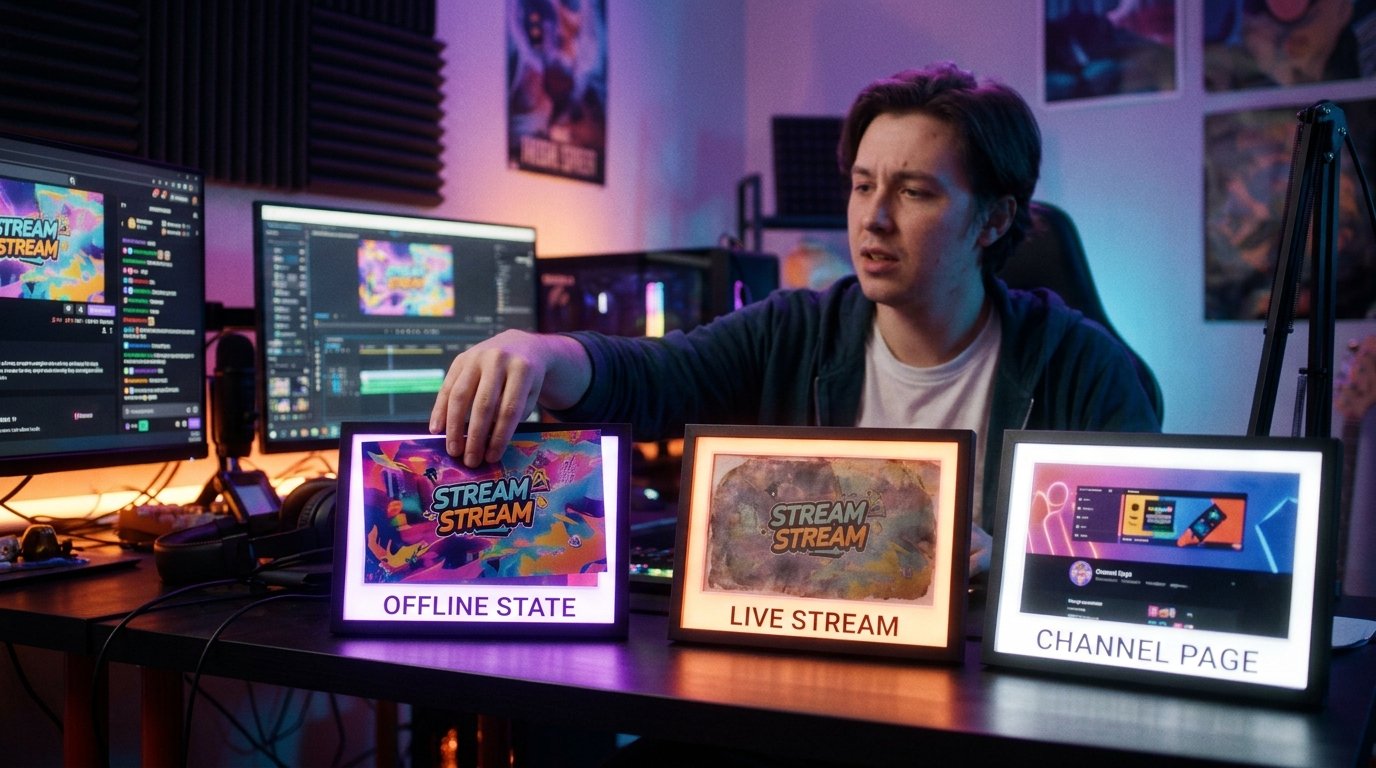
A channel can have several visual elements. The preview for an active stream, the channel page design, and the image for the "offline" state aren't necessarily managed in the same section. Menu item names can differ, so don't just go by the word "cover"—go by where the picture is supposed to appear.
If you change the image in your profile and then check the current stream card, the result won't show up. And vice versa: a new stream image doesn't have to replace your channel banner. Open the settings for the current stream specifically, make sure you've selected the right channel, and save the changes in the stream details form.
Check the stream's state separately. Data created when the stream starts can differ from your general channel settings. If the image was replaced after the stream already began, the directory or an open card may keep using the details it received at launch. Finish checking on a new page, not just in a window you already had open.
It helps to do a test replacement and note exactly where the new version appeared: in the creator panel, on the channel page, in the directory, or for a viewer who isn't logged in. This check shows which element isn't syncing. Without it, it's easy to keep changing your channel banner several times when the problem is actually with the active stream preview.
Check the active stream and the stream directory
If the preview was changed while the stream was live, some pages may have received old data when the stream started. Close the stream tab, find the channel again through the directory, and reopen the card. Don't rely only on the refresh button in a window you already have open: it may not replace all the loaded elements.
Ask someone else to open the channel via a direct link, or check the page without logging in. This helps separate a local problem from a general one. If another user sees the new picture but you see the old one, the cause is almost certainly your browser, app, or specific network.
If both users see different versions in different places, compare the pages one by one. A new picture in the control panel means the settings were saved, but it doesn't confirm the directory updated instantly. An old picture only in the directory points to a delay in the feed, while an old version everywhere requires checking the upload, the file, and the settings.
Don't change the preview before every page refresh. Frequent replacements make checking harder: it becomes unclear which version was saved last, and several copies may end up in different caches one after another. Pick one correct file, save it, and wait for the result to show up in several places.
When the problem isn't the image but Kick's refresh
If the new image doesn't show up in a private window, on another device, or for other users, the problem probably isn't local cache. It could be a delay in processing the file, a failure to save the settings, or a temporary issue on Kick's side. In that case, repeated uploads don't always speed up the refresh.
Kick may serve an old copy through server cache or intermediate delivery nodes. After you replace the file, the creator panel already shows the new version, but the directory or channel page keeps getting the previous result for a while. Different copies of the image don't necessarily update at the same time, so a mismatch between sections doesn't by itself prove there's an error.
Check whether other changes in your channel settings are saved. If they aren't applied either, the problem is most likely in the control panel or the service itself. If the other parameters change but only the preview doesn't update, re-prepare the image, upload it with a new name, and check the page later.
Normally, the new picture appears in the interface within a few minutes, but that isn't a guaranteed timeframe from Kick. With server cache delays, file processing, or a temporary issue, the wait can be longer. Don't refresh the page endlessly: wait a few minutes, then check the channel in a private window and with another user. If the old preview is still showing everywhere after about an hour, move on to contacting support.
What to check before contacting support
Gather precise details before reaching out. Include the link to your channel, describe which image you replaced and exactly where the old version keeps showing. Add the approximate time of the upload attempt, the browser or device, and the results of checking in a private window, on another network, and with another user.
Take screenshots of two states: the settings page with the new file selected, and the place where the old preview remains. The first image should show that the file is actually selected or saved, and the second should show the page address or the name of the section. Don't send your password, login codes, tokens, or other data that could give access to your account.
Include the file's parameters: format, resolution, and size. If the problem only happens with one picture, say so and attach the file only through the official support channel if the form explicitly asks you to. Don't hand over images and account data to random users who promise to "force-update" your preview.
Contact official Kick support through the available Help or Support section. Describe the problem step by step: the file is uploaded, the save is confirmed, the cache has been checked, but the old version remains for different users. This kind of report helps support check the image's status and how the file is linked to the stream, rather than just telling you to refresh the page.
Quick step-by-step
- Make sure you're replacing the stream preview and not the banner, avatar, or channel cover.
- Open the current stream's details settings and check Kick's requirements for file format, resolution, and size.
- Upload a valid JPEG or PNG, wait for processing to finish, and make sure the change is saved.
- Check the channel in a private window, another browser, on another device, and with another user.
- Wait a few minutes, since the directory and Kick pages may update through server cache.
- If the old picture is still showing everywhere after about an hour, gather screenshots and contact official Kick support.
Last Articles
What has changed in design and functionality We have updated the website to make working with it faster and more convenient. The main changes affect ..
Good afternoon, I've collected all the news during this time.: 1. The main news is that prices for twitch viewers have been greatly reduced, while Tw..
1. Use promo code "December2025" for a 15% discount for all our viewers2. We have reduced the base prices for our configurator and the most affordable..
Twitch services are working stably, so we are ready to cooperate with squads, resellers, service owners, bot owners, and many others.Individual te..
We have completely updated our Twitch viewer services, and they are now working stably. We only use high-quality IP addresses for the viewers.The ..
Hello everyone! Today, we are announcing a new feature—"Twitch Viewer Configurator". Now, you can customize any plan for your Twitch channel. Choo..
Greetings, I have compiled a guide for streamers, which will be very relevant at the moment. Now YouTube and twitch have disabled monetization from vi..
We have finally developed the APINow it will be more convenient for our partner sites to work with us.To update the maximum tariffs for YouTube, an up..
Due to the huge popularity of the partnership services and referral program, we have made a cooperation table. The essence is very simple: more live a..
Our Services for Streamers








Our Services for Content Creators






