
Why TikTok buttons cover text on video and how to fix it
Why the interface covers captions
TikTok displays buttons, the caption, and author information over the image. These elements are usually absent in editing software, so text may fit within the frame but end up under the interface after publishing.
The problem isn't necessarily that the caption extends beyond the video's edges. If you place a phrase near the edge, it may occupy space the app uses for its own elements. The viewer will only see part of the line.
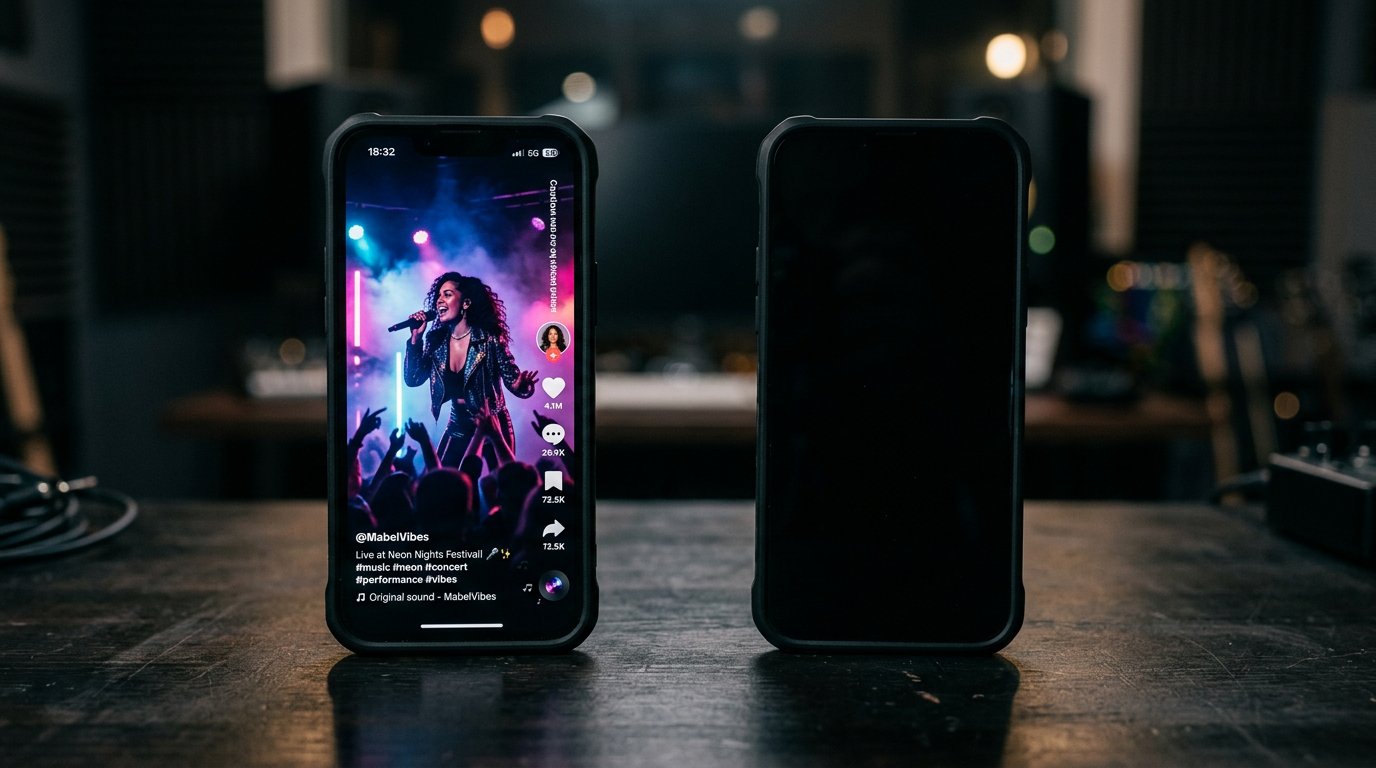
Which parts of the frame TikTok covers
Interaction buttons are usually located on the right. At the bottom are the author information, caption, and sound-related elements. Additional labels can also overlap the image. Navigation elements appear at the top, so the top edge isn't always clear.
The size of the occupied area depends on the device, app version, and viewing mode. A long caption can also change how much space remains for text in the lower part of the frame.
What margins to use for the first edit
For a first version, you can leave roughly 15% of the frame width free on the right, 5% on the left, 10% of the height at the top, and 20% at the bottom. Important text should be placed within the remaining area, not right up against its edges.
This is a rough working guideline, not measured interface data or an official TikTok safe zone. The margins are chosen as a starting point with extra buffer at the bottom and right, where app elements are usually located. They don't guarantee text visibility on every screen.
From which area to measure margins
A 1080 × 1920 pixel project is the full frame of the exported video without the TikTok interface. Buttons and the caption aren't included in these dimensions: the app displays them over the clip. Margins should be measured from the edges of the entire frame in the editor, not from the space between buttons.
After scaling or cropping during viewing, the image's position relative to the interface may differ. That's why guides in the project don't replace checking the clip in the app.
How to set up guides in the project
For a 1080 × 1920 frame, the rough margins are about 162 pixels on the right, 54 on the left, 192 at the top, and 384 at the bottom. Counting from the top-left corner, the area left for important text is roughly from 54 to 918 pixels in width and from 192 to 1536 in height.
In a project of a different size, margins can be recalculated from the full frame width and height. The downside of such guides is that they don't show the position of each button on a specific device and leave less room for the image.
Where to place the video's headline
The main idea is best placed closer to the central part of the frame, leaving a buffer from the right and bottom edges. A long phrase can be split into short lines so its end doesn't fall under the buttons. When checking, it's important to consider the entire text block, not just its center.
A narrow block has a downside: it becomes taller and may cover a face or action. If space is tight, it's better to shorten the headline than to reduce the font size or shift the last words toward the edge.
Where to place subtitles
For a first edit, you can position the bottom edge of subtitles above the lower 20% of the frame. In a 1080 × 1920 project, that means no lower than about 1536 pixels from the top edge. All lines and their styling elements, including outlines and backgrounds, must fit within this boundary.
This is the same rough margin, not a separate standard for subtitles. If lines still overlap with the caption, they need to be raised after checking in the app. Subtitles that are too high, on the other hand, may cover a face or action.
How to check subtitles in motion
Free space in one frame may disappear when a person or the camera moves. It's worth watching the entire clip and checking whether lines cover a face, hands, or important details. A long line can be split into fragments that change as the speech progresses.
Automatic subtitles help convey speech but can make mistakes with names and terms. Recognition and line placement need to be checked if the available editing mode allows it.
How to account for the post caption
The post caption and the text within the video serve different purposes. The caption can reveal the topic, but long text can take up more space over the frame. Important on-screen text shouldn't be placed at the bottom in the hope that both texts will remain visible at the same time.
When checking, it's better to use the prepared caption rather than a short placeholder. However, even such a preview won't show all the possible element arrangements for viewers.
How to place a call to action
A call to subscribe or visit the profile should be readable on its own. It's better to place it in the same area as the headline, not next to an interface button: button positions may differ on another screen.
An arrow helps indicate direction but can point past the intended element. It's better to use it as a supplement to a clear phrase, not as the only explanation of the action. The final frame should be checked separately: that's often where the call to action appears.
How the source format affects text
When adapting horizontal video to a vertical frame, the image can be cropped or left with borders. When cropping, a caption near the edge of the source may disappear even before the interface covers it. When adding borders, more of the image is preserved, but the video itself and the text on it become smaller.
It's best to choose the format and cropping first, then place the captions. If the project's aspect ratio changed later, the margins need to be checked again: coordinates from the old frame may no longer fit.
How to check the clip before publishing
After editing, it's worth opening the video in TikTok's preview with the prepared caption and available additional elements. The entire clip should be checked: the beginning, text changes, and the final call to action. It's important to assess not only overlap but also whether there's enough time to read each phrase.
The preview doesn't reproduce all viewing conditions. If publishing with limited visibility is available, it can be used for an additional check in the app, and then the clip can be viewed on another device. This helps spot problems but doesn't guarantee the same appearance for all viewers.
How to make text readable against the background
Even correctly placed text can blend into the image. A contrasting color should be checked against light and dark areas of the video. A background or outline improves legibility, but a dense background can cover details of the frame.
Reducing the font size just for a long phrase isn't worth it. It can be shortened or split across several sequential screens. This solution has a limit: changing lines too often won't give the viewer time to finish reading.
What to do if the clip is already published
If the text is embedded in the image, you can't move it separately after publishing. You need to open the original project, change the text position, re-export the video, and publish the corrected version. Without the project, you'll have to re-edit the clip from the available source or convey the idea another way.
Re-publishing creates a separate clip: interactions from the previous version aren't transferred to it. Before deleting the old post, it's worth considering the accumulated comments and other interactions.
Last Articles
What has changed in design and functionality We have updated the website to make working with it faster and more convenient. The main changes affect ..
Good afternoon, I've collected all the news during this time.: 1. The main news is that prices for twitch viewers have been greatly reduced, while Tw..
1. Use promo code "December2025" for a 15% discount for all our viewers2. We have reduced the base prices for our configurator and the most affordable..
Twitch services are working stably, so we are ready to cooperate with squads, resellers, service owners, bot owners, and many others.Individual te..
We have completely updated our Twitch viewer services, and they are now working stably. We only use high-quality IP addresses for the viewers.The ..
Hello everyone! Today, we are announcing a new feature—"Twitch Viewer Configurator". Now, you can customize any plan for your Twitch channel. Choo..
Greetings, I have compiled a guide for streamers, which will be very relevant at the moment. Now YouTube and twitch have disabled monetization from vi..
We have finally developed the APINow it will be more convenient for our partner sites to work with us.To update the maximum tariffs for YouTube, an up..
Due to the huge popularity of the partnership services and referral program, we have made a cooperation table. The essence is very simple: more live a..
Our Services for Streamers








Our Services for Content Creators






