
Why Twitch mutes certain sections of a VOD after a stream
Live streams and Twitch VODs are checked differently
During a broadcast, Twitch has to deliver the stream to viewers quickly. Once the stream ends, the recording becomes a VOD: it can be processed separately, without the speed requirements of live broadcasting. That's why the platform can detect an audio match after the stream is over.
A normal live stream and a muted section of the recording don't contradict each other. The absence of restrictions during the live broadcast doesn't mean the VOD will stay unchanged. A mute may not appear right away: at first the recording looks normal, then a section without sound gets flagged in it.
Why Twitch mutes audio only in part of the recording
The system looks for matches with copyrighted audio recordings. Usually it's a track from a playlist, music in a game, radio inside a car or location, the sound of a video from a browser, an intro, a donation alert, or music that got into the microphone from speakers.
If a match is found in a specific segment, Twitch may mute only that part. The video itself stays available: the viewer will see the gameplay moment but won't hear the commentary, reactions, game sound, and everything else that was in the overall audio mix.
Why the same track isn't always detected
Recognition is affected by music volume, noise, voice over the track, compression, source quality, and the length of the fragment. A composition in the source file, in in-game radio, and in a recording through a microphone sounds different to the system.
A short melody can also cause a mute if it's enough for matching. The reverse situation doesn't make using a track safe: the absence of a mute in one VOD doesn't confirm that you have the rights to the music in the next stream, clip, or video.
Music from the game and browser ends up in the VOD along with your voice
A common mistake is turning off the background playlist but leaving the music in the game itself. Licensed compositions appear in menus, cutscenes, radio stations, music events, and user-made maps. Trailers, websites, videos, and browser tabs open during the stream remain a separate source of risk.
Some games have a streamer mode or a setting to disable licensed music. This option reduces the risk, but it has a downside: scenes may lose their atmosphere, and certain quests and cutscenes will come across worse. Before streaming, it's worth checking what exactly this mode disables.
A muted VOD is not the same as a channel ban
A mute applies to a specific fragment of the recording and by itself doesn't mean an automatic channel ban. It's a technical limitation of the VOD, not confirmation that Twitch has allowed you to use that sound on stream or in posts on other platforms.
A rights holder can file a separate complaint about the content. Its consequences differ from an automatic mute. Twitch may also apply different mechanisms to live streams, VODs, clips, highlights, and rights holder requests.
The official description of how audio in recordings and appeals work is available in the Twitch help center: https://help.twitch.tv/s/article/how-to-appeal-audio-muted?language=en_US
How the separate VOD track in OBS works
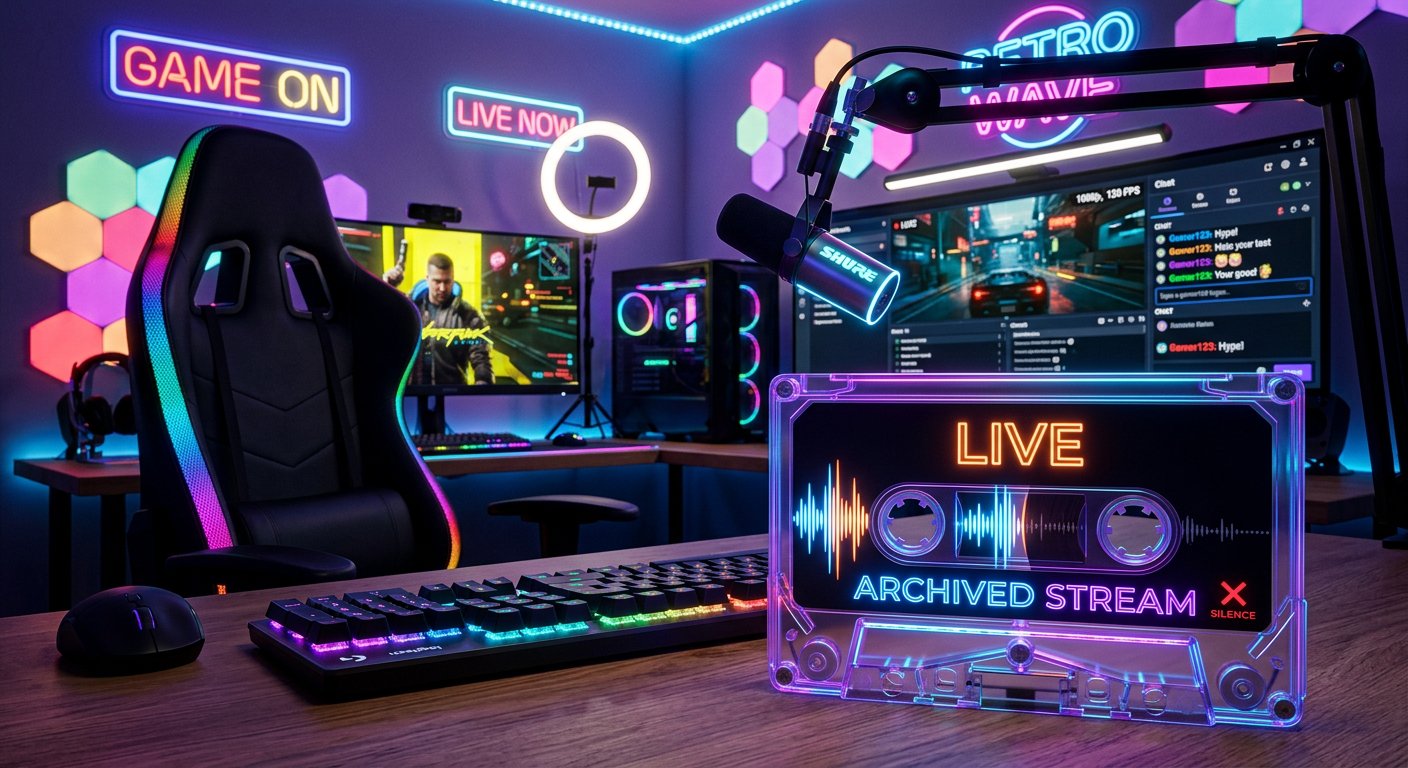
Separate tracks let you keep music in the live stream but not send it to the VOD. To do this, the sources need to be separated: for example, the game, microphone, notifications, browser, and music shouldn't exist only in one shared audio channel.
In OBS, open the output settings and switch the output mode to advanced. In the streaming tab, enable the Twitch VOD Track option and select a separate track number, for example the second one. The main stream track can stay as the first one.
Then open the advanced audio properties in the OBS mixer. The first track should have all the sources that viewers hear on stream checked: game, voice, music, and alerts. On the VOD track, check only what should remain in the recording: usually the game, microphone, and the necessary notifications. Don't check the music on the VOD track.
What mistakes happen when setting up OBS tracks
A separate track doesn't remove music from an already recorded VOD and doesn't grant rights to use it on stream. It only helps avoid saving the selected source in the Twitch recording. If music is mixed with the game or microphone before it reaches OBS, you won't be able to exclude it with a single checkbox.
The downside of the multi-track setup is the risk of losing needed sound in the VOD. For example, your voice may end up only on the first track, while the second track has just the game. After changing settings, do a short test stream, wait for the VOD to be processed, and check the recording from a phone or another account.
What to check before your next stream
- Where each sound comes from: game, browser, media player, second computer, microphone, alerts, or console.
- Whether old intros, waiting scenes, ad videos, and widgets with background music are enabled.
- Whether the game has radio, licensed tracks, music cutscenes, or a streamer mode.
- Whether the microphone and game are checked on the VOD track in the OBS advanced audio properties.
- Whether the music source is excluded specifically from the VOD track, not just from the local recording.
- Whether you have the rights to use the sound not only on stream but also in the VOD, clips, highlights, and videos.
What to do about an already muted fragment
First, check whether the match really is a mistake and whether you have the rights to the recording used. If you have the rights, you can file an appeal through the VOD management tools. In the appeal, you'll need to state the basis: for example, your own music, a license, or the rights holder's permission. An appeal without proof of rights doesn't guarantee the mute will be lifted.
If the sound was used without the required license, it's safer to leave the VOD muted or delete the recording. You can't manually remove the flag and restore the original audio in an already muted section: Twitch doesn't restore the sound that was cut for viewers.
Replacing the track and re-uploading a fixed version
You usually can't replace the audio track in an existing Twitch VOD. If you have a local recording with separate tracks, you can put together a new version: remove the problematic music, replace it with permitted sound, or leave the needed moment without music. The downside of replacing is that you can break synchronization, lose the atmosphere of a scene, or make the commentary less clear.
Re-uploading only makes sense for a version where you've cleaned all the audio, not just the muted segment. Before publishing, check the game, browser, alerts, and microphone tracks: the problematic track could have gotten into the recording through another source. If the channel interface doesn't let you upload a new full recording, you can use the fixed local file for a video or highlight on a platform where publishing is available.
Last Articles
What has changed in design and functionality We have updated the website to make working with it faster and more convenient. The main changes affect ..
Good afternoon, I've collected all the news during this time.: 1. The main news is that prices for twitch viewers have been greatly reduced, while Tw..
1. Use promo code "December2025" for a 15% discount for all our viewers2. We have reduced the base prices for our configurator and the most affordable..
Twitch services are working stably, so we are ready to cooperate with squads, resellers, service owners, bot owners, and many others.Individual te..
We have completely updated our Twitch viewer services, and they are now working stably. We only use high-quality IP addresses for the viewers.The ..
Hello everyone! Today, we are announcing a new feature—"Twitch Viewer Configurator". Now, you can customize any plan for your Twitch channel. Choo..
Greetings, I have compiled a guide for streamers, which will be very relevant at the moment. Now YouTube and twitch have disabled monetization from vi..
We have finally developed the APINow it will be more convenient for our partner sites to work with us.To update the maximum tariffs for YouTube, an up..
Due to the huge popularity of the partnership services and referral program, we have made a cooperation table. The essence is very simple: more live a..
Our Services for Streamers








Our Services for Content Creators






