
Why the Selected Cover Isn't Displayed in VK Clips
Why the selected cover isn't displayed in VK Clips
In VK Clips, the cover may appear differently depending on where it's viewed. In the profile or search results, you usually see a static card with the selected frame. In the clips feed, by contrast, the video starts playing as a video, so instead of a still image the user immediately sees the first seconds of the recording.
First, determine whether the cover really didn't save, or whether you're looking at a section where clips play automatically. If the desired frame appears in the profile but doesn't show up in the feed, that's not a cover error. But if a different frame appears everywhere—in the profile, search, and on the publication page—you need to check the save, the video processing, the file, and the cache.
Check the result not only in the publication creation window. The preview in the editor shows the selected setting before uploading finishes, but the final result appears after publication and video processing.
Where the cover is shown as a static image and where the video plays
The cover is needed for cards and previews, but it doesn't replace the clip's content during playback. The same video can look different in different parts of VK. So before looking for an error, compare several places.
- In the author's profile and in the clips tab, the cover is usually shown as a static thumbnail.
- In search results, if the clip appears there, a static preview is usually displayed.
- On the clip page, the selected cover may be visible before the video starts.
- In a card opened via a direct link, the preview may stay static, but it can update with a delay.
- In the VK Clips feed, videos start as video, not as a static image. This is a feature of the format, not a sign of a malfunction.
- In the full-screen player and when automatically moving to the next video, the video is already showing.
If you need the cover to grab attention from the feed, also consider the first seconds of the video itself. After playback starts, the user won't see the static preview for long, so the main subject and meaning of the video should be clear right away.
Where to check clip upload and processing
During publication, open the clip creation screen and look at the video upload area. It may show a progress bar, upload percentage, or a message about preparing the file. Until the upload finishes, the selected cover may only be a setting in the editor and not yet applied to the public card.
After publication, open your profile, go to the clips tab, and select the desired entry. Check the published clip specifically, not the creation screen. If the publication has an actions menu with three dots, open it: in different versions of the app, it may contain "Edit," "Edit publication," or a separate command for the cover.
There may be no separate processing indicator after publication. In that case, go by the actual result: the clip opens without an error message, appears in the profile, and the card gradually updates. Compare how it displays in the app and in the browser.
Check the official VK help at help.vk.com. Button names and available actions may change depending on the app version, device, and publication method. If the help doesn't have a separate instruction for your version, the upload form in the editor itself remains the main source of requirements.
The video is still being processed
After uploading, VK prepares the video for different viewing options. At first, the publication may appear in the profile, while the preview in search, via a link, or in another interface updates later. During this period, instead of the selected frame, a temporary thumbnail, the first frame, or an image the system chose automatically may sometimes be shown.
Don't judge the result right after pressing the publish button. A practical guideline is to wait 10–15 minutes and then reopen the clip through your profile. This isn't an official processing time but a convenient pause for the first check. If after 30 minutes a wrong frame is still visible in several places, move on to checking the settings and the file. With a large upload or an unstable connection, processing may take longer.
If an hour after publication the cover hasn't changed in the profile, in the browser, or when opening the direct link, save the link to the clip and screenshots. Such a situation is already less like a normal update delay. You don't need to upload the same video multiple times: a new publication will create a different entry and won't show at which stage the problem occurred.
The selected frame may not have saved
In the editor, it's important not only to select a frame but also to complete the action. After selecting, check that the image changed in the preview window, then proceed to publication or saving. If the app was closed before uploading finished, the connection dropped, or the screen froze, the video may save with the original thumbnail.
For an already published entry, open your profile, find the clip, and bring up the actions menu next to it. If an "Edit" or "Cover" option is available, open it and check which frame is currently set. The presence of a button in the creation editor doesn't mean the same setting is available for an old publication.
- Open the clip from your profile, not from your activity history.
- Compare the selected frame with the one visible in the published card.
- Check that after selecting you pressed the save button or proceeded to publication.
- Wait for the video to finish uploading and processing.
- Don't change the cover several times in a row before checking the result of the previous change.
If the edit menu opens a different entry, check the clip name, publication date, or direct link. It's easy to mistake an error for a malfunction if you're editing a copy of the video or a neighboring publication.
A custom cover may not have been supported
Depending on the VK interface, the cover may be a frame from the video itself or a separately uploaded image. If there's no "Upload cover," "Add image," or similar button in the publication window, only frame selection from the video may be available for this publication method.
Don't rename a video or screenshot to JPG to change the format manually. An extension doesn't turn a file into an image. If a separate cover is supported, upload a genuine static file through the image selection button and follow the hints next to the form.
For a vertical clip, it's convenient to prepare an image sized 1080 × 1920 pixels with a 9:16 aspect ratio. This is a working size for a vertical layout, but not a universal statement about the only valid option in VK. Check formats and the maximum file size directly in the upload window: that's where the editor shows the limits applicable to your interface version.
- Image orientation — vertical.
- Recommended working size — 1080 × 1920 pixels.
- Aspect ratio — 9:16.
- Format — the one accepted by the VK form, usually indicated next to the upload button.
- The file must be a genuine image without corrupted data or extraneous editor elements.
If VK rejects the file, re-save it in one of the formats explicitly listed in the form. Don't rely on old instructions from third-party articles: requirements and the availability of a separate cover may differ between the app and the browser.
The cover is shown, but the frame looks different
Cropping doesn't explain a complete absence of the selected cover. If the desired image is visible but a face, text, or object has partially disappeared, the cause is usually the composition of the frame itself and the card size. In different VK blocks, the preview may be scaled down or cropped at the edges.
This especially often happens with text near the top and bottom edges. On a large screen it looks fine, but in a small card it becomes unreadable. A face or product located near the edge may partially go beyond the visible area.
Choose a frame in which the main subject is closer to the center. Place text within the central safe zone, keep it short and contrasting. Leave free space at the top and bottom: interface elements and different card variants may cover part of the image.
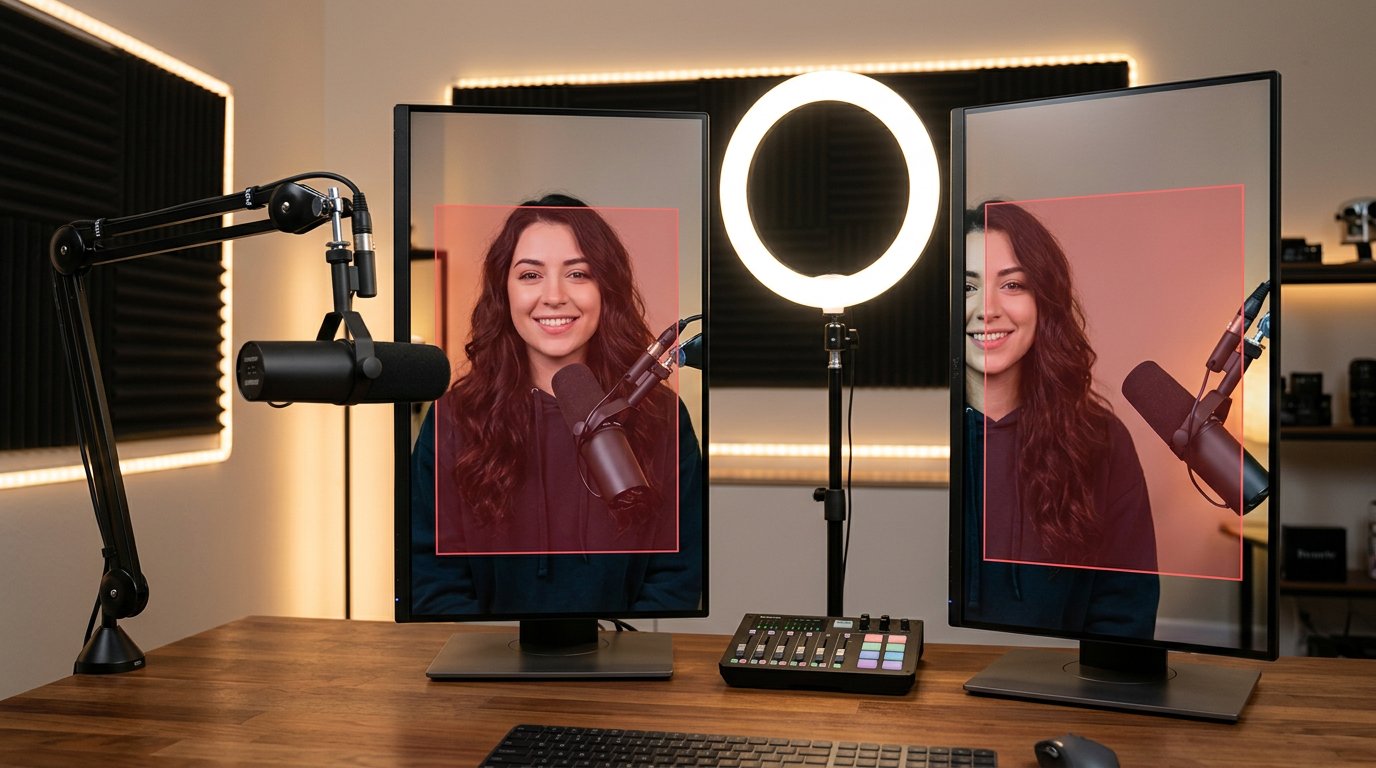
The right frame keeps the face, product, or other main subject inside the central area and doesn't depend on small details at the edges. If an important element already goes beyond the edge of the original vertical frame, changing the cover won't fix the composition — you'll need a different moment from the video or a pre-prepared image.
The old image may have remained in the cache
Sometimes the setting has already changed, but the app keeps showing the previous thumbnail. This happens when the device uses a saved copy of the page or card. The delay is especially noticeable after quickly replacing the cover and reopening the same screen.
Check the publication in several ways:
- Close the clip page and reopen it from your profile.
- If you used the app first, check the same clip in the browser.
- Open the direct link on another device or in another account.
- Refresh your profile feed and make sure you're viewing the right publication.
- If another user sees the new frame, update the app and clear its cache through your device settings.
If the wrong image is visible only on one phone, re-uploading the video isn't necessary. First refresh the app's data. But if the same wrong frame is shown to everyone, the problem isn't limited to a local cache.
How to change the cover of a published clip
Open your profile and go to the list of clips. Select the desired publication, then tap the actions menu next to the clip or on the viewing page. Look for "Edit," "Change," or "Cover" options. Names may differ, so go by the meaning of the command rather than the exact button location.
- Open the published clip from your profile page.
- Tap the three-dot menu button.
- Select editing the publication or changing the cover.
- Select a frame from the video or upload an image if that option is shown.
- Check that the main subject isn't cropped in the preview.
- Save the changes and wait for the publication to update.
- Check the clip in your profile, in the browser, and in another viewing option.
If there's no option to change the cover, the current VK version or the specific clip type may not support this operation after publication. Check the app, the browser, and the official VK help section, but don't delete the clip right away. First record the current result and make sure the problem isn't related to a processing delay.
What to do if the cover is still wrong
Gather data on a single clip without changing the file, frame, and publication method at the same time. That way it will be clear where the error occurs: during selection, saving, processing, or display.
- Save the link to the published clip.
- Take a screenshot of the selected cover and the result after publication.
- Note exactly where the wrong frame appears: in the profile, search, browser, app, or feed.
- Note how much time has passed since publication.
- Record the device, app version, and clip upload method.
- If a separate image was used, save its size, format, and the error message from the form.
With this data, contact the VK help section at help.vk.com. If the problem appears only in the feed, first note that the clip starts automatically as a video. If the wrong static frame is visible everywhere after waiting for processing, attach the link and screenshots of exactly those cases.
Brief summary: what to check step by step
- Determine where the problem is: the feed doesn't show a static cover, while the profile and search usually show the card.
- Open the clip through your profile and check the upload bar or processing message in the interface.
- Wait 10–15 minutes before the first check and about 30 minutes before detailed diagnostics.
- Make sure the frame saved and that you're editing the right publication.
- If uploading a separate image, check the formats and size limit in the VK form itself; for preparation, use the vertical size of 1080 × 1920 pixels.
- Check the cropping: the main subject and text should be within the central safe zone.
- Compare the app, browser, and another device to rule out the cache.
- Open the three-dot menu on the published clip and check whether changing the cover is available.
- If after an hour the wrong frame is visible to everyone, gather the link and screenshots and contact the official VK help.
Last Articles
What has changed in design and functionality We have updated the website to make working with it faster and more convenient. The main changes affect ..
Good afternoon, I've collected all the news during this time.: 1. The main news is that prices for twitch viewers have been greatly reduced, while Tw..
1. Use promo code "December2025" for a 15% discount for all our viewers2. We have reduced the base prices for our configurator and the most affordable..
Twitch services are working stably, so we are ready to cooperate with squads, resellers, service owners, bot owners, and many others.Individual te..
We have completely updated our Twitch viewer services, and they are now working stably. We only use high-quality IP addresses for the viewers.The ..
Hello everyone! Today, we are announcing a new feature—"Twitch Viewer Configurator". Now, you can customize any plan for your Twitch channel. Choo..
Greetings, I have compiled a guide for streamers, which will be very relevant at the moment. Now YouTube and twitch have disabled monetization from vi..
We have finally developed the APINow it will be more convenient for our partner sites to work with us.To update the maximum tariffs for YouTube, an up..
Due to the huge popularity of the partnership services and referral program, we have made a cooperation table. The essence is very simple: more live a..
Our Services for Streamers








Our Services for Content Creators






