
Why There's No Quality Selection in YouTube Live After the Broadcast Starts
First, make sure the quality options are actually missing
The "Auto" option in the player doesn't mean YouTube Live hasn't prepared versions in 1080p, 720p, or lower. On mobile devices, TVs, and in some browser modes, the manual list may be shortened or hidden. The player can also immediately select quality based on the viewer's connection speed and not show all options in the usual way.
Open the stream in a browser on a computer, expand the player, and check the manual quality selection. Then repeat the check in a private window without extensions and in another browser. If access is available in at least one client, the problem is not with the outgoing stream.
Different quality lists on different devices usually indicate viewing limitations, not an encoder error. Checking on multiple clients requires access to them and won't explain why a specific app restricts the selection.
After the stream starts, YouTube may not prepare all versions right away
The platform receives a single outgoing stream, then creates variants for adaptive viewing. At the start of a broadcast, a viewer may only have access to the source resolution, "Auto," or an incomplete list of qualities. With a steady signal, additional versions sometimes appear without any action from the streamer.
During this time, don't change the resolution, FPS, codec, bitrate, or keyframe interval. The service needs to receive a stable stream with consistent parameters. If you switch OBS settings several times in the first few minutes, it will be hard to tell whether processing was delayed or the new parameters already caused a separate error.
Waiting only makes sense with a stable stream and no warnings in the control panel. This option won't help if YouTube is already receiving a stream with dropped frames, reconnections, or an unsuitable structure.
Check the incoming stream status in the YouTube Live panel
If the quality list isn't expanding, open the broadcast control panel. Don't start by reinstalling OBS, clearing the browser cache, or changing the server: first you need to see what state the platform is receiving the signal in.
Warnings about an unstable connection, irregular keyframes, unsupported parameters, bitrate issues, or frequent reconnections matter more than the player menu. YouTube may accept the stream and show the picture, but processing of derived qualities may be unstable or may not start for the current session.
- Check whether the stream status changes to a warning or error.
- Compare the resolution and FPS in the panel with the encoder output settings.
- Check whether there were any reconnections after the stream started.
- Save the panel messages before changing settings.
The panel shows symptoms on YouTube's side but doesn't always name the root cause. You may need to look for it in the network, computer load, or encoding profile.
Look at the output resolution, not the OBS canvas size
YouTube doesn't create quality higher than what it receives from the encoder. A high scene resolution in OBS doesn't guarantee that a stream of the same size is being sent to the server. The canvas may be 1080p or higher, while the stream settings have output set to 720p. Scaling can also happen within the encoder itself.
Check the resolution specifically for the stream and compare it with the data in the YouTube Live panel. If the service receives 720p, the absence of 1080p in the menu is expected behavior. With a low source resolution, the set of available tiers may also be short.
Only increase the resolution after checking the load and upload stability. This solution has a clear downside: a heavier stream increases the load on rendering, encoding, and the network, and an unstable high format is worse than a steady stream at a lower resolution.
Encoding parameters must remain predictable
For processing, not only the picture in the OBS preview matters, but also the structure of the video stream. Check the codec, bitrate control mode, frame rate, keyframe interval, and the selected encoder. Parameters should be compared against YouTube's current recommendations for your resolution and FPS, not picked through random switching.
Separately check that the selected hardware or software encoder can actually handle the load. The availability of a mode in the OBS list doesn't mean it will work stably alongside the game, browser sources, camera, filters, and screen capture.
Changing the codec or encoder sometimes eliminates incompatibility but can significantly increase CPU or GPU load. Such changes are best tested in a separate test session, not during the main stream.
OBS stats help separate network failures from overload
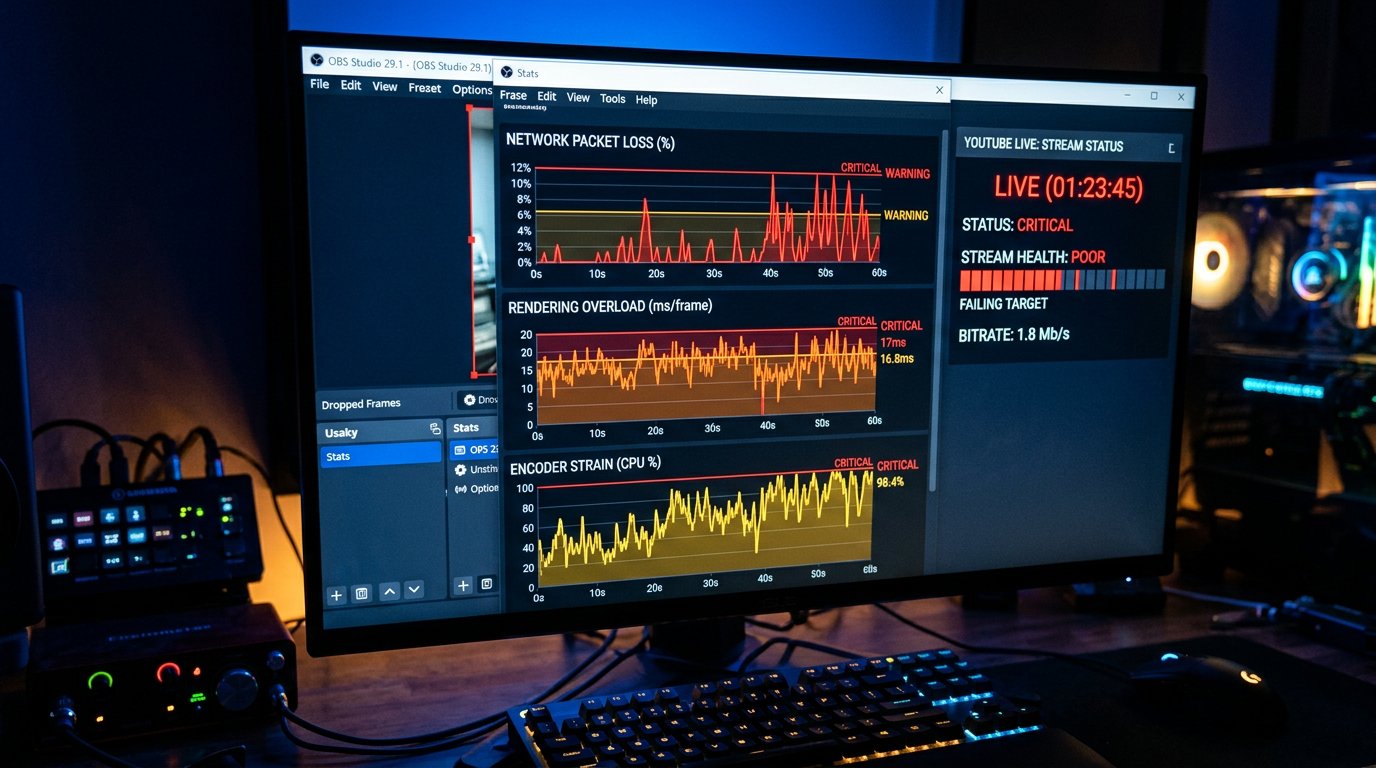
When YouTube gives warnings, open the OBS stats. Outwardly, different problems look similar: the stream may freeze, the picture loses detail, and quality options don't appear. But dropped frames due to network, rendering overload, and encoding overload are fixed with different actions.
Network drops mean the encoder can't send data to the server evenly. Rendering drops indicate overload of the GPU, game, or a complex scene. Encoding drops mean the encoder can't keep up with processing frames at the set pace.
- For network losses, stop background downloads and check the stability of the outgoing connection.
- For rendering overload, simplify scenes, captures, animations, and heavy filters.
- For encoding overload, reduce the load on the encoder or choose a different mode.
Lowering FPS, simplifying scenes, or reducing resolution often stabilizes the stream. The downside is obvious: dynamic games, camera, and animation may look less smooth or lose detail.
Don't change key settings within the current session
A sharp change in resolution, FPS, codec, or keyframe interval after the start doesn't always fix the missing quality. YouTube has already started receiving and processing the stream with the original parameters. Changing the configuration mid-session can cause new warnings or make the diagnostic result unclear.
If the error is found, record the current data, stop the stream, and start a new session with the corrected profile. After restarting, first check the incoming signal status, then the quality menu on several devices.
A restart is needed after changing stream parameters, not as the first reaction to missing 720p or 1080p. The downside of a restart is the break in the stream: viewers will lose the current session, and part of the audience may not move to the new broadcast.
Check the outgoing network for dropped frames and reconnections
The speed on your plan doesn't equal stable upload for streaming. For YouTube Live, what matters is the absence of regular dips, packet loss, and sharp fluctuations in bandwidth. Background downloads, cloud sync, updates, other devices on the network, and unstable Wi‑Fi can disrupt the stream even with normal results on a regular speed test.
During the check, stop all unnecessary data transfers and connect the computer via cable. Then see whether the network drops in OBS and the warnings in the YouTube panel have disappeared. If the problem persists on a wired connection, the cause may be the router, the provider's line, or the route to the platform's servers.
Switching to cable reduces the risk of interference within the local network. It won't eliminate provider overload, routing issues, or insufficient actual upload speed.
Low-latency mode should be checked with a separate test
Low-latency mode places stricter demands on stream stability. If quality options are missing only in this mode but appear with standard latency, don't immediately change the resolution, bitrate, and encoder all at once.
Run a separate test with the same OBS parameters but a different latency mode. Change only one factor. If you switch latency, FPS, scene, and encoder at the same time, the result won't show which action affected processing.
Increased latency can make the stream more stable in a specific configuration. The downside is a less responsive chat: viewer reactions and answers to questions will arrive with a longer delay.
Viewer devices can hide or restrict quality
If there are no errors in the YouTube panel and some viewers see several resolutions, check the viewing environment. Browser extensions, script blockers, corrupted site data, data-saving modes, an outdated app, and TV client specifics can affect the player interface.
For a quick diagnosis, open the stream in a private window without extensions, then in another browser and on a mobile device. If the restriction reproduces only on one client, don't restart the stream or change the encoder because of a local viewing issue.
- Disable extensions that interfere with the site and video player.
- Check manual quality selection in the full browser version.
- Update the app on your phone or TV.
- Turn off data saving if it's active.
Such a check takes time and several devices. It also won't fix the situation for a viewer with a weak connection, but it will help separate a player problem from a problem with the stream itself.
Don't confuse missing high quality with a viewer's speed limit
Even if YouTube has prepared several variants, the player may not offer the viewer the maximum resolution on a weak or unstable internet connection. In "Auto" mode, it selects the variant that can play without constant stops. This doesn't prove that 1080p or 720p are missing from the broadcast.
Check the list manually and separately assess whether the selected quality starts. If the option is there but the video buffers at that setting, the problem may be on the viewer's connection side, home network, mobile carrier, or a specific device.
Forcing high resolution is useful for diagnosis but isn't suitable as a universal recommendation for the audience. Its downside is that viewers with unstable internet will get pauses, drops, and constant buffering.
Run a test stream with a simplified scene
If the problem repeats across several broadcasts, run a separate test with one source, a minimal number of filters, and stable settings. Its purpose is not to show a beautiful production but to check whether YouTube creates quality options with a clean and predictable incoming stream.
If quality appears in the test, add back the elements of the main profile one at a time: game capture, camera, browser sources, filters, animations, high FPS, or increased resolution. After each change, check the OBS stats, stream status, and player menu.
A simplified test doesn't confirm that the main production will work the same way. Its downside is the lower load: you'll still have to add the usual sources back gradually, otherwise the cause will remain unclear again.
Collect data for contacting YouTube support
Contacting support makes sense if the problem repeats across different sessions, is confirmed on several devices, and the incoming stream remains stable without warnings. Phrases like "no 1080p" aren't enough: support needs data to distinguish a processing error from a specific player's behavior.
Prepare the link to the stream or recording, the start time, the resolution and FPS of the incoming signal, the codec used, bitrate parameters, messages from the YouTube panel, and OBS stats. Specify which quality options were missing, how long after the start the check was performed, and on which devices it was repeated.
Collecting data doesn't speed up the fix by itself and takes time during the test. Without this information, the response is usually a general list of checks that won't help narrow down the cause.
Last Articles
What has changed in design and functionality We have updated the website to make working with it faster and more convenient. The main changes affect ..
Good afternoon, I've collected all the news during this time.: 1. The main news is that prices for twitch viewers have been greatly reduced, while Tw..
1. Use promo code "December2025" for a 15% discount for all our viewers2. We have reduced the base prices for our configurator and the most affordable..
Twitch services are working stably, so we are ready to cooperate with squads, resellers, service owners, bot owners, and many others.Individual te..
We have completely updated our Twitch viewer services, and they are now working stably. We only use high-quality IP addresses for the viewers.The ..
Hello everyone! Today, we are announcing a new feature—"Twitch Viewer Configurator". Now, you can customize any plan for your Twitch channel. Choo..
Greetings, I have compiled a guide for streamers, which will be very relevant at the moment. Now YouTube and twitch have disabled monetization from vi..
We have finally developed the APINow it will be more convenient for our partner sites to work with us.To update the maximum tariffs for YouTube, an up..
Due to the huge popularity of the partnership services and referral program, we have made a cooperation table. The essence is very simple: more live a..
Our Services for Streamers








Our Services for Content Creators






