
Why a New Stream Appears on YouTube After OBS Reconnects
Reconnecting OBS by itself does not create a new stream
A connection drop to the YouTube server and a subsequent OBS reconnect should normally belong to the same broadcast. Viewers may see a pause, a placeholder, or a gap in the stream, but the link, chat, and recording stay the same. If a separate page appears in YouTube Studio, the cause is usually not the reconnect itself but a change in the binding between the incoming stream and the broadcast.
On the YouTube side there are two distinct entities: the broadcast page with its title, access, chat, and settings, and the RTMP stream that OBS sends. A new stream appears when the service receives a stream bound to a different broadcast or a different launch scenario.
How a stream page differs from a stream key
The stream key is what OBS needs to send video and audio to the YouTube server. The stream page is the object the viewer opens: it has a link, thumbnail, description, chat, and a future recording. With a stable setup, one incoming stream serves one selected broadcast page.
After a brief drop, OBS may restore its connection to the same RTMP input. But if a new stream was created during the outage, a different key was selected, or an external tool changed the binding, YouTube starts accepting the stream for a different page. From the outside it looks as if the software split one stream into two, even though the decision was made at the broadcast configuration level.
A new page is created manually in YouTube Studio
A common scenario begins after signal loss. The channel owner opens Studio, sees a warning about the problem, and creates a new broadcast instead of waiting for the previous one to recover. Then OBS is restarted with the parameters of the new draft, and the first page is left with a short recording.
It is easier to make a mistake if the channel simultaneously has a scheduled stream, a draft, a test broadcast, and several old drafts with similar names. The drawback of manual recovery in a stressful situation is obvious: it is hard to quickly determine which page is linked to the current signal, and viewers may be left on the old link.
Changing the key in a profile or on another computer
The broadcast key may differ between OBS profiles, work computers, and backup equipment. For example, the main computer uses the key of a scheduled stream, while the backup uses the key from a test broadcast saved earlier. When switching to the backup, YouTube receives the stream through a different scheme and may launch a different page.
Check the OBS broadcast settings on each device: the selected service, server, and key. It is also useful to verify which profile was active before the drop and after it. One shared key for the whole team simplifies launching, but this option has a drawback: an accidental start from another computer can land in a live broadcast.
Automation creates a stream instead of reconnecting
Control panels, bots, plugins, and custom scripts can work with the YouTube API. Such tools create a broadcast, set the title, access, and other parameters, and then link it to the incoming stream. If the automation runs not only before the first start but also after network recovery, it may create a new page.
Pay especially close attention to handlers for OBS launch, scene changes, network events, and commands from a remote panel. The drawback of automation is that a logic error is not always immediately noticeable: the video is already being transmitted, but viewers and moderators continue watching the previous stream via the old link.
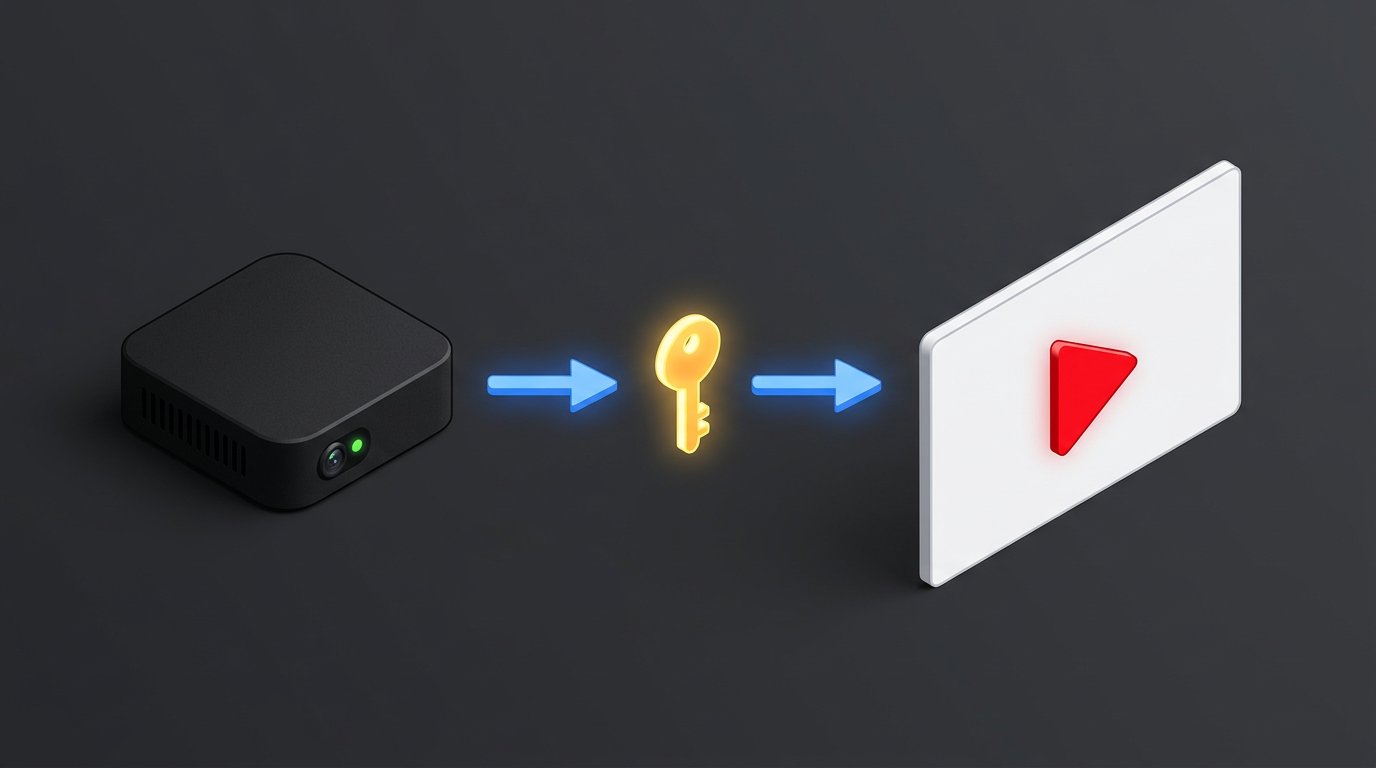
What the stream binding scheme should look like
For a single scheduled stream, the chain should be simple: OBS sends the stream through one RTMP key, and YouTube accepts it into one specific broadcast page. On reconnect, OBS returns to the same input if the key, Studio settings, and external scenarios have not changed.
The scheme is useful for diagnostics: it shows that an internet drop does not equal creating a new broadcast. A new object appears only when the key, the target page, or the automation changes the chain by creating a new binding. Do not change several parameters at once: after that it is hard to identify the source of the problem.
How to find the cause in the broadcast history and the OBS log
Open the list of streams in YouTube Studio and compare the creation time of the pages, the actual start, and the end of the recording. If the second page was created exactly during the drop, check the actions in Studio and the operation of the automation. If both pages existed in advance, most likely the key, profile, or device changed after the reconnect.
- Match the moment of signal loss with the time the new page appeared in Studio.
- Check the active OBS profile before and after the restart.
- Compare the broadcast settings on the main and backup computers.
- Open the OBS log: it shows the disconnect, reconnection attempts, and the new transmission start.
- Check whether bots, control panels, or scripts were launched at the time of the failure.
- Make sure another draft was not manually opened and configured in Studio.
A scheduled stream helps keep a single link
For an important stream, it is convenient to prepare the broadcast page in advance and use it as a permanent entry point for the audience. Before starting, check the title, access, thumbnail, and the arrival of the signal specifically to this broadcast. After a drop, first open its status and make sure OBS is trying to return to the previous connection.
Do not create a new page until you have checked the active profile, the key, and the state of the already running stream. The scheduled format has a drawback: when old drafts with identical names have accumulated on the channel, it is easy to pick the wrong one. Clear working titles and deleting unnecessary test broadcasts help.
A reusable key and separate keys for tasks
A reusable key saves you from constantly copying parameters into OBS and reduces the risk of error during preparation. During a brief network failure, it helps the software return to its usual input point. This option is convenient for a single workstation with no parallel tests or complex external scenarios.
The drawback of a reusable key is less control over access. If it is saved on another computer or shared with an assistant, an accidental launch can interfere with the current broadcast. For tests, backup equipment, and separate projects, you need a predefined procedure: which key is used, which page it belongs to, and who can start the stream.
Reconnection test before an important broadcast
It is best to run the check on a private test stream. Start OBS, wait for the signal in Studio, then temporarily interrupt the transmission or the network connection and let the software try to restore the connection. After the signal returns, check the link, chat, title, and the presence of the same page in the control panel.
If a new stream appears after the test, do not change settings at random. Record the time of events, the active OBS profile, the key used, and the list of connected tools. Then disable the automation, repeat the test, and separately check switching between the main and backup device. The drawback of such a test is that it will not reproduce all the problems of a real network, but it will allow you to separate a configuration error from an accidental connection failure.
When a separate stream is actually needed
A new page is justified if the topic, access, design, or schedule change, or if a standalone archive is needed. Separate broadcasts are also used for private screenings, technical tests, and parallel projects. In these cases, separation helps avoid mixing chats, recordings, and statistics from different events.
The drawback of this solution is that the audience has to follow a new link, and the data remains in different streams. If the task is only to restore OBS after a brief drop, there is no need to create a new broadcast: you should keep the previous binding of the stream to the already running page.
Last Articles
What has changed in design and functionality We have updated the website to make working with it faster and more convenient. The main changes affect ..
Good afternoon, I've collected all the news during this time.: 1. The main news is that prices for twitch viewers have been greatly reduced, while Tw..
1. Use promo code "December2025" for a 15% discount for all our viewers2. We have reduced the base prices for our configurator and the most affordable..
Twitch services are working stably, so we are ready to cooperate with squads, resellers, service owners, bot owners, and many others.Individual te..
We have completely updated our Twitch viewer services, and they are now working stably. We only use high-quality IP addresses for the viewers.The ..
Hello everyone! Today, we are announcing a new feature—"Twitch Viewer Configurator". Now, you can customize any plan for your Twitch channel. Choo..
Greetings, I have compiled a guide for streamers, which will be very relevant at the moment. Now YouTube and twitch have disabled monetization from vi..
We have finally developed the APINow it will be more convenient for our partner sites to work with us.To update the maximum tariffs for YouTube, an up..
Due to the huge popularity of the partnership services and referral program, we have made a cooperation table. The essence is very simple: more live a..
Our Services for Streamers








Our Services for Content Creators






