
Why Subscribers Don't Get Notifications When You Start a Stream on YouTube
Why Subscribing Doesn't Guarantee a Stream Notification
Subscribing to a channel doesn't mean YouTube will send the viewer every notification. It adds the channel to the subscription list and helps show its new videos and streams in recommendations. Whether a push notification is sent depends on the viewer's own settings, the stream parameters, the device, and the platform's internal restrictions.
By default, a subscriber often has personalized notifications enabled rather than all notifications. In this case, YouTube decides on its own which posts and streams might interest a particular person. A viewer can be subscribed to the channel but not receive a message every time you go live.
There's also an important limitation for streamers. YouTube doesn't promise to deliver notifications to all subscribers, especially if the channel was recently created or has a small audience. A new channel may not send some notifications even with the correct settings. This doesn't prove there's an error in the stream and doesn't mean the channel is blocked.
So you need to check more than just the subscription itself. First go through the stream settings, then the viewer's notification mode, app permissions, and how the device is working.
What to Check in the Stream Settings
The streamer's first step is to open YouTube Studio and find the stream you created. Usually the section you need is called "Content," and inside it there's a "Streams" or "Live" tab. Open the card for the scheduled event rather than creating a new stream on top of the old one. If you're going live through an encoder program, make sure it's connected to the right event.
In the settings, find the "Visibility" section. To notify a wide audience, "Public" must be selected. If "Private" or "Unlisted" is set, the stream isn't meant for mass showing to subscribers, so the usual notification send-out may not work.
Then find the "Notify subscribers" option or a similar setting with that meaning. It may be in the main event parameters or in the additional settings. If there's a toggle or checkbox next to it, it must be turned on before saving the stream. Don't rely on the section name alone: look specifically for the words "notify," "subscribers," and "visibility."
After making changes, click "Save," "Done," or "Publish" and reopen the stream card. Check that the settings haven't reset. The location of the items may differ between the web version and the YouTube Studio app, but the parameter names usually let you find the right settings directly.
Why a Subscriber May Not Have the "All Notifications" Button
On the channel page, the subscriber needs to open the bell icon and choose the appropriate mode. Usually the options are "All," "Personalized," and "None." Personalized mode isn't the same as a full send-out: YouTube may filter out some streams on its own. To receive messages as fully as possible, the viewer needs to select "All" if that option is displayed.
The "All notifications" button may be missing if the person isn't actually subscribed to the channel, has opened a different account, or is using an account with restrictions. First check the account name and whether "Subscribed" is shown. If the subscription was made with one profile but the app is open under another, the selected bell mode won't apply to the right channel.
The set of settings may also be limited for supervised accounts and certain age modes. If the channel or videos have "Made for Kids" status, notification features may be unavailable or work differently than on a regular channel. In that case, the missing "All" button can't be fixed by pressing the bell again.
Sometimes the needed option isn't shown because of the app version or interface quirks. Open the channel through a browser, log in to the correct account, and check the bell there. If the button appears in the web version, the problem is related to the app, not the stream settings.
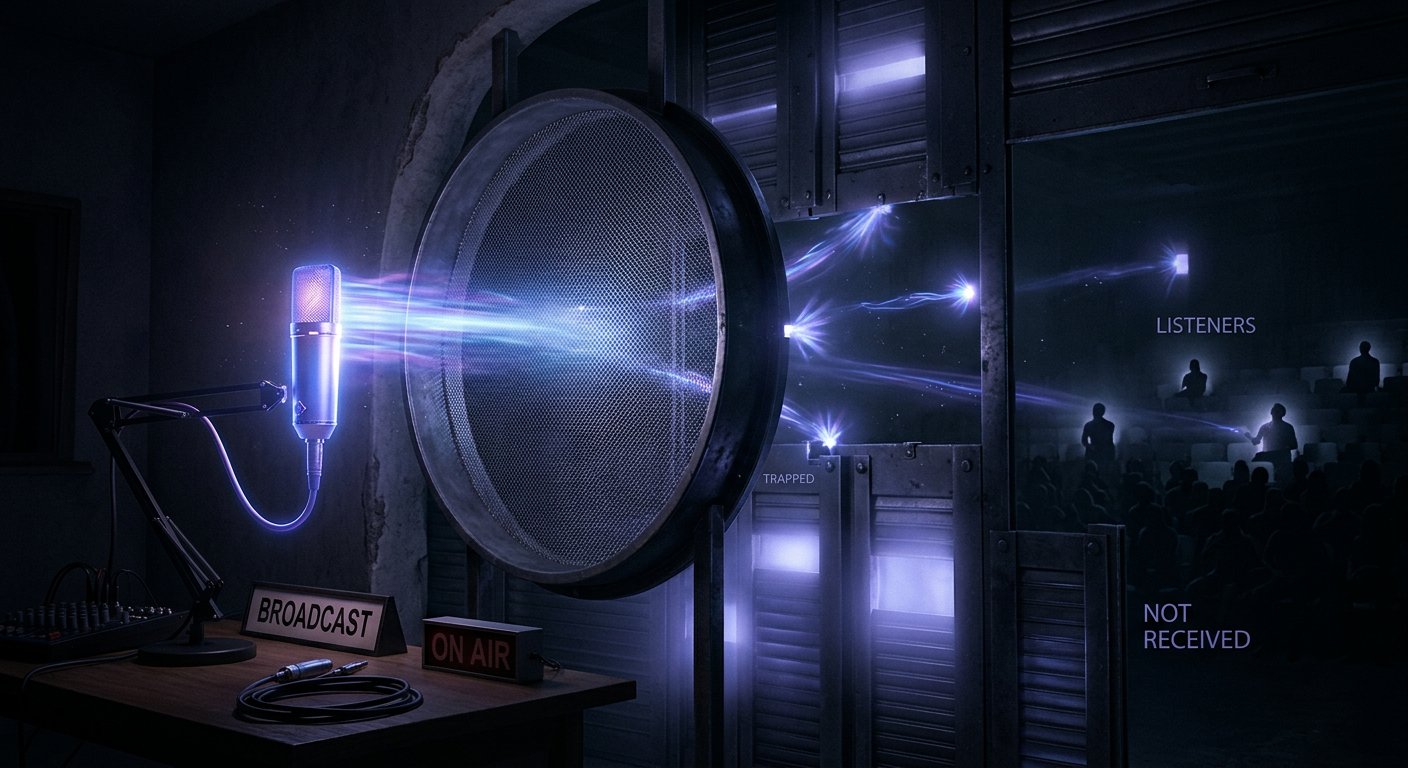
The Viewer May Have Blocked Notifications on Their Phone or Computer
Even with "All notifications" selected, YouTube won't be able to show a message if a block is in effect at the device level. On a smartphone, you need to open the system settings, find YouTube in the list of apps, and check the notification permission. At the same time, check whether "Do Not Disturb," a focus mode, or another profile that hides push messages is enabled.
Background work restrictions and battery saver can also delay notifications. This is especially noticeable if the app is unloaded from memory or isn't allowed to run in the background. Ask the viewer to open YouTube manually and check whether messages appeared after launching the app.
On a computer, check the browser's notification permissions, that you're logged in to the right account, and the operating system settings. The browser can block push messages for the site, and "Do Not Disturb" can hide them even with correct YouTube settings. If the viewer uses several browsers, the permission needs to be checked in the one where their account is open.
For troubleshooting, it's important to compare the same conditions. If a message arrives on one phone but not another, the problem is most likely in system permissions, the user profile, or how the app is working.
A Notification May Arrive Late or Not Arrive at All Due to Frequent Streams
An alert doesn't always appear the second the streamer hits the start button. First YouTube has to receive the signal from the encoding program, process the stream, and show it as active. With an unstable connection, encoder delay, or a connection error, the notification may appear after the stream has started.
Don't start the stream significantly earlier than the scheduled time unless necessary. A subscriber may have been going by the schedule and not have had time to get a reminder about the new time. If the event was rescheduled, check its date, time zone, and saved schedule. The old time in a post, description, or social media message can also confuse the audience.
Don't stop and restart the same stream several times in a row hoping to resend the notification. Repeated starts can create several events and confuse viewers. First open the channel page and make sure the active stream is visible without a direct link.
In addition, YouTube limits how often a single channel can send notifications. If several videos, premieres, or streams are published in a short time, some messages may not reach the audience. Frequent restarts and several streams in a row only increase the risk that individual notifications will be filtered out.
Why Some Subscribers Get Notifications and Others Don't
Different delivery is normal for a personalized platform. One viewer regularly watches streams and opens messages, so YouTube shows them notifications more often. Another subscriber hasn't visited the channel in a long time, has dismissed push messages, or rarely watches the content. The subscription remains active, but the send-out for these accounts may differ.
It's important to separate the notification from the stream's visibility. A viewer may not get a push message but still see the stream on the home page, in the subscriptions tab, or on the channel page. Another user may get a notification but not find the stream in recommendations due to personalized feed.
For a new channel or a channel with few subscribers, you can't use the absence of notifications as the only indicator of a malfunction. YouTube doesn't guarantee that every such subscriber will get a message about the stream starting. Even the enabled "Notify subscribers" setting only permits sending and doesn't turn it into guaranteed delivery to every account.
Check the issue with several active viewers on different devices. If the notification didn't arrive for one person, first look for the cause in their account or phone. If most active subscribers aren't getting messages, move on to the event settings, its visibility, and the way it's being started.
How to Check the Issue During Your Next Stream
Before going live, open the stream card in YouTube Studio and go through it from the start rather than just the main screen. Make sure the right channel is selected, the stream is open to everyone, "Notify subscribers" is enabled, and the date and time are correct. If you're using an encoder, check the name and ID of the event it's connected to.
After going live, visit the channel page from another account or ask an active subscriber to check it themselves. The stream should be visible in the list of streams and open without a link from the dashboard. If it isn't showing, the problem isn't just with notification delivery: you need to recheck visibility, the selected event, and the encoder connection.
Ask viewers to check four things: the subscription on the right account, the bell mode, YouTube's permission to send notifications, and that "Do Not Disturb" is off. Don't ask them to judge the result right after going live: first rule out processing and delivery delays.
For important streams, post the start time in advance in the channel description and on other platforms. This doesn't replace YouTube notifications, but it gives the audience a second way to learn about the stream. In the message, include the exact link to the scheduled stream so the viewer can set a reminder themselves.
What to Do, Step by Step
- Open YouTube Studio and find the stream you need under "Content" — "Streams" or "Live."
- Check that "Public" is selected in the "Visibility" field.
- Find the "Notify subscribers" setting and turn it on.
- Save the changes and make sure they're still active after reopening the card.
- Check that the encoder is connected to the correct scheduled event and isn't creating a different stream.
- Ask several viewers to check the right account, the bell icon, YouTube permissions, and "Do Not Disturb."
- After going live, confirm from another account that the stream is visible on the channel page without a direct link.
- If the channel is new or has few subscribers, keep YouTube's restrictions in mind and also announce the stream start through other communication channels.
Last Articles
What has changed in design and functionality We have updated the website to make working with it faster and more convenient. The main changes affect ..
Good afternoon, I've collected all the news during this time.: 1. The main news is that prices for twitch viewers have been greatly reduced, while Tw..
1. Use promo code "December2025" for a 15% discount for all our viewers2. We have reduced the base prices for our configurator and the most affordable..
Twitch services are working stably, so we are ready to cooperate with squads, resellers, service owners, bot owners, and many others.Individual te..
We have completely updated our Twitch viewer services, and they are now working stably. We only use high-quality IP addresses for the viewers.The ..
Hello everyone! Today, we are announcing a new feature—"Twitch Viewer Configurator". Now, you can customize any plan for your Twitch channel. Choo..
Greetings, I have compiled a guide for streamers, which will be very relevant at the moment. Now YouTube and twitch have disabled monetization from vi..
We have finally developed the APINow it will be more convenient for our partner sites to work with us.To update the maximum tariffs for YouTube, an up..
Due to the huge popularity of the partnership services and referral program, we have made a cooperation table. The essence is very simple: more live a..
Our Services for Streamers








Our Services for Content Creators






