
Why YouTube Won't Save Your Shorts Thumbnail and How to Fix It
Why YouTube Won't Save Your Shorts Thumbnail
The cause isn't always related to an account glitch. YouTube handles thumbnails for regular videos and short clips differently. For Shorts, in some scenarios only selecting a frame from the video itself is available, and uploading a separate image is not an option. If there's no "Upload file" button in the interface, this may be a feature limitation rather than an error.
The thumbnail may also fail to save due to incomplete video processing. The video already appears on the channel, but individual settings are still being sent to the server. With an unstable connection, the app closes prematurely or doesn't receive confirmation that the save was successful.
Another cause is working with the wrong channel. A single Google account can manage multiple channels, so it's easy to open a similar profile before making changes. A reset may also be related to access permissions: not every user with access to a channel can change all settings of a published video.
Finally, a saved thumbnail doesn't have to appear everywhere immediately. The channel page, search, the Shorts feed, and embedded previews may use different versions of the image. Each platform and interface has its own cache, so the old image sometimes remains even after a successful change.
Technical Requirements for a Shorts Thumbnail
If your interface does actually offer a separate file upload, follow YouTube's basic requirements for custom thumbnails. The recommended size is 1280×720 pixels, with a minimum width of 640 pixels. The aspect ratio is 16:9, suitable formats are JPG, PNG, or GIF, and the file size must not exceed 2 MB.
These parameters apply to a standard custom thumbnail upload. They don't make the feature available for Shorts: if YouTube only offers frame selection, you won't be able to upload a file with the right specifications anyway.
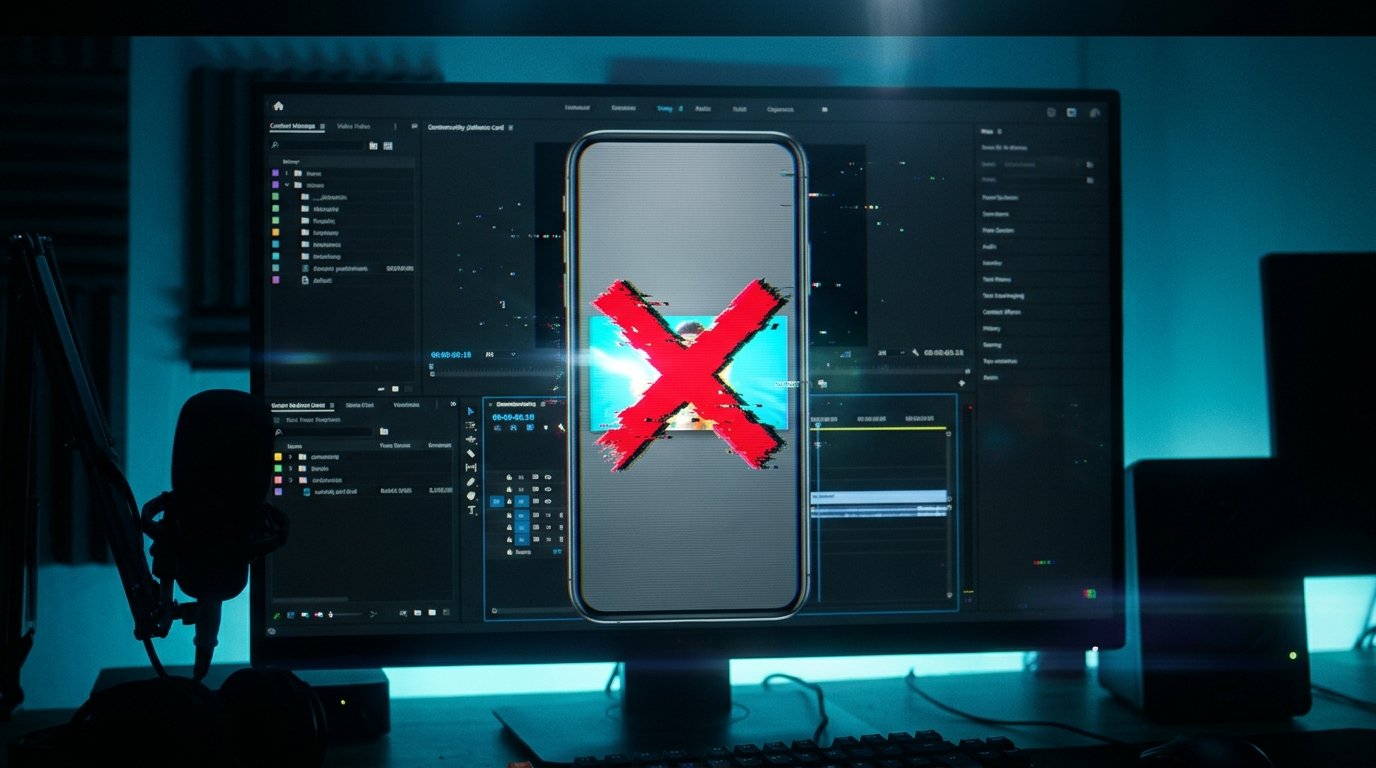
The short clip itself usually has a vertical 9:16 aspect ratio. If you want to use your own design when image upload isn't available, add it to the video sequence. For this option, it's convenient to prepare an image at 1080×1920 pixels and insert it into the video as a separate frame or a short intro card.
Place text and logos on such a frame closer to the center. The preview on the channel page may be cropped to fit the vertical card, and small elements near the edges become invisible. Before uploading, also check that the image isn't corrupted, opens on your device, and hasn't been exported in a non-standard format.
How to Identify What the Problem Actually Is
First, divide the situation into three scenarios: the thumbnail can't be selected, the chosen frame resets after saving, or the thumbnail saved but doesn't display everywhere. Each case requires different actions.
Open the clip through your own Shorts list rather than a random link from your history. Check the channel name and profile avatar. If you have multiple channels, switch to the one where the video is published. Then make sure you have permission to edit the clip.
Check the video status in YouTube Studio. While uploading, processing, or applying changes is in progress, don't close the app or start editing the same clip on another device. Once processing is complete, refresh the channel page and check the thumbnail separately in a browser.
If the desired frame shows on the channel page but doesn't appear in the Shorts feed, it's not necessarily a glitch. The short video feed may use an automatic segment or the first frame during playback. If the old image remains on the channel page, in search, and in the browser after refreshing, the problem is most likely not just the cache.
What to Do If a Separate Image Won't Upload
Open Shorts in the current YouTube mobile app. Go to editing the clip and find the pencil icon or the thumbnail change option. Button names may vary depending on the app version. If YouTube shows frames from the video, select the desired moment, tap confirm, and wait for the save to complete.
Don't look for the file upload button in every Studio section. For Shorts, it may be missing in the mobile version, the phone browser, and when editing an already published clip. In some scenarios, YouTube allows you to select a frame only during publishing and won't let you replace it with a separate image afterward.
If the "Upload file" button is there, prepare the image to meet the technical requirements, select it from your device storage, and wait for the upload to finish. Don't switch to another screen or close the app until confirmation appears. If an error occurs, retry the upload after updating YouTube.
When you can't upload a file, use a workable alternative: add the desired image to the clip itself for a brief moment. You can do this in a video editor before publishing. After processing, open the thumbnail selection and choose the frame with that image. This method doesn't require a separate thumbnail upload feature.
How to Fix the Thumbnail Resetting After Saving
First, repeat the change using a single device and a single interface version. For example, open the YouTube mobile app, switch to the right channel, find the specific Shorts in your video list, and select the frame again. Editing simultaneously on a phone and a computer can cause a later save to overwrite the previous selection.
Update the app through the official store and restart your device. On Android, you can additionally clear the YouTube cache in the app settings. On iPhone, there's usually no separate cache-clearing button: restarting, offloading, or reinstalling the app helps. Before reinstalling, make sure you remember your login credentials.
If you're working through a browser, open YouTube Studio in another browser or in incognito mode. This helps check whether the browser is showing an old page from local cache. On a computer, you can force-refresh the page with Ctrl+F5 or use a regular reload after processing completes.
Don't delete the clip right away and don't publish multiple copies in a row. If the problem occurred with only one Shorts, save the original file and check its processing first. Deleting a video can cost you current views, comments, and already-collected statistics, but it doesn't guarantee that a new clip will get the right thumbnail.
When the Thumbnail Updates Across Different Platforms
YouTube has no single guaranteed timeframe for a new thumbnail to appear across all interfaces. On the channel page, the change often becomes visible after saving completes and the page is refreshed. In the app, the result may appear after a restart, and in the browser, after clearing the cache or a forced reload.
Search, recommendations, and other YouTube sections update their data independently of each other. So a new thumbnail may appear on the channel before it shows in search results or in the Shorts card. Typically the delay ranges from a few minutes to a few hours, but the exact timeframe depends on processing and cache.
If a link to the Shorts is posted on a third-party site or in a messenger, that platform may keep its own preview. Such a platform fetches and caches the image separately from YouTube. Updating on YouTube itself doesn't always immediately change the image in an external post or message.
Check the result in several places: on the channel page, in YouTube Studio, in a browser without logging in, and on another device. If the new version shows everywhere except the Shorts feed, the setting has probably saved. If the old thumbnail remains across all interfaces after a long wait, repeat the setup and contact support.
When to Contact YouTube Support
First, take the basic steps: check the channel, update the app, repeat the frame selection, wait for processing, and clear the local cache. If the file upload feature is missing, that's not a reason to file a complaint: YouTube may not support that scenario for a particular Shorts.
Contacting support makes sense if the needed button was available, the file met the requirements, but the upload constantly fails with an error. It's also worth reporting the problem if the selected frame resets on the channel page after successful confirmation and checks on multiple devices.
In your request, include the link to the Shorts, the name of the relevant channel, the device, operating system, and app version. Describe the sequence of actions: where you selected the thumbnail, whether a confirmation appeared, and where it disappeared. A screenshot of the error will help pinpoint the cause more accurately.
Quick Action Checklist
- Check that the right channel and clip are open and that you have permission to edit it.
- Wait for the Shorts upload and processing to finish.
- Update YouTube and repeat the thumbnail selection through the mobile app.
- If file upload is available, use JPG or PNG up to 2 MB, size 1280×720, and a 16:9 ratio.
- If file upload isn't available, add your own image to the video sequence and select the corresponding frame.
- After saving, check the thumbnail on the channel page, in a browser, and on another device.
- Wait for the cache to update in search and external previews, then contact YouTube support if the problem persists.
Last Articles
What has changed in design and functionality We have updated the website to make working with it faster and more convenient. The main changes affect ..
Good afternoon, I've collected all the news during this time.: 1. The main news is that prices for twitch viewers have been greatly reduced, while Tw..
1. Use promo code "December2025" for a 15% discount for all our viewers2. We have reduced the base prices for our configurator and the most affordable..
Twitch services are working stably, so we are ready to cooperate with squads, resellers, service owners, bot owners, and many others.Individual te..
We have completely updated our Twitch viewer services, and they are now working stably. We only use high-quality IP addresses for the viewers.The ..
Hello everyone! Today, we are announcing a new feature—"Twitch Viewer Configurator". Now, you can customize any plan for your Twitch channel. Choo..
Greetings, I have compiled a guide for streamers, which will be very relevant at the moment. Now YouTube and twitch have disabled monetization from vi..
We have finally developed the APINow it will be more convenient for our partner sites to work with us.To update the maximum tariffs for YouTube, an up..
Due to the huge popularity of the partnership services and referral program, we have made a cooperation table. The essence is very simple: more live a..
Our Services for Streamers








Our Services for Content Creators






