
Why a stream recording quickly fills up MacBook storage
The local source file is usually heavier than the broadcast
The main reason for a quickly filled SSD is simple: OBS or another program can send a compressed stream to the platform for viewers while simultaneously saving a local file at higher quality. For the broadcast, channel stability and platform limits matter, while the recording is often made with headroom for editing, clips, and vertical videos.
The size of a local recording is determined by its own settings, not by the broadcast parameters. Even if the stream goes out at moderate quality, the MacBook may be saving a file with a different codec, a higher bitrate, a higher frame rate, or multiple audio tracks. After a long stream, a test capture, and an export, free space runs out especially fast.
Bitrate lets you calculate the recording size in advance
For recording at a fixed bitrate, there is a simple rule of thumb: every 1 Mbps of video takes up about 0.45 GB per hour. This doesn't include audio, container overhead, and small fluctuations, but for estimating free space this margin works.
- 10 Mbps — about 4.5 GB per hour.
- 20 Mbps — about 9 GB per hour.
- 30 Mbps — about 13.5 GB per hour.
- 40 Mbps — about 18 GB per hour.
- 60 Mbps — about 27 GB per hour.
- 100 Mbps — about 45 GB per hour.
Audio is added to these values. Multiple audio tracks will increase the final size, but video almost always takes up most of the space. If you have 80 GB free before a stream, a recording at 40 Mbps can take up a noticeable part of the disk within just a few hours.
VBR and constant quality give a less predictable size
With CBR, the program tries to maintain the set bitrate, so the size is easy to estimate from the table. The downside of CBR is that the stream is used even for static scenes, and in a dynamic game the set limit may not be enough for quality.
VBR changes the stream depending on the image. A talking stream with a static camera and a browser will usually be lighter than a recording of a shooter, racing, or a scene with active animations. The downside of VBR is that you have to rely on the average bitrate, and two streams of the same length can weigh differently.
Constant quality mode, including CQP and similar options, doesn't put file size first. In complex scenes, the encoder records more data to preserve the picture. This is convenient for editing, but you can't predict the exact size before a stream in this mode. Do a one-hour test with your usual stream scenes and check the actual file size.
Resolution, FPS, and codec change the demands on the drive
1080p at 60 FPS usually requires more space than 1080p at 30 FPS: the encoder needs to save twice as many frames. Increasing the resolution also increases the size. Fast motion, foliage, particles, a full-screen webcam, small interface text, and animations compress worse than a static talking scene.
A more efficient codec can reduce the archive size at similar quality. Its downside is that the recording can sometimes be harder to edit on an old MacBook, especially if the project consists of long source files, multiple tracks, and effects. A less compressed format is easier to edit but fills the SSD faster.
Don't copy quality values from other guides without checking. The set of modes in OBS depends on the selected encoder, and the same number in different settings doesn't mean the same quality, load, and file size.
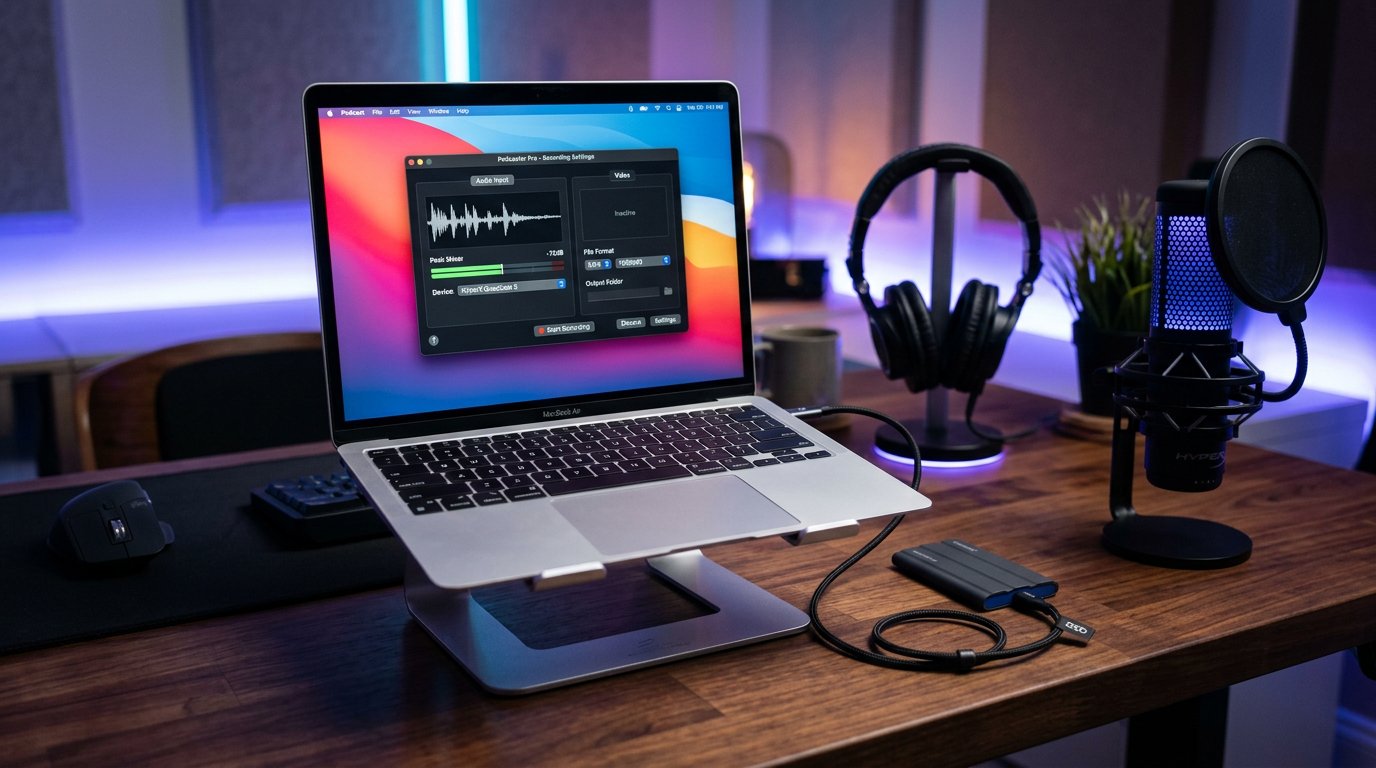
The recording path in OBS often leads to the internal SSD
In OBS, open "Settings" and go to the "Output" section. In simple mode, the parameters are in the recording block; in advanced mode, they're on the "Recording" tab. Check the save path, container format, encoder, and quality control method.
After changing the folder or connecting an external drive, old files don't move automatically. They stay in the previous directory on the internal disk. It's also worth doing a short test recording: the path may look correct in the settings, but the file may end up in a different folder if the external disk was disconnected or macOS didn't give the app access to it.
On many MacBooks, the internal drive can't be replaced or expanded. So it's better to leave it for macOS, applications, temporary editing files, and the current project, and write long source files separately.
Finder and macOS settings help you find heavy files
Start with the folder specified in OBS. In Finder, open it as a list and sort the files by size. Check not only finished streams but also encoder tests, crash recordings, copies after remux, and exported videos.
- In Finder, use a search by the "Movie" type and sort by size.
- Check the "Movies", "Documents", "Downloads" folders and the video editor's working folder.
- Open macOS storage settings via the Apple menu to see large file categories.
- Empty the Trash: a deleted recording keeps taking up space while it's there.
- In Finder, enable folder size calculation to compare the size of source files, cache, and exports.
The "Documents" category in macOS storage can include recordings, projects, and cache, not just text files. The downside of this overview is that it doesn't always immediately show the specific heavy file. For an exact check, it's more convenient to open folders in Finder or use a disk analyzer.
Editing cache and proxies can weigh no less than the source files
A video editor creates preview files, effect cache, renders, and proxy versions. They help you edit heavy material more smoothly but can remain on the internal SSD even when the recordings themselves have already been moved to an external drive. Check the settings for the media cache location and project files separately.
Proxies are useful on a MacBook when editing a heavy codec or multiple sources. Their downside is that each proxy version is an additional file. If you don't clean the cache after finishing a project, free space will shrink without any new streams.
Don't delete the project folder at random. First make sure the source files, the finished export, and important project elements are saved in the right place. The cache can usually be recreated, but the specific cleanup procedure depends on the editor.
Remuxing from MKV to MP4 creates a second heavy copy
OBS is often used with MKV recording so that if the program crashes, the entire file isn't lost. After the stream, the recording can be remuxed to MP4 for editing or uploading. If the original MKV stays in the folder and an MP4 appears next to it, the disk holds two almost equally heavy versions.
The downside of recording directly to MP4 is that if OBS crashes, the MacBook freezes, or the external drive disconnects, the file can become corrupted and won't open. MKV is more reliable for capture, but after remuxing you need to check the new version: open it, make sure the necessary audio tracks are present, and only then decide whether you need the original container.
An external SSD frees up the MacBook's internal disk
For long streams, assign a separate folder on an external SSD in OBS. Connect the drive, create a directory for source files, and set it as the recording path. If the disk is used only with a Mac, a format suitable for macOS is convenient. To work between Mac and Windows, a compatible format may be required, but it may have limitations for macOS tasks.
Before an important stream, run a long test with the same resolution, FPS, scenes, and quality settings. Check that the file appeared on the external drive, opens fully, and has no gaps. At the same time, it's best not to load the same disk with recording, editing, and transferring a large archive.
The downside of an external SSD is its dependence on the cable, port, and power. An accidental disconnection can stop the recording or corrupt the current file. Don't use a drive that regularly disconnects, overheats, or is connected through an unreliable adapter.
Separate working recordings, projects, and archive
Don't keep all streams in one folder on the internal disk. You can keep working source files on an external SSD, the files of the current edit in a separate project folder, and move finished videos and a verified archive to another drive or cloud storage.
After publishing, review the contents of the folder: often the original MKV, the remuxed MP4 version, the video export, the vertical format version, and the test capture remain there. Delete only the copies that aren't needed for re-editing, and check the saved archive first. The downside of keeping a single copy on one external disk is that the drive can fail too.
When it's worth lowering local recording settings
If the recording is only needed as a backup in case of VOD problems, you don't have to save maximum quality for every stream. You can reduce the resolution, choose 30 FPS instead of 60, set a moderate bitrate, or disable unnecessary audio tracks. This reduces the archive size and the risk of the recording stopping due to a full disk.
For streams from which videos, clips, and cropping are planned, a strong quality reduction has a direct downside: details, text legibility, and motion smoothness can't be restored after the stream. In that case, it's more important to calculate the size by bitrate in advance, clear the workspace, and record the source file to a verified external SSD.
Last Articles
What has changed in design and functionality We have updated the website to make working with it faster and more convenient. The main changes affect ..
Good afternoon, I've collected all the news during this time.: 1. The main news is that prices for twitch viewers have been greatly reduced, while Tw..
1. Use promo code "December2025" for a 15% discount for all our viewers2. We have reduced the base prices for our configurator and the most affordable..
Twitch services are working stably, so we are ready to cooperate with squads, resellers, service owners, bot owners, and many others.Individual te..
We have completely updated our Twitch viewer services, and they are now working stably. We only use high-quality IP addresses for the viewers.The ..
Hello everyone! Today, we are announcing a new feature—"Twitch Viewer Configurator". Now, you can customize any plan for your Twitch channel. Choo..
Greetings, I have compiled a guide for streamers, which will be very relevant at the moment. Now YouTube and twitch have disabled monetization from vi..
We have finally developed the APINow it will be more convenient for our partner sites to work with us.To update the maximum tariffs for YouTube, an up..
Due to the huge popularity of the partnership services and referral program, we have made a cooperation table. The essence is very simple: more live a..
Our Services for Streamers








Our Services for Content Creators






