
How to protect a Minecraft server for streaming from griefers
Why a streaming server needs multi-layered protection
The server address can be seen on screen, heard in conversation, obtained from a participant, or found through players you know. After that, it's not just viewers who show up: someone tests dupes, spams the chat, breaks decorations, looks for open commands, and tries to get into technical areas.
A ban after an incident doesn't put the stream back on track. A player can leak base coordinates, destroy a set, take resources from storage, or break a mechanism before anyone notices. A working setup is built from several levels: a whitelist restricts entry, permissions lock down commands, regions protect areas, logs help find the source of the damage, and backups provide a recovery point.
The whitelist restricts entry to the server
The whitelist only allows accounts from an approved list to connect. If a player isn't on it, they won't get in even with the correct server address. For a closed event, survival with subscribers, or a map with prepared decorations, this is the basic barrier.
On a vanilla server or a Paper-based build, the whitelist is enabled with the command /whitelist on. You can add a player with /whitelist add Username, remove one with /whitelist remove Username, and check the list with /whitelist list. These same commands can be run from the server console without the slash.
The downside of a whitelist is straightforward: viewers won't be able to connect spontaneously. Applications, username checks, and adding new participants will take time from a moderator or administrator.
A whitelist doesn't replace account verification
The whitelist checks the connecting username against the list of allowed players. It doesn't confirm that the person connecting is actually the account owner. For that, the server must run with online-mode enabled: then the player's session is verified through Minecraft authentication.
With online-mode, you can't simply enter a whitelisted person's username in the client and log in as them. For a closed server this is safer, especially if the allowed list includes builders, moderators, and regular participants.
In offline-mode, the server doesn't verify account ownership. Authorization plugins reduce the risk but require separate configuration and monitoring. The downside of online-mode is that participants using unofficial clients won't be able to connect.
How to add participants without granting extra access
Don't add a username that was sent in the public stream chat. A similar name, a different keyboard layout, or characters that look like Latin letters can let someone impersonate a regular viewer, builder, or moderator. It's better to copy the username from the application rather than typing it from hearing.
Choose a single application channel: a form, a ticket, or messages from verified accounts in the community. It's enough to request the in-game username, the role on the server, and a link to the participant's profile. For a temporary event, it's useful to record who was granted access and for which stream.
After the event ends, remove temporary participants from the whitelist if they aren't needed further. The downside of this approach is that some viewers will have to wait for an invitation, and the team will need to maintain an up-to-date access list.
OP should not be given to builders and moderators
Operator status opens up too many possibilities: changing game mode, giving items, teleporting, managing the whitelist, bans, world settings, command blocks, and other players' permissions. If a person needs one tool for building, OP still gives control over almost the entire server.
Operators should remain the server owner and the technical administrator you fully trust. Check the ops.json file and the OP list after setup, remove old entries, test accounts, and permissions of former team members.
For administrative tasks, it's better to use a separate account that doesn't appear on screen and isn't used for regular play. The downside of denying OP to the team is that a builder or moderator will sometimes have to ask the administrator for rare tasks.
Roles should be built around specific tasks
A role describes a person's job, not a general level of trust. A survival player doesn't need creative mode. A builder doesn't need bans, the whitelist, or access to storage. A chat moderator doesn't need to edit the map or assign groups in LuckPerms.
- A viewer waits in the lobby, watches the event, or uses a minimal set of mechanics.
- A participant plays in the allowed mode and uses only the commands provided by the scenario.
- A builder changes blocks in a designated work area and doesn't manage the server.
- A moderator monitors the chat, responds to violations, and applies limited punishments.
- A technical administrator configures plugins, regions, groups, logs, and backups.
- The server owner decides who gets OP, when to do a full rollback, and who to block permanently.
The narrower the role, the easier it is to verify with a test account. The downside of having many roles is that they're harder to maintain when the map, plugins, and team composition change.
LuckPerms manages groups and permission inheritance
LuckPerms is convenient to use as a single access management layer. First create role groups, then assign permissions to groups rather than individual players. Leave personal permissions only for short-term exceptions, for example for a builder preparing a single set before the stream.
A minimal set of groups might look like this: viewer, participant, builder, moderator, and admin. The admin group shouldn't be a replacement for OP: it should only include plugin permissions that the technical administrator actually needs.
The builder group is created with the command /lp creategroup builder. Then it's assigned a specific permission, for example /lp group builder permission set worldedit.wand true. A player is added to the group with the command /lp user Username parent add builder. Don't grant permissions through wildcard masks like luckperms.* or worldedit.*: they can open commands you didn't plan for.
After setup, verify actual access with the command /lp user Username permission check worldedit.wand. It shows whether the player received the permission directly, through a group, or by inheritance. You need to check the player's actual permissions, not just the group settings.
The downside of LuckPerms is that an inheritance error can open more than planned. For example, builder might accidentally inherit the administrator group, or a player might retain an old personal permission from a previous event.
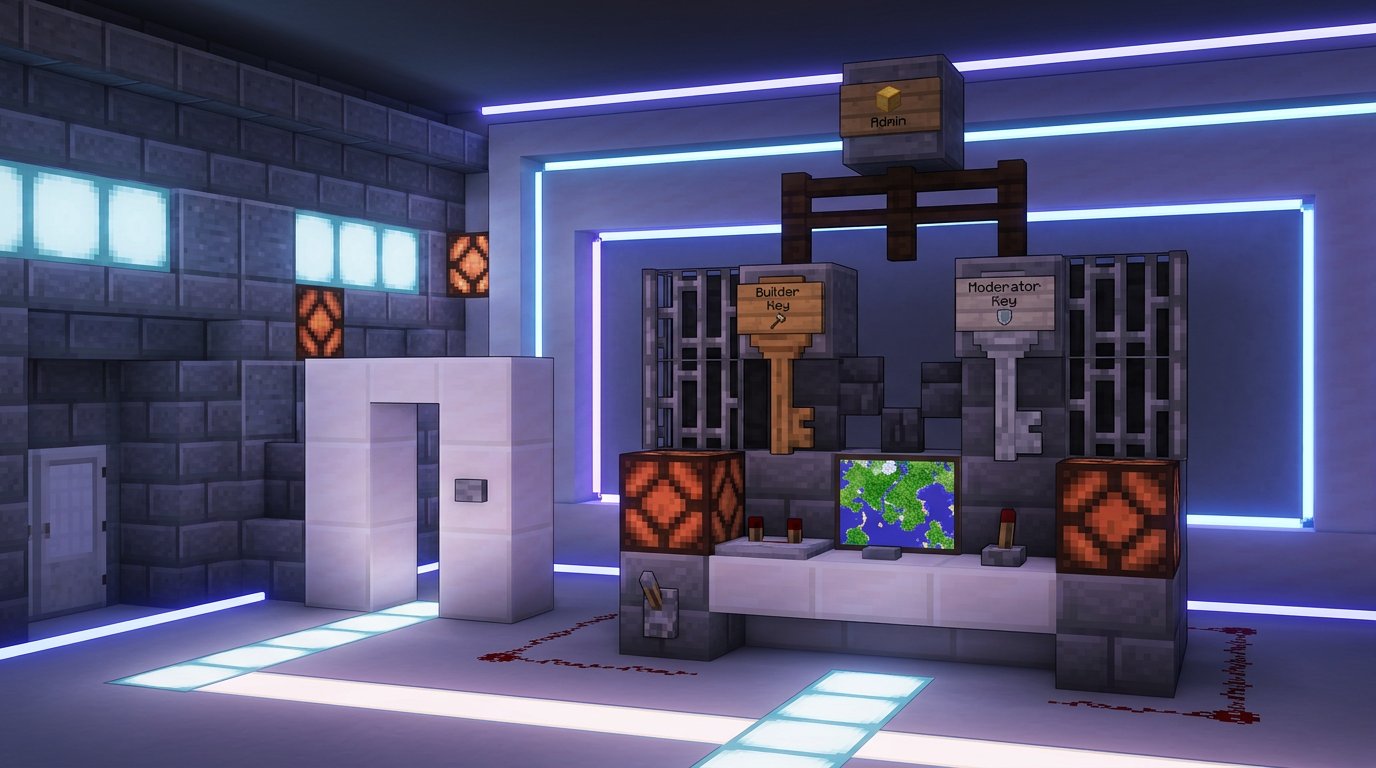
How to configure group inheritance in LuckPerms
Inheritance should only be used where a lower role genuinely needs the base set of permissions from a higher one. For example, participant can inherit viewer if the viewer already has safe permissions for chat or lobby commands. Builder doesn't have to inherit participant: building permissions and gameplay mechanics are often better kept separate.
Check which groups each role inherits through the LuckPerms editor or group viewing commands. Pay special attention to temporary permissions: they're convenient for preparing a map, but after the stream they may remain with a person if no expiry was set or no check was performed.
If a builder needs access only during preparation, assign the group for a limited time and remove it manually after the work is done. The downside of temporary permissions is that with an incorrectly chosen duration, access may disappear before the work is finished or remain longer than needed.
Builder permissions should be granted without server access
A builder usually needs tools for selecting, editing, and undoing actions. The names of permission nodes depend on the installed world editor and its version, so first check them against the documentation of the specific plugin. Don't grant the builder group a mask like worldedit.*: it can enable commands you didn't plan to open.
For WorldEdit, specific permissions are often used for the selection tool, choosing positions, editing a region, pasting schematics, and undoing operations. For example, worldedit.wand may be used for working with selections, and worldedit.history.undo for undoing. Grant schematic pasting only to those who need it: an incorrect paste can affect the set, spawn, and technical structures.
A builder doesn't need minecraft.command.gamemode, minecraft.command.whitelist, luckperms.*, or permissions to change groups. The downside of granular configuration is that for a new building task you'll have to add the required permission separately or involve the technical administrator.
Moderator permissions depend on the punishment plugin
A moderator needs a set of commands for quick response: mute, kick, temporary ban, or sending a player to an isolated area. The right to punish doesn't mean access to giving resources, changing game mode, editing the map, managing the whitelist, or assigning groups.
If a separate plugin is used for punishments, grant only its specific nodes. In builds with EssentialsX, essentials.mute, essentials.kick, and essentials.tempban may be used. They can't be considered universal: in another plugin, the names and command set will be different.
For the vanilla kick command on Paper, the permission node minecraft.command.kick is usually used. Don't add minecraft.command.op, minecraft.command.whitelist, minecraft.command.give, minecraft.command.gamemode, and luckperms.* to the moderator. The downside of a limited role is that a moderator won't always be able to resolve a non-standard technical problem on their own.
WorldGuard regions protect the map separately from permissions
LuckPerms answers the question of which command a player can use. WorldGuard answers a different one: where they can build, open containers, press buttons, or interact with mechanisms. A streaming server needs both levels of protection.
To create a region, WorldEdit is usually used: select the territory, then create the region with the command /rg define name. A player can be added as a member with /rg addmember name Username. A region member gets access only within the zone but shouldn't become the region owner or change its flags.
Create separate regions for the lobby, arena, set, storage, technical room, and building area. The downside of having many regions is that when decorations are moved and the map changes, they have to be maintained manually.
WorldGuard flags lock down containers and mechanisms
A building ban by itself doesn't protect chests, buttons, trapdoors, levers, item frames, minecarts, and redstone. A player may not break the set directly but can open storage, turn off a mechanism, activate a trap, spill liquid, or lure mobs toward the decorations.
For each zone, check the flags build, interact, use, chest-access, pvp, entry, fire-spread, lighter, lava-fire, water-flow, and explosion protection. The set depends on the server version, plugins, and event mechanics. Storage usually needs containers and interaction blocked, while the arena needs separate PvP and entry rules.
Check the region boundaries by height, not just on the surface. Otherwise, a player will get under the set, into a technical tunnel, or onto the roof of a structure. The downside of strict flags is that they can break event mechanics if the scenario isn't run through in advance.
CoreProtect helps find and roll back local griefing
Logs are needed to determine who broke a block, took an item from a container, placed lava, or changed a mechanism. CoreProtect records in-game actions and lets you search them by player, time, coordinates, and action type.
For a quick check of an area, inspection is usually enabled with the command /co inspect, then you click on a block or container. For searching, /co lookup is used with filters by time, player, radius, and action. The filter syntax and available actions depend on the plugin version, so it should be tested on a test map before the stream.
A rollback is performed with /co rollback using narrow conditions: a specific time, player, and zone. First review the search results, then roll back a small area. After the operation, check containers, mechanisms, and the boundaries of the restored zone with a test account.
CoreProtect permissions should be separated: a moderator can be left with inspect and lookup, while rollback and restore go to the technical administrator. An erroneous broad rollback can delete participants' legitimate work along with the traces of griefing. The downside of a targeted rollback is that you first need to pinpoint the time, place, and source of the damage.
Backups are needed before the stream starts
Logs help fix local damage but don't replace backups. Make a backup of the world before the stream, after preparing decorations, before updating plugins, and after major map changes. Store the copy separately from the main server folder, otherwise a disk failure or accidental deletion will affect both the world and the archive.
The backup should include the world folders, plugin configurations, LuckPerms data, WorldGuard settings, and other files without which the map won't be restored to a working state. If LuckPerms permissions are stored in an external database, that needs backing up too: a copy of only the server folder won't restore groups and permissions.
Before restoring a full copy, stop the server and save the current files separately. This will let you return to the post-stream state if the wrong archive was chosen or it's missing the needed data. Check not only that the backup exists but also that it can be deployed on a separate test copy.
A full restore returns the server to its previous state but deletes actions made after the backup point. So for a single destroyed region, it's safer to use CoreProtect first. The downside of a backup is that it doesn't preserve progress made after the copy was created.
What to do when griefing is attempted during a stream
First stop the offender's access, then gather details. Don't argue with them in the public chat and don't grant extra permissions for a "check." If the cause of the incident is unclear, temporarily stop adding new participants and check the groups, regions, and access list.
- Remove the offender from the whitelist and apply a block using server tools or a punishment plugin.
- Record the time, coordinates, in-game chat messages, and the stream recording.
- Check the history of blocks, containers, and actions through CoreProtect.
- Check the player's groups and the sources of their permissions through LuckPerms.
- Revoke the permission, group, or region access through which the violation occurred.
- Restore the damaged area with a targeted rollback or a backup.
If the damage affected many zones, first save a current copy of the world, then decide on a full restore. The downside of this approach is that the stream pause may drag on, but you won't have to choose between an irreversible rollback and losing evidence.
What to check before the stream starts
- The whitelist is enabled, and only participants of the current event are on it.
- The server runs in online-mode if the stream format doesn't require a separate authorization scheme.
- Regular participants, builders, and moderators don't have OP.
- LuckPerms groups don't inherit extra permissions and don't contain old temporary permissions.
- A participant's test account can't use administrative commands.
- A builder can edit only the work region, not the set, storage, and technical room.
- A moderator can apply the required punishment but can't change groups, regions, and the whitelist.
- In WorldGuard, building, containers, buttons, mechanisms, liquids, fire, and explosions have been checked.
- CoreProtect records actions, and only the responsible administrator has rollback permissions.
- A backup of worlds, plugin settings, and access permission data has been created outside the server folder.
- The server address, console, file list, and technical commands are not shown on screen.
Last Articles
What has changed in design and functionality We have updated the website to make working with it faster and more convenient. The main changes affect ..
Good afternoon, I've collected all the news during this time.: 1. The main news is that prices for twitch viewers have been greatly reduced, while Tw..
1. Use promo code "December2025" for a 15% discount for all our viewers2. We have reduced the base prices for our configurator and the most affordable..
Twitch services are working stably, so we are ready to cooperate with squads, resellers, service owners, bot owners, and many others.Individual te..
We have completely updated our Twitch viewer services, and they are now working stably. We only use high-quality IP addresses for the viewers.The ..
Hello everyone! Today, we are announcing a new feature—"Twitch Viewer Configurator". Now, you can customize any plan for your Twitch channel. Choo..
Greetings, I have compiled a guide for streamers, which will be very relevant at the moment. Now YouTube and twitch have disabled monetization from vi..
We have finally developed the APINow it will be more convenient for our partner sites to work with us.To update the maximum tariffs for YouTube, an up..
Due to the huge popularity of the partnership services and referral program, we have made a cooperation table. The essence is very simple: more live a..
Our Services for Streamers








Our Services for Content Creators






